AppsFlyer ESP 2.0-Integration
AppsFlyer ist eine Plattform für mobile Attribution und Marketinganalysen. AppsFlyer ESP 2.0 ist die Integration von AppsFlyer für E-Mail-Service-Provider (ESPs). Verbinden Sie Pushwoosh mit ESP 2.0, um das Link-Tracking in E-Mail-Kampagnen zu aktivieren. Bei dieser Integration verpackt Pushwoosh URLs, und die ESP 2.0-Lösung sorgt dafür, dass Deep Linking für iOS Universal Links und Android App Links weiterhin funktioniert, wenn Links zum Tracking verpackt werden.
Diese Integration sendet auch Daten zu Link-Klicks an AppsFlyer, sodass Sie volle Transparenz über die E-Mail-Performance neben Ihren anderen Marketingkanälen erhalten und die tatsächliche Auswirkung von E-Mails auf die Nutzerakquise und das Engagement messen können.
Integrationsübersicht
Anchor link toVoraussetzungen
Anchor link to- Pushwoosh-Anwendung mit konfiguriertem E-Mail-Versand
- AppsFlyer-Konto mit der AppsFlyer ESP 2.0-Integration. Dies ist eine Premium-Funktion. Wenden Sie sich an Ihren AppsFlyer CSM oder den AppsFlyer-Support, um Zugriff zu erhalten.
Synchronisierte Entitäten
Anchor link toKlicks auf E-Mail-Links über Ihre Click-Tracking-Domain werden als Klickstatistiken in Pushwoosh und als Klick-Events mit Attributionsdaten in AppsFlyer erfasst.
Anwendungsfälle
Anchor link to- E-Mail-Klick-Tracking: Messen Sie E-Mail-Link-Klicks über AppsFlyer.
- Deep Linking aus E-Mails: Sorgen Sie dafür, dass Universal Links (iOS) und App Links (Android) weiterhin funktionieren, wenn Links in E-Mails verpackt werden.
Wie die Integration funktioniert
Anchor link toSobald die Integration live ist, durchläuft jeder Klick drei Schritte:
-
Pushwoosh ersetzt Links in Ihren E-Mails durch Tracking-URLs auf Ihrer CTD, zum Beispiel:
https://clickpush.yourdomain.com/json/1.3/emailRedirect?d=... -
Wenn ein Benutzer auf den Link tippt, geht die Anfrage über den konfigurierten CNAME an AppsFlyer. AppsFlyer erfasst die Attribution, kümmert sich um das Deep Linking und leitet den Benutzer zur endgültigen URL oder über Universal Link / App Link in die App weiter. Es sendet auch eine GET-Anfrage an Pushwoosh und übergibt Ihre CTD im Host-Header, damit Pushwoosh den Klick erfassen kann:
GET https://<Pushwoosh CNAME target>/json/1.3/emailRedirect Host: <your CTD>- Pushwoosh empfängt die Anfrage und erfasst den Klick für seine eigene Statistik.
Einrichten der Integration
Anchor link toSchritt 1. Eine Click-Tracking-Domain erstellen und aktivieren
Anchor link toDie Click-Tracking-Domain (CTD) ist der Domain-Teil einer getrackten Link-URL, die in einer E-Mail-Nachricht angezeigt wird. Sie kombiniert eine Subdomain mit Ihrer Hauptdomain, zum Beispiel clickpush.esp-integrations1.com. Die Subdomain wird in den DNS-Einstellungen Ihrer Domain bei Ihrem Domain-Provider erstellt, normalerweise durch Hinzufügen eines CNAME-Eintrags.
- Entscheiden Sie, welche Subdomain Sie als Ihre CTD verwenden werden (zum Beispiel
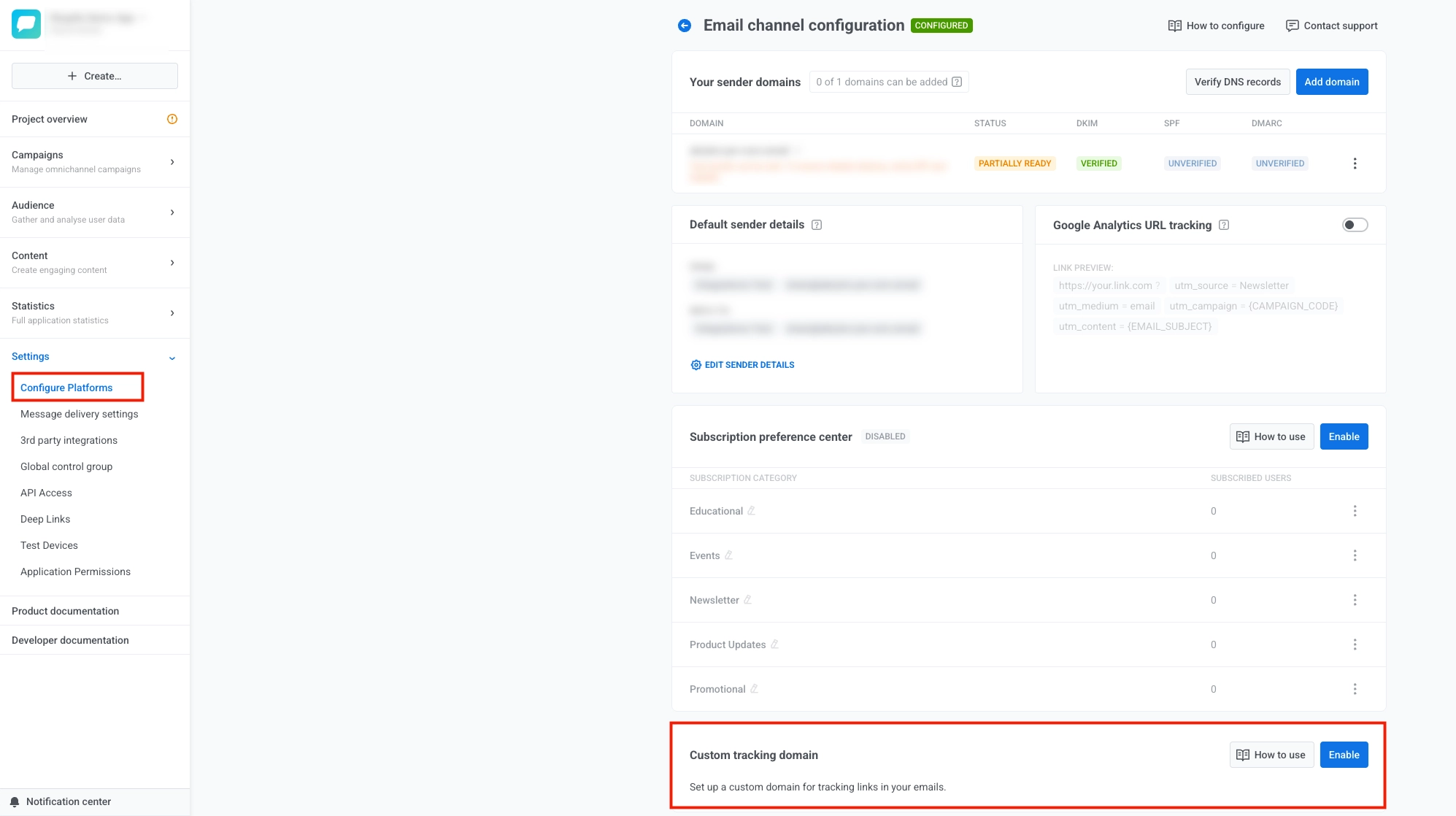
clickpush.esp-integrations1.com). - Öffnen Sie in Pushwoosh die Einstellungen und wählen Sie dann Plattformen konfigurieren.
- Scrollen Sie auf der Seite E-Mail-Kanal-Konfiguration zu Benutzerdefinierte Tracking-Domain und wählen Sie Aktivieren.
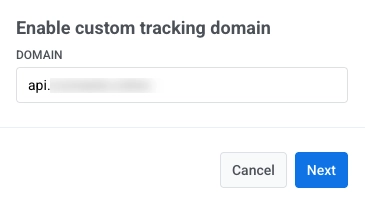
- Geben Sie Ihre CTD in das Feld Domain ein und wählen Sie Weiter.
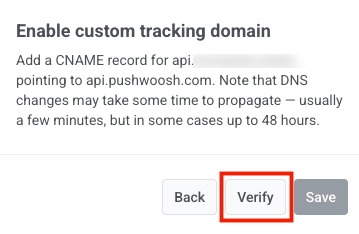
- Öffnen Sie außerhalb von Pushwoosh den Dienst, bei dem Sie das öffentliche DNS für die Domain Ihrer CTD verwalten (normalerweise Ihr Domain-Registrar, ein DNS-Host oder Ihr Hosting-Konto). Fügen Sie in dessen DNS- oder Zonen-Editor für diese Domain den CNAME hinzu, den Pushwoosh in diesem Schritt anzeigt, damit Ihre CTD auf
api.pushwoosh.comverweist.
- Wählen Sie in Pushwoosh Überprüfen.
-
Wenn die Überprüfung erfolgreich ist, wählen Sie Speichern.
-
Wenn Sie die Domain oder den DNS-Eintrag ändern müssen, wählen Sie Zurück und passen Sie die vorherigen Schritte an.
-
Nachdem Sie auf Speichern geklickt haben, erscheint Ihre CTD in der Liste Benutzerdefinierte Tracking-Domain in der E-Mail-Kanal-Konfiguration.

Um sie später zu deaktivieren, wählen Sie ... neben Ihrer CTD und dann Benutzerdefinierte Tracking-Domain deaktivieren.
Schritt 2. Die Integration in AppsFlyer starten
Anchor link toStarten Sie in der AppsFlyer-Plattform die ESP 2.0-Integration. Folgen Sie der Anleitung von AppsFlyer zum Einrichten Ihrer ESP-Integration.
AppsFlyer wird nach den folgenden Details fragen:
- Click-Tracking-Domain: Ihre CTD (zum Beispiel
clickpush.example.com) - ESP-Endpunkt:
api.pushwoosh.com(das CNAME-Ziel, das in Pushwoosh angezeigt wird, wenn Sie die benutzerdefinierte Tracking-Domain aktivieren)
AppsFlyer wird die Konfiguration validieren. Lassen Sie den CNAME der CTD auf api.pushwoosh.com verweisen, bis die Validierung abgeschlossen ist.
Schritt 3. CNAME auf AppsFlyer aktualisieren
Anchor link toNachdem AppsFlyer die Einrichtung validiert hat, erhalten Sie eine Routing-Domain (zum Beispiel jyvls.espclicks.appsflyer.com).
Aktualisieren Sie Ihren CNAME, sodass die CTD auf AppsFlyer anstatt auf Pushwoosh verweist:
Vorher:
clickpush.example.com → api.pushwoosh.com
Nachher:
clickpush.example.com → jyvls.espclicks.appsflyer.com (verwenden Sie die von AppsFlyer bereitgestellte Domain)
Senden Sie nach dem Wechseln des CNAME eine Test-E-Mail und überprüfen Sie, ob die Links korrekt geöffnet werden und die Klicks in AppsFlyer erscheinen.
Was als Nächstes geschieht
Anchor link toSobald die Änderung wirksam wird, läuft der Klick-Traffic über die Infrastruktur von AppsFlyer. AppsFlyer stellt die Routing-Schicht, SSL, AASA (Apple App Site Association) und Android App Links bereit.
Pushwoosh verpackt weiterhin Links und erfasst Klickstatistiken. In Pushwoosh ist keine weitere Konfiguration erforderlich.
Um mehr über die Einrichtung und das Testen auf der AppsFlyer-Seite zu erfahren, siehe: