How to set up an abandoned cart campaign
Shoppers who add items to a cart and leave without buying are some of the easiest conversions to recover. They’ve already shown intent.
This guide shows how to send them an abandoned cart email in Pushwoosh: fire the PW_AbandonedCart event from your store, show the left-behind items in the email with the Products block, and trigger the send from a Customer Journey.
What is PW_AbandonedCart
Anchor link toPW_AbandonedCart marks that a user left items in their cart without buying. It is not a built-in default event. It is a shared event name used across Pushwoosh e-commerce integrations so journeys, the Products block, and segments all work the same way.
- Magento integration: sends
PW_AbandonedCartandPW_OrderCreatedfor you automatically. - Shopify integration: sends
PW_AbandonedCart,PW_OrderCreated, andPW_AbandonedCartUpdate(fires again as the shopper keeps editing the same checkout) for you automatically, with cart items enriched from your Product Catalog. - WooCommerce integration: sends
PW_AbandonedCart,PW_AbandonedCartUpdate(fires when the shopper changes the same cart afterPW_AbandonedCartand leaves it again), andPW_OrderCreatedfor you automatically, with a link that restores the cart. - Any other store or custom backend: your team sends both events via postEvent with the names and attributes in How to send abandoned cart reminders.
What happens when you send PW_AbandonedCart
Anchor link toSending PW_AbandonedCart does two things on the Pushwoosh side:
- It’s recorded like any other custom event, so you can see it in Event statistics and use it in segments.
- Pushwoosh stores the cart contents and tags the user with:
- PW_AbandonedCartID: an identifier for the current cart, used to fetch its contents at send time.
- PW_AbandonedCartDate: the
abandonedDatevalue from the event payload.
What happens when you send PW_OrderCreated
Anchor link toWhen the shopper places an order, send PW_OrderCreated (or PW_OrderUpdated). Pushwoosh clears PW_AbandonedCartID and PW_AbandonedCartDate for that user right away. It does not match orderId values: any order from the user removes both tags, even if the purchase was for a different cart.
Example: A shopper abandons cart ORDER-100, then buys ORDER-200 before the reminder goes out. Pushwoosh clears the tags, so they won’t get a reminder about ORDER-100.
How to send abandoned cart reminders
Anchor link toFollow these steps to create the events, send them from your store, build the email, and launch the Customer Journey.
Create the events in your Control Panel
Anchor link toPushwoosh auto-creates an event and its attributes from the first postEvent call under a name it doesn’t recognize, inferring each attribute’s type from the value sent. That inference is unreliable for money fields in PW_AbandonedCart. Declare both events explicitly so the types are set correctly:
-
Go to Audience → Events in your Pushwoosh Control Panel and click Create Event.
-
Create a custom event named
PW_AbandonedCartwith these attributes:Attribute Type emailstring orderIdstring customerIdstring orderUrlstring abandonedDatedate createdDatedate totalPricedecimal (price) shippingAmountdecimal (price) taxAmountdecimal (price) discountAmountdecimal (price) currencystring -
Repeat for
PW_OrderCreatedwith a singleorderIdattribute.
Learn more about creating custom events.
Send the events from your backend
Anchor link toAsk your development team to call postEvent whenever a cart is abandoned, using this attribute schema:
{ "request": { "hwid": "8f65b16df378e7a6bece9614e1530fb2", "application": "XXXXX-XXXXX", "event": "PW_AbandonedCart", "attributes": { "email": "shopper@example.com", "orderId": "ORDER-10293", "customerId": "CUST-4471", "orderUrl": "https://yourstore.com/cart/restore/ORDER-10293", "abandonedDate": "2026-07-28T10:15:00Z", "createdDate": "2026-07-28T09:40:00Z", "totalPrice": 129.90, "shippingAmount": 9.90, "taxAmount": 0, "discountAmount": 0, "currency": "USD", "items": [ { "productId": "SKU-4821", "name": "Wireless headphones", "quantity": 1, "price": 119.90, "sku": "SKU-4821", "description": "Over-ear, noise-cancelling", "imageUrl": "https://yourstore.com/media/sku-4821.jpg", "productUrl": "https://yourstore.com/products/sku-4821", "category": "Audio" } ] }, "userId": "shopper@example.com" }}When the cart converts into an order, send PW_OrderCreated with just the orderId to clear the cart tags:
{ "request": { "hwid": "8f65b16df378e7a6bece9614e1530fb2", "application": "XXXXX-XXXXX", "event": "PW_OrderCreated", "attributes": { "orderId": "ORDER-10293" }, "userId": "shopper@example.com" }}Add a Products block to your email
Anchor link to- Open the email content editor and add a Products block to the canvas.
- In the settings panel, set Source to Cart.
- Set Max products shown to limit how many cart items appear in the email.
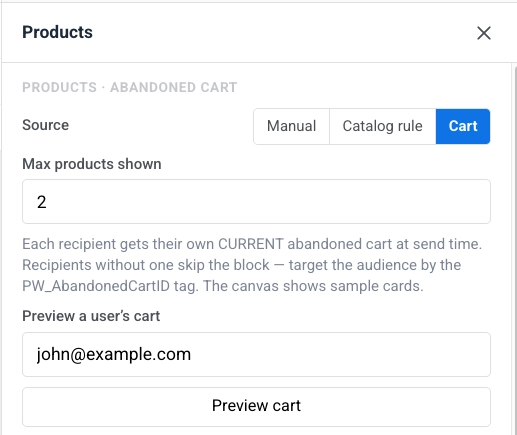
- Style the grid and card template as needed. See Style the grid.
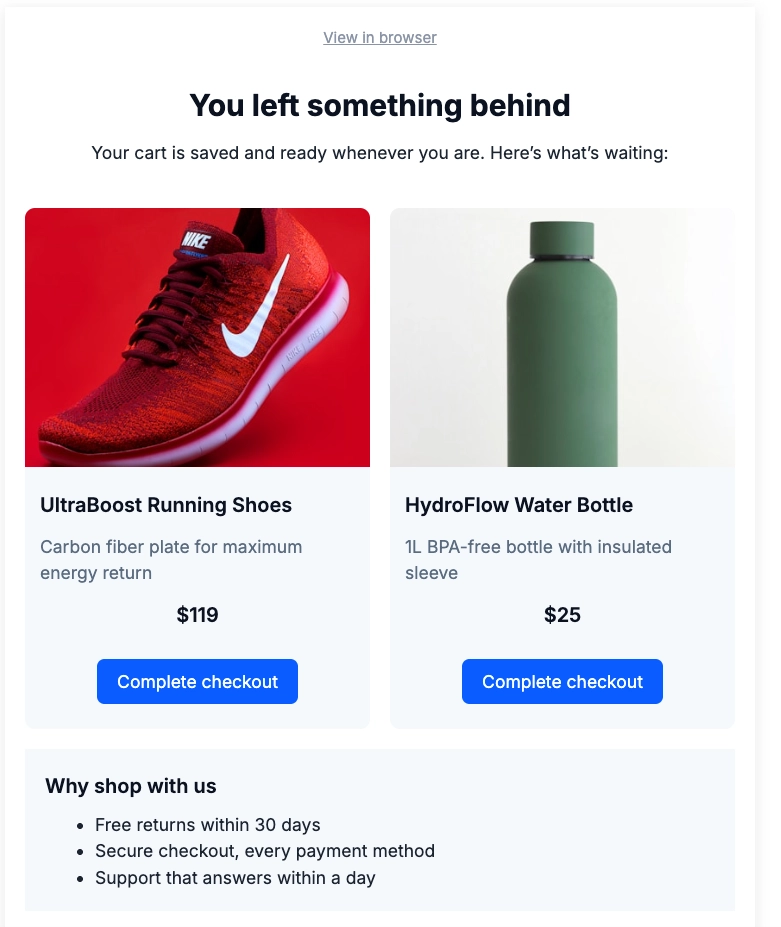
When the email sends, the Products block looks up each recipient’s stored cart using their PW_AbandonedCartID tag. It then fills the block with the current cart items: image, title, price, and a link back to the cart. The layout comes from the card template you set in the editor. Recipients without that tag (nothing abandoned, or already ordered) skip the block instead of showing empty content, so it’s safe to use in a broader campaign too.
Build the Customer Journey
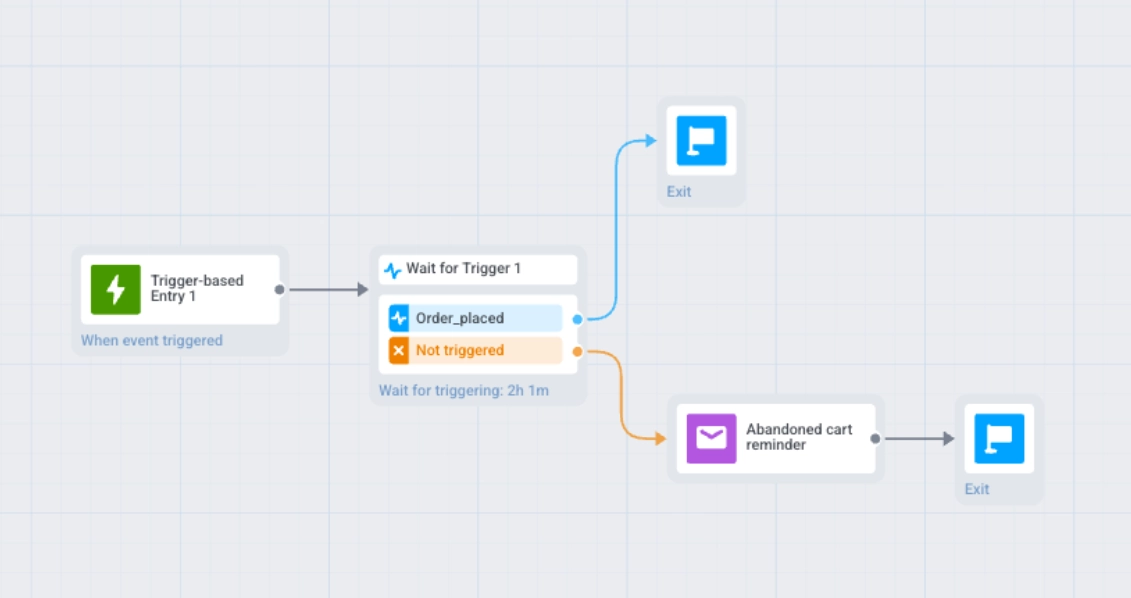
Anchor link to- Add a Trigger-based Entry using the
PW_AbandonedCartevent. - Add a Wait for Trigger step. Set its waiting period to an hour or two. Name the branch Order placed and add the
PW_OrderCreatedevent to it.
- Route the Order placed branch to Exit. The user already bought, so don’t remind them.
- Route the Not triggered branch to the Email step. Save the email you built in Add a Products block to your email as email content, then select it as this step’s content.
Test before you launch
Anchor link to- Send a test
PW_AbandonedCartevent for a test device. Don’t set thePW_AbandonedCartIDtag manually: the Products block loads cart contents from the stored cart that the event creates, not from the tag value. Without a real event, the block renders empty. - Preview the email and confirm the layout and product content before sending to real shoppers.