Grupo de controle global
O Grupo de controle global permite que você defina uma porcentagem fixa da sua base de usuários que será excluída de todas as comunicações de marketing (Push, E-mail, In-App). Os usuários do grupo de controle ainda recebem mensagens transacionais.
Isso ajuda a medir a eficácia de suas campanhas de mensagens, comparando os resultados dos usuários que receberam as mensagens com os que não receberam (o grupo de controle).
Quais usuários são incluídos
Anchor link toApenas novos usuários que se inscreverem depois que você ativar o grupo de controle podem ser adicionados. A Pushwoosh verifica cada novo usuário uma vez e atribui aleatoriamente alguns deles ao grupo com base na porcentagem que você definir (entre 1% e 15%).
Os usuários permanecem no grupo de controle, a menos que você altere o tamanho do grupo ou o desative. Manter o grupo inalterado ajuda a manter a precisão dos resultados da campanha.
Como o grupo de controle afeta a entrega de mensagens
Anchor link toMensagens de marketing (Push, E-mail, In-App) são bloqueadas automaticamente para os usuários do grupo de controle em todos os tipos de campanhas.
Mensagens transacionais (como redefinições de senha ou confirmações de pedido) ainda são entregues. Para garantir isso, selecione a mensagem Transacional ao criar uma campanha de jornada do cliente ou enviar uma mensagem única.
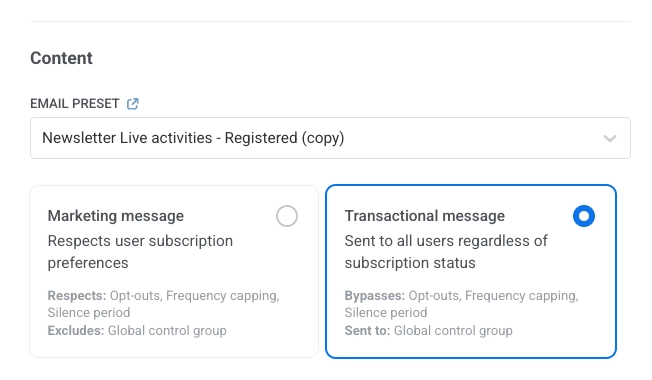
Saiba mais sobre mensagens de marketing e transacionais.
Trabalhando com usuários do grupo de controle
Anchor link toQuando você ativa o Grupo de controle global, a Pushwoosh cria uma tag de sistema:
- Nome da tag:
PW_ControlGroup - Valores:
true(o usuário está no grupo de controle) oufalse(o usuário não está)
Você pode usar esta tag para filtrar, segmentar ou exportar os usuários do grupo de controle.
Ativar o Grupo de controle global
Anchor link toImportante: Apenas administradores podem criar, editar ou excluir o Grupo de controle global. As funções são atribuídas em Minha Conta → Usuários e grupos. Saiba como gerenciar funções e permissões.
- Navegue até Configurações > Grupo de controle global.
- Clique em Ativar.
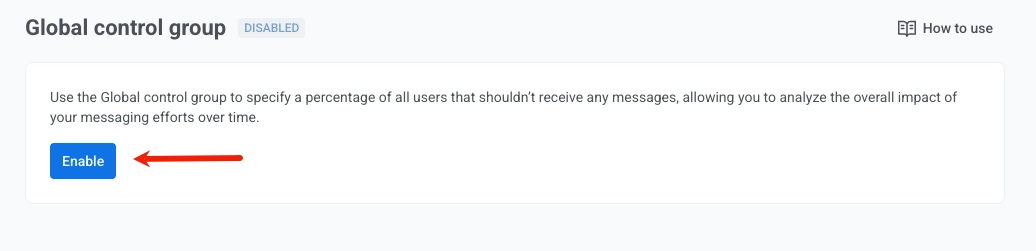
- Selecione qual porcentagem de usuários será excluída das mensagens de marketing para medir o impacto da campanha.
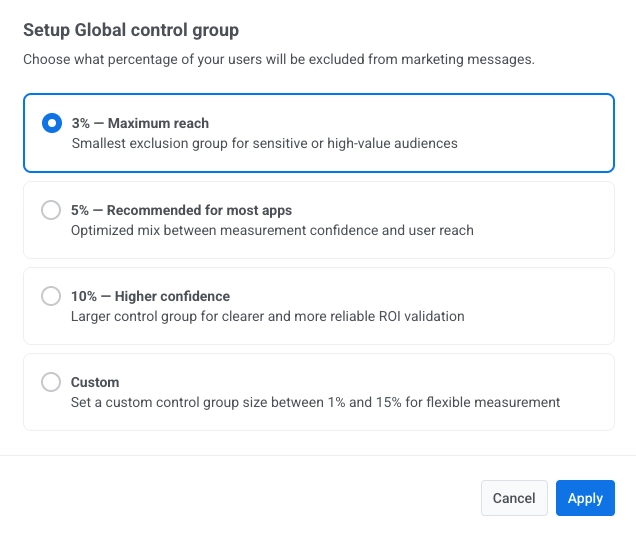
- 3%: Alcance máximo
Recomendado para aplicativos pequenos ou casos de uso críticos onde alcançar mais usuários é importante e a precisão da medição pode ser um pouco relaxada. - 5%: Recomendado para a maioria dos aplicativos
Melhor opção padrão. Fornece um bom equilíbrio entre a confiança na medição e o alcance do usuário. - 10%: Maior confiança
Adequado para campanhas em grande escala ou quando você precisa de alta precisão de dados para validar o ROI. - Personalizado (1%–15%):
Use quando precisar de flexibilidade para definir sua própria porcentagem com base no tamanho do aplicativo, tipo de campanha ou necessidades de negócios.
Clique em Aplicar para salvar sua seleção.
Gerenciar o grupo de controle
Anchor link toEditar o grupo de controle
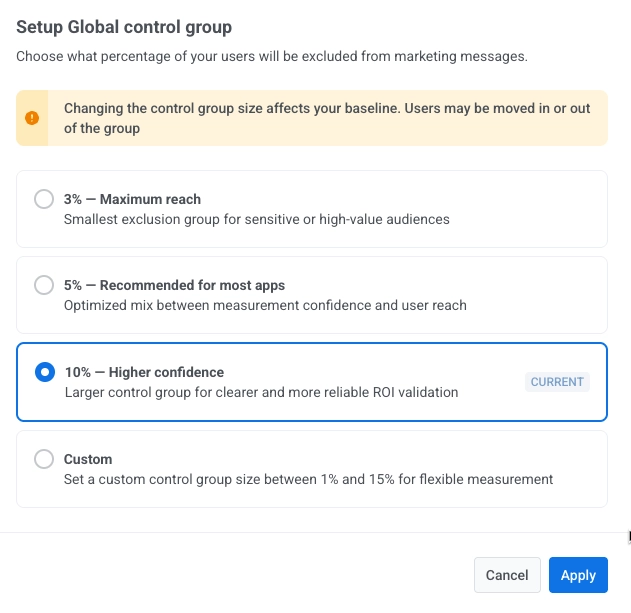
Anchor link toVocê pode ajustar o tamanho do grupo de controle a qualquer momento em Configurações > Grupo de controle global.
- Clique em Editar tamanho do grupo.
- Escolha uma nova porcentagem (1% a 15%).
- Clique em Aplicar para confirmar as alterações.
Exportar usuários do grupo de controle
Anchor link toPara baixar uma lista de usuários no grupo de controle:
- Abra Configurações > Grupo de controle global.
- Clique no menu de três pontos no canto superior direito.
- Selecione Exportar usuários.
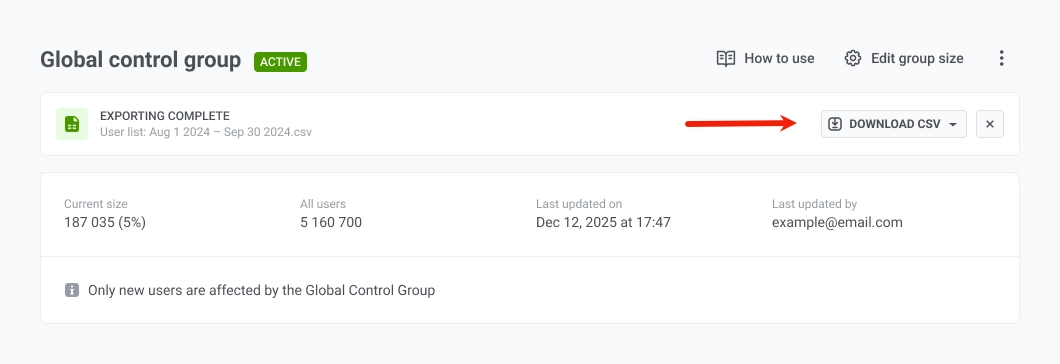
- Quando a exportação terminar, clique em Baixar CSV para salvar o arquivo.
Desativar o grupo de controle
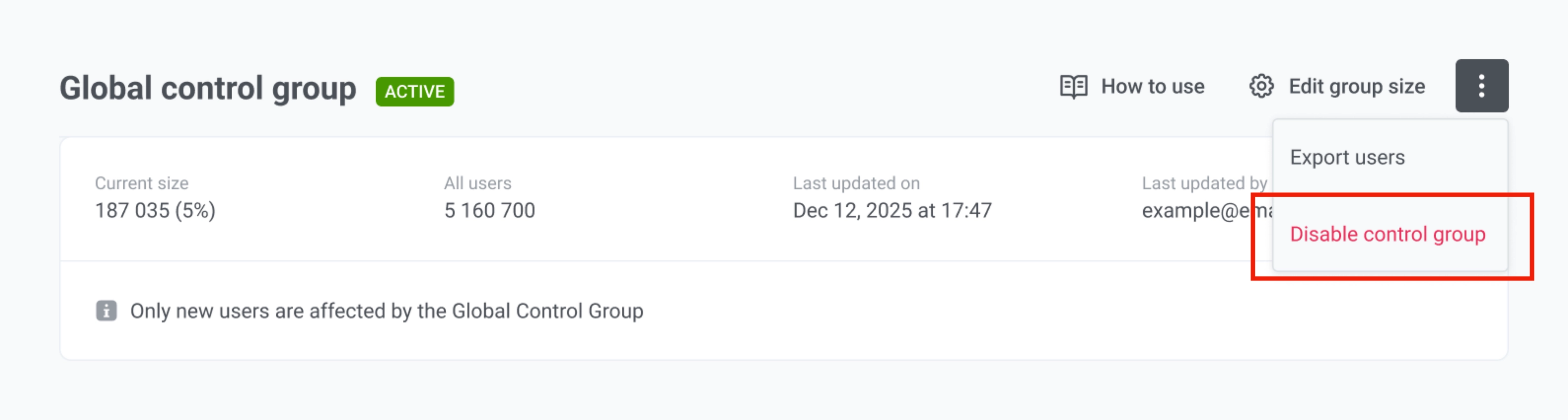
Anchor link to- Clique no menu de três pontos ao lado das configurações do grupo de controle.
- Selecione Desativar grupo de controle.
A desativação do grupo remove o status de grupo de controle de todos os usuários, e eles começarão a receber mensagens de marketing novamente. Se você o reativar mais tarde, a Pushwoosh criará um novo grupo com uma nova seleção aleatória.
Perguntas frequentes
Anchor link toQuais usuários são adicionados ao grupo de controle?
Anchor link toApenas usuários que se inscreverem depois que você ativar o grupo de controle podem ser adicionados. Quando um novo usuário se registra, a Pushwoosh decide aleatoriamente uma vez se ele entra no grupo de controle, usando a porcentagem que você definiu (1% a 15%). Usuários que já existiam em seu aplicativo quando você ativou o grupo de controle nunca são adicionados a ele.
Os usuários do grupo de controle recebem mensagens transacionais?
Anchor link toSim. As mensagens transacionais (por exemplo, redefinições de senha, confirmações de pedido) são entregues a todos os usuários, incluindo o grupo de controle. Apenas as mensagens de marketing são bloqueadas para os usuários do grupo de controle.
Onde eu defino o tipo de mensagem de marketing ou transacional?
Anchor link toVocê o escolhe onde quer que envie mensagens. Para cada canal, consulte Onde definir o tipo de mensagem.
O que acontece com as campanhas criadas antes de eu ativar o grupo de controle?
Anchor link toElas não têm um tipo de mensagem definido e são tratadas como transacionais, portanto, são entregues a todos, incluindo o grupo de controle. Para excluir o grupo de controle dessas campanhas, edite cada campanha e defina o tipo de mensagem como Marketing.
Posso alterar o tamanho do grupo de controle depois de ativá-lo?
Anchor link toSim. Vá para Configurações > Grupo de controle global, clique em Editar tamanho do grupo, escolha uma nova porcentagem (1% a 15%) e clique em Aplicar. Observe que a Pushwoosh recalcula quem está no grupo, então alguns usuários podem ser adicionados ou removidos. Isso pode afetar a comparação com campanhas anteriores, portanto, altere o tamanho apenas quando necessário.
O que acontece se eu desativar o grupo de controle?
Anchor link toTodos os usuários deixam de estar no grupo de controle e começam a receber mensagens de marketing novamente. Se você ativar o grupo de controle novamente mais tarde, a Pushwoosh criará um novo grupo com uma nova seleção aleatória de usuários.
Como vejo quais usuários estão no grupo de controle?
Anchor link toQuando o grupo de controle é ativado, a Pushwoosh cria a tag de sistema PW_ControlGroup com o valor true (o usuário está no grupo) ou false (o usuário não está). Use esta tag para filtrar, segmentar ou exportar os usuários do grupo de controle.
Por que um usuário no grupo de controle ainda pode receber mensagens de marketing?
Anchor link toA Pushwoosh atribui o grupo de controle por ID de Usuário, não por dispositivo ou método de contato. Se a mesma pessoa tiver vários métodos de contato (por exemplo, e-mail, dispositivo push) que não estão vinculados sob um único ID de Usuário, a Pushwoosh os trata como usuários diferentes. Um deles pode estar no grupo de controle enquanto outro não, então o último ainda pode receber marketing. Para evitar isso, registre todos os métodos de contato com o mesmo ID de Usuário.
Qual porcentagem do grupo de controle devo escolher?
Anchor link toA porcentagem correta depende de seus objetivos, do tamanho do seu aplicativo e de como você planeja usar os resultados. Uma porcentagem menor (por exemplo, 3%) mantém mais usuários na audiência e pode ser adequada para equipes que priorizam o alcance. Uma porcentagem maior (por exemplo, 10%) pode dar maior confiança estatística ao comparar grupos. Você pode definir um valor Personalizado entre 1% e 15% para atender às suas necessidades.