How to create and manage in-app content
Pushwoosh provides several flexible options for creating in-app (Rich media) templates, so you can choose the method that best fits your skills and needs:
Built-in in-app editor
Anchor link toA no-code, visual builder that lets you create in-app messages using content blocks, images, buttons, and forms. Perfect for marketers and non-technical users.
Pre-built in-app templates
Anchor link toChoose from ready-made templates for common use cases, then customize text, colors, and images.
Upload custom template (ZIP)
Anchor link toIncorporate pre-designed in-app pages by uploading them as ZIP files. Your development team creates them using the correct syntax. For tracking button clicks, link clicks, and form submits, see Monitor performance of custom Rich Media.
You can access all these options from Content → In-apps (Rich media) or when adding an in-app element to a campaign.
Opt-in popup guides
Anchor link toStep-by-step guide for a specific in-app use case:
- Opt-in and opt-out recovery popups: build popups for push permission and re-engagement without coding. Create opt-in and opt-out popups
For position and animation options, see Configure how the in-app looks on device in the built-in editor guide.
View and manage your in-app content
Anchor link toPushwoosh keeps your in-app templates in one place, making it easy to edit, reuse, or clone them for future campaigns.
To view your in-app content, navigate to Content → In-apps (Rich media). Here, you’ll find all the in-app templates you’ve created, organized for easy access.
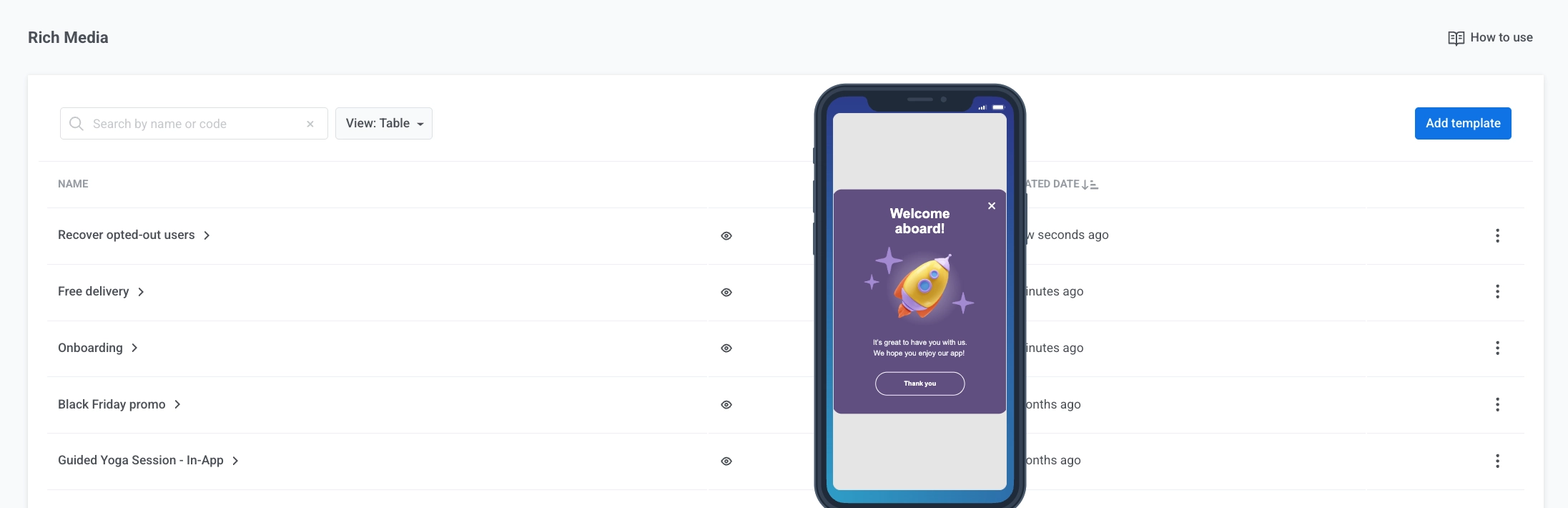
Here you can:
- Preview: hover over the eye icon to preview a template.
- Statistics: open per-template stats (impressions, interactions, audience). Learn more about in-app statistics
- Edit…: open the template in the editor. You can also click the template name. Templates from the previous editor open here automatically, with the design converted for the new editor.
- Edit with old builder: open the template in the previous editor. The option appears only for templates created before the update. New templates always open in the new editor.
- Clone…: create a copy of the template.
- Delete: remove the template.
Use your in-app templates in campaigns
Anchor link toTo use your existing in-app templates in campaigns:
- Customer Journey: add an In-app element and choose your template. Learn more
- One-time in-app: send a single in-app to your audience. Learn more
- Push that opens an in-app: send a push that opens an in-app when the user taps. Learn more