How to schedule a message
Pushwoosh makes it simple to schedule messages across multiple channels, including push notifications, emails, in-app messages, WhatsApp, and SMS.
Whether you’re sending a one-time message, scheduling messages for specific dates, or setting up recurring campaigns, the Customer Journey Builder offers flexible options to manage your campaign timing effectively. For push notifications, you can also use the one-time push message form. For one-time emails, you can use the one-time email form.
This guide provides step-by-step instructions for scheduling messages through the Customer Journey Builder, applicable to all supported messaging channels.
How to schedule messages that start a communication flow
Anchor link toScheduling is configured in the Audience-based entry element via Entry schedule:
- One-time entry: users enter the journey once. Choose Immediately (as soon as the journey is activated) or Schedule for a specific day (date and time).
- Recurring entry: users enter repeatedly. Choose On specific dates (multiple dates you pick) or Periodically (e.g. every 1 day, every 1 week).
Configure the entry schedule
Anchor link to- Add the Audience-based entry element and define the users who will enter the journey. Select the Audience source to determine who will receive the message or create a segment. Once the audience is set, you can proceed to schedule the message.
- In the Audience-based entry element, set Entry schedule and choose One-time entry or Recurring entry, then pick the option that matches when the message should be sent.
- Set the time and timezone as described in the sections below. For details, see Audience-based entry.
Schedule a message for a specific date and time
Anchor link toTo send a message on a specific date and time:
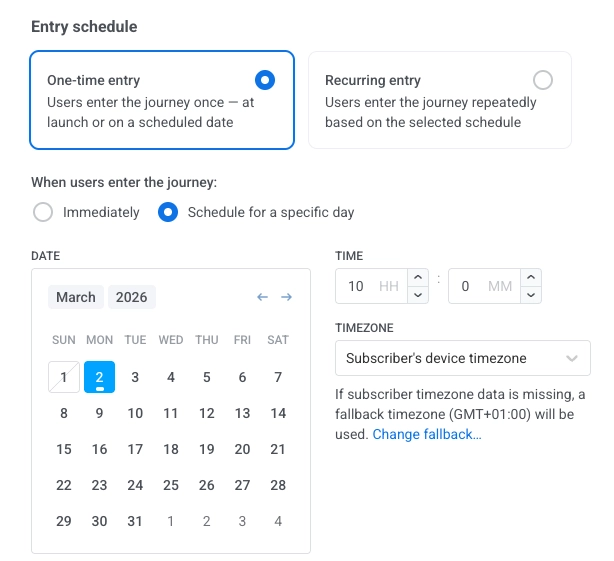
- Set Entry schedule to One-time entry, then choose Schedule for a specific day. Set the date and time.
- Select the timezone:
- Subscriber’s device timezone (default): entry uses each subscriber’s device timezone. If timezone is missing, a fallback is used. Click Change fallback to change it.
- Specific timezone: pick a timezone from the dropdown for a fixed entry time.
Once the schedule is set, click Apply to confirm.
Schedule a message for multiple specific dates
Anchor link toTo send messages on multiple specific dates:
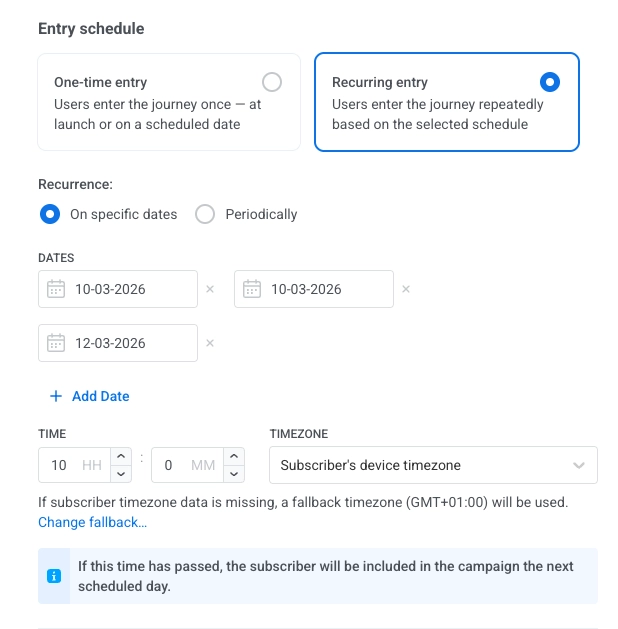
- Set Entry schedule to Recurring entry, then choose On specific dates.
- Pick the dates in the calendar. Click + Add Date to add more dates.
- Set the time and timezone the same way as for Schedule for a specific day (Subscriber’s device timezone or Specific timezone).
Once the schedule is set, click Apply to confirm.
Set up a recurring message to be sent at regular intervals
Anchor link toTo send messages at regular intervals (e.g. daily, weekly):
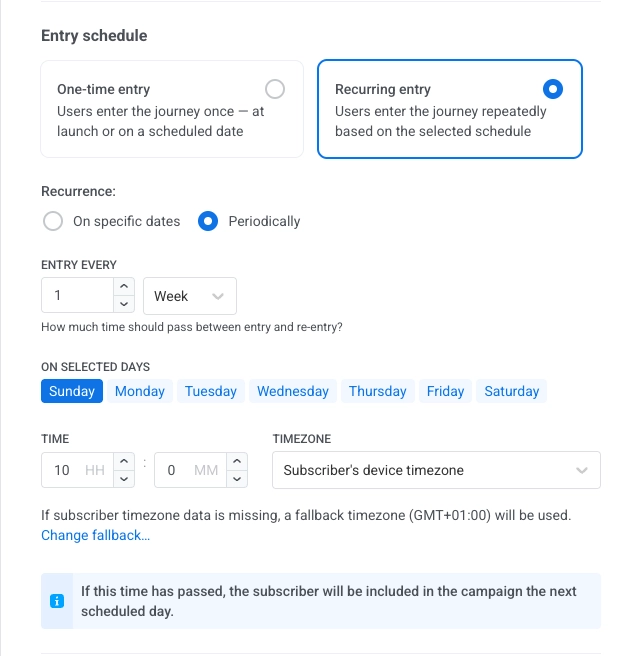
- Set Entry schedule to Recurring entry, then choose Periodically.
- In ENTRY EVERY, set the interval (e.g. every 1 day, every 1 week) and pick the days (of the week or month, depending on the interval).
- Set the time and timezone the same way as for Schedule for a specific date and time.
Once the schedule is set, click Apply to confirm.
After you’ve set the scheduling options, add the message element and configure the rest of your journey. Once you’ve reviewed all the configurations, click Launch campaign.
How to schedule messages that continue a communication flow
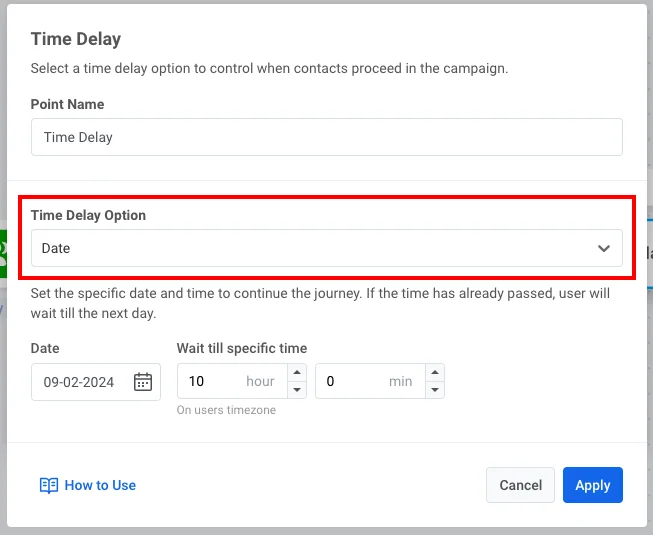
Anchor link toIf your scheduled message is part of an ongoing journey, you can insert a Time Delay element to control when the message is sent within the flow. For this:
- Insert the Time Delay element between the preceding communication elements and the message you wish to schedule:
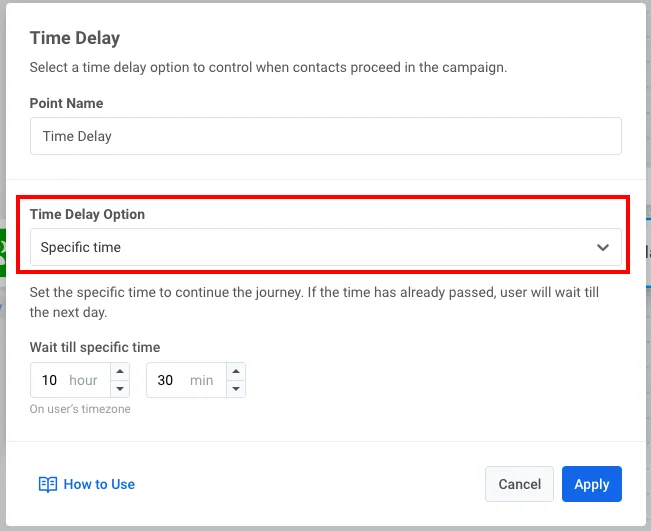
- Double-click the Time Delay element. In the Time Delay Option field, select either Specific time:
or Date:
Example scenario: Setting up a recurring push notification for a fitness app
Anchor link toLet’s say you’re running a fitness app and want to send motivational push notifications to users to keep them engaged. You decide to send the same notification every Monday at 9:00 AM, reminding users to log their workout progress.
-
Create a basic push flow. Add the Audience-based entry to the journey canvas and select an Audience source.
-
Set recurring entry. In the Audience-based entry element, set Entry schedule to Recurring entry, then choose Periodically. In ENTRY EVERY, set every 1 week and select Monday.
-
Set time and timezone. Set the time to 9:00 AM and select Subscriber’s device timezone so notifications are sent based on each user’s local time.
-
Review and finalize the journey. Proceed to configure the rest of your journey and create push notification content.
Finally, add the Exit element to your journey. Before launching the journey, review the entire setup to ensure everything is configured correctly.
The recurring notification is now ready to remind users to log their workouts every Monday at 9:00 AM in their local timezones.