Send one-time emails
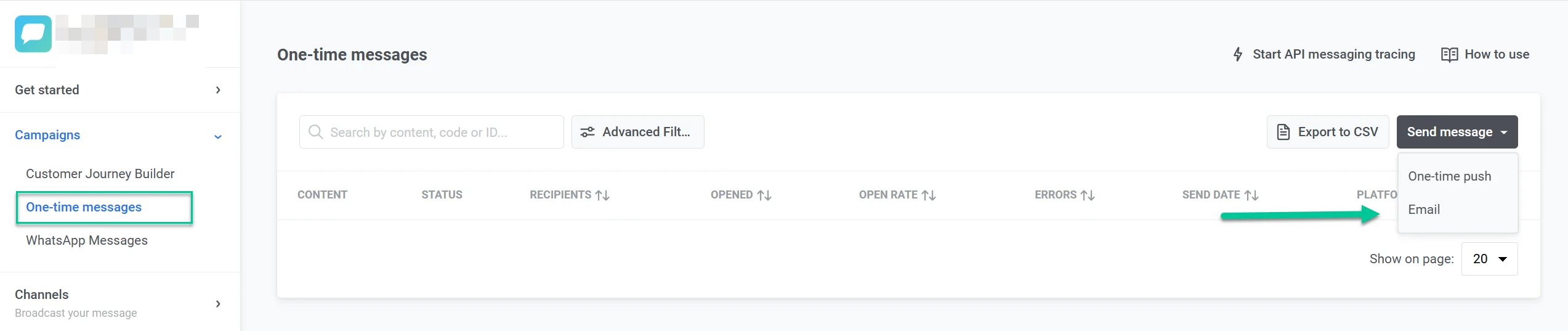
To send a one-time email in Pushwoosh, navigate to the Campaigns section, select One-time messaging, and click Send message > Email.
Select or create email content
Anchor link toIn the Content step, select or create your email content. You can create content in multiple languages, either from scratch or using HTML code.
- To find existing content, use the Type to search… field or open the dropdown and select the desired email content.
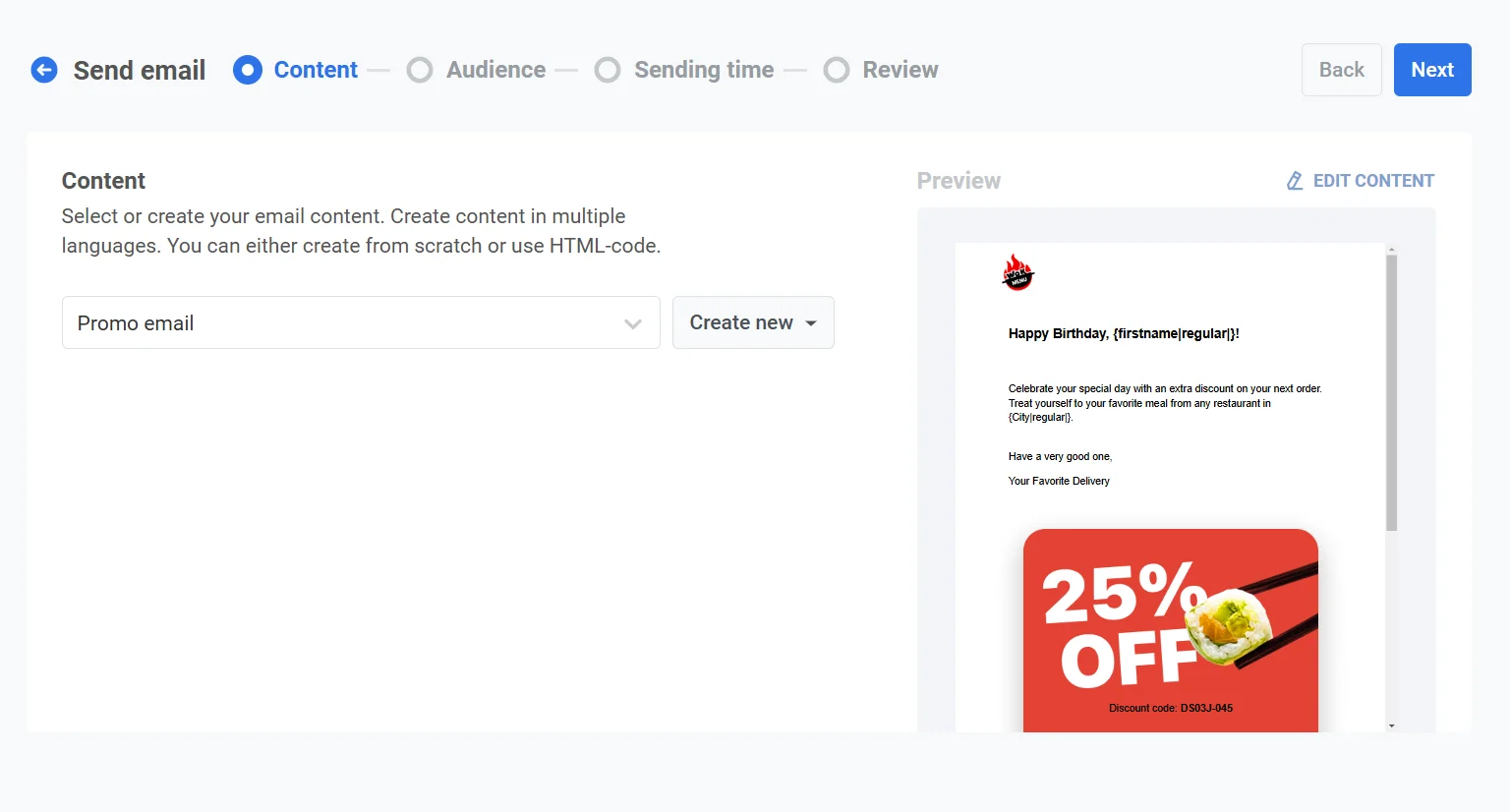
- To create new content, click Create new and choose the Drag and Drop Editor or HTML code editor. Learn more about creating email content
Select message type
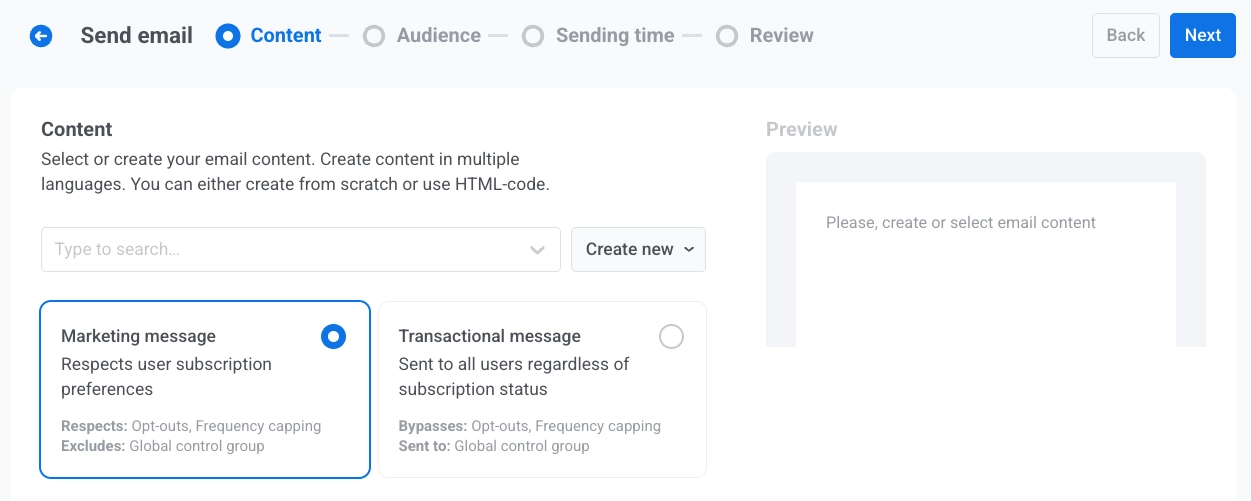
Anchor link toChoose how this email is treated for subscription and delivery rules:
- Marketing message: Respects user subscription preferences, opt-outs, and frequency capping. Not sent to global control group users.
- Transactional message: Sent to all users regardless of subscription status. Bypasses opt-outs and frequency capping. Delivered to control group users.
Learn how message type affects delivery.
Select subscription category
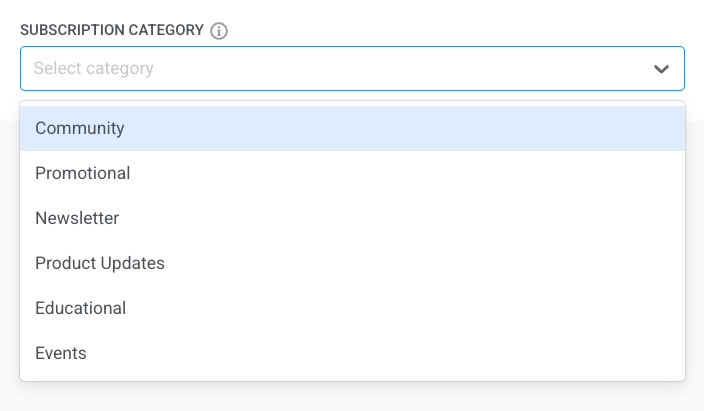
Anchor link toSelect a Subscription category from the dropdown so the message aligns with your subscribers’ preferences. Categories are defined in the subscription preference center.
Select the audience for your email campaign
Anchor link toIn the Audience step, define who will receive your email. Pushwoosh offers several targeting options to match your campaign goals:
Send to segment
Anchor link toChoose this option to target a predefined segment of your audience. This allows you to focus on specific groups based on their actions, behavior, or attributes. There are two options:
- Select a segment from the drop-down list of pre-built options.
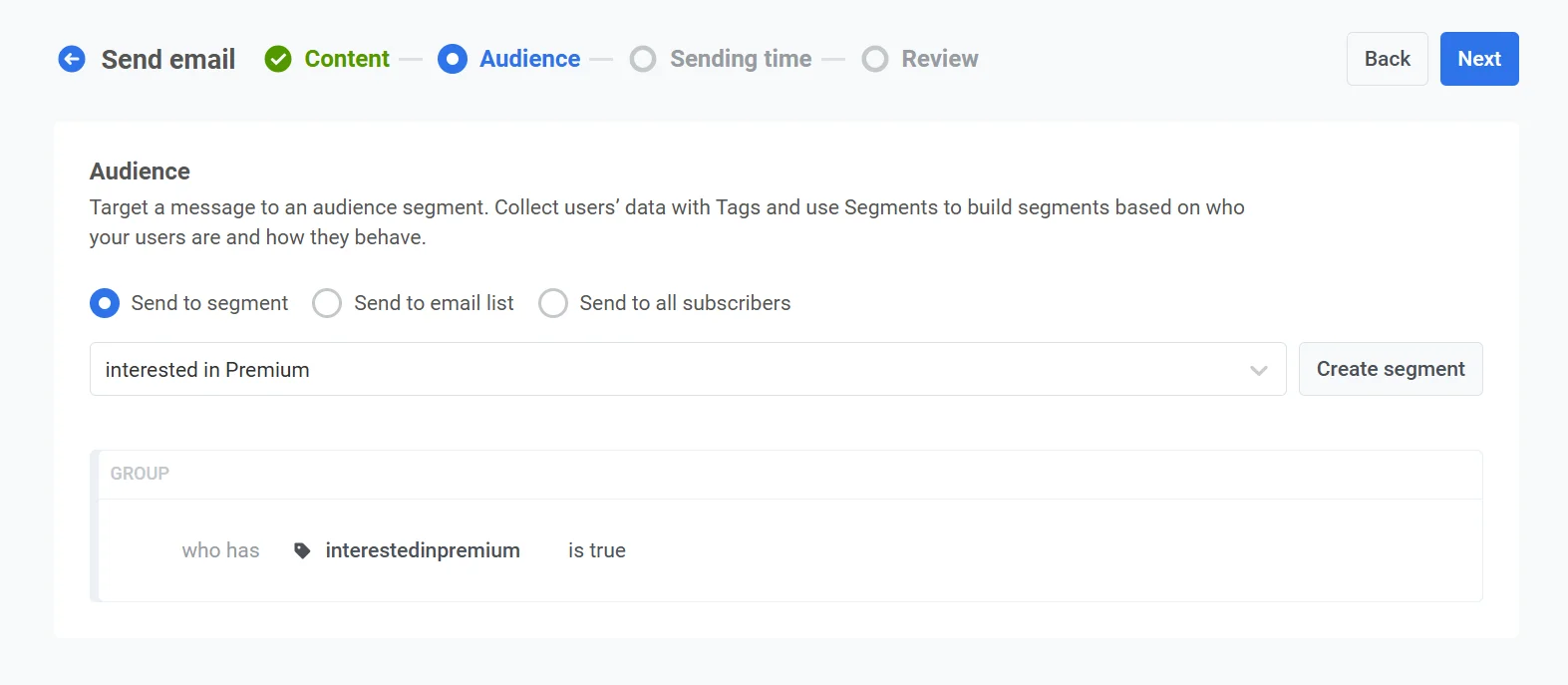
-
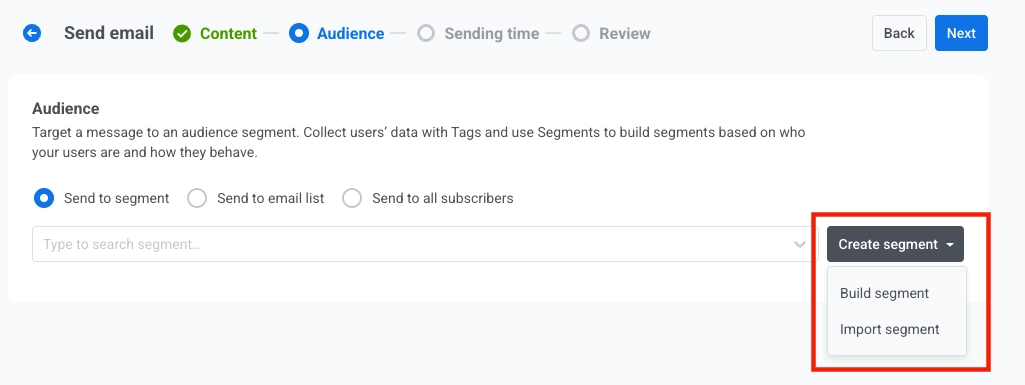
To create a new segment, click Create segment. Then select one of the following actions from the dropdown menu:
- Build segment: Create a new segment using the Segment builder. Learn more
- Import segment: Import a segment from a CSV file. Learn more.
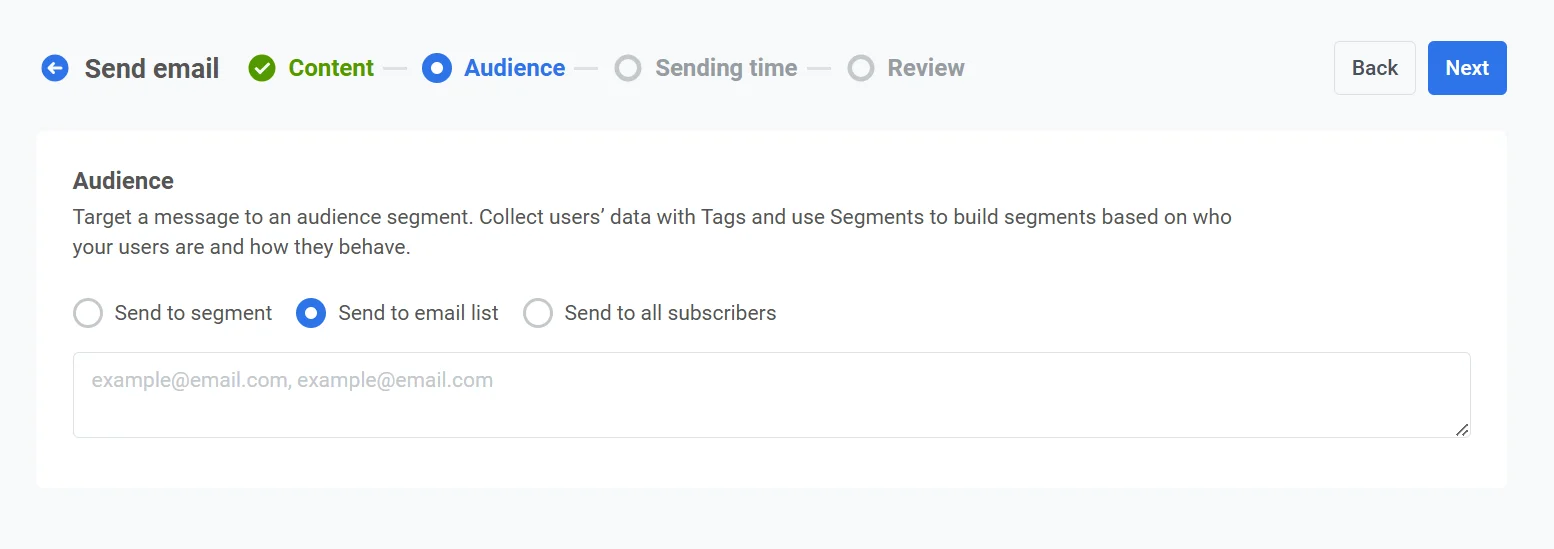
Send to list of addresses
Anchor link toUse this option to send the email to a specific list of email addresses. Enter the email addresses as a list, separated by commas. This is ideal for one-time or special communications that don’t fit into a predefined segment.
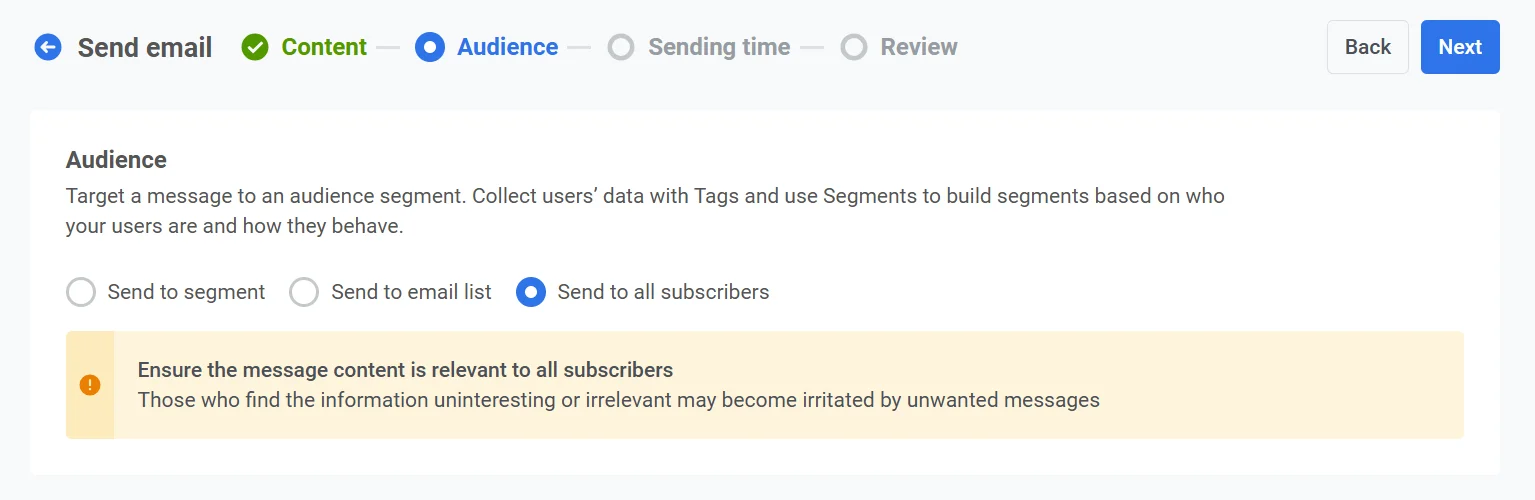
Send to all users
Anchor link toSelect this option to target your entire subscriber base, regardless of their segment or behavior.
Once you’ve set your audience, click Next to proceed to the scheduling step of your email campaign.
Schedule email
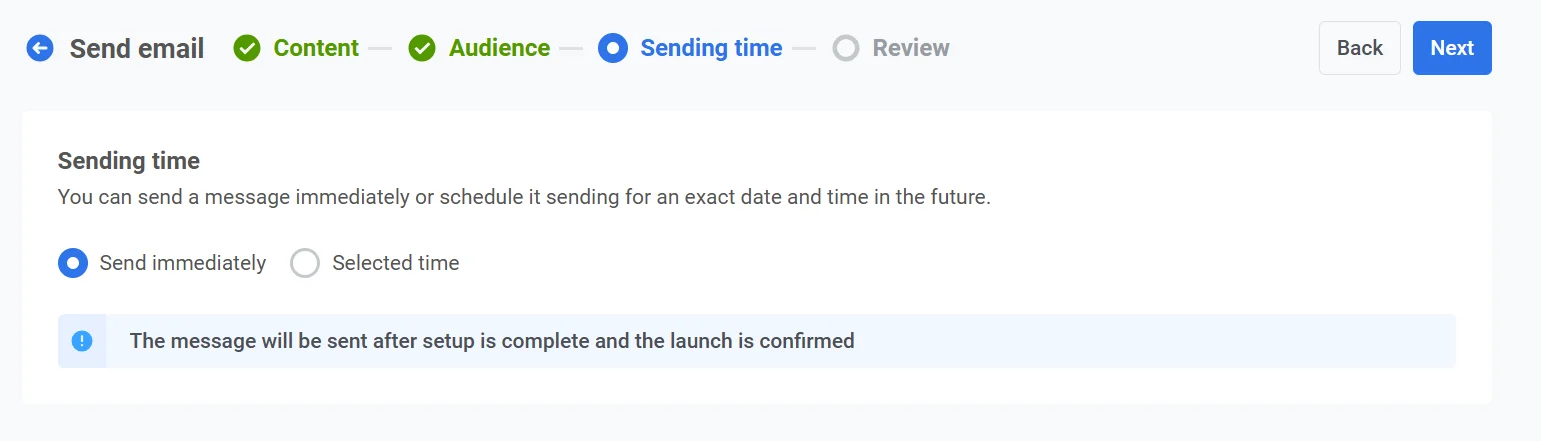
Anchor link toThen, choose when to send your email. You have several options:
- Send it immediately
- Schedule it for a specific date and time
Send immediately
Anchor link toChoose this option if you want to send the email as soon as the campaign setup is complete. This is ideal for urgent or time-sensitive messages that require immediate delivery.
Selected time
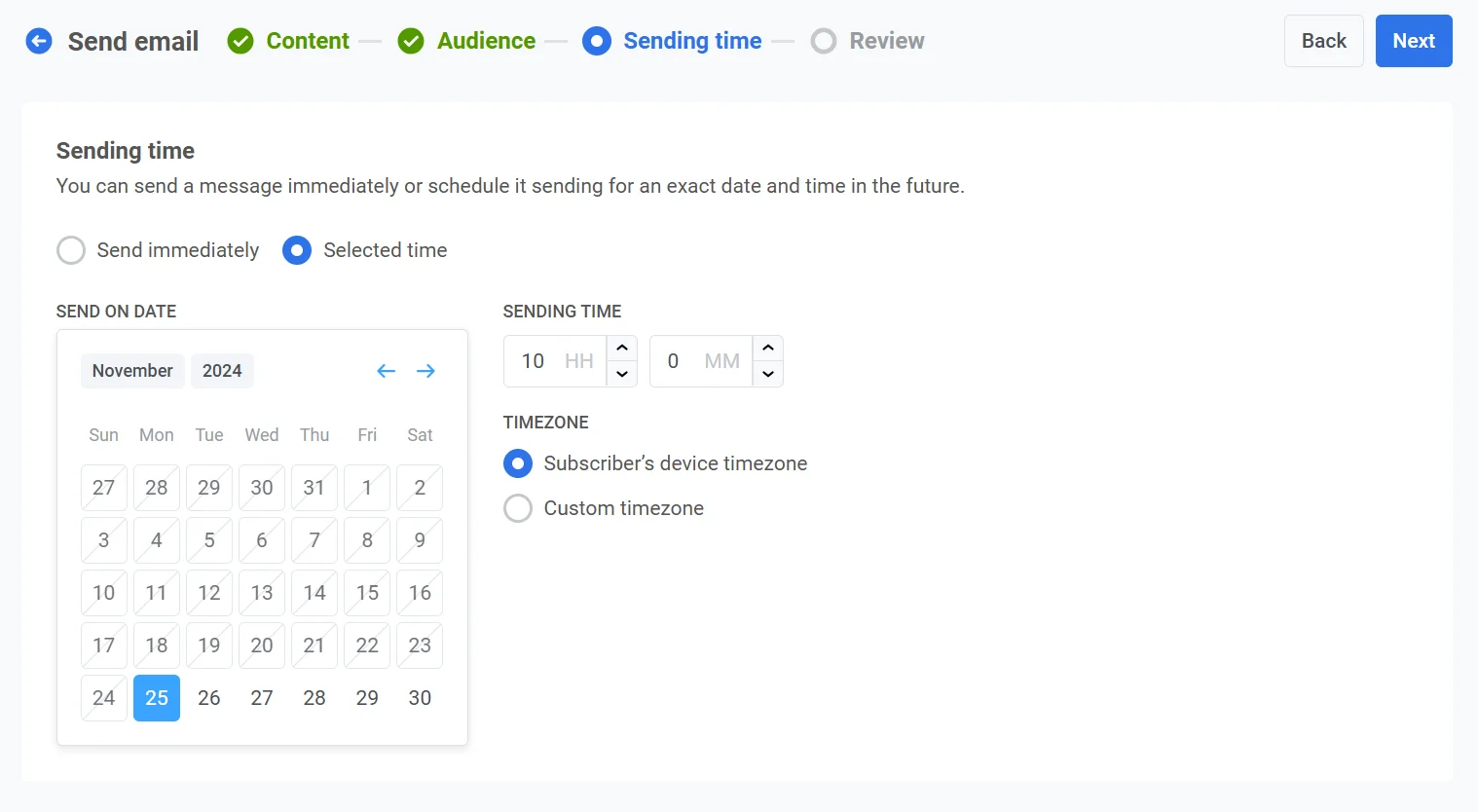
Anchor link toChoose this option to schedule your email for a specific date and time.
Set the date and time
Anchor link toUse the calendar to pick the exact date for your email. Then, specify the time in hours and minutes (using the 24-hour format).
Select the timezone
Anchor link to- Subscriber’s device timezone. The email will be sent based on each recipient’s local timezone, ensuring delivery at the specified time in their location.
- Custom timezone. Set a specific timezone to send the email at the same time for all recipients. This is useful for targeting users in a particular region.
Configure message delivery settings
Anchor link toSet frequency capping
Anchor link toUse Frequency capping to limit how often users receive email messages, preventing over-messaging and reducing churn. Choose one of the following options:
-
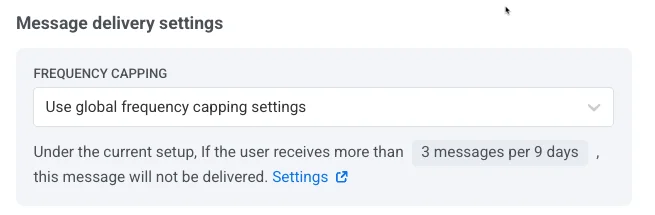
Use Global frequency capping settings
Apply the project-wide limits configured in your Global frequency capping settings.
For example, if the global limit is set to 3 messages in 9 days, additional messages exceeding this limit will be skipped.
-
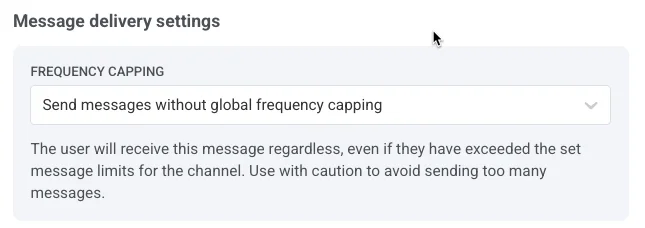
Ignore Global frequency capping
The user will receive this message even if they’ve exceeded the channel’s message limits. Use this option with caution to avoid over-messaging.
-
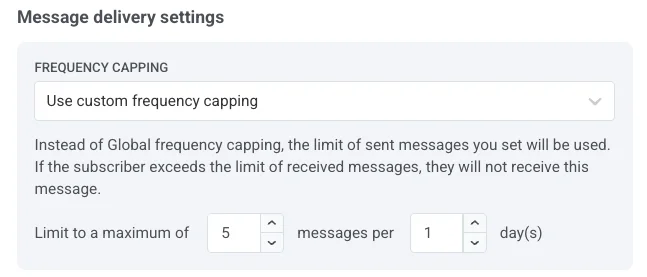
Use custom frequency capping
Set a custom message limit for this message. If the user exceeds this custom cap, the message will be skipped, and the user will proceed to the next step.
Set send rate limits
Anchor link toThe Send rate setting controls how quickly messages are delivered to your audience. Adjusting the send rate helps you manage delivery speed, prevent backend overload, and improve overall deliverability.
Choose one of the following options:
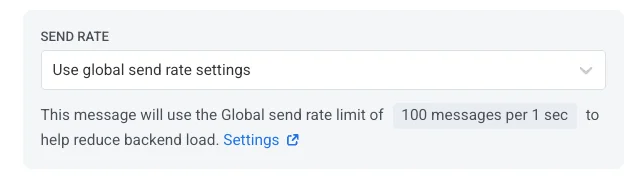
- Use global send rate settings Applies the send rate limits configured in your project’s message delivery settings. If no limits are set, all messages will be sent immediately. Use this option when you want delivery speed to follow your project’s default rules. Learn more about global send rate limits
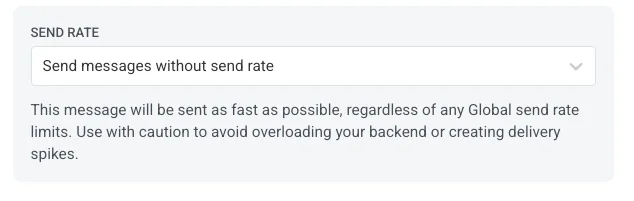
- Send messages without send rate Sends messages as fast as possible, ignoring any global send rate limits. Use with caution to avoid overloading your backend or creating delivery spikes.
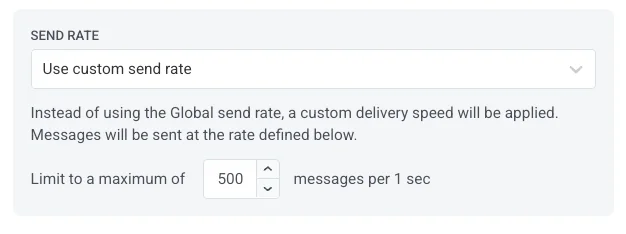
- Use custom send rate Overrides the global send rate for this message only. Allows you to specify the number of messages sent per minute, giving you full control over delivery speed. Messages will be sent at the custom rate you define in the message element.
Once you’ve configured the desired options, click Next to proceed to the confirmation step.
Review and edit your content
Anchor link toThe final step is to review your email content and campaign settings, including the audience and sending time. You’ll also see a preview of your email in each selected language. Review all the details carefully before finalizing the campaign to ensure it aligns with your goals. You can adjust any settings as needed.
Sender details
Anchor link toIn the Sender details section you can set From name and From email for this message. Enable Use this as the reply-to address to receive and track replies if you want replies to go to the same address. The email address must belong to a verified domain in your project.
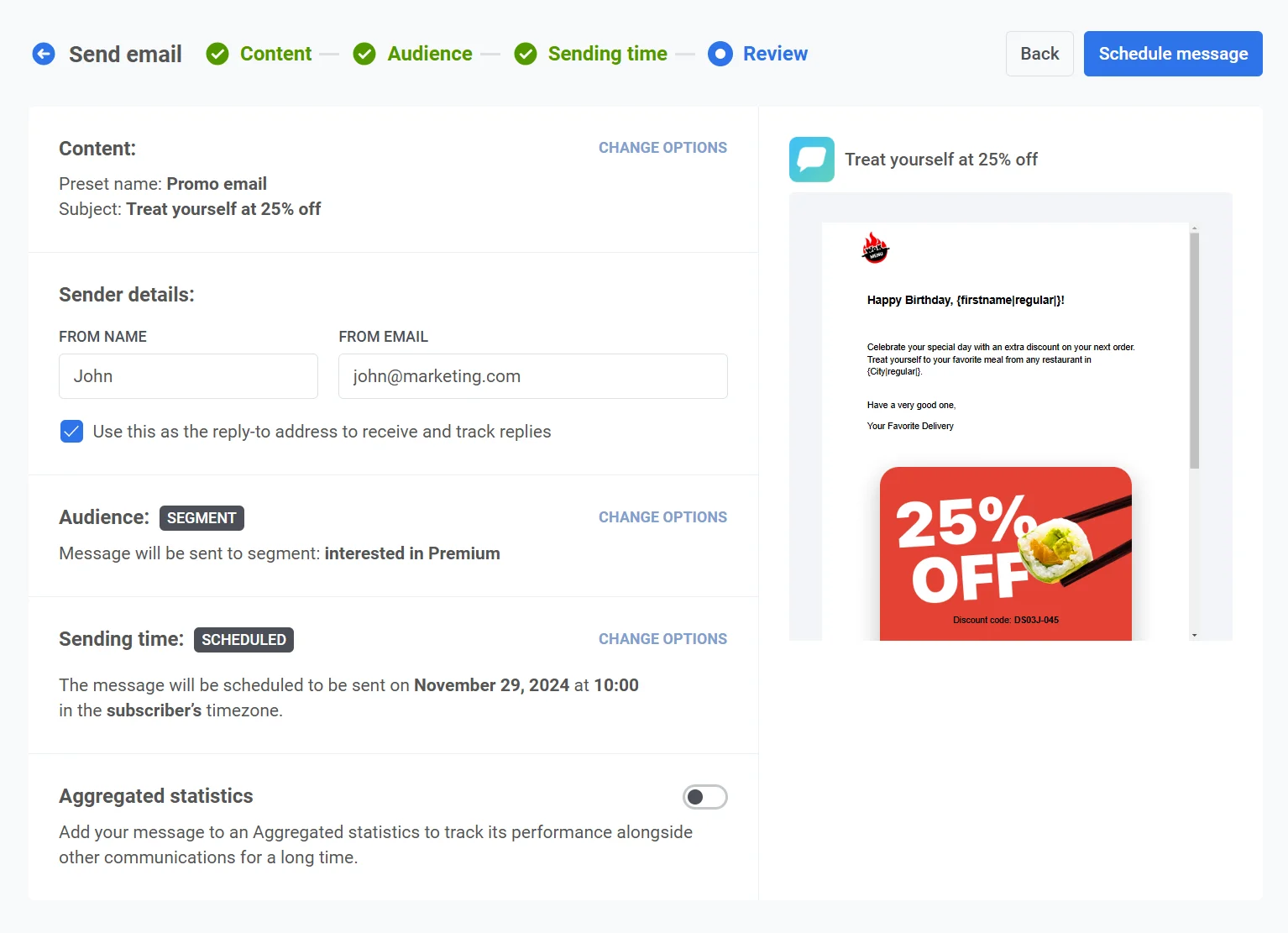
Link to Aggregated Messages
Anchor link toOptionally, you can link your email to an Aggregated messages campaign. This allows you to group the email with related messages and track their combined performance over time in the Aggregated Messages section. Use this feature to monitor message effectiveness as part of a broader communication strategy.
Once everything is confirmed, click Schedule to set it for later delivery or Send Now to send it immediately, depending on your selected scheduling options.
Cancel or edit a scheduled email
Anchor link toFor emails that are scheduled and not yet sent (status PENDING), you can change or cancel them. Open the list of messages in one of these places: Campaigns → One-time messaging, or Statistics → Message History.
Then, open the actions menu (⋮) for the message you want to change or cancel:
- Delete message: cancels the scheduled delivery and changes the status to Canceled.
- Edit message: opens the one-time email form with the message data loaded.
Example scenario
Anchor link toImagine you are the marketing manager of an e-commerce platform, and you want to send an email promoting an upcoming New Year Sale to a targeted group of users who have previously made purchases. The email should be delivered at a specific date and time, right before the sale begins. You can set up this campaign in Pushwoosh as follows:
1. First, navigate to Campaigns, and select One-time messaging. Click on Send message, then choose Send email to start setting up your one-time email campaign.
2. You decide to use existing email content for this campaign. In the Content step, open the dropdown menu and select the pre-built email content titled New Year Sale Promo.
Review the email content:
“Our New Year Sale is just around the corner! 🎉 Get ready to enjoy up to 50% off on your favorite products. The sale kicks off on January 1st, so mark your calendars and make sure you don’t miss out! 🛍️✨”
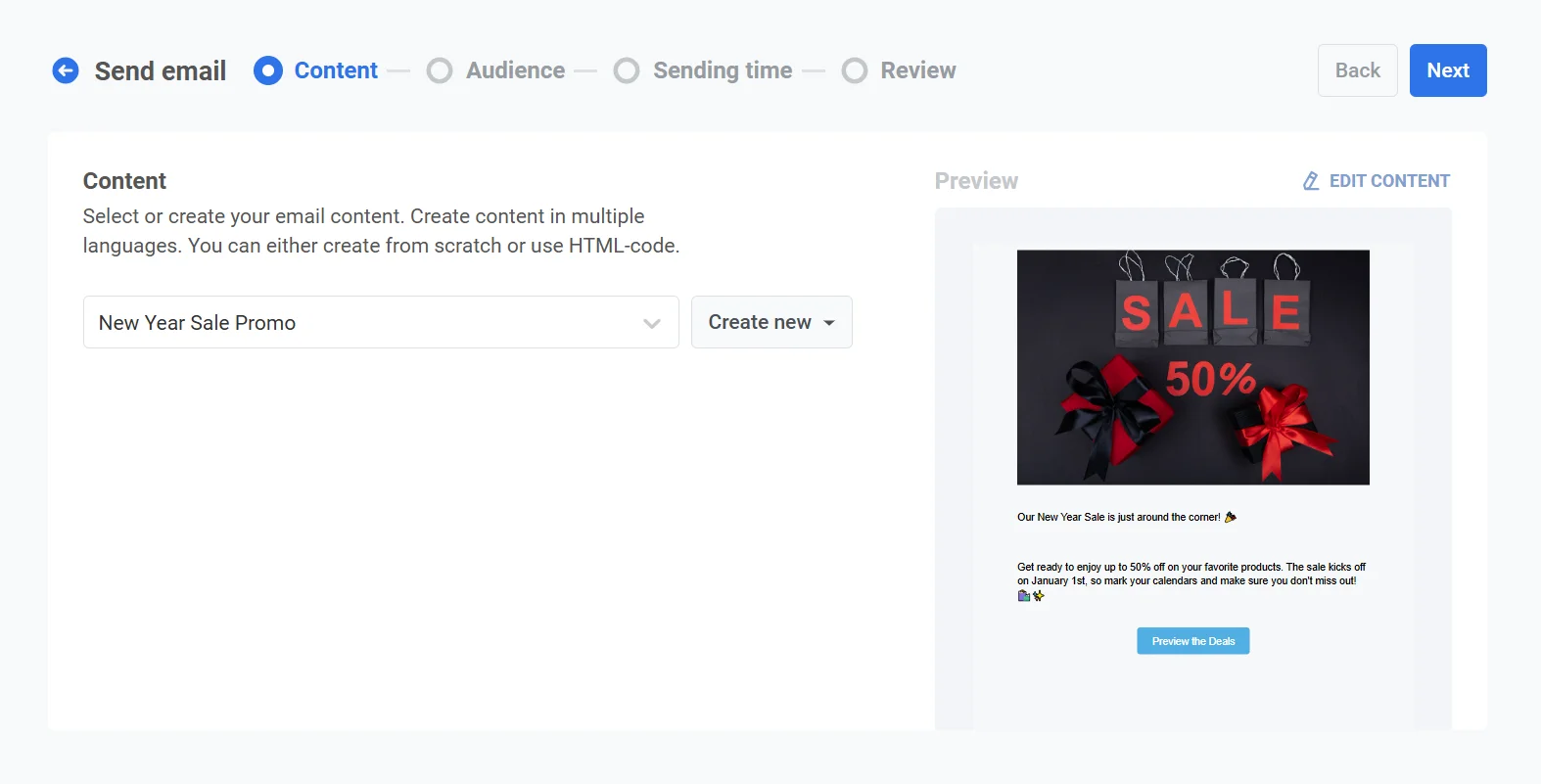
Once you’re satisfied with the content, click Next to move to the audience selection step.
3. Since you want to target users who have made previous purchases, choose Send to segment. From the dropdown menu, select the segment Returning customers, which is based on users who made purchases within the past year.
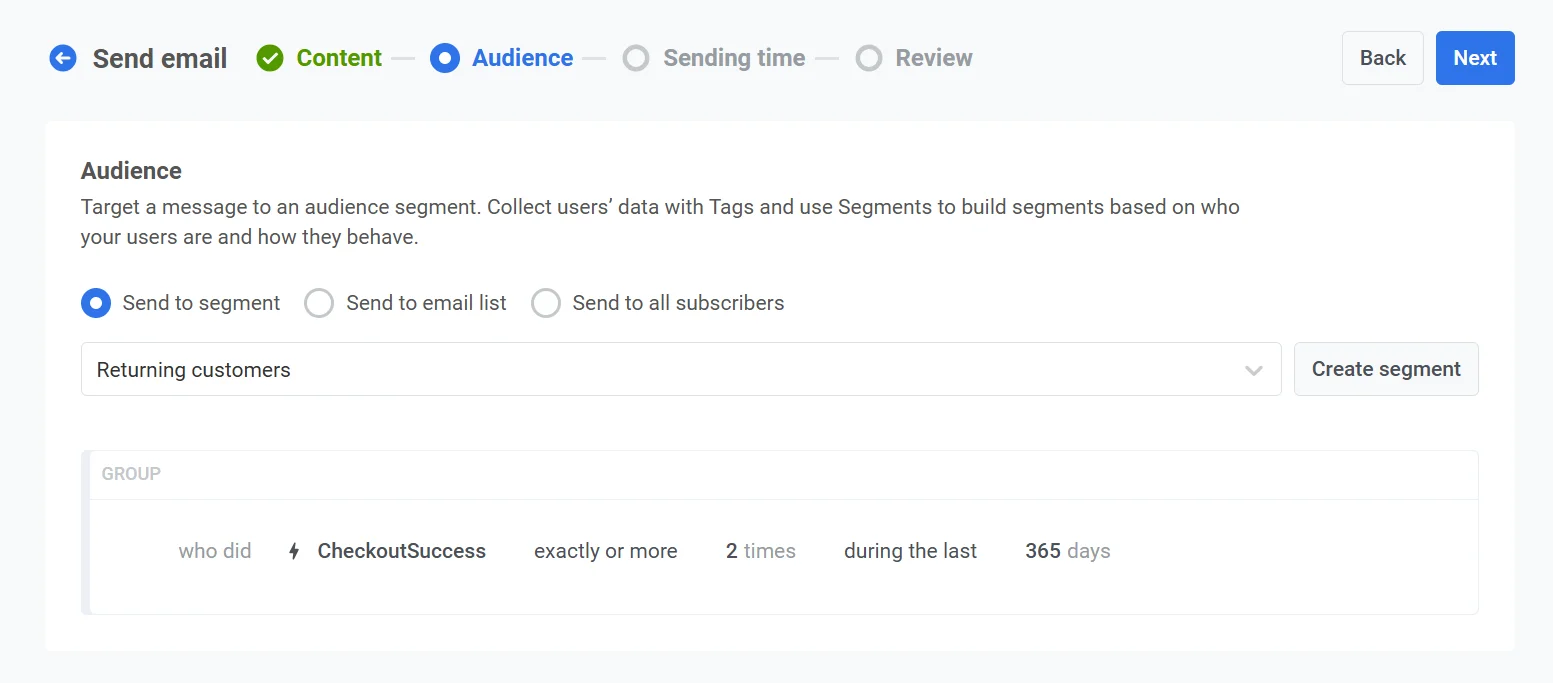
After confirming the audience, click Next to proceed to the scheduling step.
4. To ensure the email is sent at the right time, select Selected time in the scheduling options.
- Set the date to December 30, 2024, and the time to 10:00 AM using the 24-hour format.
- Choose Subscriber’s device timezone so the email is sent at 10:00 AM in each recipient’s local timezone, regardless of their location.
5. Review all the campaign details, including the audience, schedule, and email content. Use the Preview feature to see how the email will appear in recipients’ inboxes.
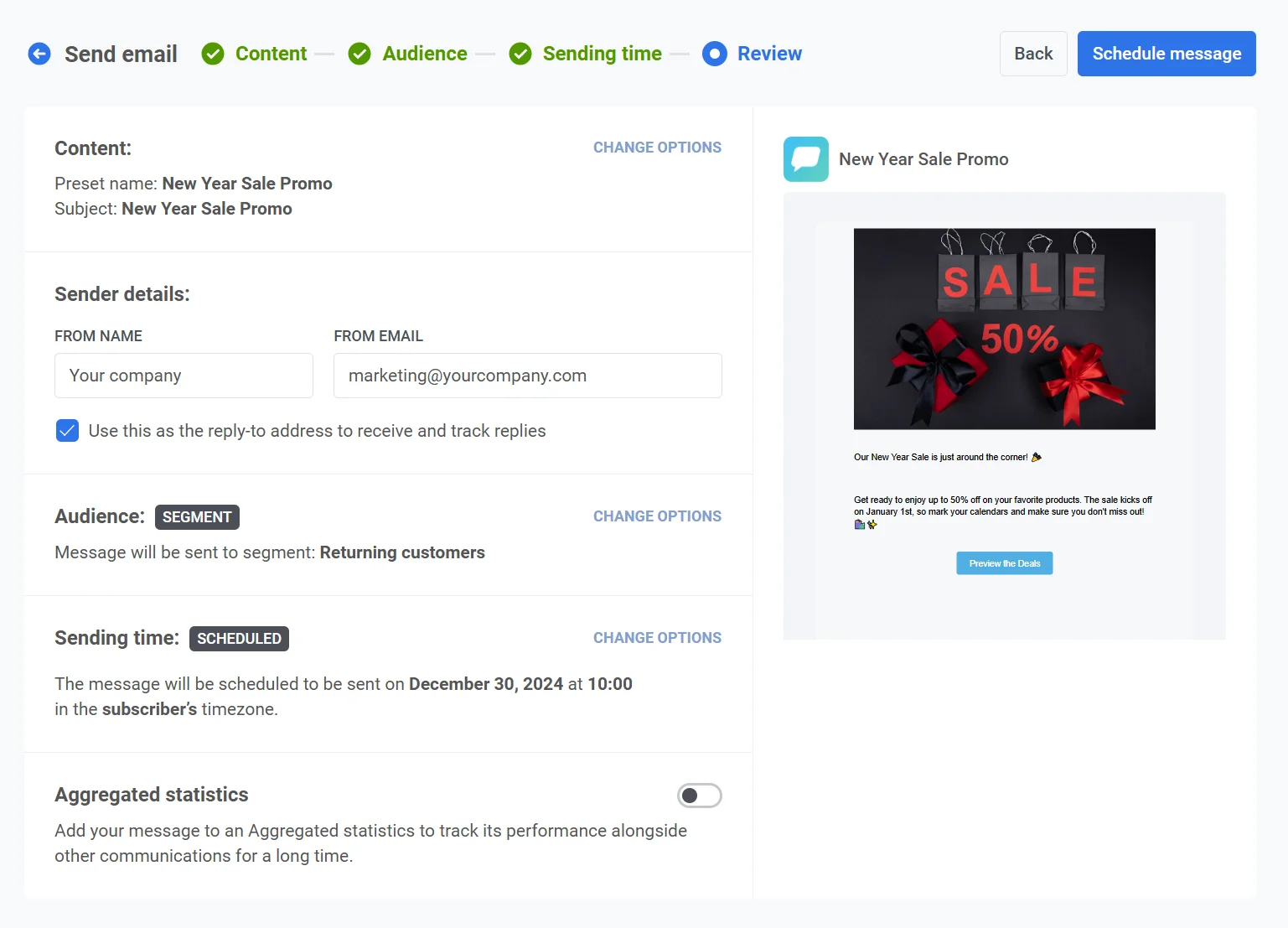
Once everything is verified, click Schedule message to finalize and schedule the email for delivery at the specified time.