Create push presets
Pushwoosh empowers you to create reusable push content. You can craft the text and configure settings using our push content editor. You can then either send the push notification immediately or save it for future campaigns.
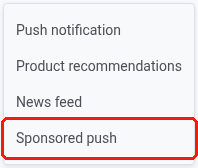
To create your push content, navigate to Content > Push Presets and click Create content, then choose a content type from the dropdown:
- Push notification. Write the content yourself.
- Product recommendations. Build it from your product catalog.
- News feed. Pull it from a connected news feed.
- Sponsored push. Sell the push to an advertiser from your Ad inventory.
You can also click Create new content from within a Push element in Customer Journey, but that always creates a Push notification preset.
Define the languages you want to use in your push
Anchor link toStart by creating the default message content, which is sent to all users unless a more specific language version is provided. You can then add content for additional languages to tailor the message to users’ device language settings. For how multi-language messaging works across channels, see Multi-language messaging.
To add additional languages, click the Plus sign at the top of the editor. A list of languages will appear, allowing you to choose the ones you need for your push notification.

For example, if your default language is English but you want to reach Spanish and German speakers as well, add those languages to your push notification. Users with Spanish or German phone settings will then receive the message in their preferred language, while others will see the default English version.
Create push content
Anchor link toNext, begin creating your push content.
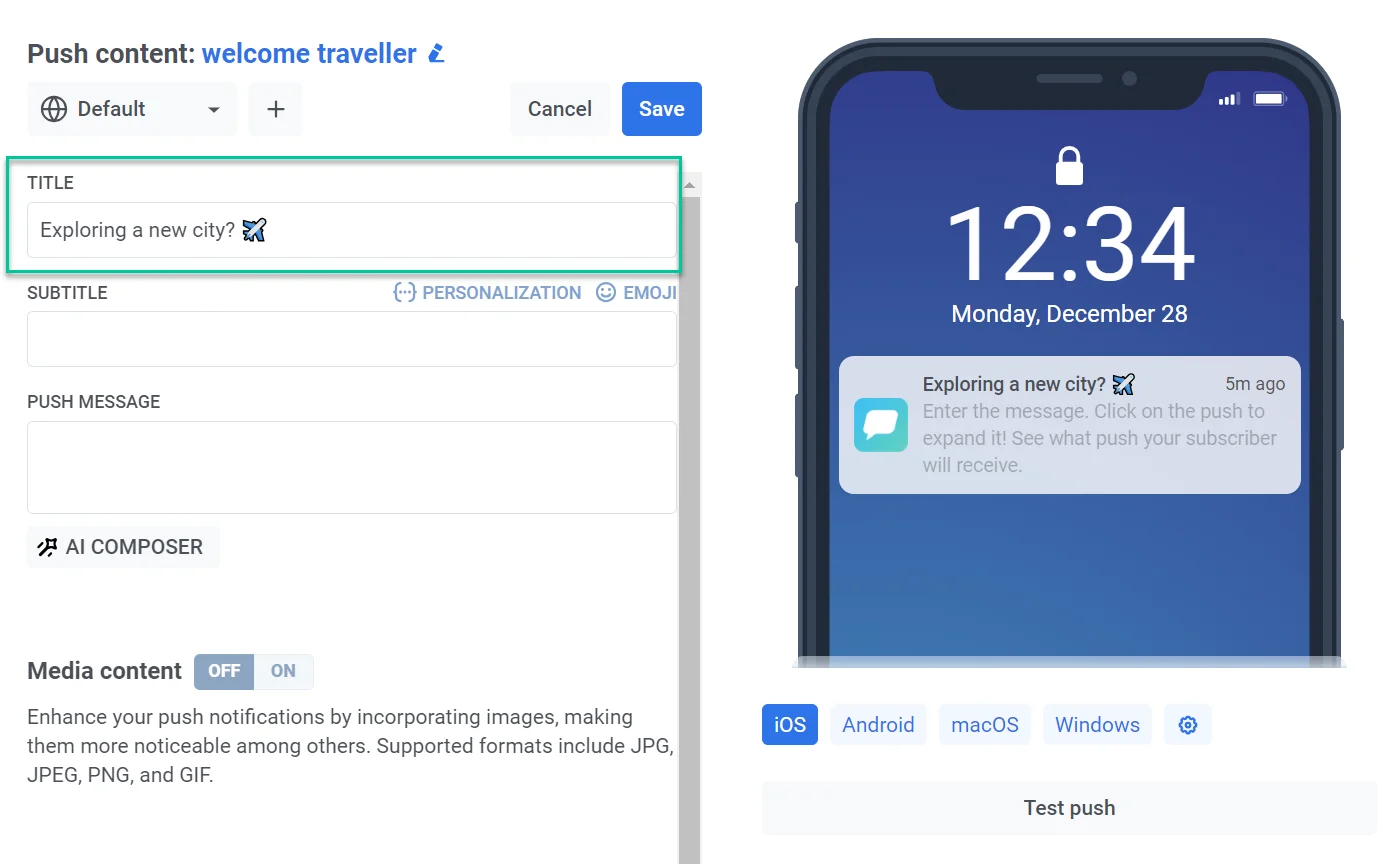
Add a push title
Anchor link toPush titles are not required, but you can use them if you prefer to display a unique phrase instead of your app’s name in every push.
To add a title, simply enter the text in the designated field. You can also add personalization and emojis.
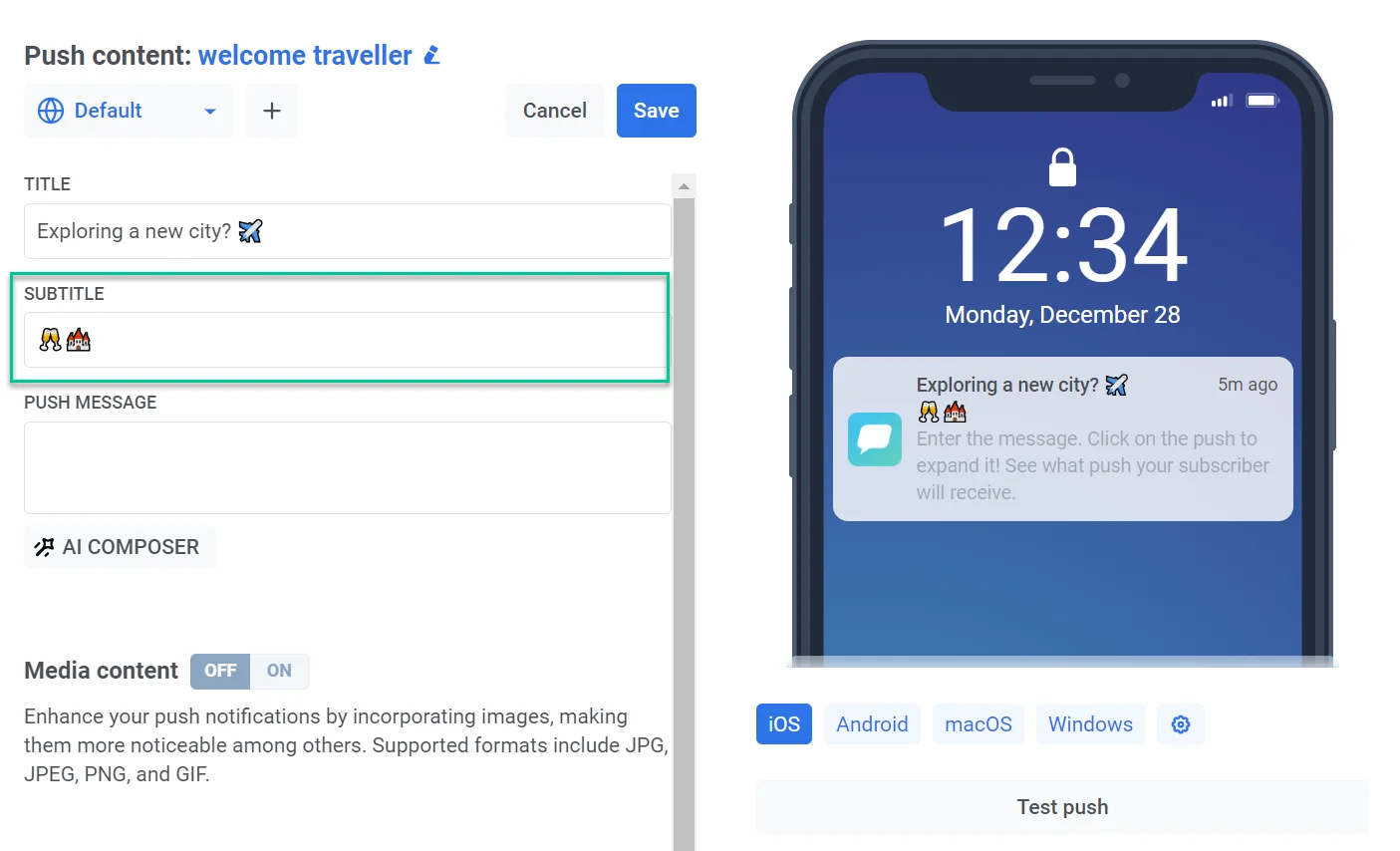
Add a subtitle
Anchor link toEnter the subtitle text to provide extra context, details, or make your notification more engaging. Please note that subtitle functionality is currently limited to iOS devices. If a push notification containing subtitles is received on an Android device or any other platform, the subtitles won’t be displayed.
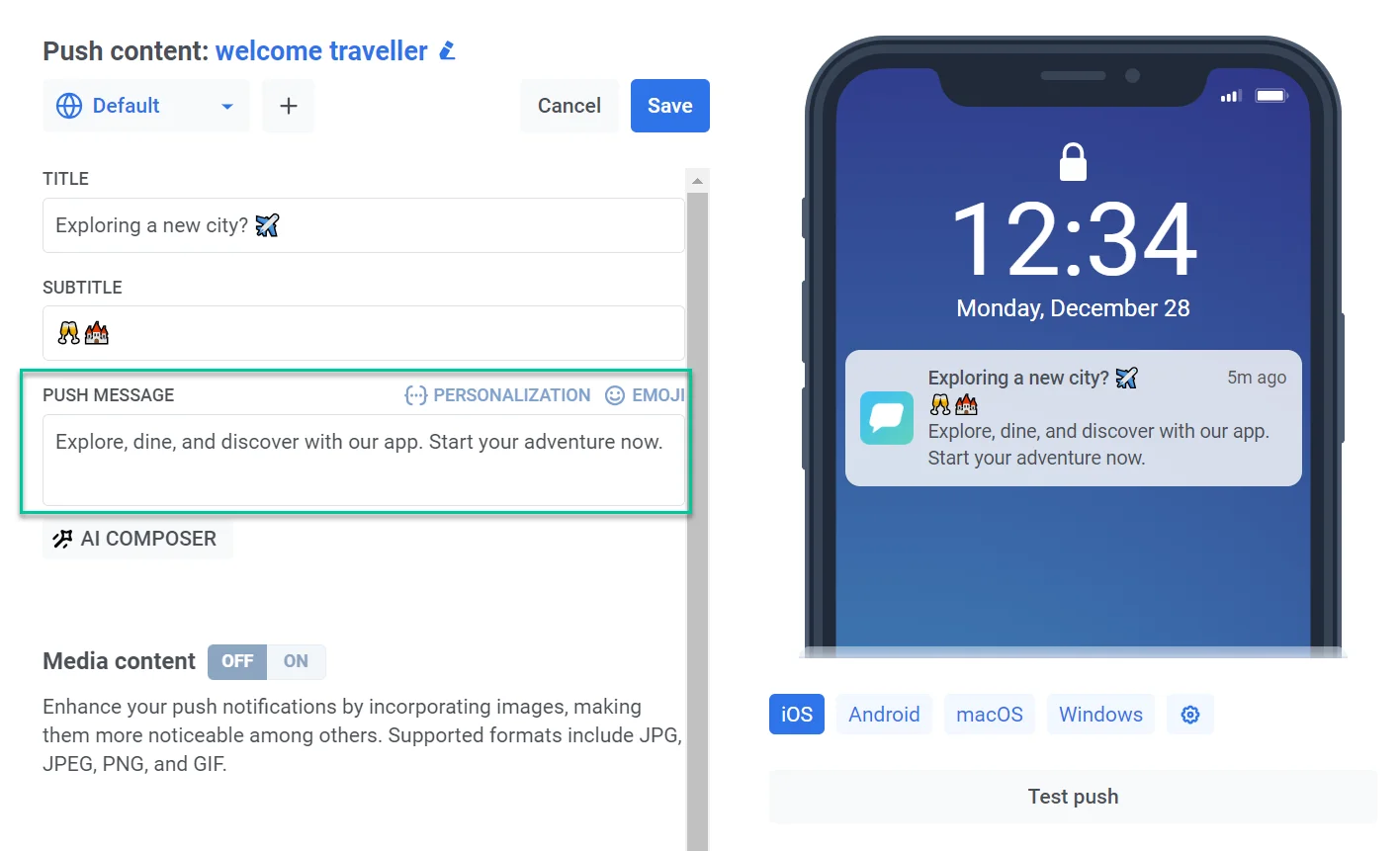
Add a push message
Anchor link toEnter the text you want your users to see in the push notification. This is the primary content they will receive on their devices. You can also add emojis and incorporate personalization elements to make your message more relevant to each user. The preview helps ensure your text displays fully on different devices.
To generate the text instead of typing it yourself, or to translate it into your other selected languages, use the AI Composer and AI Translate buttons below the field. See Push AI composer and Translate with AI. To bring in translations from a file instead, use the Import and Export buttons next to the language selector. See Import and export translations.
Personalize push content
Anchor link toPushwoosh allows you to personalize push notification elements like titles, subtitles, and messages. This means you can tailor your content to individual users for a more engaging experience. For this:
- Click on the Personalize link above the title, subtitle, or message field you want to personalize.
- A dropdown menu will appear, displaying available user data tags. Select the tag that best suits your personalization goal (e.g., user name, city, etc), or type a name that isn’t a tag in your account yet — for example, a placeholder for a Journey attribute you plan to add later.
- Choose the desired format modifier. The options depend on the tag’s type — for a String tag:
- CapitalizeFirst. The first letter of the tag’s value will be written in uppercase and the rest will appear in lowercase. For example: “john doe” becomes “John doe”.
- CapitalizeAllFirst. The first letter of each word in the tag’s value will be written in uppercase. For example: “john doe” becomes “John Doe”.
- UPPERCASE. Converts all letters in the tag’s value to uppercase. For example: “john doe” becomes “JOHN DOE”.
- Lowercase. Converts all letters in the tag’s value to lowercase. For example: “JOHN DOE” becomes “john doe”.
- Regular. Keeps the text formatting as it is in the original data. For example, if a user chose to indicate their name as “john doe” in your app’s account settings, it will remain “john doe” in the personalized push copy.
Integer, Price, and Date tags offer a different set of modifiers instead:
- Price tags: regular, cent, dollar, comma, euro, jpy, lira.
- Integer tags: the same modifiers as Price, plus 8 date formats, since an Integer tag can also hold a Unix timestamp.
- Date tags: the same 8 date formats, plus regular.
See the Presets API reference for the exact date format strings.
A format modifier is required for every placeholder. If you leave it unset, the field turns red and Pushwoosh blocks saving with “A personalization placeholder is incomplete: pick a modifier for it”.
- In the Default Tag Value field, enter the text that should be used if the tag data is not available for a user. For instance, for a
Citytag you might enter “your travel destination” as the default value. - Click Insert.
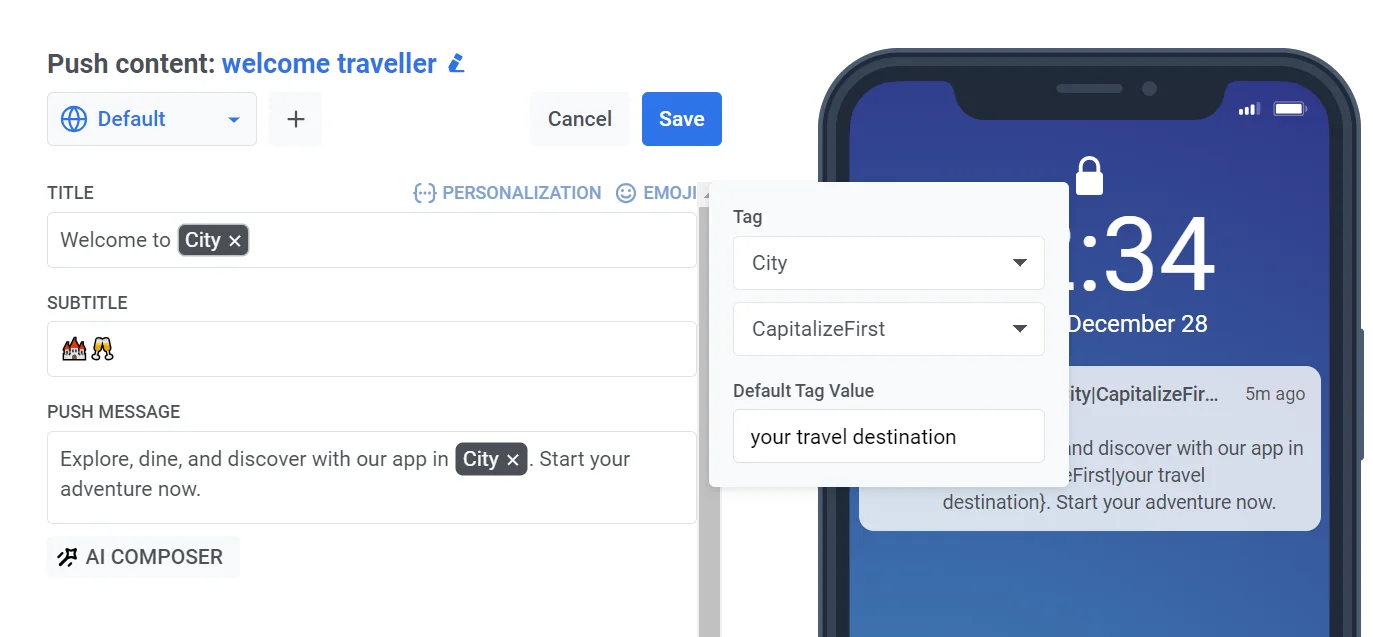
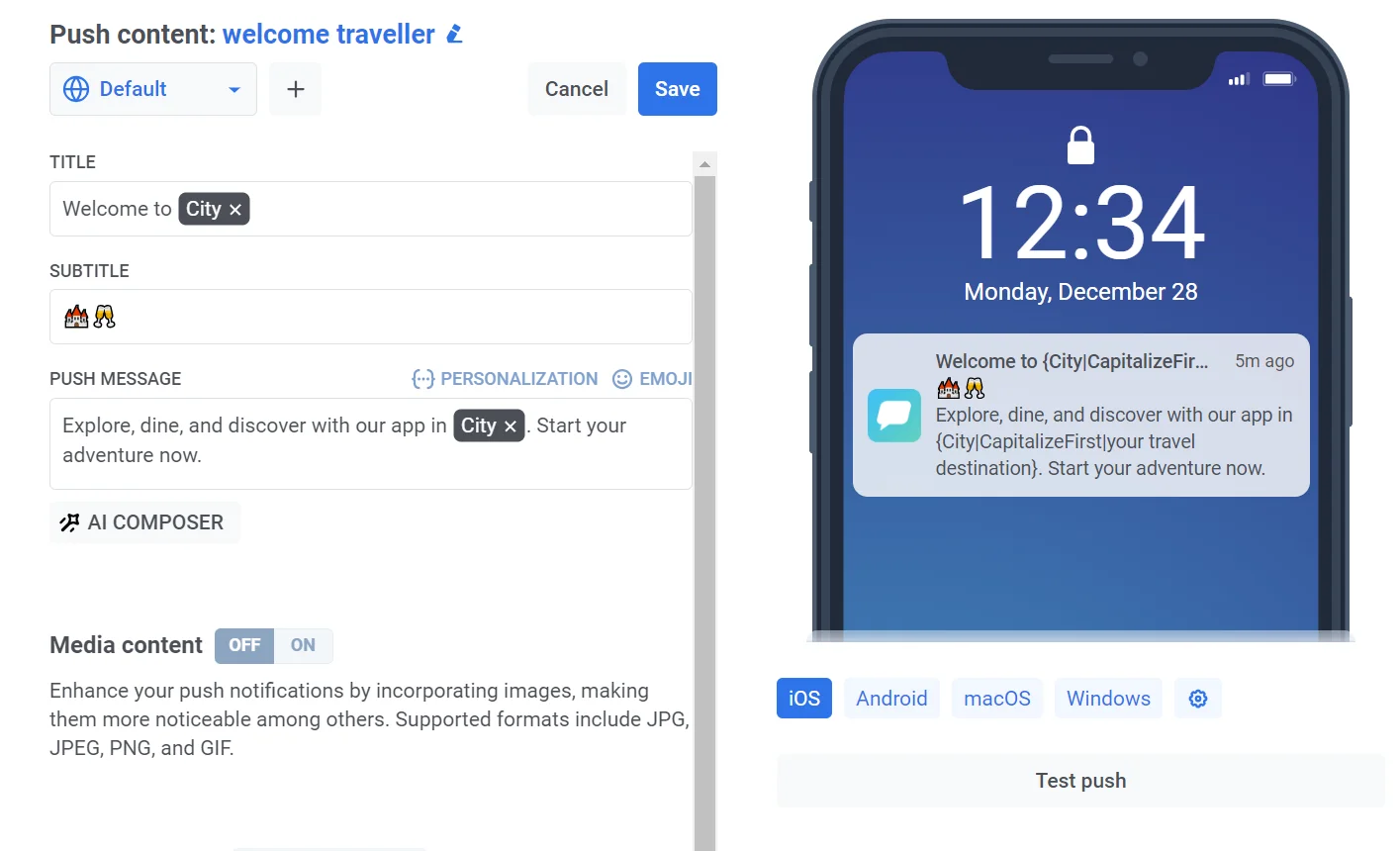
For example, imagine you run a travel app and want to target users exploring a new city with a push notification promoting tours and guides. To personalize the message, select the City tag and apply the CapitalizeFirst format modifier.
You’re not limited to tags already collected — you can personalize with a tag name your app doesn’t send yet. Learn more about tags
Validate Liquid syntax
Anchor link toIf you use Liquid templates in your push title, subtitle, or message, you can check them for syntax errors before saving. This helps you catch issues like unclosed tags or typos early, so your personalization renders correctly when the push is sent.
To run the check, click the Validate Liquid Syntax button.
Pushwoosh checks the title, subtitle, and message in every language you’ve added. If it finds a syntax error, a notification appears indicating the issue.
Create dedicated copy in all languages you’ve selected
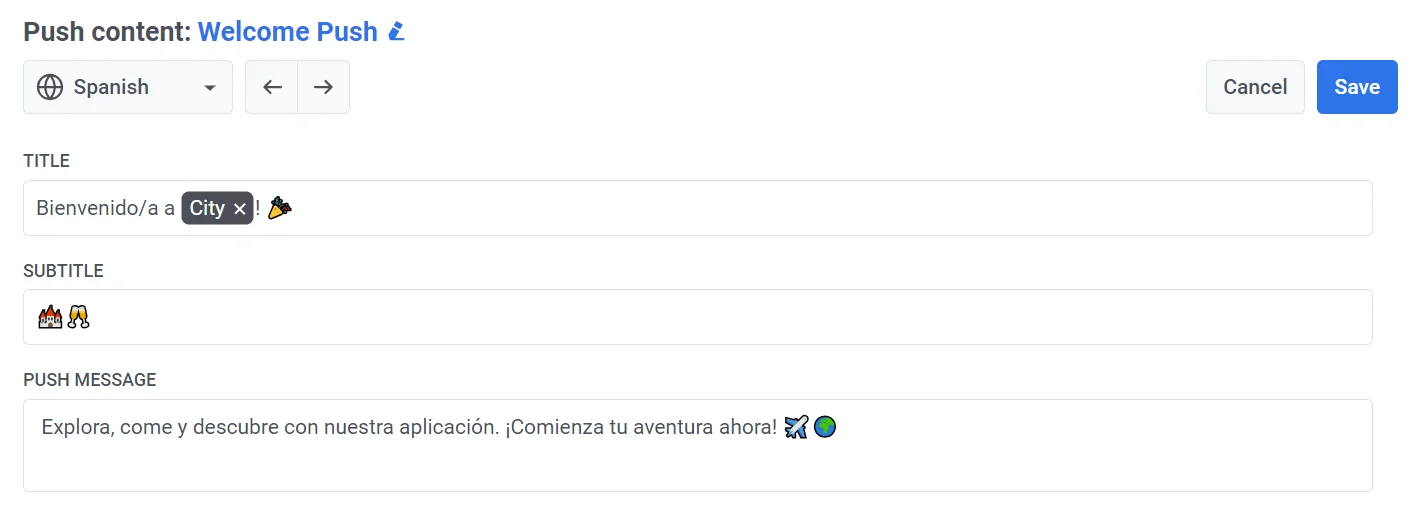
Anchor link toIf you want to send push content in multiple languages, you’ll need to create content for each language you’ve chosen.
Select a language from the dropdown menu and fill in all the fields as described above.
Add media content
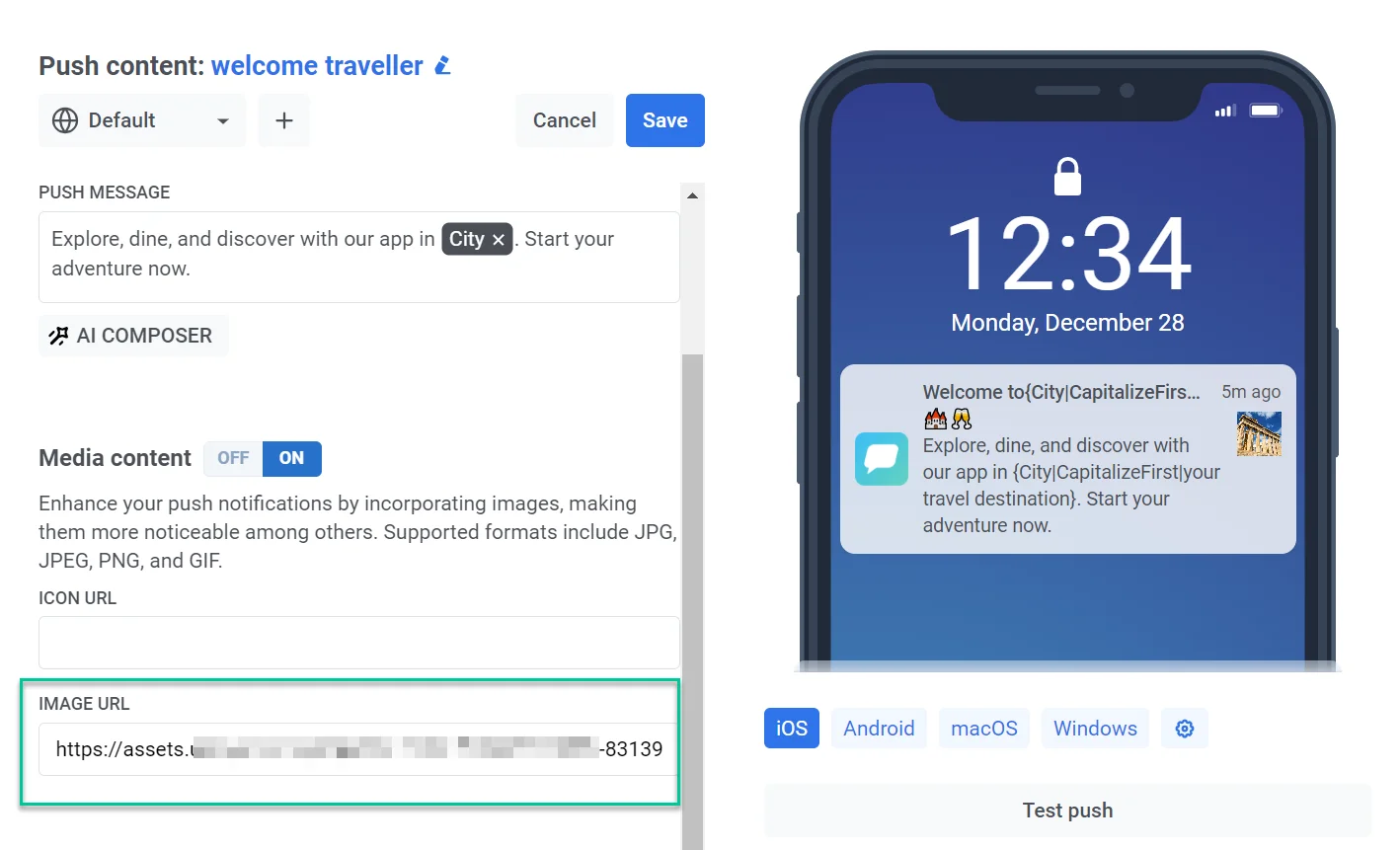
Anchor link toYou can optionally add images to your push notifications to improve their visual appeal and potentially increase user engagement. Supported formats include JPG, JPEG, PNG, and GIF.
To add media content, enable the Media content toggle, then fill Banner URL or Icon:
- Paste a URL directly into the field.
- Click the image icon next to the field to open the Media store and select an image you have already uploaded.
The image in Banner URL appears in the expanded notification and in the push preview.
You can also point Banner URL to a generated barcode image showing a recipient’s voucher code, but only when this preset is sent from a Customer Journey Push element with Use Vouchers turned on. See Display a voucher as a barcode.

Add a sponsored ad campaign
Anchor link toChoose Sponsored push as the content type to sell this push to an advertiser through a campaign from your Ad inventory.
Select a campaign
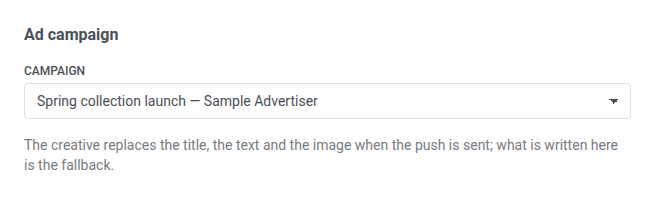
Anchor link toPick a campaign from the Campaign dropdown, listed by name and advertiser. Only campaigns with the Push channel turned on show up here. If none do yet, turn on Push for a campaign in the Ad inventory first.
Campaign is required. Save stays disabled until you choose one.
Fallback content
Anchor link toWrite the title, message, and media the same way as any other push preset. That content is the fallback: when the campaign resolves at send time, its creative’s headline, text, and image replace what you wrote, and its target URL replaces the on-click action.
Pushwoosh sends your written content instead when no creative resolves:
- the campaign isn’t Active (it’s Draft, Paused, or Finished)
- its send limit is reached
- none of its creatives has both a headline and text
Track performance
Anchor link toOnce this push has gone out, find its performance alongside the campaign’s email performance in its report. Push taps counts a tap on the notification itself, not a click on the target URL.
Define the next step for users who click on the notification
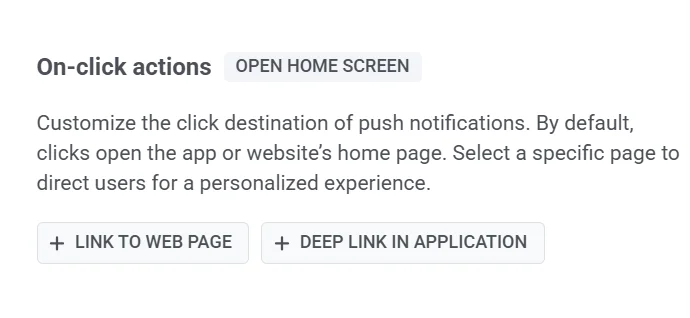
Anchor link toBy default, when users click on push notifications, they are directed to the main screen of your app or the home page of your website. However, you can customize the notification to redirect users to a specific page within your app or in their browser.
To do this, follow these steps:
-
Navigate to the On-click Actions section of the Push preset.
-
Choose a link type:
- Deep link in application.
- Link to web page for web subscribers.
Link to web page
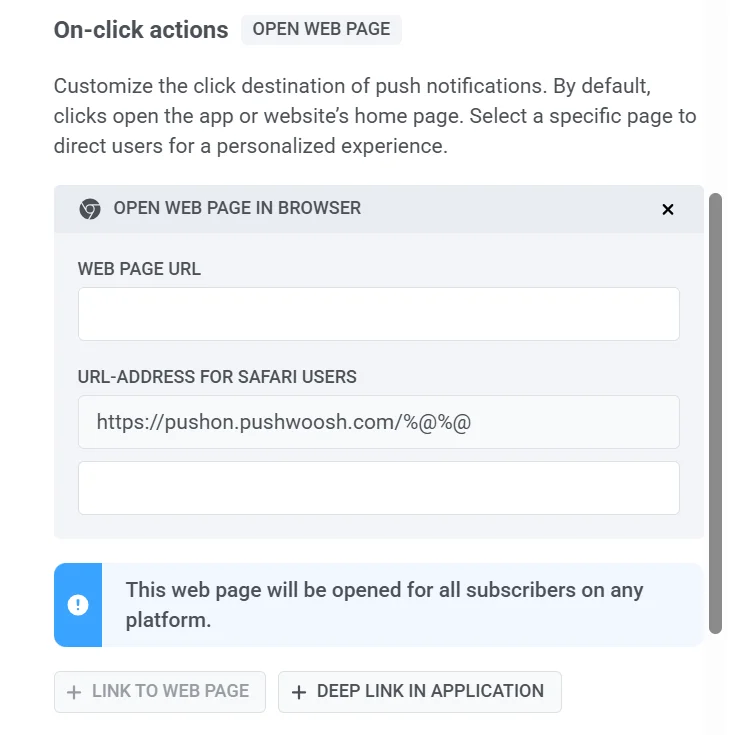
Anchor link toTo open a webpage in the browser, enter the URL in Web Page URL.
Safari opens web links a bit differently, so Pushwoosh handles this for you automatically. When a Safari subscriber clicks your notification, it goes through a special Pushwoosh link first, which then takes them to your actual page. You’ll see this link in URL-Address for Safari users. It’s already filled in, and you don’t need to change anything there.
Most of the time, that’s all you need to know. The second field, URL-Address params for Safari users, is only for pages that need extra info in the link to work correctly, like a tracking code. If your page doesn’t need that, just leave it empty.
Deep link in application
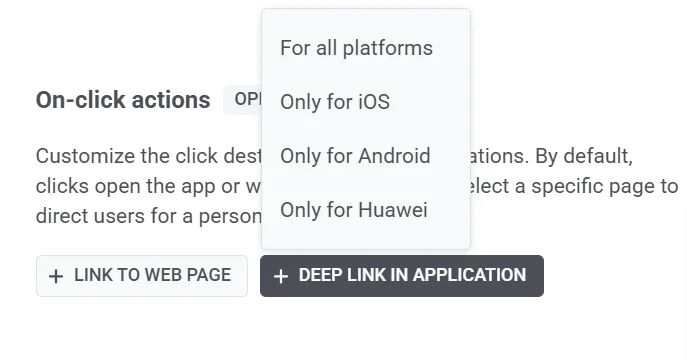
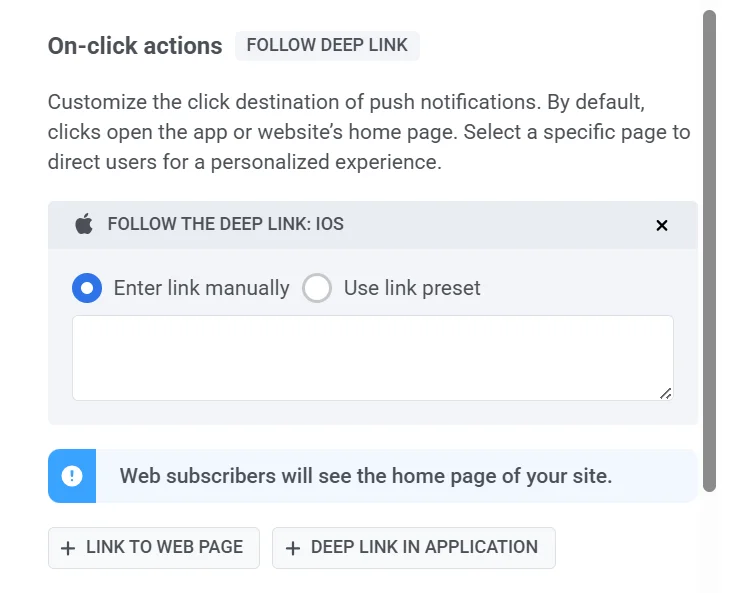
Anchor link to- Choose the target platforms:
- For all platforms
- Only for iOS
- Only for Android
- Only for Huawei
- Enter the deep link URL. There are 2 ways to do it:
- Manually. Input the specific deep link URL for the page or feature you want users to access within your app.
- Using deep-link presets. If you have predefined deep link presets, you can select one from the available list. Presets can be managed in Settings > Deep Links if needed. Learn more
Once a web page or deep link URL is set here, you can auto-fill the push title, message, and banner image from that page instead of typing them yourself. See Fill content from a link.
Add Custom Data
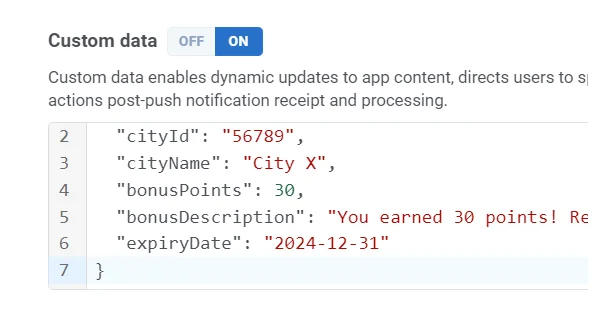
Anchor link toCustom Data allows you to include additional information within your push notifications. This information is structured as a JSON object, containing key-value pairs. By using Custom Data, you can dynamically update your app’s content, direct users to specific sections within the app, and manage actions after push notification receipt and processing. Learn more
To include Custom Data in your push notification, simply toggle Custom Data on and insert your JSON data into the Custom data field.
Configure notification settings
Anchor link toNotification settings in Push presets allow you to customize how users receive and interact with notifications. You can define badge count, sound preferences, and delivery priority to align notifications with your app’s requirements.
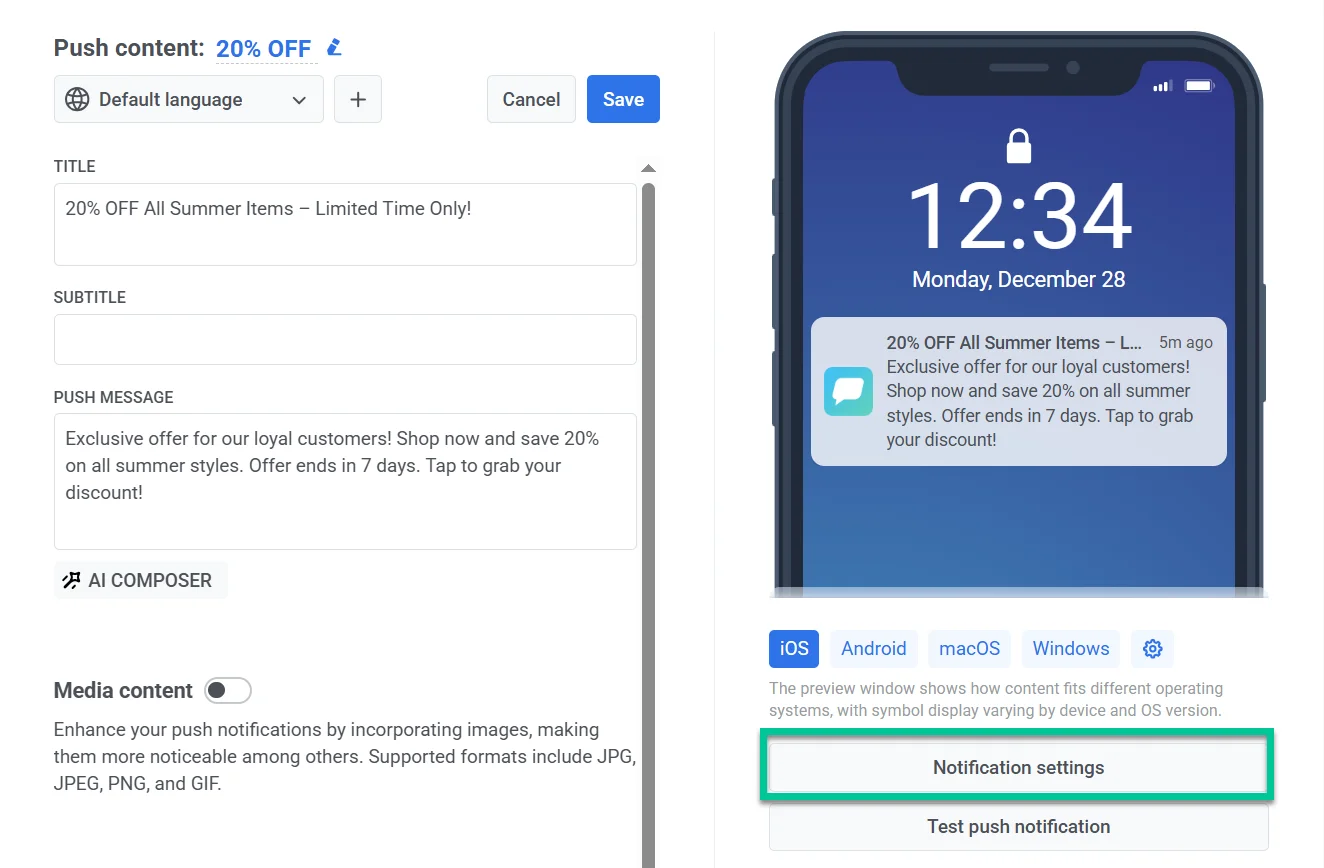
To configure these settings, click Notification settings under the push preview.
Set badge count
Anchor link toThe badge count is the number displayed on an app icon, typically indicating unread messages or notifications. Using badge count in Push Presets ensures that notifications consistently update the app icon badge, helping users keep track of unread messages, tasks, or alerts.
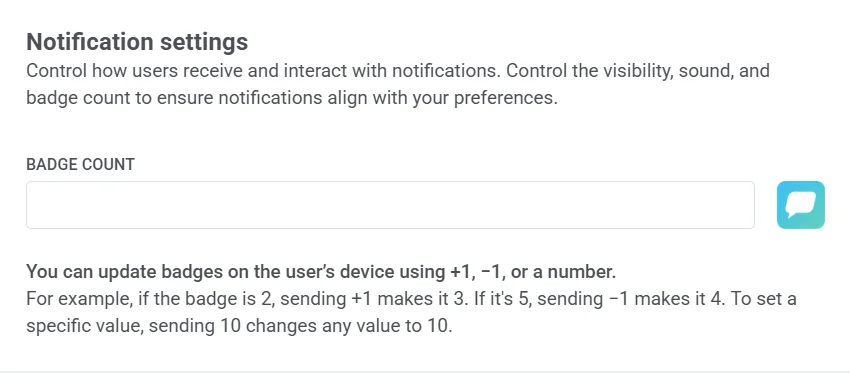
Increase (+1): Adds 1 to the current badge count.
Example: A push notification for a new message increases the badge count from 2 to 3, indicating 3 unread messages.
Decrease (-1): Subtracts 1 from the current badge count.
Example: A push notification confirms a completed task, reducing the badge count from 5 to 4, showing 4 pending tasks.
Set a specific number: Assigns an exact badge count.
Example: A push notification from a news app sets the badge count to 10 when 10 unread articles are available.
Platform-specific settings
Anchor link toYou can configure notification settings separately for iOS, Android, and Huawei platforms by switching between the respective tabs.
iOS notification settings
Anchor link to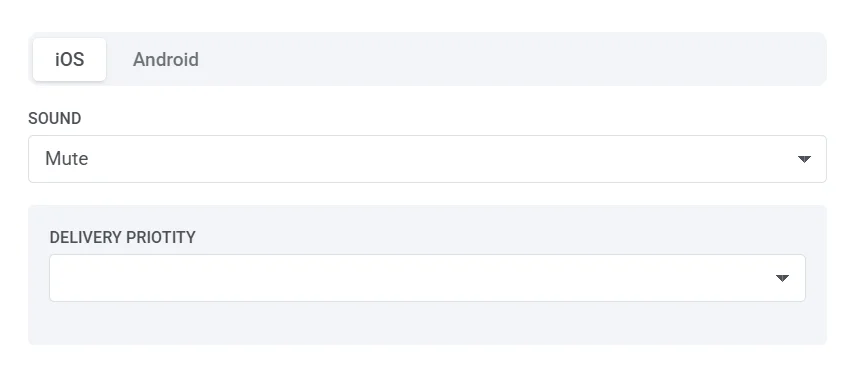
Sound
Anchor link toSelect a notification sound from the dropdown menu.
- Default: Plays the system’s default notification sound.
- Mute: Disables sound for this notification.
- bubble.wav.
Delivery priority
Anchor link toDelivery priority determines how push notifications are handled on the user’s device, ensuring important messages are delivered appropriately based on urgency. You can select from the following priority levels:
- Critical: Delivered immediately, even when Do Not Disturb is enabled. These notifications light up the screen, bypass the mute switch, and play a sound. Requires Apple-approved entitlement and should be used for emergency alerts (e.g., severe weather, safety warnings).
- Active: Standard push notifications that appear instantly, light up the screen, and play sounds or vibrations. Blocked by Focus mode, meaning users won’t receive them if their device settings restrict notifications. Best for chat messages or important updates.
- Time-sensitive: Delivered immediately even if Focus mode is enabled, with a yellow “Time-Sensitive” banner. Users can disable this interruption level. Ideal for urgent alerts like account security warnings or package delivery updates.
- Passive: Added to the notification center without lighting up the screen or playing a sound. These notifications do not bypass Focus mode and are best for non-urgent updates, recommendations, or promotional offers.
Root params
Anchor link toRoot params are raw key-value pairs merged directly into the iOS payload, for advanced settings the preset UI doesn’t expose. Add them as JSON, for example {"key": "value"}.
Android notification settings
Anchor link to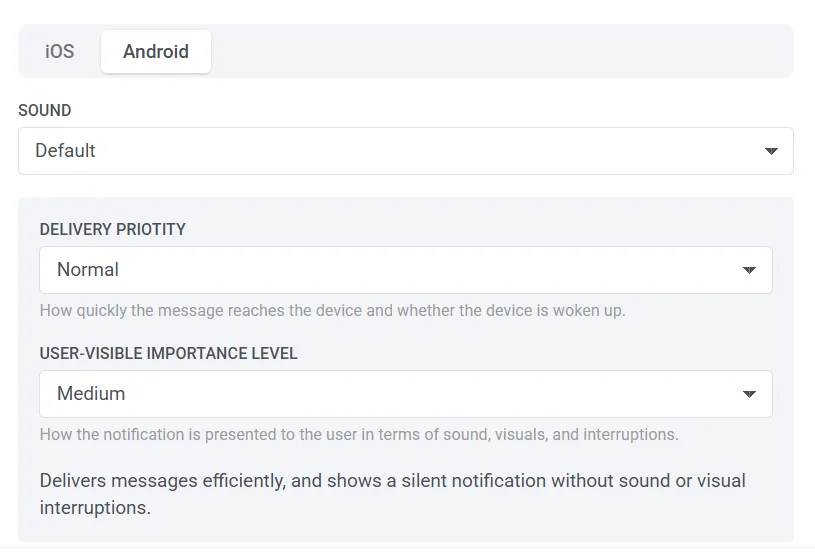
Sound settings
Anchor link toChoose how notifications play sounds when received:
- Default: Uses the system’s default notification sound.
- Mute: Delivers the notification silently without sound.
Delivery priority
Anchor link toDelivery priority determines how push notifications are handled on the user’s device, ensuring important messages are delivered appropriately based on urgency. You can select from the following priority levels:
- High: Ensures the notification is delivered immediately with sound and visual alerts. Suitable for time-sensitive messages like chat notifications or alerts.
- Normal: Delivers notifications efficiently without overriding system settings. Standard priority for most notifications.
User-visible importance level
Anchor link toThe user-visible importance level controls how notifications appear to users, including sound, visuals, and interruptions. Choose the appropriate level to match the urgency of your notifications:
- None: Delivered silently with no sound or visual alerts.
- Low: No sound; does not appear in the status bar.
- Medium: No sound; appears in the status bar.
- High: Plays a sound and appears in the status bar.
- Urgent: Plays a sound and appears as a heads-up notification.
Root params
Anchor link toRoot params are raw key-value pairs merged directly into the Android payload, for advanced settings the preset UI doesn’t expose. Add them as JSON, for example {"key": "value"}.
Huawei notification settings
Anchor link to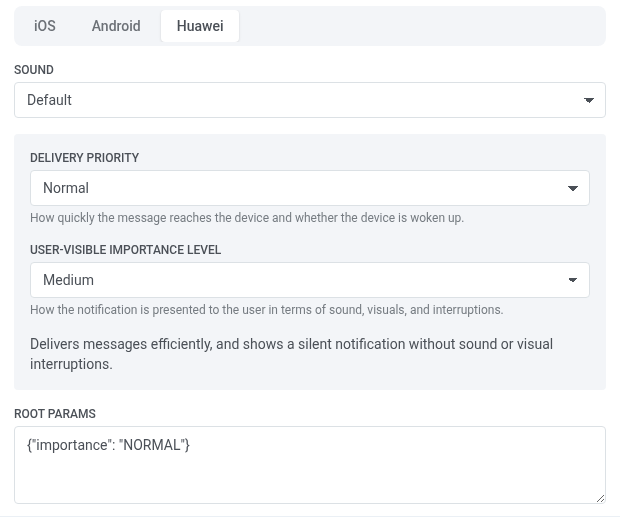
Sound settings
Anchor link toChoose how notifications play sounds when received:
- Default: Uses the system’s default notification sound.
- Mute: Delivers the notification silently without sound.
Delivery priority
Anchor link toDelivery priority determines how push notifications are handled on the user’s device, ensuring important messages are delivered appropriately based on urgency. You can select from the following priority levels:
- High: Ensures the notification is delivered immediately with sound and visual alerts. Suitable for time-sensitive messages like chat notifications or alerts.
- Normal: Delivers notifications efficiently without overriding system settings. Standard priority for most notifications.
User-visible importance level
Anchor link toThe user-visible importance level controls how notifications appear to users, including sound, visuals, and interruptions. Choose the appropriate level to match the urgency of your notifications:
- None: Delivered silently with no sound or visual alerts.
- Low: No sound; does not appear in the status bar.
- Medium: No sound; appears in the status bar.
- High: Plays a sound and appears in the status bar.
- Urgent: Plays a sound and appears as a heads-up notification.
Root params
Anchor link toRoot params are raw key-value pairs merged directly into the Huawei payload, for advanced settings the preset UI doesn’t expose. Add them as JSON, for example {"key": "value"}.
Preview and save push content
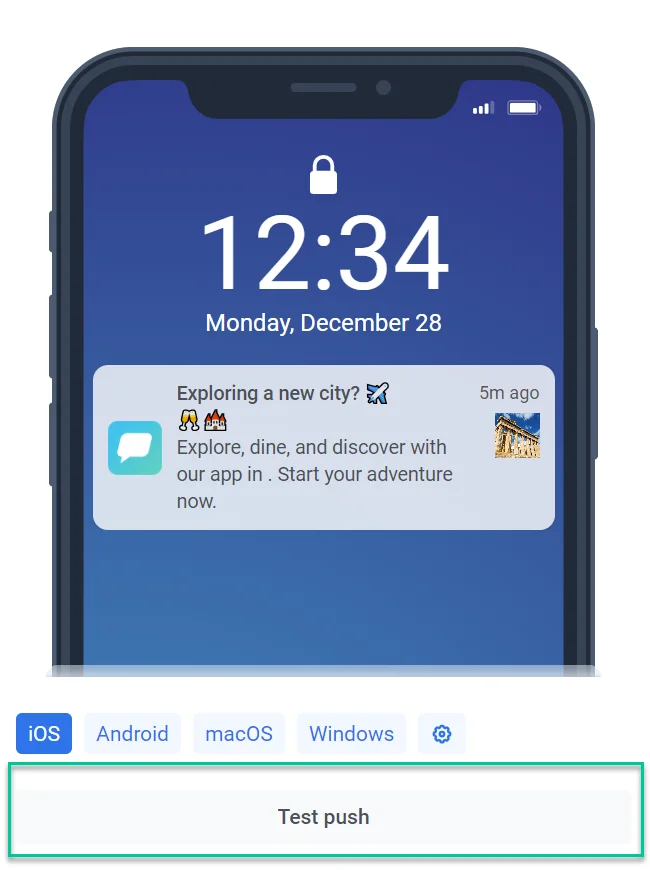
Anchor link toThe push content editor provides a convenient way to visualize how your notification will appear on recipient devices. Simply choose the target platform you’d like to preview the notification for (e.g., Android, iOS).
To ensure that your push notifications are configured correctly and display as expected, send a test push to a dedicated device using the Test push notification feature. Learn more about test devices
Once you’ve finalized your push notification content, be sure to click the Save button located at the top of the editor.

Upon saving, your push notification will be added to the list of available push content. You can then easily access and utilize it within your future campaigns. Learn more
Save a message to the inbox
Anchor link toSaving a push to the user’s inbox is not configured in the push preset editor. Turn it on when you send the message. See Save a push to a user’s inbox.
Versions and submitting content for approval
Anchor link toPushwoosh saves a new version of this preset every time you click Save, whether or not content approval is on for your account. Open the version history to compare two versions, or restore an earlier one’s text into the editor.
If content approval is on, the editor also shows a version status chip next to Save: Draft, On approval, Approved, or Rejected.
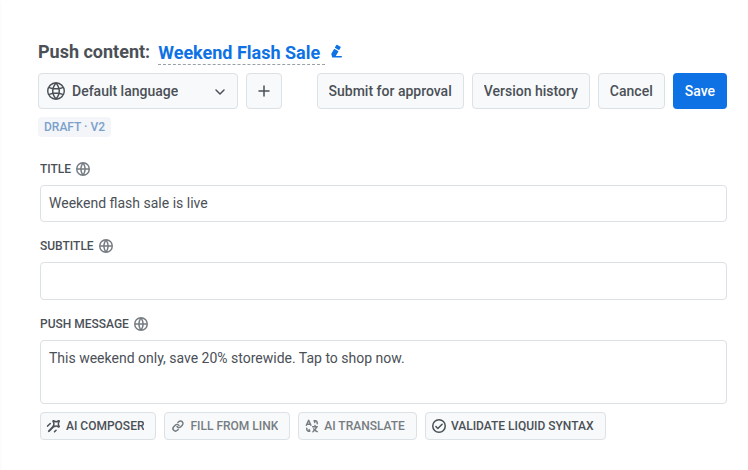
Click Submit for approval next to Save to send the current version for review. The chip changes to On approval, and a reviewer with the Approve messages permission sees it in their queue.
If the reviewer rejects it, the chip changes to Rejected and shows the reviewer’s reason on its second line. Edit the content and click Submit for approval again to resubmit.
Editing a preset that’s currently Approved moves it back to Draft, with a version number next to the status, for example Draft · v4. Editing also cancels any other request still waiting for approval on this preset. See Approvals and content versions for the full workflow, including what happens when you try to send unapproved content.
Understanding push content behavior in cloned Journey points
Anchor link toWhen you clone a push journey element, its content remains shared between the original and the copy. Any changes made to the content in one point will automatically update the other.
If you need unique content for the new point, create new push content instead of modifying the existing one.