Send in-apps via Customer Journey
This guide walks you through sending an in-app message via Customer Journey.
Create a journey and add elements
Anchor link to-
Go to Customer Journey Builder → Create Campaign.
-
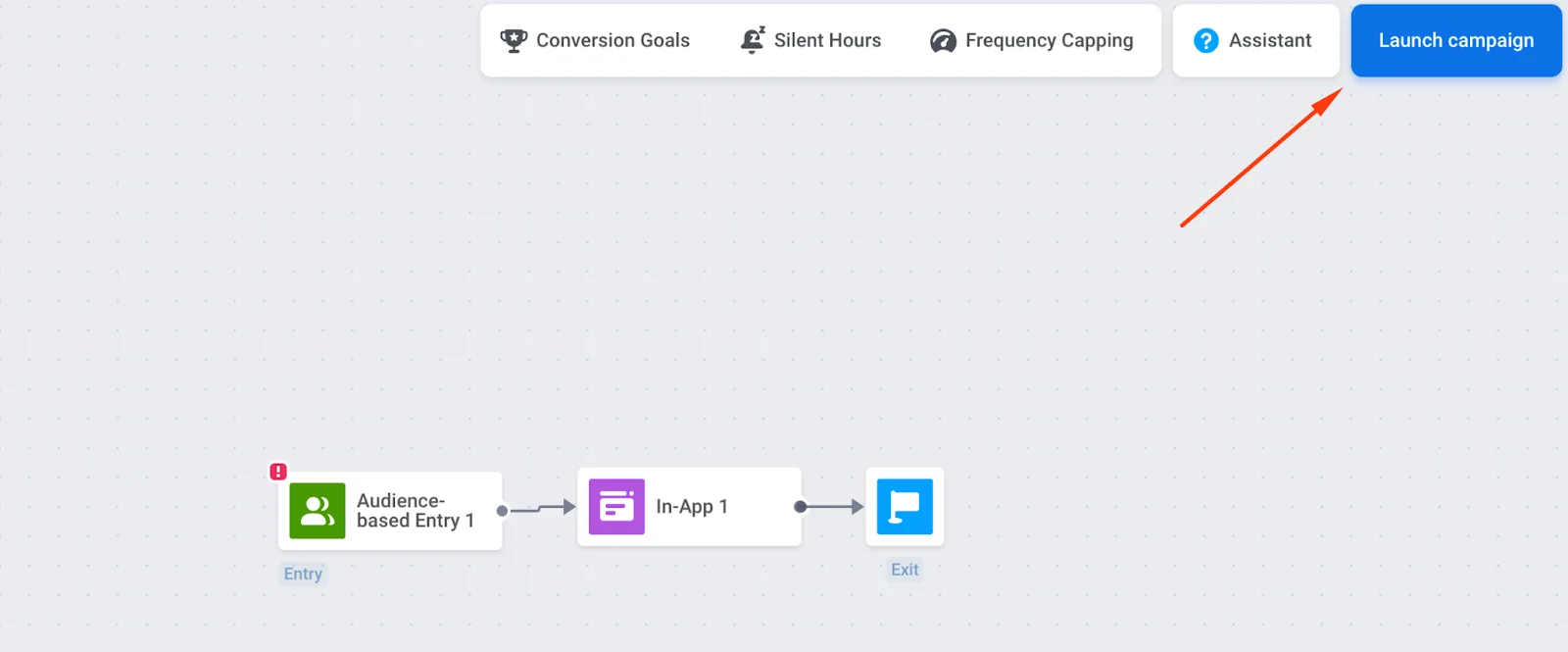
Drag Entry, In-App, and Exit onto the canvas and connect them in that order.
Configure entry and audience
Anchor link toYou must configure the Entry element; otherwise, the in-app message will not be delivered.
Trigger-based entry
Anchor link toShow the in-app when a user performs a specific action (for example, lands on a pricing screen). Use default triggers and events or create your own.
Learn more about trigger-based entry.
Example: show an in-app with a discount only to iOS users by adding a platform filter.
Audience-based entry
Anchor link toStart the journey for a segment of users (for example, your entire user base). Create a segment from tags and/or events or use pre-built segments.
Learn more about audience-based entry.
Configure scheduling
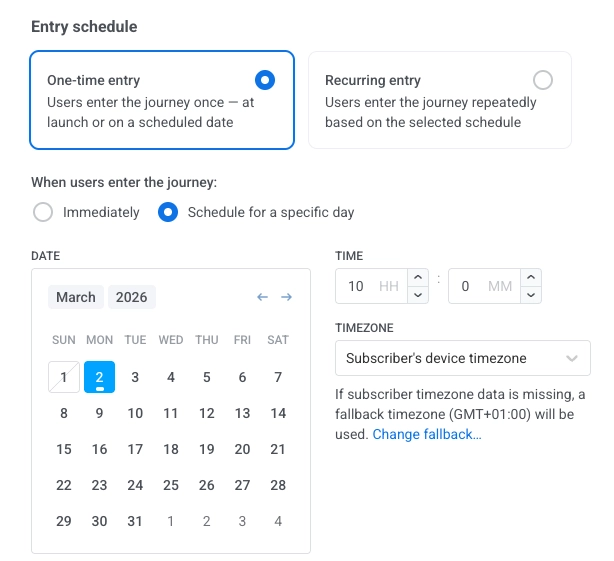
Anchor link toIn the Audience-based entry element, Entry schedule controls when users enter. By default, One-time entry with Immediately makes users enter as soon as the journey is activated.
To run on a specific date and time (with timezone), choose One-time entry → Schedule for a specific day. To run on several dates or at a fixed interval, choose Recurring entry. Learn more
Configure the in-app element
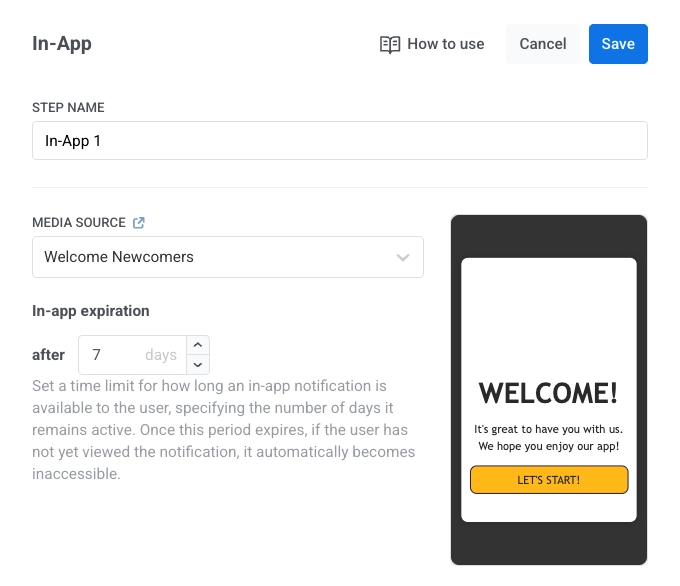
Anchor link to- Click the In-App element → Media Source. Select a template (newest first) and click Apply.
- Set In-app expiration (number of days the message is available). For example, set 7 days if the offer expires in a week.
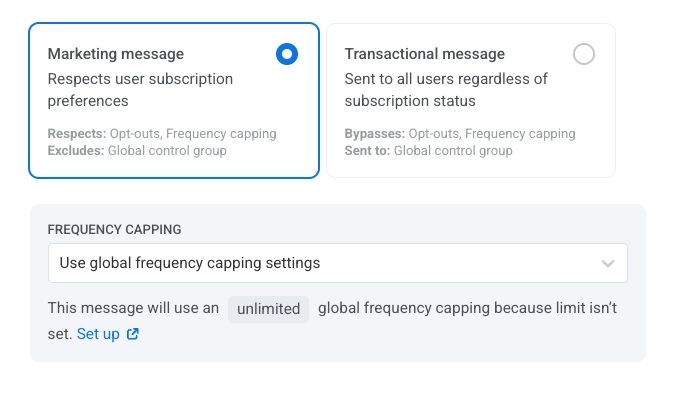
- Choose the message type:
- Marketing message: For campaigns and promos. All rules and limits apply. Respects: opt-outs, frequency capping, and the silence period. Excludes: the global control group users.
- Transactional message: For operational or service messages. Rules and limits don’t apply. Bypasses: opt-outs, frequency capping, and the silence period. Sent to: the global control group users.
Learn more about the difference between marketing and transactional messages.
-
Configure frequency capping. Learn more.
-
Click Apply to save the settings.
Validate and launch the journey
Anchor link to- Finish configuring the journey and run the pre-launch check to validate the journey.
- Click Launch campaign (top-right) to send the in-app message to users.