SMS
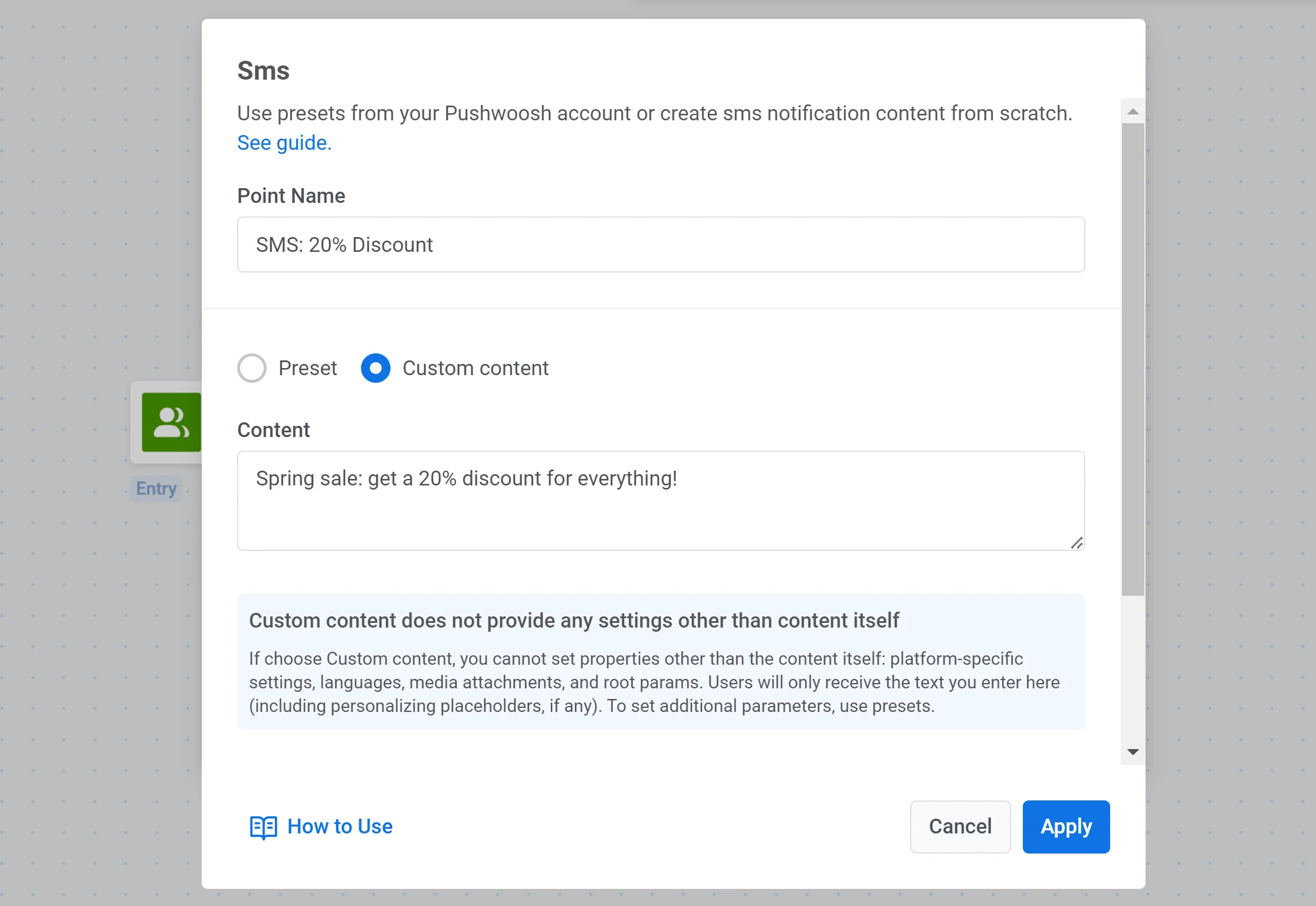
SMS element indicates a point to communicate with a customer via SMS.
To send SMS to users within the journey, add the SMS element to the canvas next to any element. Choose a preset or enter the text of the SMS manually.
Set message type
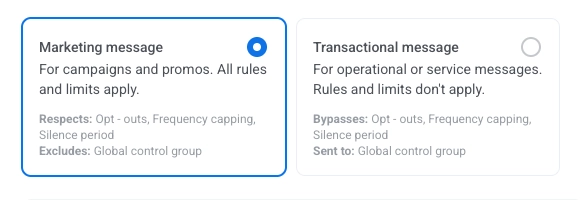
Anchor link toChoose Marketing message or Transactional message:
- Marketing message: For campaigns and promos. All rules and limits apply. Respects: Opt-outs, Frequency capping, and Silence period. Excludes: the global control group.
- Transactional message: For operational or service messages. Rules and limits don’t apply. Bypasses: Opt-outs, Frequency capping, and Silence period. Sent to: the global control group.
Learn how message type affects delivery.
Overwrite personalization
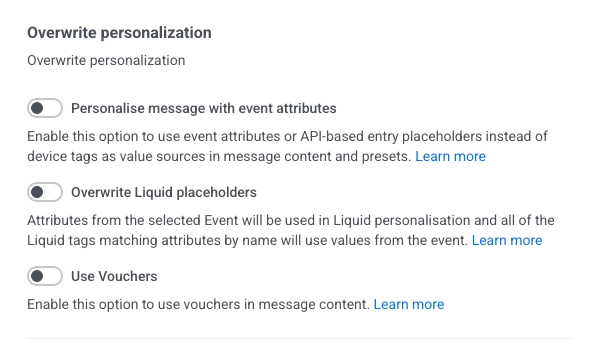
Anchor link toWhen you select a preset, you can overwrite how the message is personalized:
- Personalise message with event attributes: Enable this option to use event attributes or API-based entry placeholders instead of device tags as value sources in message content and presets. Learn more
- Overwrite Liquid placeholders: Enable this option to use values from the selected Event in Liquid personalization. Liquid tags that match event attribute names will use values from the event. Learn more
- Use Vouchers: Enable this option to use vouchers in message content. Learn more
Configure message delivery settings
Anchor link toSet frequency capping
Anchor link toUse Frequency capping to control how often users receive SMS messages, helping prevent message fatigue and opt-outs.
You can choose one of the following options:
-
Use global frequency capping settings Apply the project-wide SMS limits set in your Global frequency capping settings. Example: If the global limit is 3 SMS messages in 9 days, any additional messages will be skipped.
-
Ignore global frequency capping Send the SMS regardless of how many messages the user has already received. Use with caution to avoid over-messaging and compliance issues.
-
Use custom frequency capping Set a custom SMS limit specifically for this message step. If the user has reached the limit, they will skip this message and move to the next step in the journey. Learn more
Set send rate limits
Anchor link toThe Send rate setting controls how quickly messages are delivered to your audience. Adjusting the send rate helps you manage delivery speed, prevent backend overload, and improve overall deliverability.
Choose one of the following options:
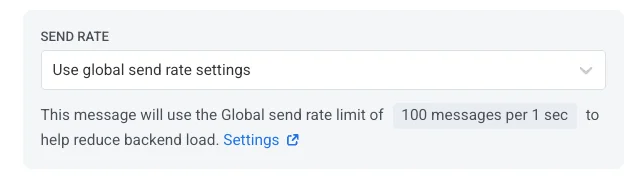
- Use global send rate settings
Applies the send rate limits configured in your project’s message delivery settings. If no limits are set, all messages will be sent immediately. Use this option when you want delivery speed to follow your project’s default rules. Learn more about global send rate limits
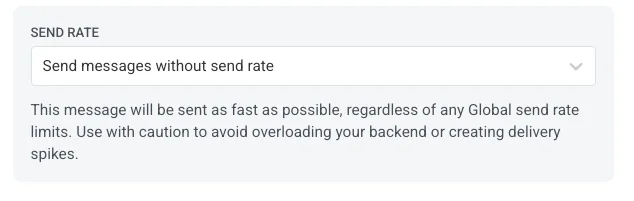
- Send messages without send rate
Sends messages as fast as possible, ignoring any global send rate limits. Use with caution to avoid overloading your backend or creating delivery spikes.
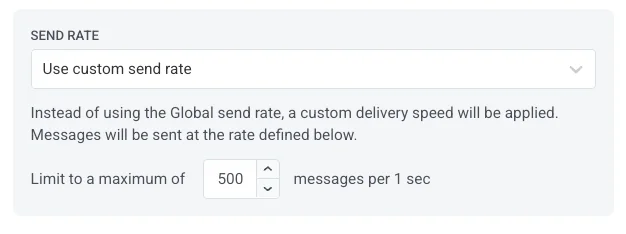
- Use custom send rate
Overrides the global send rate for this message only. Allows you to specify the number of messages sent per minute, giving you full control over delivery speed. Messages will be sent at the custom rate you define in the message element.
Flow options
Anchor link toEnable the Split flow depending on whether this message is delivered or not toggle to split the journey based on whether the SMS is delivered.
Then, set the delivery waiting time.
If the SMS is delivered within the specified time period, the "delivered" branch will be activated. Maximum 7 days.
