Kakao
The Kakao element in Pushwoosh Customer Journey lets you send Kakao messages to users using pre-approved Kakao templates.
Add the Kakao element to a journey
Anchor link toTo send a Kakao message, drag the Kakao element onto the journey canvas and connect it to the desired step in your flow.
Once added, click the element to open its configuration panel.
Select message content
Anchor link toIn the Content dropdown, select one of your Kakao templates.
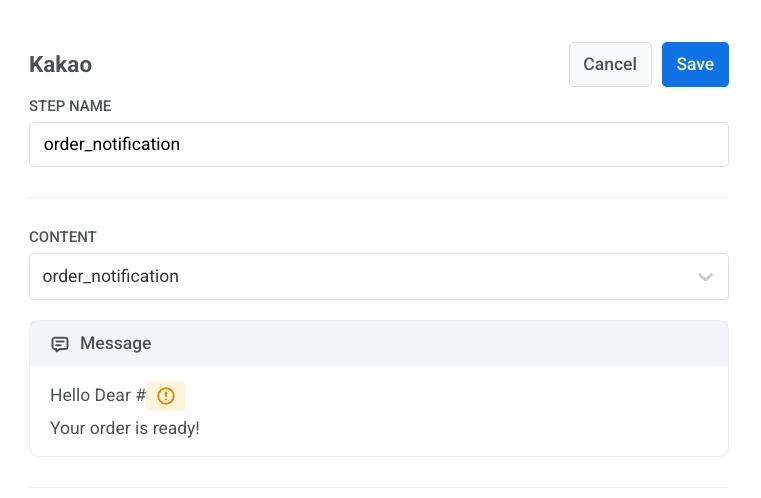
After selecting a template, Pushwoosh shows a preview of the message text.
Personalize the message with variables
Anchor link toIf your template includes placeholders, you must map them before sending.
Click inside the message where the variable should appear and insert a variable using the variable picker. For each variable, you can choose:
-
Variable type:
- User property: data from the user profile (for example,
firstName) - Event property: data from the event that triggered the journey
- User property: data from the user profile (for example,
-
Text case (optional), such as CapitalizeFirst
-
Fallback text (optional), which is shown if the value is missing
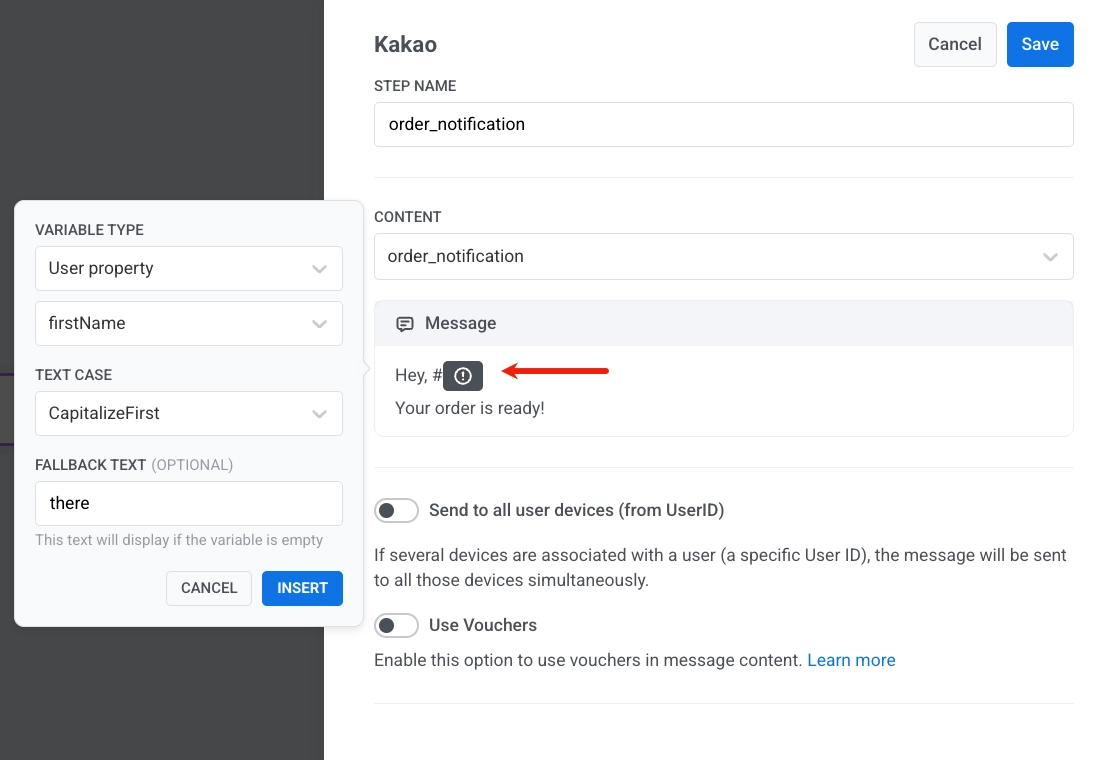
Example message:
Hey, #{firstName}!Your order is ready.If firstName is empty, the fallback text (for example, there) will be used instead.
Send to all user devices
Anchor link toEnable Send to all user devices (from UserID) if you want the message to be delivered to all devices associated with the same user ID.
When disabled, the message is sent only to the device that triggered the journey.
Use vouchers
Anchor link toYou can personalize Kakao messages by including a unique voucher code from a predefined pool. This is ideal for delivering promotions, discounts, or loyalty incentives through one-on-one communication.
Add a voucher placeholder in Kakao format so the code is rendered in the text, for example #{voucher}.
Next, configure where the voucher comes from and how it is assigned:
- Toggle Vouchers to ON in the Kakao message step.
- In Voucher Pool, select the pool that contains your voucher codes. Make sure the pool is created in advance.
- (Optional) Use Assign Tag to apply a tag to users who receive a voucher. This helps with segmentation and reporting.
After configuring the Kakao element, click Save to apply the settings.