Send emails via Customer Journey
This guide explains how to send emails through Customer Journey.
Create a campaign and set up the Entry
Anchor link toCreate a campaign
Anchor link toLog in to your Pushwoosh account and navigate to Customer Journey Builder. Click Create Campaign to begin. You can either choose a journey from the templates or start from scratch.
Add an entry element to the canvas
Anchor link toIf you’re starting from scratch, drag and drop an entry element (Audience-based, Trigger-based, or API-based) as the first element of your journey. If you’re using a template, the entry element will already be on the canvas.
Example: use Audience-based Entry to target loyal customers who have made purchases during past sales and are likely interested in the current promotion.
Configure the Entry element
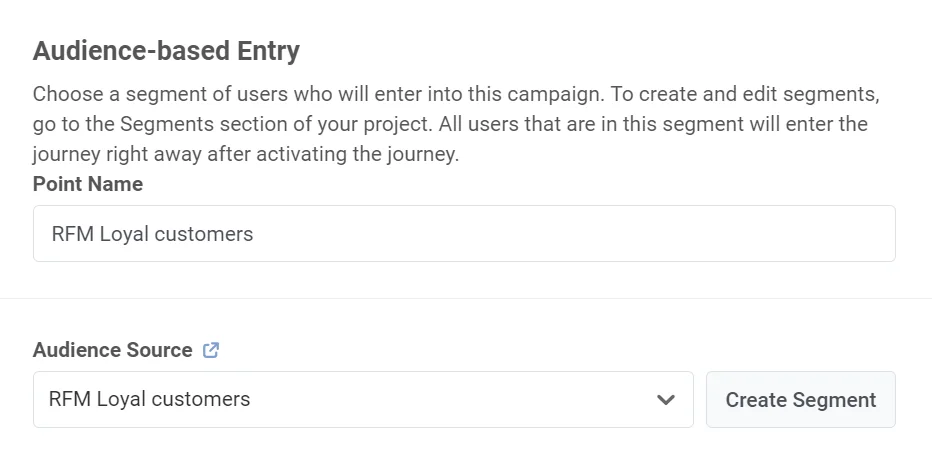
Anchor link toDouble-click on the Entry element to configure it. The settings depend on the entry type. For Audience-based Entry you choose or create a segment. For Trigger-based Entry you select an event and conditions. For API-based Entry you use the API to add users. Learn how to configure each entry type.
Add and configure the Email element
Anchor link toDrag and drop the Email element onto the canvas and double-click to open its settings. In the pop-up window, start setting up your email.
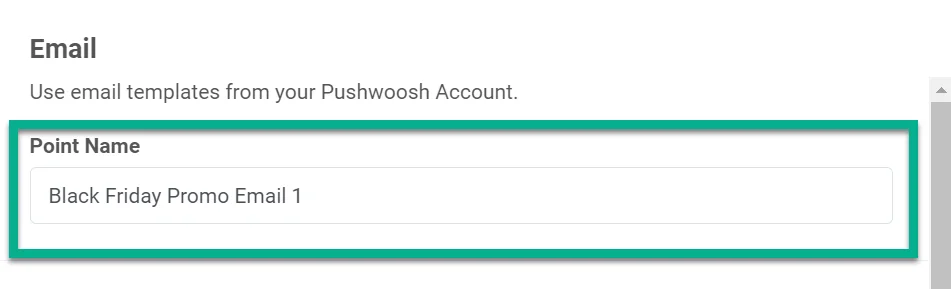
Give the journey point a name
Anchor link toExample: Black Friday Promo Email.
Configure content
Anchor link toIn the Content step, configure your email content:
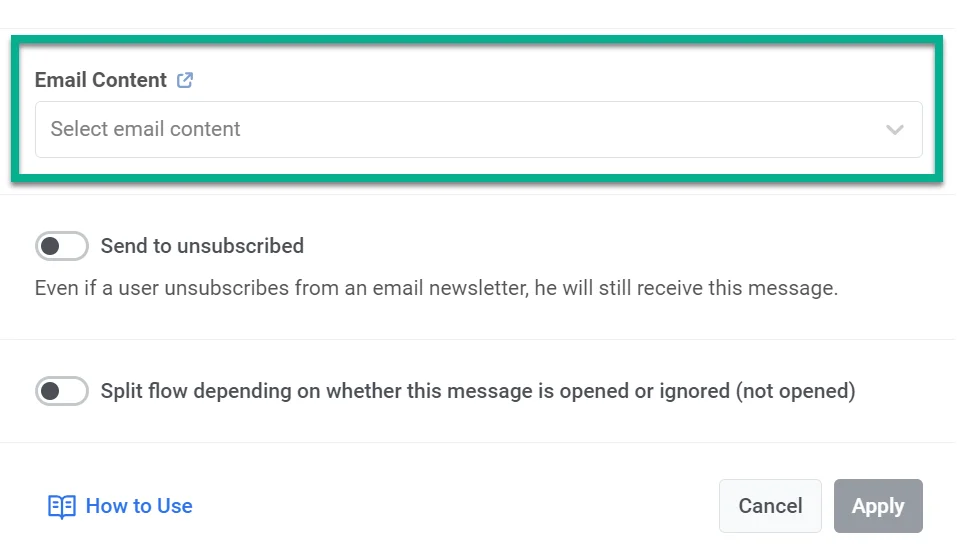
- Email preset: Select an existing preset from the dropdown or click the link next to the field to create or edit content. Learn more
- Subject: If the preset includes a subject, it appears here. Keep it, edit it, or enter a new one. Learn more
- From name and From email: Enter the sender name and address (must be a verified domain). You can pick a configured sender from the dropdown. Values set here are stored in the step and take priority over the preset and platform default. How sender priority works.
- Reply-to: Optionally enable Use this as the reply-to address to receive and track replies so replies go to the From email. Learn more
Choose the message type
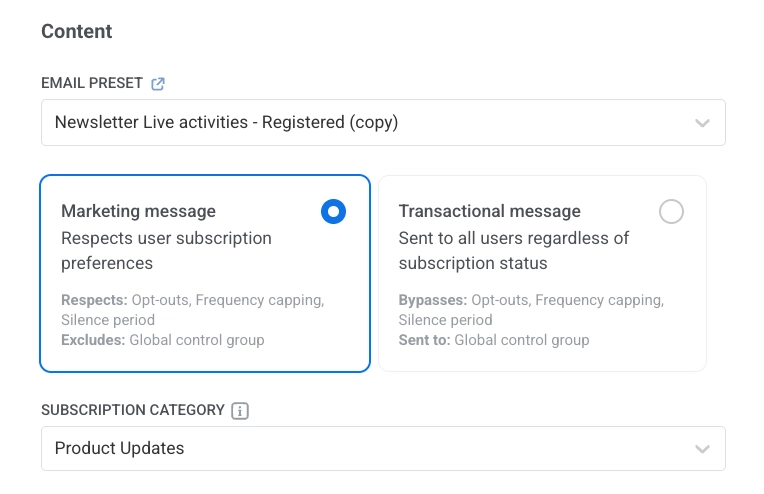
Anchor link to- Marketing message: Respects subscription preferences, opt-outs, and frequency capping. Not sent to global control group users.
- Transactional message: Sent to all users regardless of subscription status. Delivered to control group users.
Learn how message type affects delivery.
Select subscription category
Anchor link toIf you chose Marketing message, pick a category from the dropdown (e.g. Product Updates, Newsletter, Promotional) so the message aligns with your subscribers’ preferences. Categories are defined in the subscription preference center.
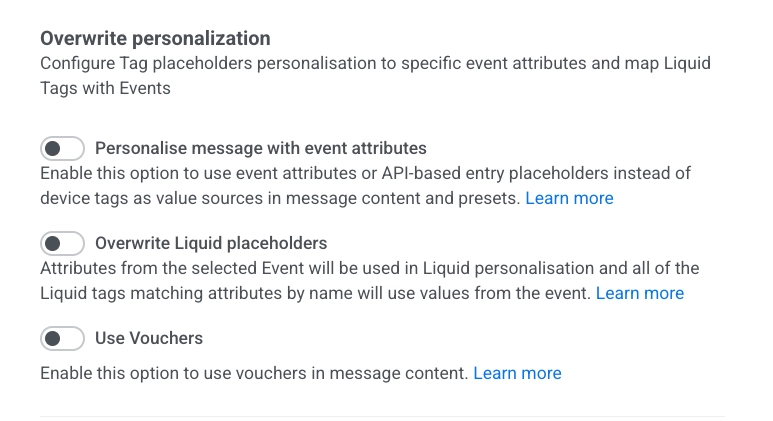
Overwrite personalization (optional)
Anchor link toConfigure how message content is personalized:
- Personalise message with event attributes: Fill placeholders in the email with data from the journey (e.g. event or API-based entry). Learn more
- Overwrite Liquid placeholders: Use values from a selected Event in Liquid tags. Tags that match event attribute names get those values. Learn more
- Use Vouchers: Insert a unique voucher code from a pool into the email (e.g. for promotions). Learn more
Delivery settings (optional)
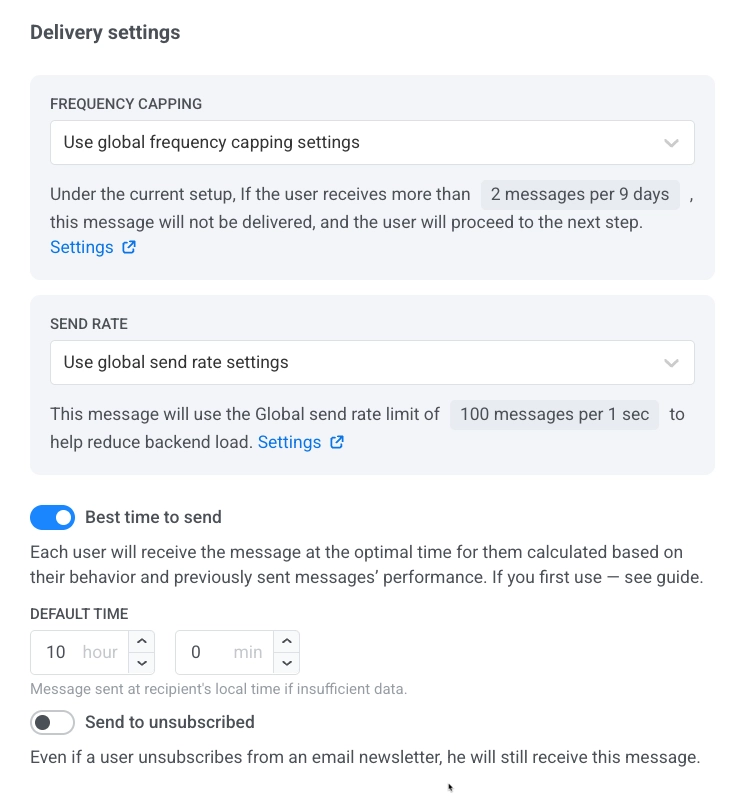
Anchor link toIn this section you can set:
- Frequency capping: Use global, ignore, or custom limit. Learn more
- Send rate: Use global, without limit, or custom. Learn more
- Best time to send: Deliver at the optimal time per user based on behavior. Learn more
Split by email open (optional)
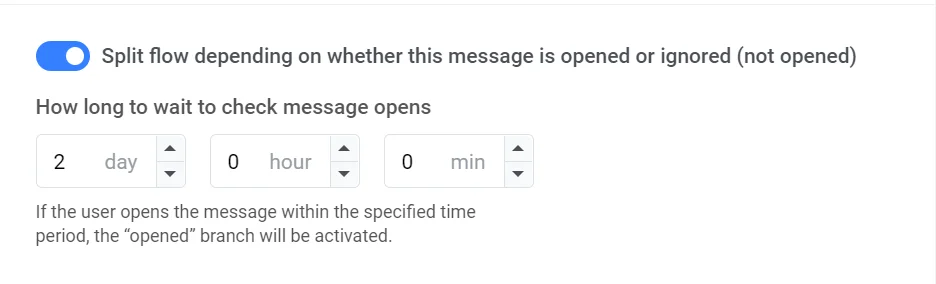
Anchor link toSplit the flow by whether users open the email or not. Set the wait period (up to 7 days). Example: follow up with a push or another email if the user doesn’t open. Learn more
Add Exit element
Anchor link toOnce your email is configured, complete the journey by adding an Exit element. If you chose to split the flow, set up actions for users who ignore the email.
Configure journey settings and launch
Anchor link toJourney settings (optional)
Anchor link to- Set Silence period during which messages will not be sent to users
- Set Campaign entry limit to define how many times a particular person can enter the journey within a specified period
Set Conversion Goals
Anchor link toSet Conversion Goals to track the success of your journey. Example: set up the CheckoutSuccess event as a Conversion Goal and monitor how many users achieve it within the journey. Learn more about Conversion Goals in Journeys
Launch the campaign
Anchor link toBefore launching, use the Pre-launch check to validate the campaign and fix any missing steps. When the campaign is ready, click Start campaign to start sending.