Send Kakao messages
This guide walks you through how KakaoTalk messaging works in Pushwoosh and how to send KakaoTalk messages.
Send Kakao messages via Customer Journey
Anchor link toPushwoosh allows you to integrate KakaoTalk messaging into Customer Journeys. Follow these steps to configure it:
-
Go to Campaigns > Customer Journey Builder in the main sidebar.
-
Click Build a journey from scratch.
-
Add an Entry element to define who enters the journey. Learn how to configure the Entry elements
-
Add a Kakao element and connect it to the rest of your flow (e.g., entry trigger and next steps).
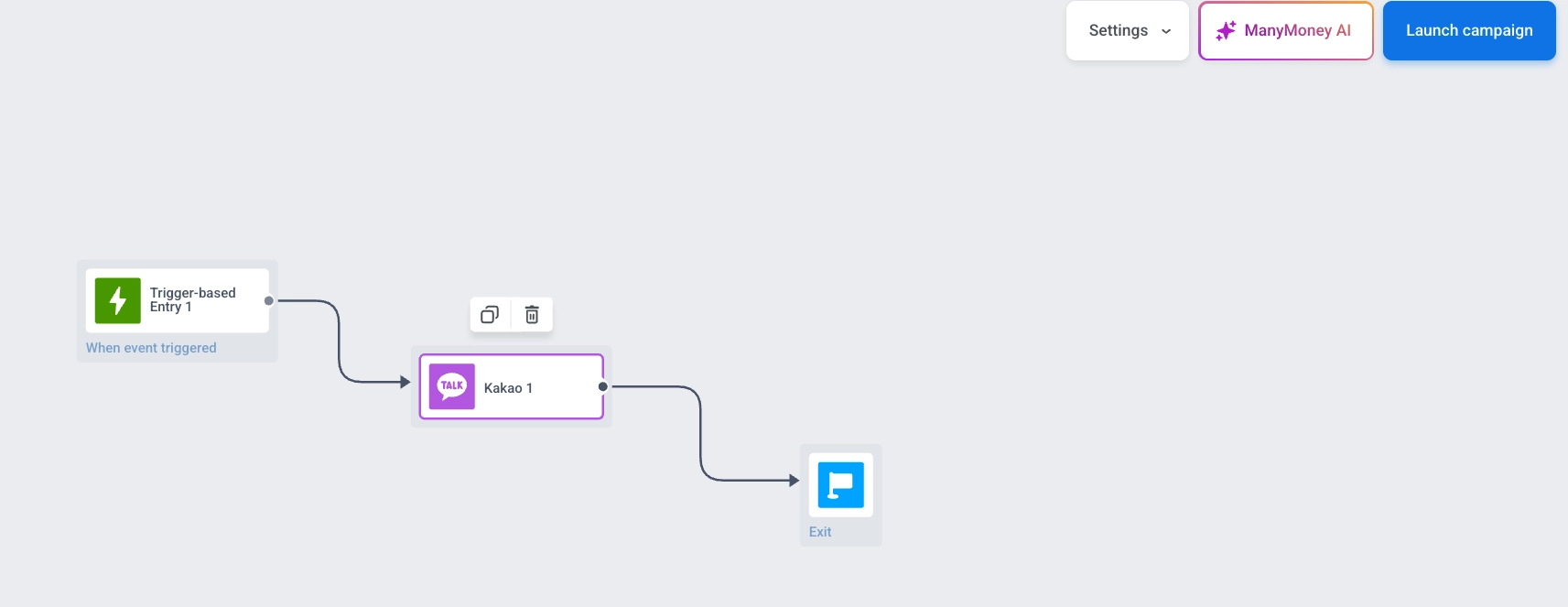
-
Click the Kakao element to open its settings panel. In the Template dropdown, select your approved message template.
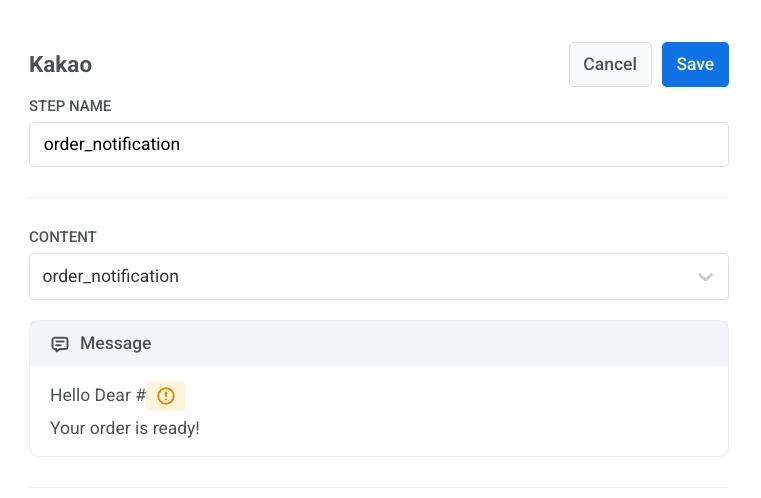
-
Use the variable selector to insert dynamic content:
- Set Variable type (e.g., User property)
- Choose a field like firstName
- Set Text case (e.g., CapitalizeFirst)
- Add Fallback text (optional): shown if the value is missing, for example,
there - Click Insert to add the variable to your message
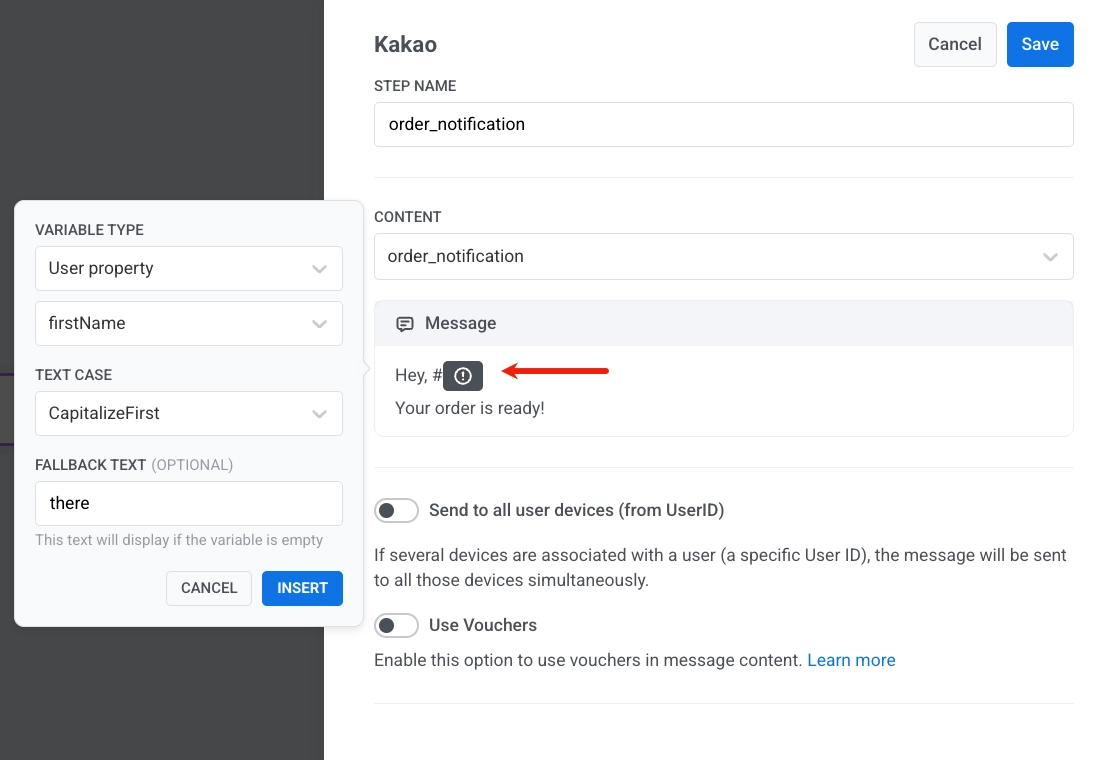
-
Click Save to save the element settings.
-
Complete the journey setup and add the exit element. When you’re ready, click Launch journey to activate it.
Send Kakao messages via API
Anchor link toSend KakaoTalk messages using the Pushwoosh API. Use approved templates and personalize them with variables.