iOS লাইভ অ্যাক্টিভিটি স্কিমা কনফিগারেশন
একটি লাইভ অ্যাক্টিভিটি স্কিমা আপনার iOS অ্যাপের ঘোষিত একটি ActivityAttributes টাইপের কন্টেন্ট-স্টেট ফিল্ড বর্ণনা করে, যাতে একটি জার্নির লাইভ অ্যাক্টিভিটি এলিমেন্ট র’ JSON-এর পরিবর্তে নামযুক্ত ফিল্ড থেকে একটি ফর্ম তৈরি করতে পারে। কন্ট্রোল প্যানেলে প্রতি উইজেটের জন্য একটি করে ভার্সন প্রকাশ করুন।
একটি স্কিমা ভার্সন প্রকাশ করুন
Anchor link to- Pushwoosh-এ আপনার অ্যাপ্লিকেশনের প্ল্যাটফর্ম কনফিগার করুন পেজটি খুলুন।
- iOS প্ল্যাটফর্মের পাশে লাইভ অ্যাক্টিভিটি স্কিমা-তে ক্লিক করুন।

- ভার্সন প্রকাশ করুন-এ ক্লিক করুন।
- অ্যাট্রিবিউট টাইপ লিখুন: আপনার অ্যাপের
ActivityAttributesটাইপের সঠিক নাম, উদাহরণস্বরূপFlightAttributes। - কন্টেন্ট-স্টেট JSON স্কিমা-তে, সেই টাইপের
ContentState-এর জন্য JSON স্কিমা লিখুন — যে ফিল্ডগুলি অ্যাক্টিভিটি চলার সময় পরিবর্তিত হয়, যেমন একটি ফ্লাইটের গেট বা স্ট্যাটাস। এখানেActivityAttributes-এর নিজস্ব স্থির ফিল্ডগুলি অন্তর্ভুক্ত করবেন না। একটি স্কিমা লেখা দেখুন।
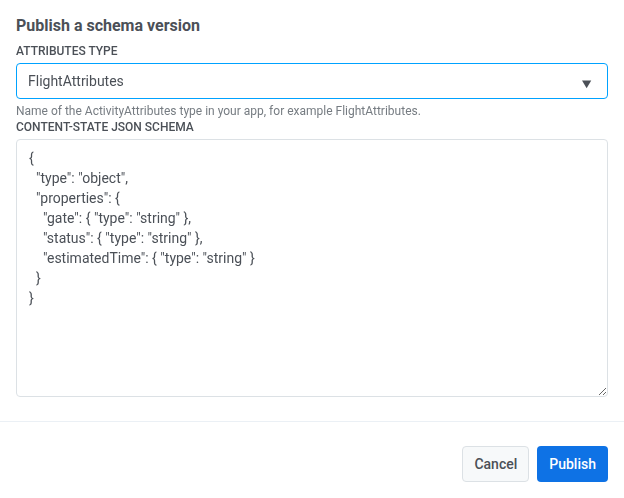
- প্রকাশ করুন-এ ক্লিক করুন।
বিদ্যমান স্কিমা ম্যানেজ করুন
Anchor link toএকই লাইভ অ্যাক্টিভিটি স্কিমা স্ক্রিনে:
- একটি ভার্সনের প্রকাশিত স্কিমা দেখতে তার পাশে JSON দেখুন-এ ক্লিক করুন।
- একটি ভার্সন রিমুভ করতে ডিলিট করুন-এ ক্লিক করুন। এটি আনডু করা যাবে না, এবং একটি জার্নি এলিমেন্ট যা এখনও সেই ভার্সনে সেট করা আছে, তার কন্টেন্ট-স্টেট ফিল্ড রেন্ডার করা বন্ধ করে দেবে।
একটি জার্নিতে স্কিমা ব্যবহার করুন
Anchor link toএকবার প্রকাশিত হলে, একটি জার্নির লাইভ অ্যাক্টিভিটি এলিমেন্ট-এ উইজেট-এর অধীনে এটি নির্বাচন করুন — এর কন্টেন্ট-স্টেট ফিল্ডগুলি কার্ড কন্টেন্ট-এর অধীনে প্রদর্শিত হবে।