Stories push iOS
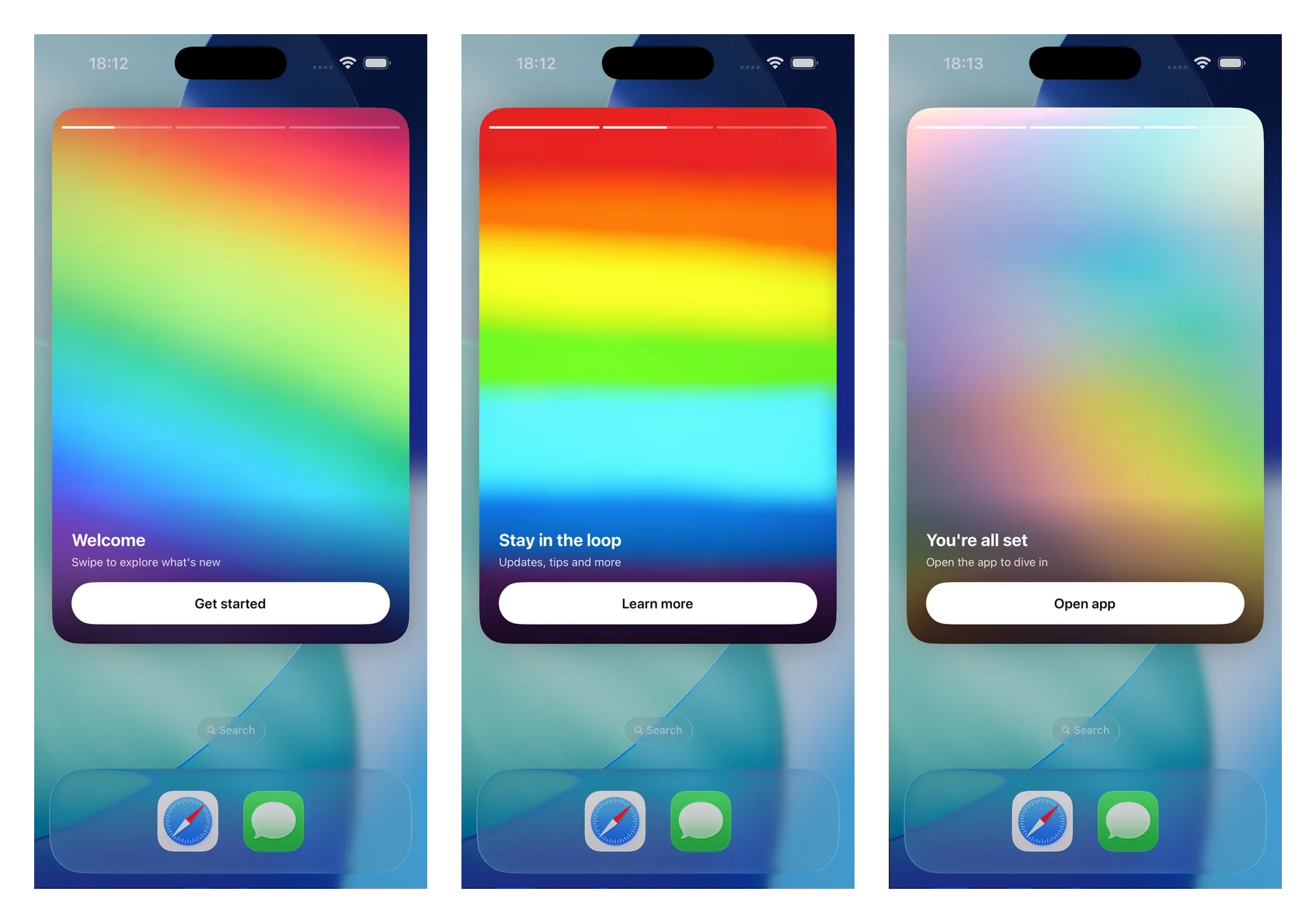
Les stories push transforment une notification push étendue en une expérience de stories en plein écran, de style Instagram : images en pleine page, barres de progression en haut, pages à avancement automatique, navigation par tapotement et un bouton avec un lien profond (deep link). Elles sont rendues par une Extension de Contenu de Notification (Notification Content Extension) utilisant le module autonome PushwooshNotificationUI — vous sous-classez un contrôleur de vue et le SDK gère l’analyse, le chargement des images, la progression, la synchronisation, la navigation et les liens profonds.
Disponible depuis la version 7.0.46.
1. Ajouter une Extension de Contenu de Notification
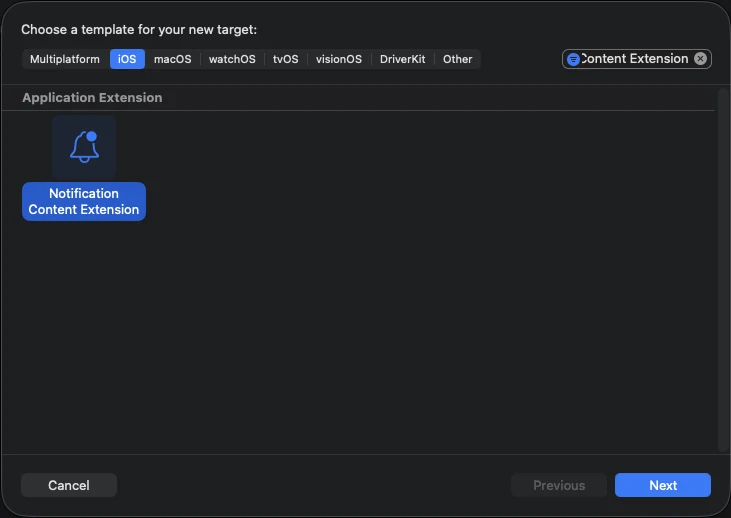
Anchor link toDans Xcode, choisissez Fichier > Nouveau > Cible… (File > New > Target…), sélectionnez Extension de Contenu de Notification (Notification Content Extension), et nommez-la (par exemple StoriesContentExtension).
2. Ajouter le module PushwooshNotificationUI
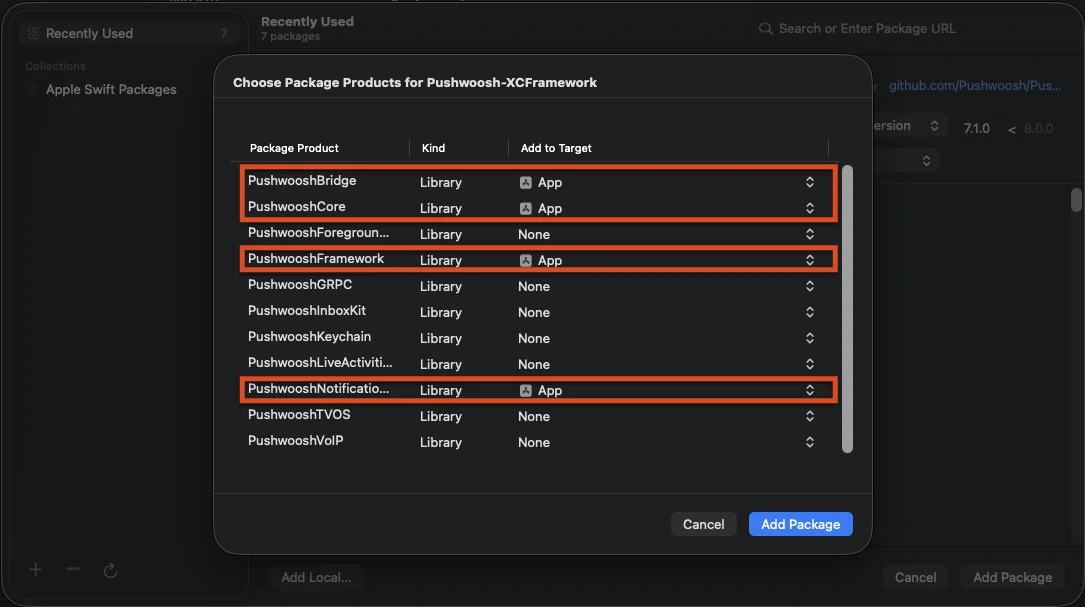
Anchor link toPushwooshNotificationUI est un module autonome sans autres dépendances Pushwoosh, il reste donc de petite taille dans le processus de l’extension. Ajoutez-le à la cible de l’extension de contenu (pas à la cible de l’application).
Gestionnaire de paquets Swift
CocoaPods
target 'StoriesContentExtension' do  use_frameworks!
  pod 'PushwooshXCFramework/PushwooshNotificationUI'end
3. Sous-classer le contrôleur de vue des stories
Anchor link toRemplacez le corps du NotificationViewController généré par une sous-classe de PushwooshStoriesViewController. C’est toute l’intégration.
import PushwooshNotificationUI
class NotificationViewController: PushwooshStoriesViewController {}
4. Configurer l’Info.plist de l’extension
Anchor link toDans l’Info.plist de l’extension de contenu, définissez les clés suivantes sous NSExtension > NSExtensionAttributes :
<key>UNNotificationExtensionCategory</key><string>PW_STORIES</string><key>UNNotificationExtensionUserInteractionEnabled</key><true/><key>UNNotificationExtensionDefaultContentHidden</key><true/><key>UNNotificationExtensionInitialContentSizeRatio</key><real>1.5</real>5. Envoyer une notification de stories push
Anchor link toEnvoyez une notification dont la catégorie est PW_STORIES et dont les données personnalisées contiennent un bloc pw_stories. Utilisez le champ dédié ios_category_custom pour la catégorie et le champ data pour la charge utile des stories.
{ "request": { "application": "APPLICATION_CODE", "auth": "API_ACCESS_TOKEN", "notifications": [ { "send_date": "now", "content": "Tap to explore", "ios_title": "Push Stories", "ios_category_custom": "PW_STORIES", "ios_root_params": { "aps": { "mutable-content": 1 } }, "data": { "pw_stories": { "pages": [ { "image": "https://example.com/story-1.jpg", "duration": 5.0, "link": "yourapp://page1", "button_title": "Get started", "title": "Welcome", "subtitle": "Swipe to explore what's new" }, { "image": "https://example.com/story-2.jpg", "duration": 4.0, "link": "yourapp://page2", "button_title": "Learn more", "title": "Stay in the loop", "subtitle": "Updates, tips and more" } ] } } } ] }}Chaque page prend en charge les champs suivants. Seul image est requis ; les autres sont optionnels.
| Champ | Description |
|---|---|
image | URL de l’image en plein écran pour la page. |
duration | Secondes pendant lesquelles la page reste à l’écran avant de passer automatiquement à la suivante. La valeur par défaut est d’environ 5 secondes. |
link | Lien profond (deep link) ouvert lorsque le bouton de la page est touché. |
button_title | Titre du bouton de la page. |
title | Texte du titre superposé sur la page. |
subtitle | Texte du sous-titre superposé sur la page. |
Personnalisation
Anchor link toSurchargez les propriétés de votre sous-classe pour ajuster l’expérience. Toutes ont des valeurs par défaut judicieuses.
import PushwooshNotificationUI
class NotificationViewController: PushwooshStoriesViewController { override var storyAspectRatio: CGFloat { 1.5 } // keep in sync with InitialContentSizeRatio override var hapticsEnabled: Bool { true } override var longPressToPauseEnabled: Bool { true } override var crossfadesBetweenPages: Bool { true } override var loopsAfterLastPage: Bool { false }}| Propriété | Défaut | Description |
|---|---|---|
storyAspectRatio | 1.5 | Rapport d’aspect (hauteur ÷ largeur) de la zone des stories. Gardez-le synchronisé avec UNNotificationExtensionInitialContentSizeRatio. |
hapticsEnabled | false | Joue un léger retour haptique lors de la navigation par zone de tapotement. |
longPressToPauseEnabled | false | Un appui long met en pause la page actuelle ; le relâchement reprend la lecture. |
crossfadesBetweenPages | false | Fondu enchaîné entre les pages au lieu d’une coupe nette. Se rabat sur un changement instantané lorsque la fonction Réduire les animations est activée. |
loopsAfterLastPage | false | Redémarre depuis la première page après la fin de la dernière. |
appGroupIdentifier | nil | Groupe d’applications (App Group) partagé avec une Extension de Service de Notification pour la pré-mise en cache des médias (voir ci-dessous). |
Vous pouvez également surcharger showDefaultContent(for:) pour personnaliser le contenu de repli affiché lorsque la charge utile est manquante ou malformée (par défaut, il affiche le corps de l’alerte).
Pré-mise en cache des médias
Anchor link toPour une première image instantanée et hors ligne, partagez un Groupe d’applications (App Group) entre votre Extension de Contenu et une Extension de Service de Notification. Surchargez appGroupIdentifier sur le contrôleur des stories, puis pré-téléchargez les médias depuis la méthode didReceive(_:withContentHandler:) de votre Extension de Service :
import PushwooshNotificationUI
PushwooshStoriesMediaPrefetcher.prefetch(    userInfo: request.content.userInfo,    appGroupIdentifier: "group.com.example.app") {    contentHandler(bestAttemptContent)}
Activez la capacité App Groups sur les deux extensions avec le même identifiant de groupe, et envoyez mutable-content: 1 pour que l’Extension de Service s’exécute. Sans Groupe d’applications, les médias sont mis en cache dans le répertoire tmp de l’extension à la place.
Callbacks de cycle de vie et d’analyse
Anchor link toDéfinissez storiesDelegate pour observer les événements des stories — impressions de page, appuis sur les boutons, achèvement et repli. Conformez-vous à PushwooshStoriesDelegate ; chaque méthode est optionnelle, donc n’implémentez que celles dont vous avez besoin.
import PushwooshNotificationUI
class NotificationViewController: PushwooshStoriesViewController, PushwooshStoriesDelegate {    override func viewDidLoad() {        super.viewDidLoad()        storiesDelegate = self    }
func storiesViewController(_ controller: PushwooshStoriesViewController, didStartWithPageCount pageCount: Int) {} func storiesViewController(_ controller: PushwooshStoriesViewController, didShow page: StoryPage, at index: Int) {} func storiesViewController(_ controller: PushwooshStoriesViewController, didTapActionFor page: StoryPage, at index: Int) {} func storiesViewControllerDidFinish(_ controller: PushwooshStoriesViewController) {} func storiesViewControllerDidShowFallback(_ controller: PushwooshStoriesViewController) {}}| Callback | Quand il se déclenche |
|---|---|
didStartWithPageCount: | Une charge utile de stories valide a été analysée et la lecture est sur le point de commencer. |
didShow:at: | Une page est devenue visible. Utilisez-le pour les impressions par page. |
didTapActionFor:at: | L’utilisateur a appuyé sur le bouton d’appel à l’action. |
storiesViewControllerDidFinish: | La lecture de la dernière page est terminée. |
storiesViewControllerDidShowFallback: | La charge utile était manquante ou malformée et le contenu de repli a été affiché. |
Le StoryPage passé aux callbacks expose les propriétés imageURL, duration, link, buttonTitle, title et subtitle de la page.
Navigation
Anchor link toAppuyez sur le tiers droit de l’écran pour passer à la page suivante et sur le tiers gauche pour revenir en arrière. Le balayage horizontal n’est intentionnellement pas utilisé, car il entre en conflit avec le geste de rejet de notification du système. Appuyer sur le bouton de la page ouvre son lien profond et ferme la notification.