macOS 配置
macOS 应用程序通过 Apple 推送通知服务 (APNs) 接收推送通知,这与 iOS 使用的交付渠道相同。在 Pushwoosh 中配置 macOS 平台时,可以使用基于证书 (.p12) 或基于令牌 (.p8) 的方式连接到 APNs。
基于证书的配置
Anchor link to创建 .p12 证书
Anchor link toKeychain、Apple Developer Portal 和导出步骤与 iOS 证书流程相匹配。请遵循该指南,并在 Apple 要求您选择时使用您的 macOS App ID:
- 在 Keychain Access 中生成证书请求文件。
- 在 Apple Developer Portal 中创建 APNs 证书。当您选择 App ID 时,请选择您的 macOS 应用程序的 ID,而不是 iOS 的。
- 从 Keychain Access 将私钥导出为 .p12。
在下一节中,您将需要 .p12 文件和私钥密码。
在 Pushwoosh 中配置 macOS 平台
Anchor link to- 在您的 Pushwoosh 项目中,转到 Settings → Configure Platforms。
- 在 Desktop platforms 部分,点击 macOS 旁边的 Connect。

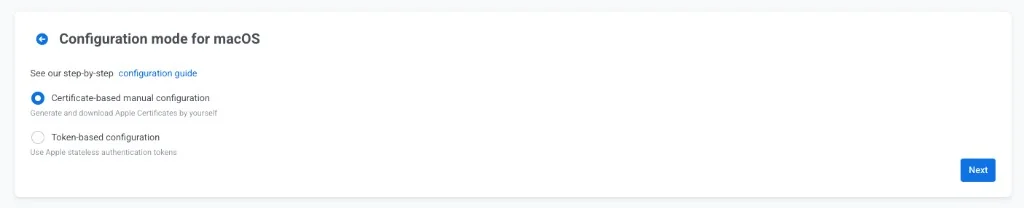
- 在 Configuration mode for macOS 中,选择 Certificate-based manual configuration。
- 点击 Next。
- 在 Certificate-based configuration for macOS 页面上,填写表单:
- Certificate file (.p12): 上传您从 Keychain Access 导出的 .p12 文件。
- Private key password: 输入您在导出 .p12 文件时设置的密码。
- Gateway: 为开发选择 Sandbox,为线上应用选择 Production。
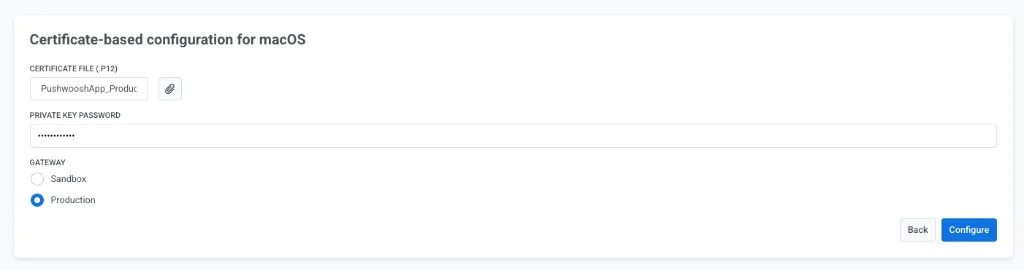
- 点击 Configure 完成设置。
基于令牌的配置
Anchor link to您可以使用基于令牌的身份验证来配置 macOS 平台,以实现与 APNs 的更快通信。
从 Apple 获取签名密钥
Anchor link to创建 APNs 密钥的过程与 iOS 相同。请遵循 iOS 基于令牌的指南中的从 Apple 获取加密密钥和密钥 ID。
在下一节中,您将需要 Key ID 和 .p8 文件。如果您已经有用于 iOS 的 APNs 密钥,可以重复使用同一个。
在 Pushwoosh 中配置 macOS 平台
Anchor link to- 在您的 Pushwoosh 项目中,转到 Settings → Configure Platforms。
- 在 Desktop platforms 部分,点击 macOS 旁边的 Connect。
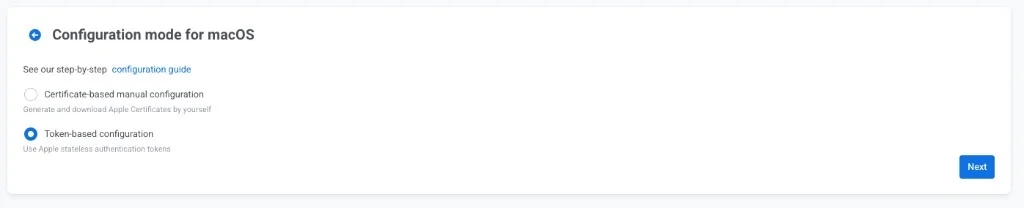
- 在 Configuration mode for macOS 中,选择 Token-based configuration。
- 点击 Next。
- 在 Token-based configuration for macOS 页面上,填写表单:
- Key ID: 粘贴来自 Apple 的 10 个字符的 Key ID。
- Team ID: 输入您的 Apple Developer Team ID,该 ID 位于您 Apple Developer 帐户的 Membership 部分。
- Bundle ID: 输入您的 macOS 应用程序的 Bundle ID,该 ID 位于 Certificates, Identifiers & Profiles。
- Auth Key (.p8): 上传您从 Apple 下载的 .p8 签名密钥文件。
- Gateway: 为开发选择 Sandbox,为线上应用选择 Production。
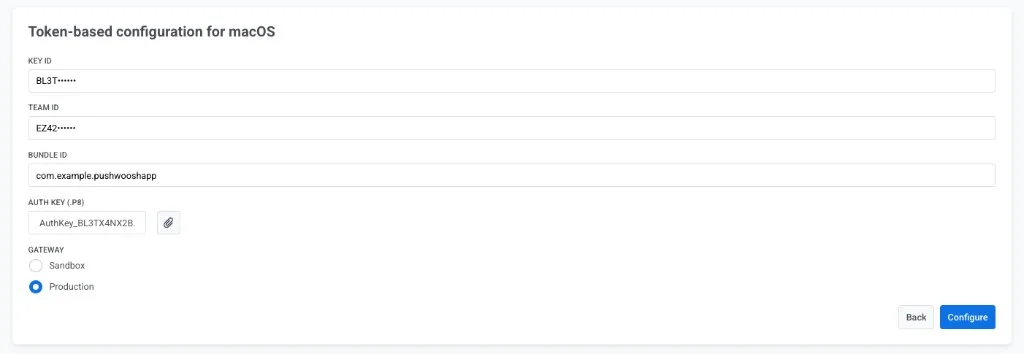
- 点击 Configure 完成设置。