كيفية إعلام حاملي بطاقات Wallet بمكافأة
أخبر أعضاء برنامج الولاء بأن مكافأتهم جاهزة في اللحظة التي يحصلون عليها، برسالة تظهر على بطاقة Apple Wallet أو Google Wallet الخاصة بهم. في هذا الدليل، تنشئ Customer Journey يرسل الرسالة فقط إلى الأعضاء الذين أضافوا بطاقتك.
إنشاء حدث المكافأة
Anchor link toالحدث هو إشارة يرسلها نظامك عندما يحدث شيء ما لمستخدم. هنا، يُرسَل الحدث عندما يحصل العضو على مكافأة، على سبيل المثال عندما يصل إلى 100 نقطة ولاء أو يجمع الختم العاشر على بطاقة القهوة.
- انتقل إلى الجمهور → الأحداث، وانقر على إنشاء حدث، واختر حدث مخصص.
- سمِّه
RewardUnlocked. لا يحتاج الحدث إلى أي سمات، لأن نص الرسالة هو نفسه لجميع الأعضاء. - اطلب من فريق التطوير إرسال الحدث عندما يحصل العضو على مكافأة. تعرّف على المزيد حول إنشاء الأحداث
تحضير الرسالة
Anchor link toأنشئ إعدادًا مسبقًا للإشعار يتضمن رسالة المكافأة، على سبيل المثال:
- العنوان:
Riverside Café Rewards - النص:
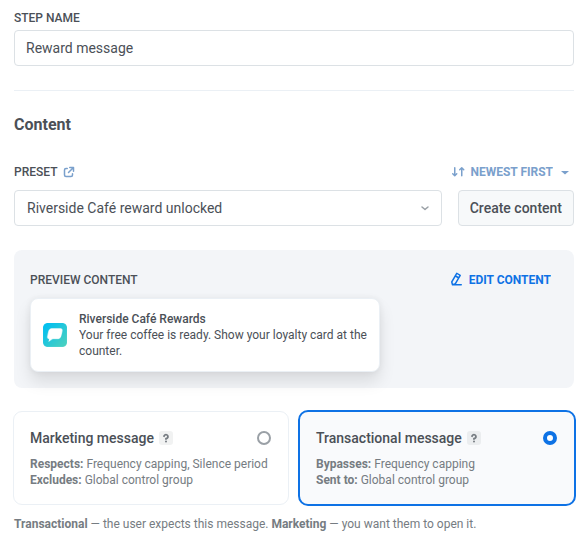
Your free coffee is ready. Show your loyalty card at the counter.
املأ النص دائمًا. تعرض البطاقة هذا النص، وفي Apple Wallet يكتفي الإشعار الذي لا يحتوي على نص بتحديث البطاقة، فلا يرى الحامل أي شيء.
ما يراه الحامل يعتمد على المحفظة:
- Apple Wallet: إشعار من البطاقة يعرض نص iOS للإشعار أسفل عنوانه. يزيل Pushwoosh الرسالة من البطاقة بعد ساعة تقريبًا. لا يرسل Apple Wallet إشعارًا إلا عند تغيّر النص، لذا لا يعرض إشعار ثانٍ بالنص نفسه خلال تلك الساعة أي تنبيه.
- Google Wallet: إشعار Android يحمل عنوان الإشعار ونصه، مع ظهور الرسالة على البطاقة. تحتفظ البطاقة بأحدث رسالة فقط. كما تحدّ Google من عدد المرات التي يمكن فيها للبطاقة إشعار حاملها. راجع إشعار Google Wallet.
إنشاء Journey
Anchor link toانتقل إلى الحملات → Customer Journey Builder، وانقر على إنشاء حملة، وأنشئ كل ما يلي على لوحة واحدة.
إعداد الدخول
Anchor link to- أضف عنصر الدخول المستند إلى المشغل إلى اللوحة.
- في اسم النقطة، أدخل
Reward unlocked. - ضمن حدث، حدد
RewardUnlocked.
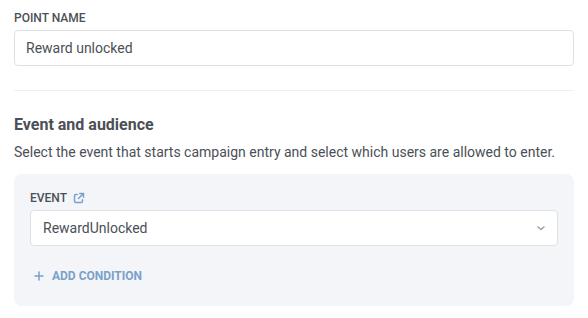
الإبقاء على الأعضاء الذين يحملون البطاقة فقط
Anchor link to- أضف عنصر فحص إمكانية الوصول بعد الدخول وسمِّه
Holds the pass?. - ضمن يمكن الوصول إليها بواسطة، انقر على Wallet Pass في إضافة قناة، ثم احذف قناة إشعارات الدفع التي يبدأ بها العنصر.
- أبقِ جميع المنصات محددًا للتحقق من بطاقات Apple Wallet وGoogle Wallet.
- ضمن ما الأجهزة التي يتم التحقق منها، حدد جميع أجهزة المستخدم. تُسجَّل البطاقة كجهاز منفصل للعضو، لذا فإن التحقق من الجهاز الذي أرسل الحدث فقط سيفوّتها.
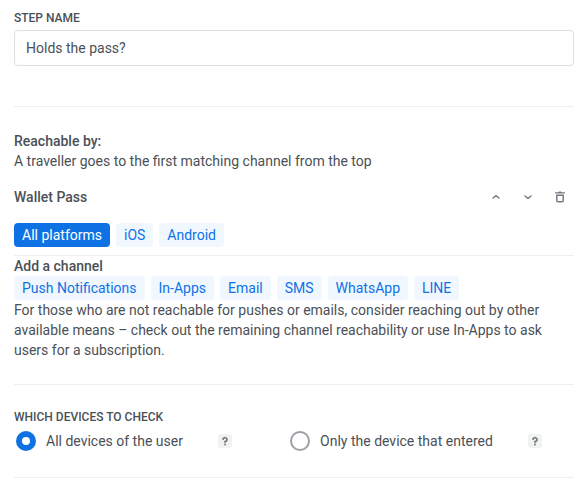
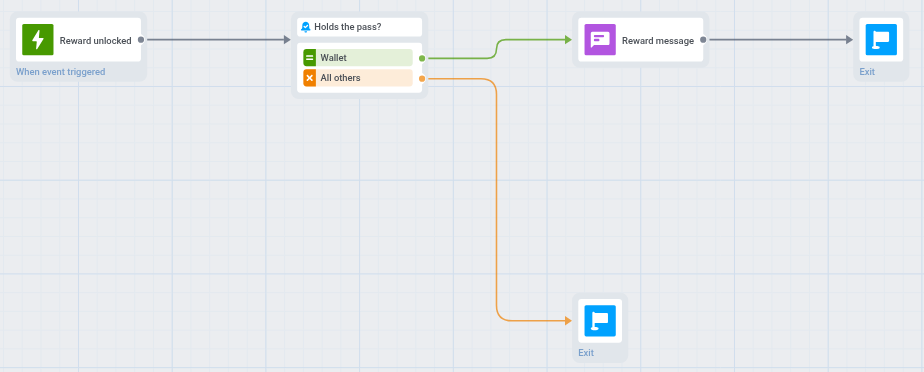
يحصل العنصر على فرعين. ينتقل الأعضاء الذين أضافوا بطاقتك إلى Wallet، وينتقل الجميع الآخرون إلى جميع الآخرين.
إرسال رسالة المكافأة
Anchor link to- على فرع Wallet، أضف عنصر Push وسمِّه
Reward message. - في إعداد مسبق، حدد الإعداد المسبق الذي حضّرته.
- حدد رسالة معاملات. لقد حصل العضو على المكافأة وينتظر أن يعرف بها، لذا تصل الرسالة إلى كل من يحمل البطاقة، بما في ذلك الأعضاء في مجموعة التحكم العامة ومن بلغوا حد التكرار. تعرّف على المزيد حول أنواع الرسائل.
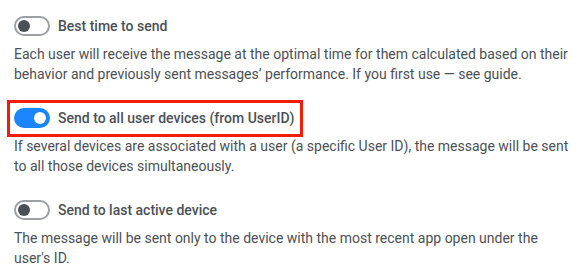
- أبقِ الإرسال إلى جميع أجهزة المستخدم (حسب UserID) مفعّلًا. عندئذٍ يصل الإشعار إلى كل جهاز مرتبط بـ User ID الخاص بالعضو، بما في ذلك البطاقة، وعلى سبيل المثال الهاتف الذي يحتوي على تطبيقك. إذا أوقفت هذا الإعداد، فسيصل الإشعار فقط إلى الجهاز الذي أرسل الحدث، ولن تتلقى البطاقة شيئًا.
- اختياريًا، أضف عنصر الخروج من الرحلة بعد Reward message، واربط فرع جميع الآخرين بعنصر الخروج من الرحلة آخر.
عند إطلاق RewardUnlocked، يدخل العضو إلى Journey. إذا كان قد أضاف بطاقتك، يرسل Reward message الإشعار إلى جميع أجهزته، وتعرضه المحفظة على البطاقة. يغادر الأعضاء الذين لا يحملون البطاقة Journey عبر جميع الآخرين ولا يتلقون أي رسالة. أما العضو الذي ليس لديه أي جهاز على الإطلاق في التطبيق فيتسرب عند Holds the pass? بالسبب لم يتم العثور على الجهاز.
الإطلاق والتحقق
Anchor link to- أطلق Journey عندما تصبح اللوحة جاهزة.
- اطلب من المطور إرسال حدث
RewardUnlockedتجريبي لعضو يحمل البطاقة. - على Holds the pass?، تحقق من عدد المستخدمين الذين انتقلوا إلى Wallet وجميع الآخرين.
- على Reward message، تحقق من الإحصاءات.
تحديث محتوى البطاقة (اختياري)
Anchor link toلا يغيّر الإشعار حقول تصميم بطاقتك. في Apple Wallet، يظهر عنوان الإشعار مكان اسم المؤسسة على البطاقة إلى أن تُزال الرسالة. لعرض المكافأة على البطاقة نفسها، على سبيل المثال رصيد نقاط جديد، حدّث البطاقة بشكل منفصل:
- في Control Panel، باستخدام تعديل في جميع البطاقات، أو بتغيير التصميم في حملة Wallet Pass الخاصة بالبطاقة.
- عبر Apple PassKit API أو Google Wallet API.
طرق أخرى لبدء Journey
Anchor link to- الدخول المستند إلى الجمهور: أرسل الرسالة إلى شريحة كاملة مرة واحدة أو وفق جدول زمني، على سبيل المثال عرض أسبوعي لأعضاء برنامج الولاء الخاص بك.
- الدخول المستند إلى API: ابدأ Journey من نظامك الخاص، على سبيل المثال عندما يتغير وقت بدء فعالية لكل من يحمل تذكرة.