Diálogo de preparación para notificaciones push en iOS
Un diálogo de preparación para notificaciones push es un diálogo de aceptación voluntaria que se muestra antes de la solicitud de permisos de notificaciones push del sistema iOS. iOS muestra la solicitud del sistema solo una vez por instalación; si el usuario toca No permitir, las notificaciones push se pierden hasta que las vuelva a habilitar en Configuración. El diálogo de preparación te permite explicar primero el valor y preguntar en el momento adecuado, para que utilices la única oportunidad de la solicitud del sistema con usuarios que ya han dicho que sí.
Disponible desde la versión 7.1.1. El diálogo de preparación forma parte de PushwooshFramework; no se requiere ningún módulo adicional.
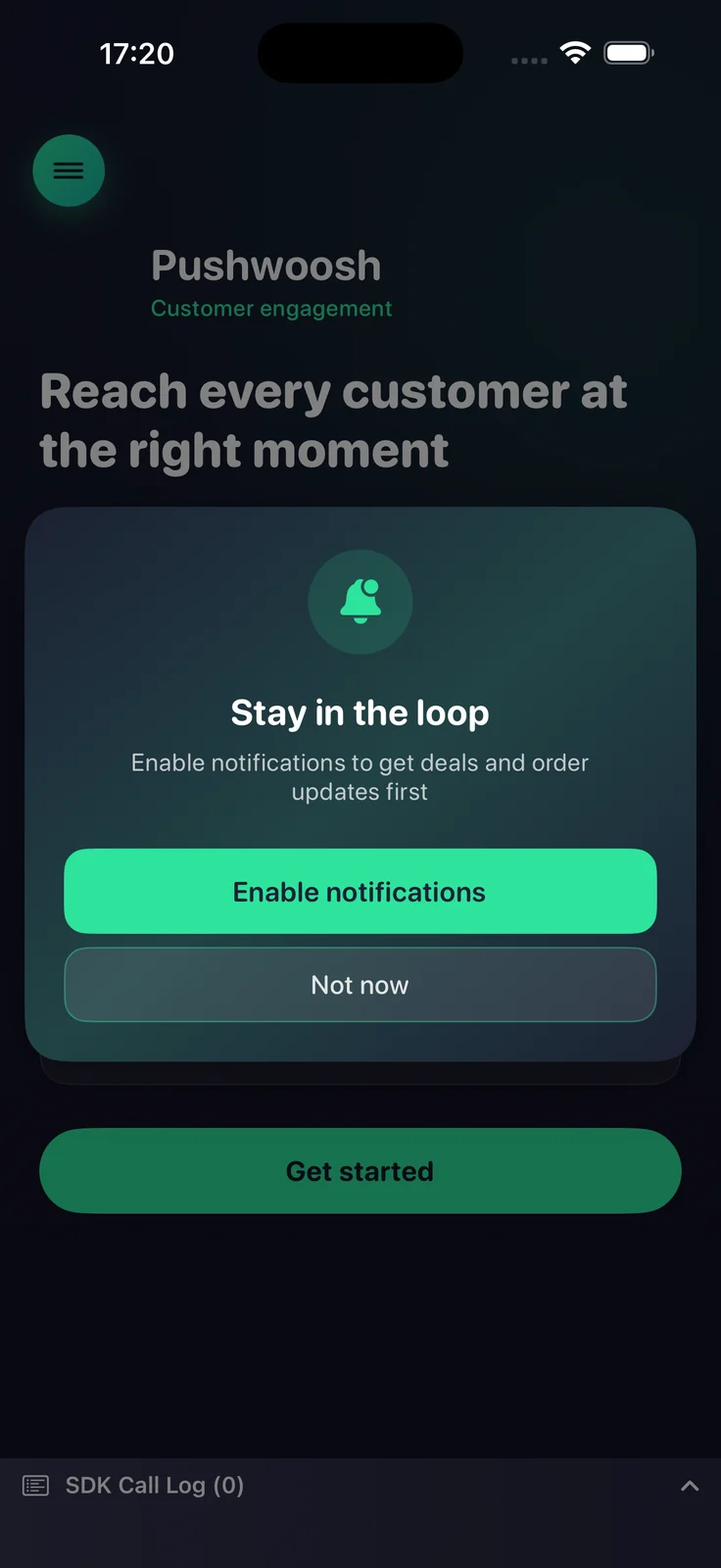
Cómo funciona
Anchor link toEl diálogo de preparación es totalmente consciente del estado. Lee el estado actual de autorización de notificaciones y decide qué hacer, por lo que es seguro llamarlo en cada lanzamiento:
- No determinado — muestra el diálogo de preparación; al aceptar, activa la solicitud de permisos del sistema.
- Autorizado o provisional — suprime silenciosamente el diálogo de preparación (no se muestra nada).
- Denegado — muestra el diálogo de preparación; al aceptar, dirige al usuario a los ajustes de notificaciones de la aplicación (cuando
fallbackToSettingsestá habilitado).
Tú decides cuándo llamar al diálogo de preparación (por ejemplo, después de la incorporación o después de una acción clave). El SDK no impone ningún momento propio, excepto por la limitación opcional minInterval que se describe a continuación.
Uso básico
Anchor link toConfigura el diálogo de preparación con un constructor fluido y llama a present. La configuración mínima necesita un título, un mensaje y los títulos de los dos botones.
import PushwooshFramework
Pushwoosh.configure.pushPrimer .title("Stay in the loop") .message("Get notified about deals and order updates first") .acceptButton("Enable notifications") .declineButton("Not now") .present()Estilos y posiciones
Anchor link toUsa style para elegir entre una alerta del sistema y una hoja personalizada, y position para colocar la hoja personalizada. Cada posición tiene su propio diseño predeterminado.
| Valor | Descripción |
|---|---|
.alert | UIAlertController del sistema. La posición se ignora. |
.sheet + .bottom | Hoja inferior que se desliza hacia arriba, con un control de agarre y botones de ancho completo (predeterminado). |
.sheet + .top | Banner compacto que se despliega desde la parte superior, como una notificación. |
.sheet + .center | Diálogo centrado que se escala y aparece gradualmente. |
Pushwoosh.configure.pushPrimer .style(.sheet) .position(.top) .title("Stay in the loop") .message("Get notified about deals and order updates first") .acceptButton("Enable notifications") .declineButton("Not now") .present()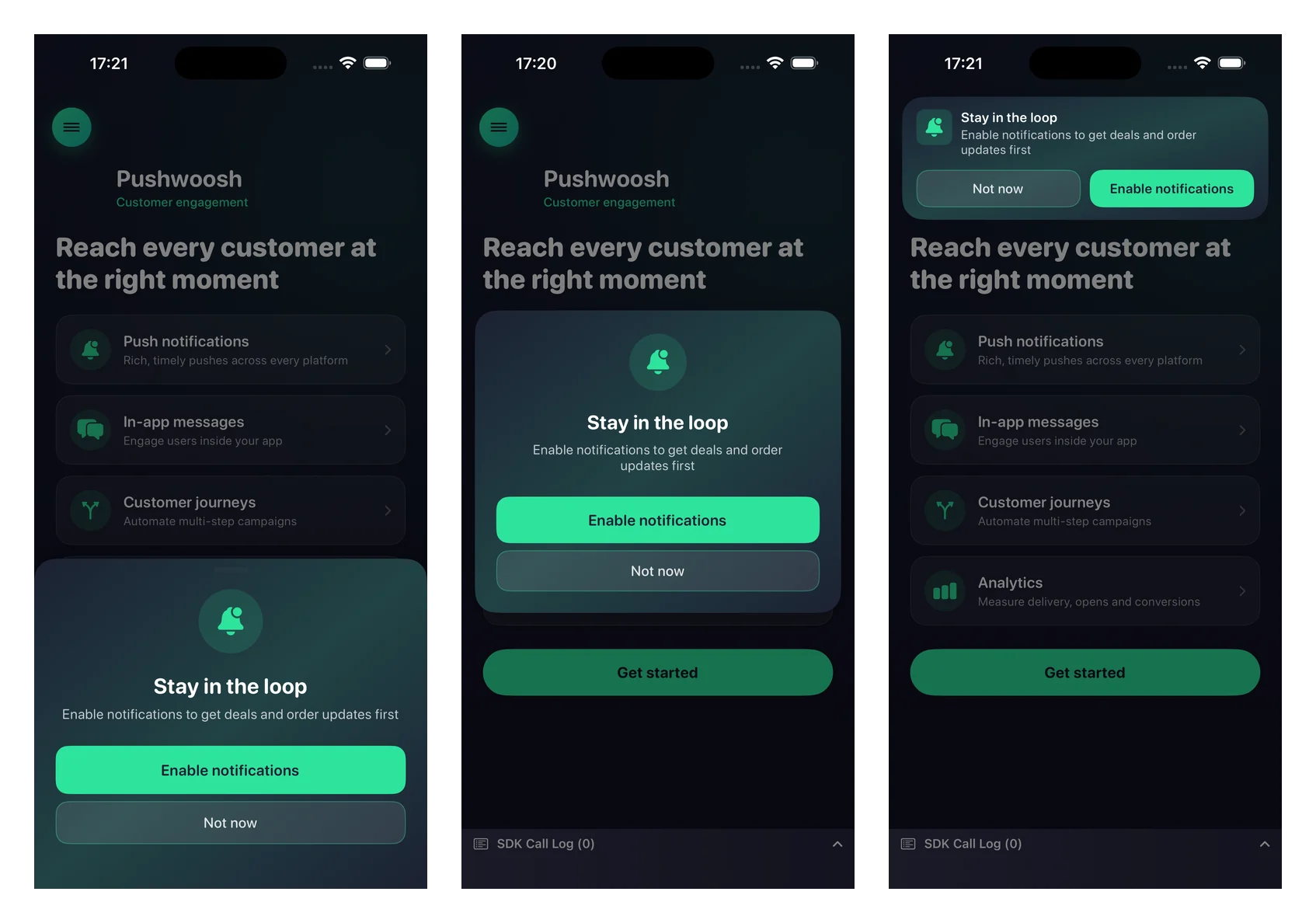
Personalización
Anchor link toTodos los ajustes visuales son opcionales; omítelos para usar los valores predeterminados nativos que se adaptan al modo claro y oscuro.
Pushwoosh.configure.pushPrimer .style(.sheet) .position(.center) .title("Stay in the loop") .message("Get notified about deals and order updates first") .acceptButton("Enable notifications") .declineButton("Not now") .image(UIImage(named: "PrimerHero")) // local image, or .imageURL("https://…") .backgroundColor(.systemBackground) .titleColor(.label) .messageColor(.secondaryLabel) .acceptButtonColor(.systemBlue) .acceptButtonTextColor(.white) .declineButtonColor(.clear) .declineButtonTextColor(.secondaryLabel) .cornerRadius(24) .buttonCornerRadius(14) .buttonBorderColor(.separator) .present()Referencia de personalización:
| Setter | Descripción |
|---|---|
image / imageURL | Una UIImage local o una URL remota. Se renderiza como un círculo en los diseños central e inferior, y como el icono en el banner superior. Una imagen local tiene prioridad sobre una URL. |
backgroundColor | Color de fondo sólido de la tarjeta. |
backgroundGradient | Un array de colores renderizado como un suave degradado multicolor. Sobrescribe backgroundColor. |
titleColor / messageColor | Colores del texto del título y del mensaje. |
acceptButtonColor / acceptButtonTextColor | Colores de fondo y de texto del botón de aceptar. El color de aceptar también tiñe el icono predeterminado. |
declineButtonColor / declineButtonTextColor | Colores de fondo y de texto del botón de rechazar. |
cornerRadius | Radio de esquina de la tarjeta. |
buttonCornerRadius / buttonBorderColor | Radio de esquina y color del borde de ambos botones. |
Ajustes de comportamiento
Anchor link toRedirección a Configuración
Anchor link toPor defecto, cuando las notificaciones ya han sido denegadas, se muestra el diálogo de preparación y el botón de aceptar lleva al usuario a los ajustes de notificaciones de la aplicación. Pasa false para suprimir completamente el diálogo de preparación en el estado denegado.
.fallbackToSettings(false)Frecuencia de visualización
Anchor link toPor defecto, el diálogo de preparación no tiene limitación de frecuencia incorporada; se muestra cada vez que llamas a present (y se suprime automáticamente una vez que se autorizan las notificaciones). Usa minInterval para limitar la frecuencia con la que reaparece el diálogo. La última vez que se mostró se guarda entre lanzamientos.
.minInterval(7 * 24 * 60 * 60) // mostrar como máximo una vez a la semanaManejo del resultado
Anchor link toPasa una finalización (completion) a present para reaccionar al resultado.
Pushwoosh.configure.pushPrimer .title("Stay in the loop") .message("Get notified about deals and order updates first") .acceptButton("Enable notifications") .declineButton("Not now") .present { outcome in switch outcome { case .accepted: break // mostrado, usuario aceptó, solicitud de permisos del sistema solicitada case .declined: break // mostrado, usuario rechazó case .suppressed: break // no mostrado (ya autorizado o limitado por frecuencia) case .redirectedToSettings: break // estado denegado, usuario enviado a Configuración @unknown default: break } }El resultado final de la solicitud del sistema (el estado concedido/denegado y el token del dispositivo) llega a través de los callbacks de registro habituales; el diálogo de preparación reutiliza registerForPushNotifications al aceptar y no duplica esa cadena.