Configuración de esquemas de Live Activity para iOS
Un esquema de Live Activity describe los campos de estado de contenido de un tipo de ActivityAttributes que tu aplicación de iOS declara, para que el elemento Live Activity de un Journey pueda construir un formulario a partir de campos con nombre en lugar de JSON sin procesar. Publica una versión por widget en el Panel de Control.
Publicar una versión del esquema
Anchor link to- Abre la página Configurar plataformas de tu aplicación en Pushwoosh.
- Haz clic en Esquemas de Live Activity junto a la plataforma iOS.

- Haz clic en Publicar versión.
- Introduce el Tipo de atributos: el nombre exacto del tipo de
ActivityAttributesen tu aplicación, por ejemplo,FlightAttributes. - En Esquema JSON de estado de contenido, introduce el esquema JSON para el
ContentStatede ese tipo: los campos que cambian mientras la actividad se ejecuta, como la puerta de embarque o el estado de un vuelo. No incluyas aquí los campos fijos propios deActivityAttributes. Consulta Escribir un esquema.
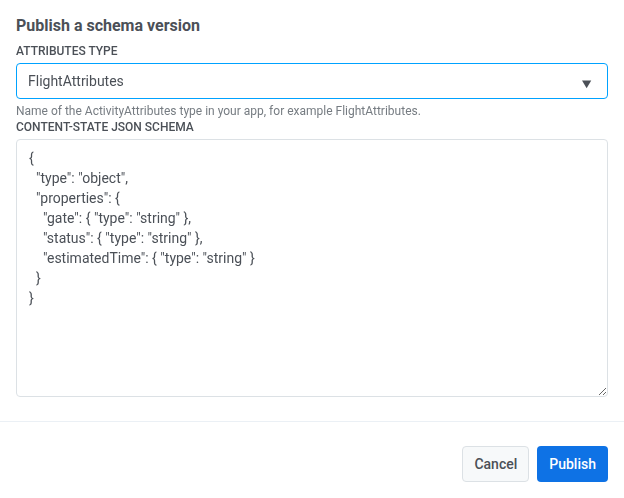
- Haz clic en Publicar.
Gestionar esquemas existentes
Anchor link toEn la misma pantalla de Esquemas de Live Activity:
- Haz clic en Ver JSON junto a una versión para ver su esquema publicado.
- Haz clic en Eliminar para quitar una versión. Esta acción no se puede deshacer, y un elemento de Journey que todavía esté configurado con esa versión dejará de renderizar sus campos de estado de contenido.
Usar el esquema en un Journey
Anchor link toUna vez publicado, selecciónalo en Widget en el elemento Live Activity de un Journey; sus campos de estado de contenido aparecerán en Contenido de la tarjeta.