macOS कॉन्फ़िगरेशन
macOS ऐप्स Apple Push Notification service (APNs) के माध्यम से पुश नोटिफिकेशन प्राप्त करते हैं, जो वही डिलीवरी चैनल है जिसका उपयोग iOS करता है। Pushwoosh में macOS प्लेटफॉर्म को APNs से प्रमाणपत्र-आधारित (.p12) या टोकन-आधारित (.p8) कनेक्शन के साथ कॉन्फ़िगर करें।
प्रमाणपत्र-आधारित कॉन्फ़िगरेशन
Anchor link to.p12 प्रमाणपत्र बनाएँ
Anchor link toकीचेन, Apple डेवलपर पोर्टल, और निर्यात के चरण iOS प्रमाणपत्र प्रवाह से मेल खाते हैं। उस गाइड का पालन करें और जब Apple आपको चुनने के लिए कहे तो अपनी macOS ऐप आईडी का उपयोग करें:
- कीचेन एक्सेस में एक प्रमाणपत्र अनुरोध फ़ाइल उत्पन्न करें।
- Apple डेवलपर पोर्टल में एक APNs प्रमाणपत्र बनाएँ। जब आप एक ऐप आईडी चुनें, तो अपने macOS ऐप के लिए आईडी चुनें, iOS वाले के लिए नहीं।
- कीचेन एक्सेस से निजी कुंजी को .p12 के रूप में निर्यात करें।
आपको अगले अनुभाग में .p12 फ़ाइल और निजी कुंजी पासवर्ड की आवश्यकता होगी।
Pushwoosh में macOS प्लेटफॉर्म कॉन्फ़िगर करें
Anchor link to- अपने Pushwoosh प्रोजेक्ट में, सेटिंग्स → प्लेटफॉर्म कॉन्फ़िगर करें पर जाएँ।
- डेस्कटॉप प्लेटफॉर्म अनुभाग में macOS के आगे कनेक्ट करें पर क्लिक करें।

- macOS के लिए कॉन्फ़िगरेशन मोड में, प्रमाणपत्र-आधारित मैनुअल कॉन्फ़िगरेशन चुनें।
- अगला पर क्लिक करें।
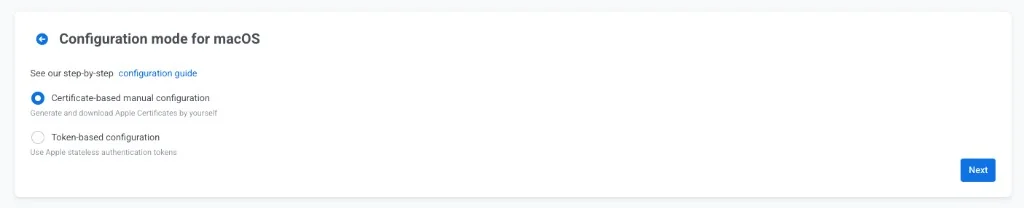
- macOS के लिए प्रमाणपत्र-आधारित कॉन्फ़िगरेशन पर, फ़ॉर्म भरें:
- प्रमाणपत्र फ़ाइल (.p12): कीचेन एक्सेस से निर्यात की गई .p12 फ़ाइल अपलोड करें।
- निजी कुंजी पासवर्ड: .p12 फ़ाइल निर्यात करते समय आपके द्वारा सेट किया गया पासवर्ड दर्ज करें।
- गेटवे: विकास के लिए सैंडबॉक्स या लाइव ऐप्स के लिए प्रोडक्शन चुनें।
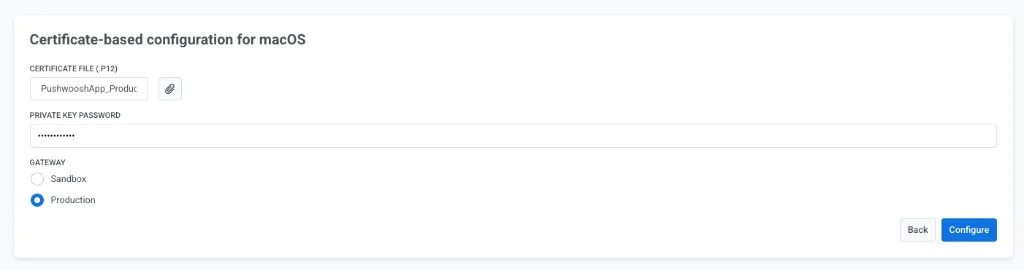
- सेटअप पूरा करने के लिए कॉन्फ़िगर करें पर क्लिक करें।
टोकन-आधारित कॉन्फ़िगरेशन
Anchor link toआप APNs के साथ तेज़ संचार के लिए टोकन-आधारित प्रमाणीकरण के साथ macOS प्लेटफॉर्म को कॉन्फ़िगर कर सकते हैं।
Apple से एक साइनिंग कुंजी प्राप्त करें
Anchor link toAPNs कुंजी बनाना iOS के लिए जैसा ही है। iOS टोकन-आधारित गाइड में Apple से एक एन्क्रिप्शन कुंजी और कुंजी आईडी प्राप्त करें का पालन करें।
आपको अगले अनुभाग में कुंजी आईडी और .p8 फ़ाइल की आवश्यकता होगी। यदि आपके पास पहले से ही iOS के लिए एक APNs कुंजी है, तो आप उसी का पुन: उपयोग कर सकते हैं।
Pushwoosh में macOS प्लेटफॉर्म कॉन्फ़िगर करें
Anchor link to- अपने Pushwoosh प्रोजेक्ट में, सेटिंग्स → प्लेटफॉर्म कॉन्फ़िगर करें पर जाएँ।
- डेस्कटॉप प्लेटफॉर्म अनुभाग में macOS के आगे कनेक्ट करें पर क्लिक करें।
- macOS के लिए कॉन्फ़िगरेशन मोड में, टोकन-आधारित कॉन्फ़िगरेशन चुनें।
- अगला पर क्लिक करें।
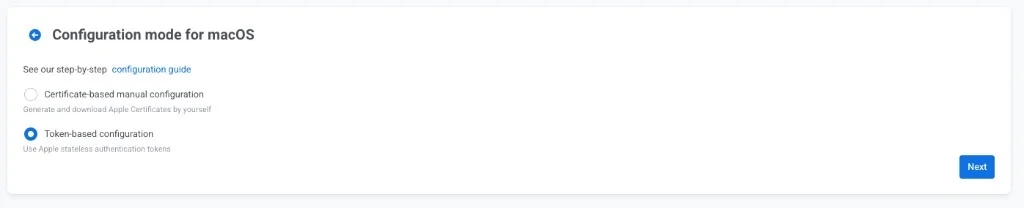
- macOS के लिए टोकन-आधारित कॉन्फ़िगरेशन पर, फ़ॉर्म भरें:
- कुंजी आईडी: Apple से 10-वर्णों वाली कुंजी आईडी पेस्ट करें।
- टीम आईडी: अपने Apple डेवलपर खाते के सदस्यता अनुभाग से अपनी Apple डेवलपर टीम आईडी दर्ज करें।
- बंडल आईडी: प्रमाणपत्र, पहचानकर्ता और प्रोफाइल से अपने macOS ऐप की बंडल आईडी दर्ज करें।
- ऑथ कुंजी (.p8): Apple से डाउनलोड की गई .p8 साइनिंग कुंजी फ़ाइल अपलोड करें।
- गेटवे: विकास के लिए सैंडबॉक्स या लाइव ऐप्स के लिए प्रोडक्शन चुनें।
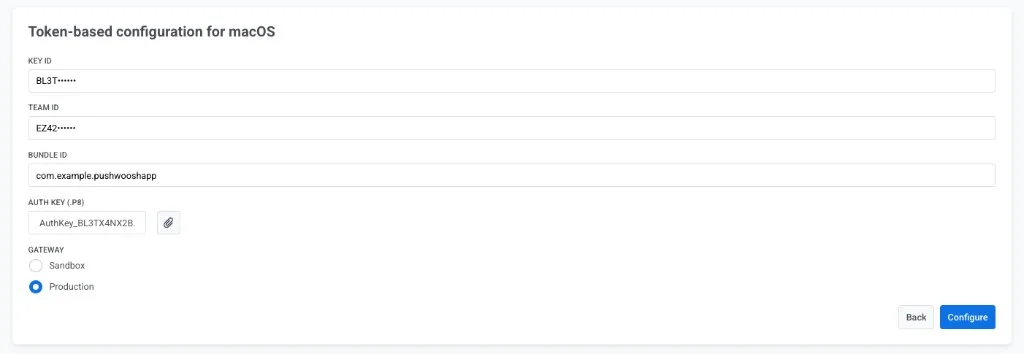
- सेटअप पूरा करने के लिए कॉन्फ़िगर करें पर क्लिक करें।