Modale Rich Media für tvOS
Ab der Pushwoosh SDK-Version 6.11.0 haben Sie die Möglichkeit, modale Rich Media an tvOS-Geräte (Apple TV) zu senden.
Modale Rich Media für tvOS bietet eine interaktive HTML-basierte Inhaltsanzeige, die für die Navigation mit der Fernbedienung von Apple TV optimiert ist. Die Rich Media kann mit verschiedenen Positionen, Animationen und Unterstützung für die Fokus-Navigation angepasst werden.
Weitere Informationen zu Rich-Media-Seiten finden Sie in unserem Leitfaden.
Installation
Anchor link toDas PushwooshTVOS-Modul ist optional und kann über den Swift Package Manager oder CocoaPods in Ihr tvOS-Projekt integriert werden.
Swift Package Manager
Anchor link toFügen Sie das Pushwoosh-Paket zu Ihrem tvOS-Projekt hinzu:
- Wählen Sie in Xcode File → Add Package Dependencies…
- Geben Sie die Repository-URL ein:
https://github.com/Pushwoosh/Pushwoosh-XCFramework - Wählen Sie die neueste Version aus
- Fügen Sie die folgenden Frameworks zu Ihrem tvOS-Ziel hinzu:
- PushwooshFramework
- PushwooshCore
- PushwooshBridge
- PushwooshLiveActivities
- PushwooshTVOS
CocoaPods
Anchor link toFügen Sie dies zu Ihrer Podfile hinzu:
target 'YourTvOSApp' do  platform :tvos, '13.0'
  pod 'PushwooshXCFramework'  pod 'PushwooshXCFramework/PushwooshTVOS'end
Führen Sie dann aus:
pod installGrundlegende Integration
Anchor link to1. Konfigurieren Sie Pushwoosh in Ihrem AppDelegate
Anchor link toImportieren Sie die erforderlichen Module und konfigurieren Sie Pushwoosh mit Ihrem Anwendungscode:
import UIKitimport PushwooshTVOSimport PushwooshFramework
@mainclass AppDelegate: UIResponder, UIApplicationDelegate {
    func application(_ application: UIApplication, didFinishLaunchingWithOptions launchOptions: [UIApplication.LaunchOptionsKey: Any]?) -> Bool {
        // Configure Pushwoosh with your app code        Pushwoosh.TVoS.setAppCode("XXXXX-XXXXX")
        // Register for push notifications        Pushwoosh.TVoS.registerForTvPushNotifications()
        return true    }}
2. Behandeln der Device-Token-Registrierung
Anchor link toImplementieren Sie den Device-Token-Handler, um das Gerät bei Pushwoosh zu registrieren:
func application(_ application: UIApplication, didRegisterForRemoteNotificationsWithDeviceToken deviceToken: Data) {    Pushwoosh.TVoS.registerForTvPushNotifications(withToken: deviceToken) { error in        if let error = error {            print("Failed to register: \(error)")        } else {            print("Successfully registered for push notifications")        }    }}
func application(_ application: UIApplication, didFailToRegisterForRemoteNotificationsWithError error: Error) {    Pushwoosh.TVoS.handleTvPushRegistrationFailure(error)}
3. Behandeln eingehender Push-Benachrichtigungen
Anchor link toVerarbeiten Sie eingehende Push-Benachrichtigungen mit Rich-Media-Inhalten:
func application(_ application: UIApplication,                 didReceiveRemoteNotification userInfo: [AnyHashable: Any],                 fetchCompletionHandler completionHandler: @escaping (UIBackgroundFetchResult) -> Void) {
// Handle push notification and display rich media if present if Pushwoosh.TVoS.handleTVOSPush(userInfo: userInfo) { completionHandler(.newData) } else { completionHandler(.noData) }}Rich-Media-Konfiguration
Anchor link toPositionierung
Anchor link toModale Rich Media für tvOS kann an fünf Stellen auf dem Bildschirm positioniert werden:
// Center position (default)Pushwoosh.TVoS.configureRichMediaWith(position: .center, presentAnimation: .none, dismissAnimation: .none)
// Left side of the screenPushwoosh.TVoS.configureRichMediaWith(position: .left, presentAnimation: .fromLeft, dismissAnimation: .toLeft)
// Right side of the screenPushwoosh.TVoS.configureRichMediaWith(position: .right, presentAnimation: .fromRight, dismissAnimation: .toRight)
// Top of the screenPushwoosh.TVoS.configureRichMediaWith(position: .top, presentAnimation: .fromTop, dismissAnimation: .toTop)
// Bottom of the screenPushwoosh.TVoS.configureRichMediaWith(position: .bottom, presentAnimation: .fromBottom, dismissAnimation: .toBottom)
Verfügbare Positionsoptionen:
enum PWTVOSRichMediaPosition { case center // Content positioned at the center of the screen (default) case left // Content positioned at the left side of the screen case right // Content positioned at the right side of the screen case top // Content positioned at the top of the screen case bottom // Content positioned at the bottom of the screen}Präsentationsanimationen
Anchor link toSteuern Sie, wie Rich-Media-Inhalte auf dem Bildschirm erscheinen:
enum PWTVOSRichMediaPresentAnimation { case none // No animation, content appears immediately (default) case fromTop // Content slides in from the top of the screen case fromBottom // Content slides in from the bottom of the screen case fromLeft // Content slides in from the left side of the screen case fromRight // Content slides in from the right side of the screen}Ausblendanimationen
Anchor link toSteuern Sie, wie Rich-Media-Inhalte vom Bildschirm verschwinden:
enum PWTVOSRichMediaDismissAnimation { case none // No animation, content disappears immediately (default) case toTop // Content slides out to the top of the screen case toBottom // Content slides out to the bottom of the screen case toLeft // Content slides out to the left side of the screen case toRight // Content slides out to the right side of the screen}Konfigurationsbeispiele
Anchor link toKonfigurieren Sie Rich Media so, dass sie auf der linken Seite mit Animationen erscheint:
Pushwoosh.TVoS.configureRichMediaWith( position: .left, presentAnimation: .fromBottom, dismissAnimation: .toLeft)Konfigurieren Sie Rich Media so, dass sie unten mit Slide-Animationen erscheint:
Pushwoosh.TVoS.configureRichMediaWith( position: .bottom, presentAnimation: .fromBottom, dismissAnimation: .toBottom)Konfigurieren Sie Rich Media so, dass sie zentriert ohne Animationen erscheint:
Pushwoosh.TVoS.configureRichMediaWith( position: .center, presentAnimation: .none, dismissAnimation: .none)Konfiguration der Schließen-Schaltfläche
Anchor link toStandardmäßig wird am unteren Rand von Rich-Media-Präsentationen eine Schließen-Schaltfläche angezeigt. Sie können diese Schaltfläche bei Bedarf ausblenden:
// Hide the system Close buttonPushwoosh.TVoS.configureCloseButton(false)Fokus-Navigation für Apple TV
Anchor link toDas tvOS SDK verwaltet automatisch die Fokus-Navigation für die Fernbedienung von Apple TV. Interaktive Elemente (Schaltflächen, Links) in Ihrem Rich-Media-HTML-Inhalt sind mit der Apple TV-Fernbedienung fokussierbar.
Fokus-Verhalten
Anchor link to- Fokussierbare Elemente werden automatisch im HTML-Inhalt erkannt
- Benutzer können mit dem Steuerkreuz der Apple TV-Fernbedienung zwischen den Elementen navigieren
- Das aktuell fokussierte Element wird visuell hervorgehoben
- Benutzer können fokussierte Elemente durch Drücken der mittleren Taste auf der Fernbedienung aktivieren
- Die System-Schaltfläche „Schließen“ (sofern sichtbar) ist ebenfalls Teil der Fokus-Navigation
Best Practices für HTML-Inhalte
Anchor link toBeim Erstellen von HTML-Inhalten für tvOS Rich Media:
- Verwenden Sie standardmäßige interaktive HTML-Elemente:
<button>,<a>,<input /> - Stellen Sie sicher, dass zwischen interaktiven Elementen genügend Abstand für eine klare Fokusanzeige vorhanden ist
- Testen Sie Ihre Inhalte mit dem Apple TV-Simulator, um die Fokus-Navigation zu überprüfen
- Erwägen Sie die Verwendung größerer Touch-Ziele im Vergleich zu iOS (empfohlene Mindestbreite 250pt)
Vollständiges Integrationsbeispiel
Anchor link toHier ist ein vollständiges Beispiel, das alle Funktionen zeigt:
import UIKitimport PushwooshTVOSimport PushwooshFramework
@mainclass AppDelegate: UIResponder, UIApplicationDelegate {
    func application(_ application: UIApplication,                     didFinishLaunchingWithOptions launchOptions: [UIApplication.LaunchOptionsKey: Any]?) -> Bool {
        // Configure Pushwoosh        Pushwoosh.TVoS.setAppCode("XXXXX-XXXXX")
        // Configure rich media appearance        Pushwoosh.TVoS.configureRichMediaWith(            position: .center,            presentAnimation: .fromBottom,            dismissAnimation: .toTop        )
        // Show close button (default)        Pushwoosh.TVoS.configureCloseButton(true)
        // Register for push notifications        Pushwoosh.TVoS.registerForTvPushNotifications()
        return true    }
    func application(_ application: UIApplication,                     didRegisterForRemoteNotificationsWithDeviceToken deviceToken: Data) {        Pushwoosh.TVoS.registerForTvPushNotifications(withToken: deviceToken) { error in            if let error = error {                print("Failed to register: \(error)")            } else {                print("Successfully registered")            }        }    }
    func application(_ application: UIApplication,                     didFailToRegisterForRemoteNotificationsWithError error: Error) {        Pushwoosh.TVoS.handleTvPushRegistrationFailure(error)    }
    func application(_ application: UIApplication,                     didReceiveRemoteNotification userInfo: [AnyHashable: Any],                     fetchCompletionHandler completionHandler: @escaping (UIBackgroundFetchResult) -> Void) {
        if Pushwoosh.TVoS.handleTVOSPush(userInfo: userInfo) {            completionHandler(.newData)        } else {            completionHandler(.noData)        }    }}
Fehlerbehebung
Anchor link toProbleme mit der Fokus-Navigation
Anchor link toWenn die Fokus-Navigation nicht ordnungsgemäß funktioniert:
- Überprüfen Sie, ob Ihr HTML-Inhalt standardmäßige interaktive Elemente (
<button>,<a>) verwendet - Testen Sie im Apple TV-Simulator, um das Fokus-Verhalten zu überprüfen
- Stellen Sie sicher, dass interaktive Elemente eine ausreichende Größe und einen ausreichenden Abstand haben
- Überprüfen Sie, ob Ihr HTML/CSS die Fokus-Zustände nicht beeinträchtigt
Beispiel auf einem echten Gerät
Anchor link toSo sieht die Rich Media auf einem echten Apple TV-Gerät aus:
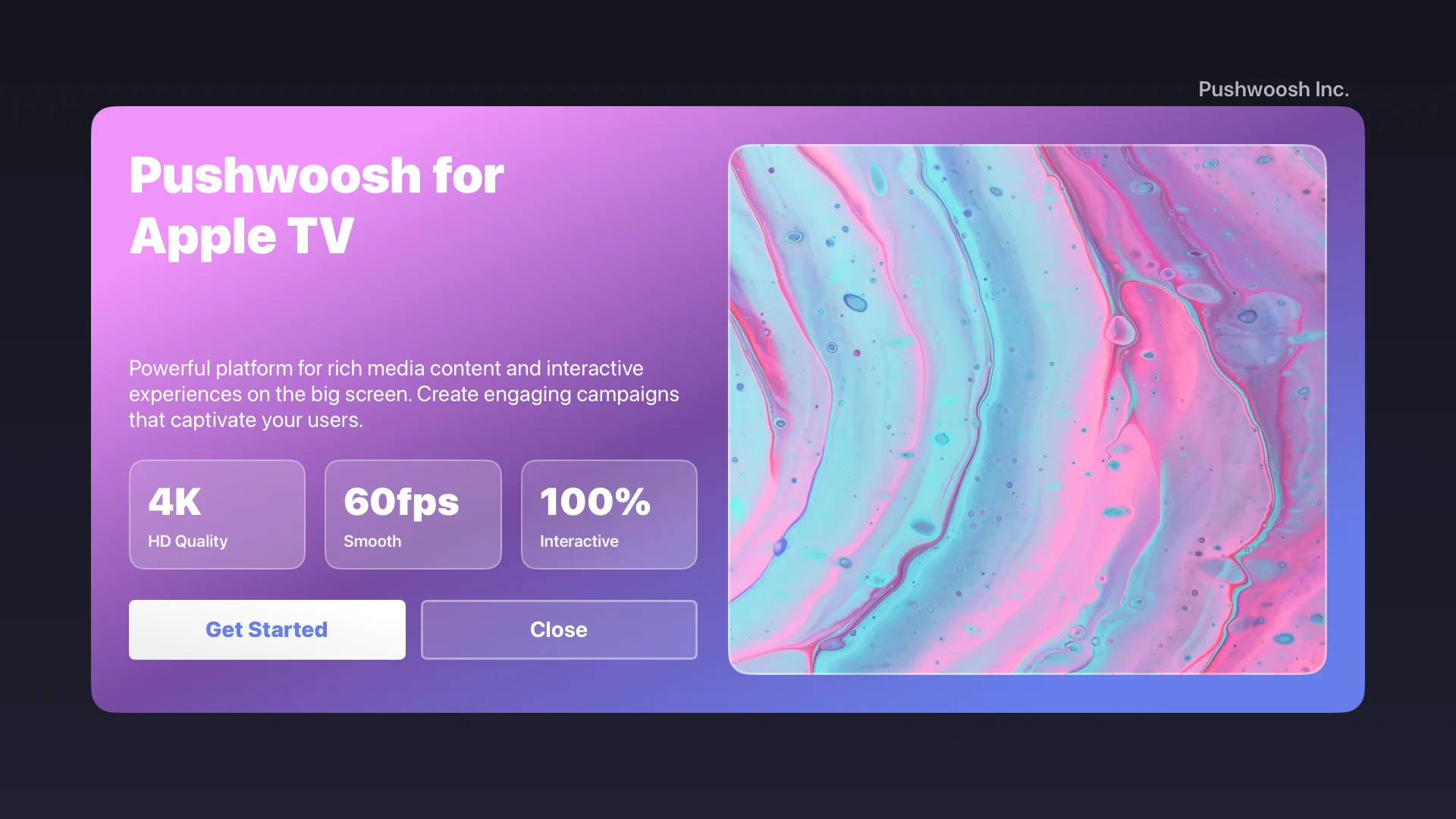
Der Screenshot zeigt den auf Apple TV angezeigten Rich-Media-Inhalt mit:
- Benutzerdefiniertem HTML-Layout mit Verlaufs-Hintergründen
- Interaktiven Schaltflächen, die für die Fernbedienung von Apple TV optimiert sind
- Unterstützung der Fokus-Navigation für alle interaktiven Elemente