MAUI Dotnet Geozones-Integration
Die Integration der Geozones-Funktionalität in Ihre MAUI .NET-Anwendung ist mit Pushwoosh unkompliziert. Befolgen Sie diese Schritte, um zu beginnen:
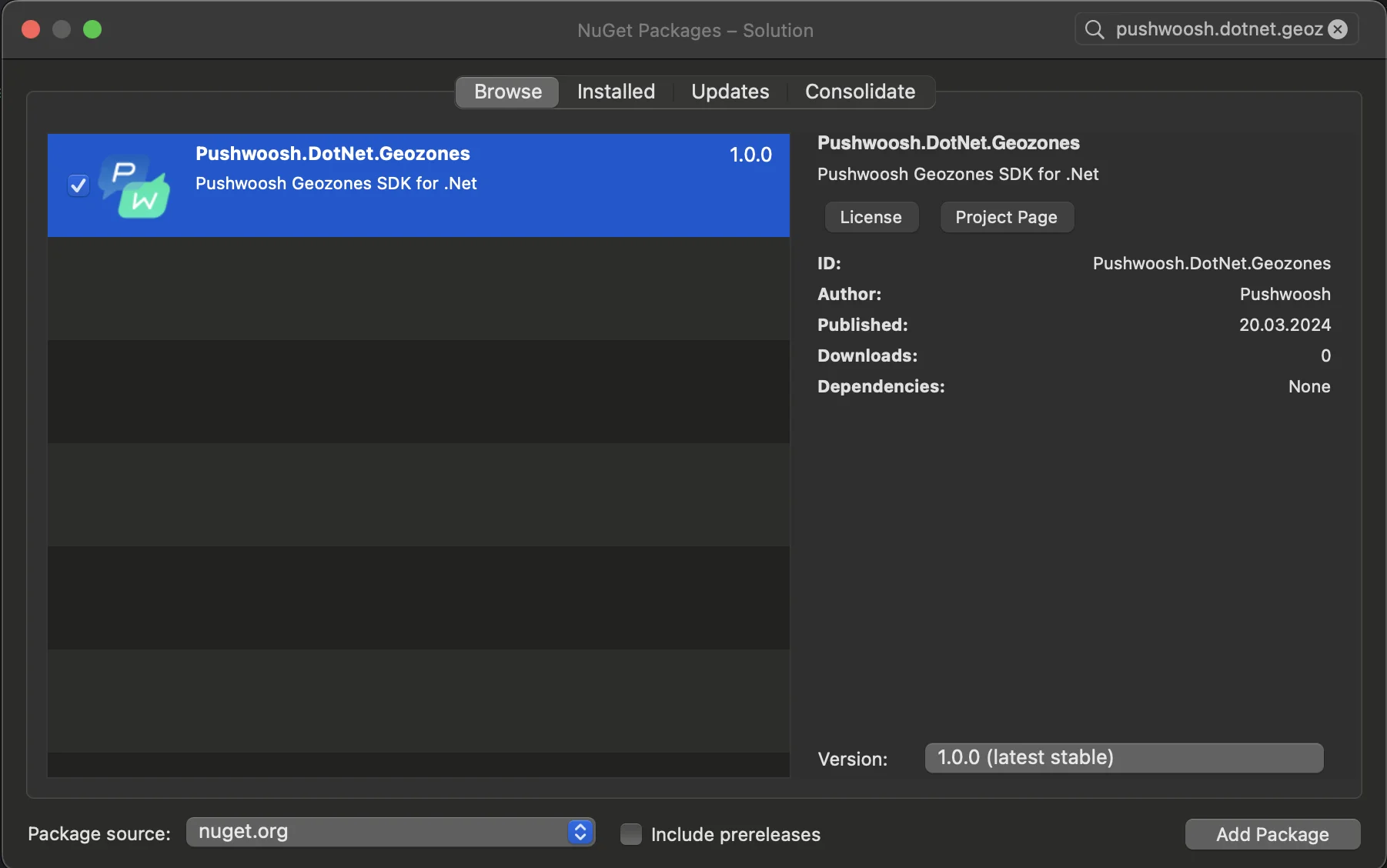
- Fügen Sie das NuGet-Paket Pushwoosh.DotNet.Geozones zu Ihrer Solution hinzu
- Android-Integration
Suchen Sie in Ihrem Android-Projekt die Datei MainActivity.cs und rufen Sie LocationManager.Init() in der OnCreate()-Methode auf:
using PushwooshSDK.DotNet.Geozones.Android;
...
[Activity(Theme = "@style/Maui.SplashTheme", MainLauncher = true, ConfigurationChanges = ConfigChanges.ScreenSize | ConfigChanges.Orientation | ConfigChanges.UiMode | ConfigChanges.ScreenLayout | ConfigChanges.SmallestScreenSize | ConfigChanges.Density)]public class MainActivity : MauiAppCompatActivity{ protected override void OnCreate(Bundle savedInstanceState) { base.OnCreate(savedInstanceState); PushManager.Init(); LocationManager.Init(); }}- iOS-Integration
Öffnen Sie für Ihr iOS-Projekt die Datei AppDelegate.cs und rufen Sie LocationManager.Init() in der FinishedLaunching()-Methode auf:
using Pushwoosh.iOS;using PushwooshSDK.DotNet.Geozones.iOS;using UIKit;
...
[Register("AppDelegate")]public class AppDelegate : MauiUIApplicationDelegate{    public override bool FinishedLaunching(UIApplication application, NSDictionary launchOptions)    {        PushManager.Init();        LocationManager.Init();        return base.FinishedLaunching(application, launchOptions);    }
protected override MauiApp CreateMauiApp() => MauiProgram.CreateMauiApp();}- Fügen Sie Standortberechtigungen entsprechend den Anforderungen Ihrer App hinzu.
Die Berechtigung Privacy - Location When In Use Usage Description sollte immer hinzugefügt werden.

5. Starten Sie dann die Standortverfolgung, indem Sie die Methode StartLocationTracking() aufrufen.
using PushwooshSDK.DotNet.Geozones;

...
LocationManager.Instance.StartLocationTracking();