Loyalty and win-back
此内容尚未提供您的语言版本。
These recipes cover the Loyal and Leaving stages: players who stay for the long run and players who stopped opening the game. Before you build them, read the best practices for every journey.
Live event and VIP announcements
Anchor link to- Use it when: you run a live event, such as a tournament, or give some players early access.
- Starts when: the date and time you set, for the segment you pick.
- What it does: announces the event in App Inbox and by push when it starts, then sends a reminder push shortly before it ends. The announcement goes to the players most likely to care.
- Content to prepare: an App Inbox preset with the announcement, and two push presets: one for the start and one for the reminder before the end.
- Needs: the Message Inbox SDK in the game for App Inbox. The Pushwoosh Unity plugin has no Message Inbox, so a Unity game can’t show the App Inbox message.

- On the journey canvas, add an Audience-based entry on the Active players segment. For an exclusive-content event, use Achievement hunters. For early access, use Frequent payers.
- Set the entry schedule to One-time entry, choose Schedule for a specific day, and set the launch date, time, and timezone.
- Add an App Inbox element with the event announcement. Set its expiration to match the event end.
- Add a push that links to the event screen, for example: “The weekend tournament has started. Join now.”
- Add a Time Delay, choose the Date type, and set a moment shortly before the event ends. The Date type counts in each player’s own time zone. If the event ends at the same moment for everyone, choose Fixed duration from the start instead.
- Add a push reminder, for example: “The tournament ends in 3 hours. Last chance to join.”
- Open Settings, select Conversion goals, choose
Live event joined, and select End journey after this event, so players who already joined do not get the reminder.
Anniversary reward
Anchor link to- Use it when: you want to celebrate how long a player has been with the game and give them a reason to come back.
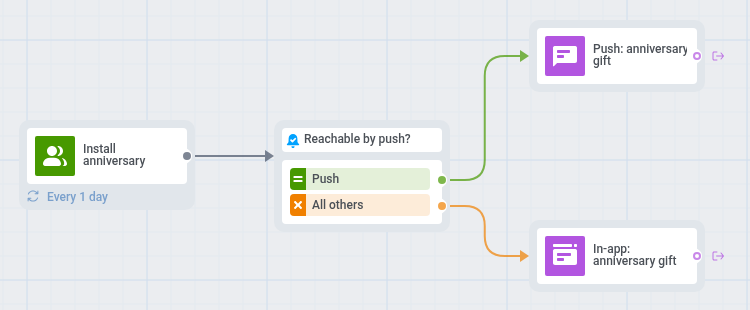
- Starts when: a player enters the Install anniversary segment, on the anniversary of their install date. Pushwoosh checks the segment on a schedule you set, for example daily.
- What it does: sends a push with an anniversary gift, or an in-app message to players who can’t get push.
- Content to prepare: a push preset and an in-app template with the anniversary gift.
- Needs: no extra setup.
First Installis a default tag that Pushwoosh sets on every device.

- On the journey canvas, add an Audience-based entry with the Install anniversary segment.
- Set the entry schedule to Recurring entry, choose Periodically, and set it to daily. The segment matches only on the anniversary day, so the journey must check it every day.
- Add a Reachability check.
- For players reachable by push, add a push with the gift, for example: “One year together! Your anniversary chest is waiting.”
- For the others, add an In-app element with the same gift and set In-app expiration to a few days, so the player still sees it after the day itself.
- Open Settings, select Campaign Entry Limit, and choose once a month or once in 3 months, so a player gets one message per anniversary. Once in a lifetime would also block the next year’s anniversary.
- Open Settings, select Conversion goals, choose
PW_ApplicationOpen, and select End journey after this event.
Reactivation for inactive players
Anchor link to- Use it when: players stop opening the game.
- Starts when: a player enters the At-risk players segment, after a week without a session.
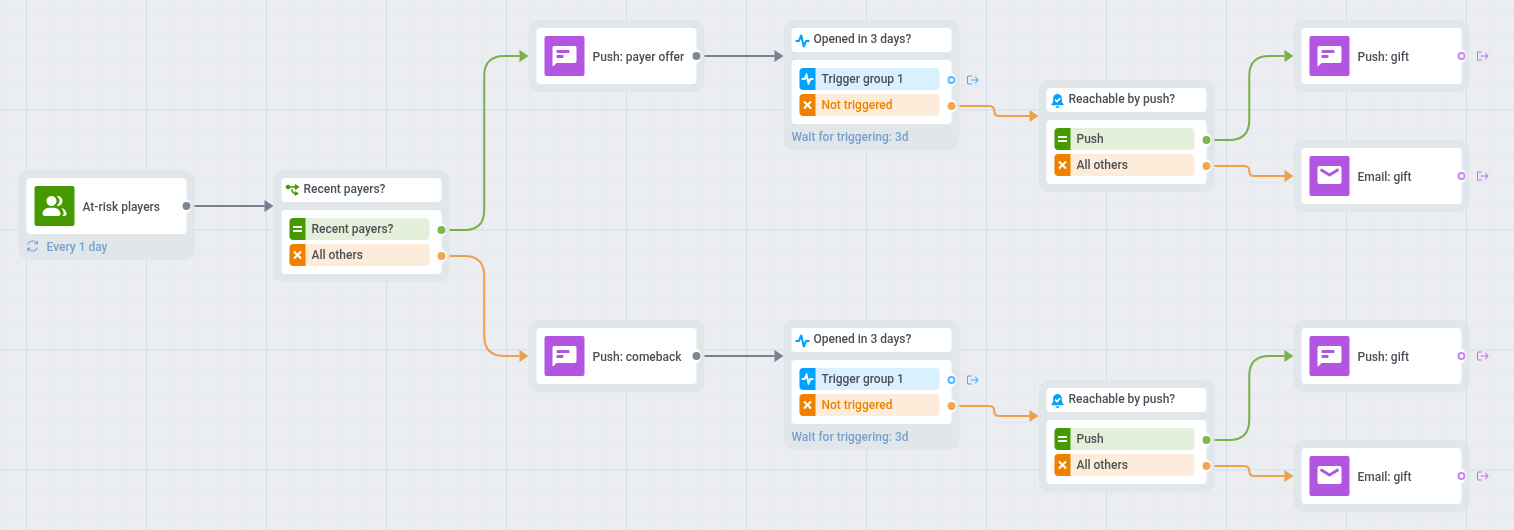
- What it does: sends a push with an offer, different for payers and for other players. If the player does not open the game within 3 days, a second push with a time-limited reward follows, or an email for players who cannot get push.
- Content to prepare: two push presets for the first message (one for payers, one for other players), a push preset with the comeback reward, and email content for players you cannot reach by push.
- Needs: for the email step, the email channel set up in your application and email addresses stored in your players’ profiles.

- On the journey canvas, add an Audience-based entry on the At-risk players segment.
- Set the entry schedule to Recurring entry and choose Periodically, for example daily. Pushwoosh recalculates the segment before each start, and players already in the journey do not enter again.
- Add a Condition split, choose Segment, and select the Recent payers segment. If you do not track purchases yet, skip the split and send every player the push from step 5.
- On the Users in a segment branch, add a push with an offer tied to how the player spends, for example: “Your next pack comes with a bonus. It is waiting in the store.”
- On the All other users branch, add a push with a softer reason to return, such as new content or a comeback bonus, for example: “Your hero is waiting at level 12. Come back and keep going.”
- In each branch, add a Wait for Trigger step on
PW_ApplicationOpenand set the waiting period to 3 days. - On each Not triggered branch, add a Reachability check.
- For players reachable by push, send a second push with a time-limited comeback reward, for example: “We saved a gift for you. Claim it in the next 48 hours.”
- For the others, send an email. Only players with an email address in their profile receive it.
- Open Settings, select Conversion goals, choose
PW_ApplicationOpen, and select End journey after this event. - Open Settings, select Campaign Entry Limit, and choose once a month. A player stays in At-risk players for up to 3 weeks, so without the limit the daily entry would send the same pushes again after each round.