Huawei for Outsystems
Set up the Outsystems plugin
Anchor link toSet up the Outsystems plugin for your project following the steps described in the guide:
Get a Huawei configuration file
Anchor link to-
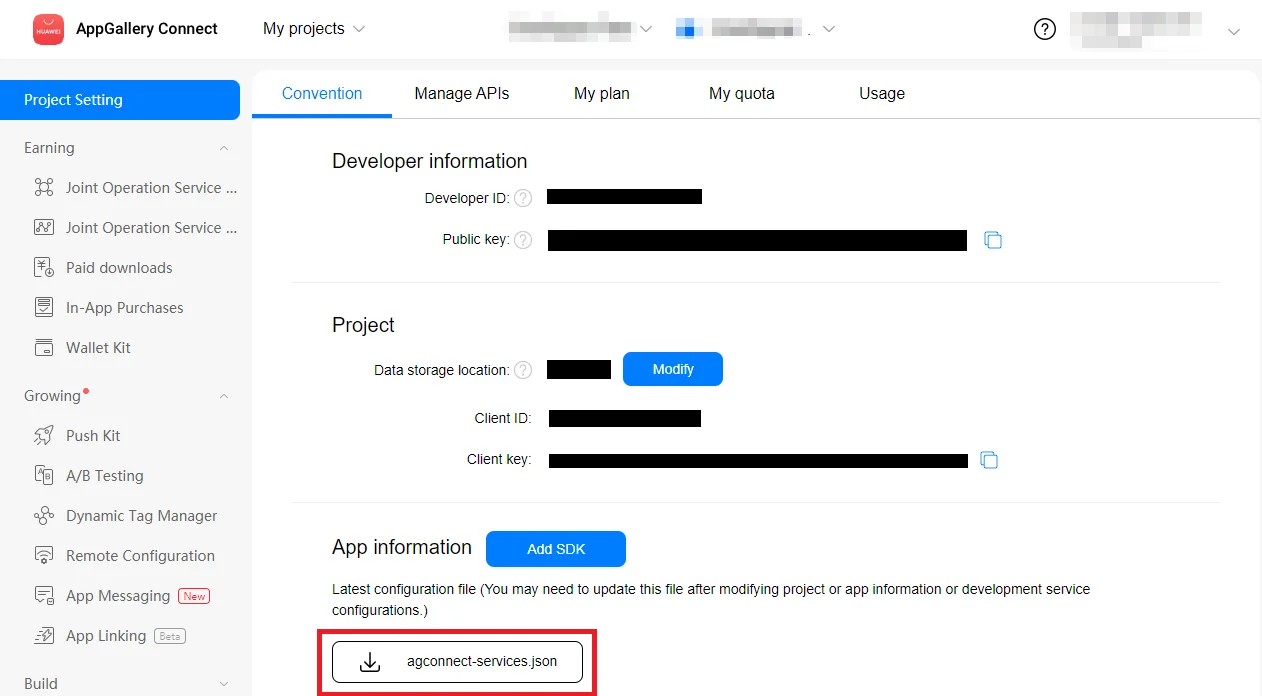
Go to AppGallery Connect -> Projects List and select a project to configure.
-
Press agconnect-services.json in the App information section to download a configuration file.
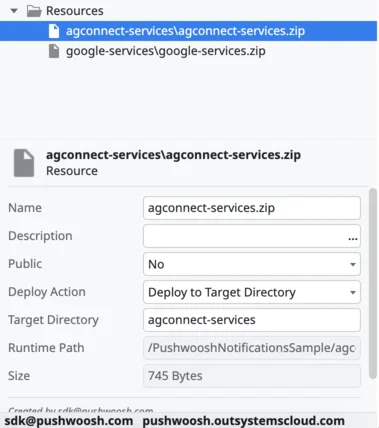
- Create a zip file containing the agconnect-services.json in the root. Upload the “agconnect-services.zip” to your OutSystems application’s data resources and make sure to:
- Set the “Name” as “agconnect-services.zip”
- Set “Deploy to Target Directory” as “agconnect-services”
Register the signing certificate fingerprint
Anchor link toHuawei issues push tokens only to builds whose signing certificate is registered in AppGallery Connect. OutSystems builds are signed by the OutSystems build service (MABS), not by your own keystore — so take the fingerprint from the built APK:
apksigner verify --print-certs your-app.apkCopy the SHA-256 digest and add it in AppGallery Connect → Project settings → General information → SHA-256 certificate fingerprint. The MABS signing key is stable across rebuilds of the same application, so this is a one-time step.
If the fingerprint is missing or wrong, token registration fails with Huawei error 6003 (“certificate fingerprint error”) and the device receives no pushes.
Configure Huawei platform
Anchor link toRefer to the Huawei platform Configuration for step-by-step guide on how to configure Huawei platform in Pushwoosh.
Enable Huawei for your project
Anchor link toUpdate the Pushwoosh Plugin component to version 4.7.0 or newer — starting with it, the HMS Push library ships with the build. On earlier versions Huawei devices silently fell back to FCM (“Push Kit not integrated” in the device log), which does not work without Google services.
To update: install the newer version of the Pushwoosh Plugin component from the Forge, refresh the dependency in your app (Manage Dependencies), and generate a new native build.
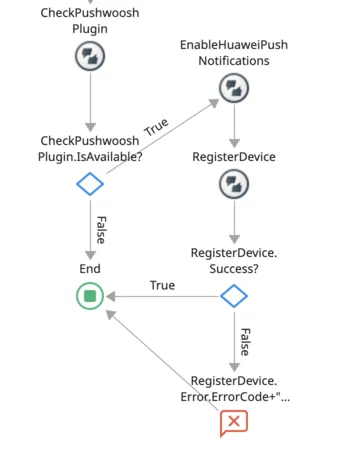
Add the EnableHuaweiPushNotifications action prior to RegisterDevice.
Share your feedback with us
Anchor link toYour feedback helps us create a better experience, so we would love to hear from you if you have any issues during the SDK integration process. If you face any difficulties, please do not hesitate to share your thoughts with us via this form.