Huawei configuration
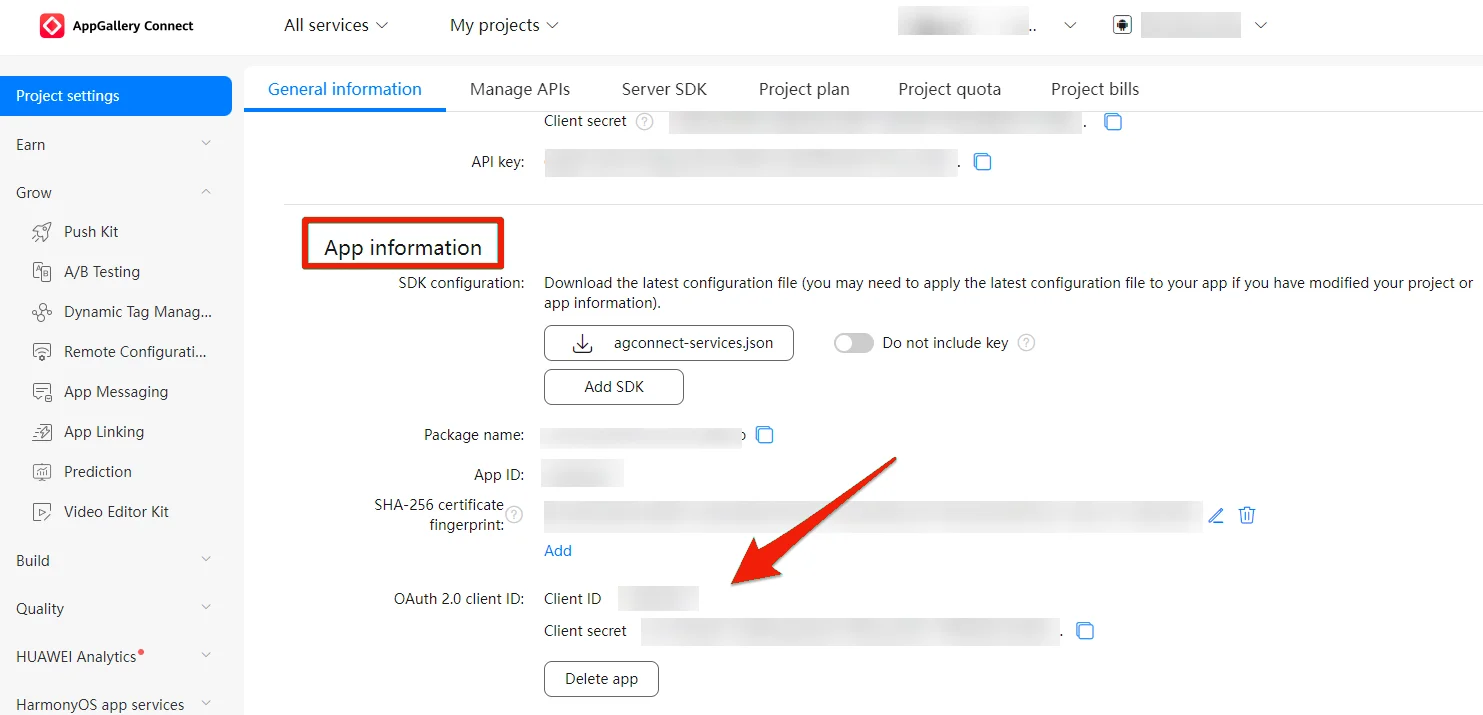
- Select your app from the Huawei AppGallery Connect projects list.
- Go to Project Setting > App information.
- Copy Client ID and Client secret values.
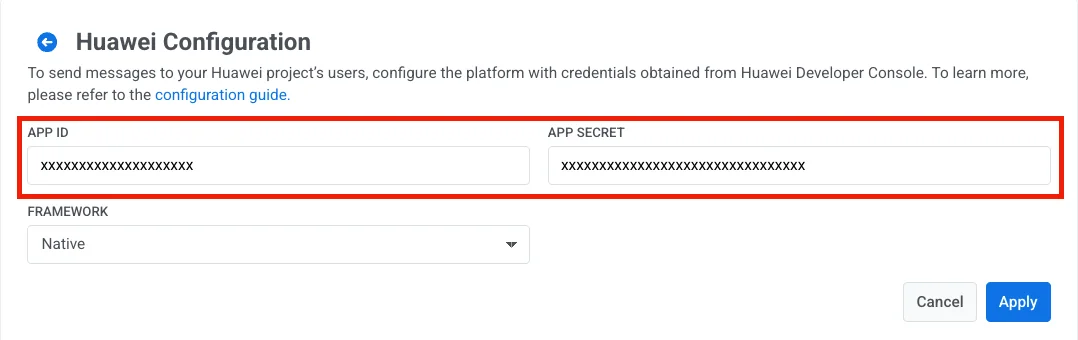
- Go to your Pushwoosh project, open the Configure Platforms section, and click Connect for the Huawei Android platform.

- Select the framework. Paste the Client ID and Client secret into the App ID and App Secret fields respectively, then press Apply.