MAUI Dotnet
Requirements
Anchor link toTo integrate the SDK, your MAUI project needs the following package version, target frameworks, and minimum OS versions:
-
Pushwoosh.DotNet2.1.0 or later. The package ships builds for .NET 8 and .NET 10 (net10.0-android36.0andnet10.0-ios26.0). -
Android: target framework
net8.0-android34.0or higher, devices with API 23 or later. Plainnet8.0-androidresolves toandroid34.0on the .NET 8 SDK. -
iOS: devices with iOS 15.0 or later. Set the minimum in your project file:
<SupportedOSPlatformVersion Condition="$([MSBuild]::GetTargetPlatformIdentifier('$(TargetFramework)')) == 'ios'">15.0</SupportedOSPlatformVersion>With a lower value, the build stops with
error PW0001.
SDK integration
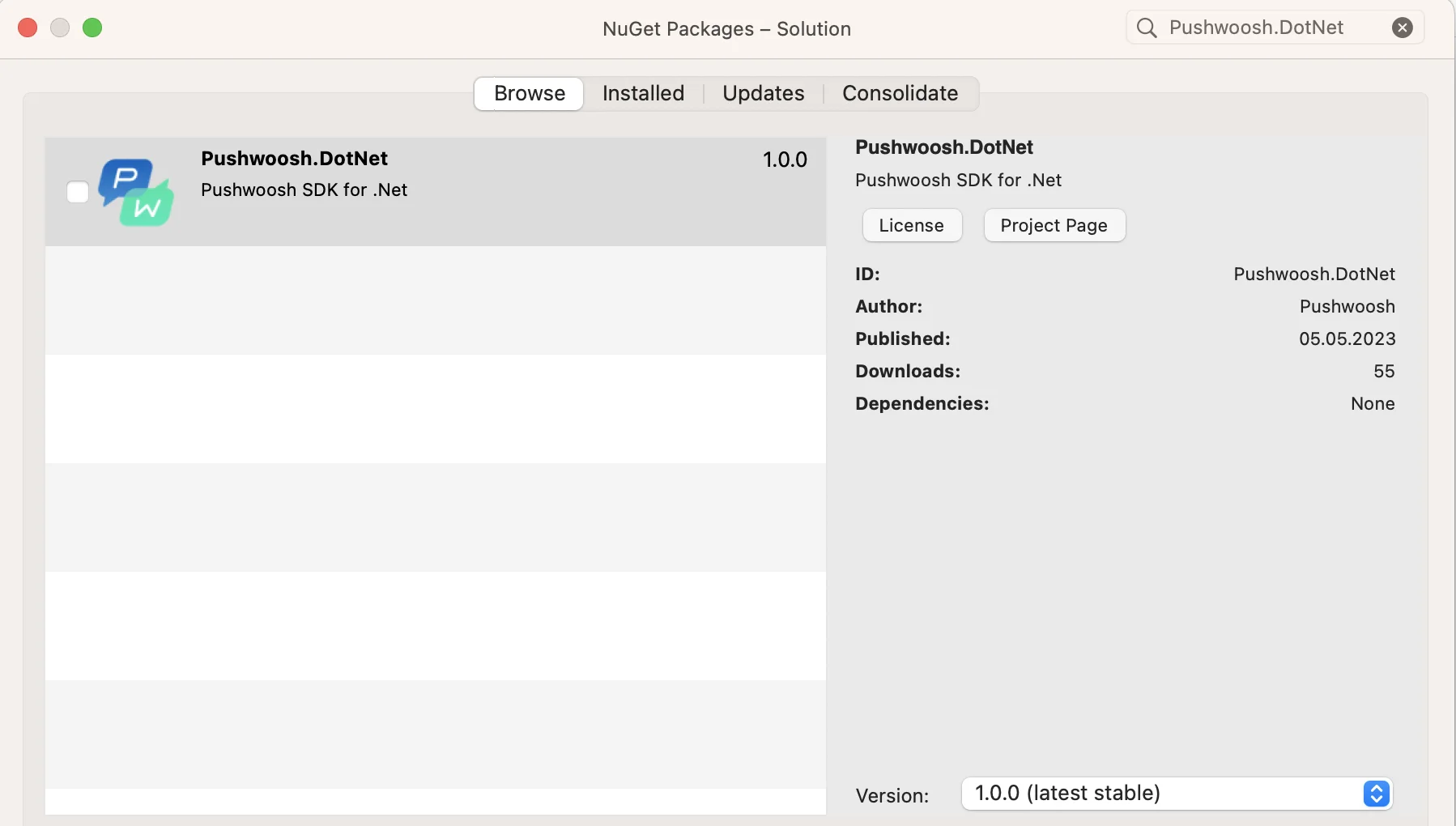
Anchor link to1. Add Pushwoosh.DotNet Nuget package to both Android and iOS projects:
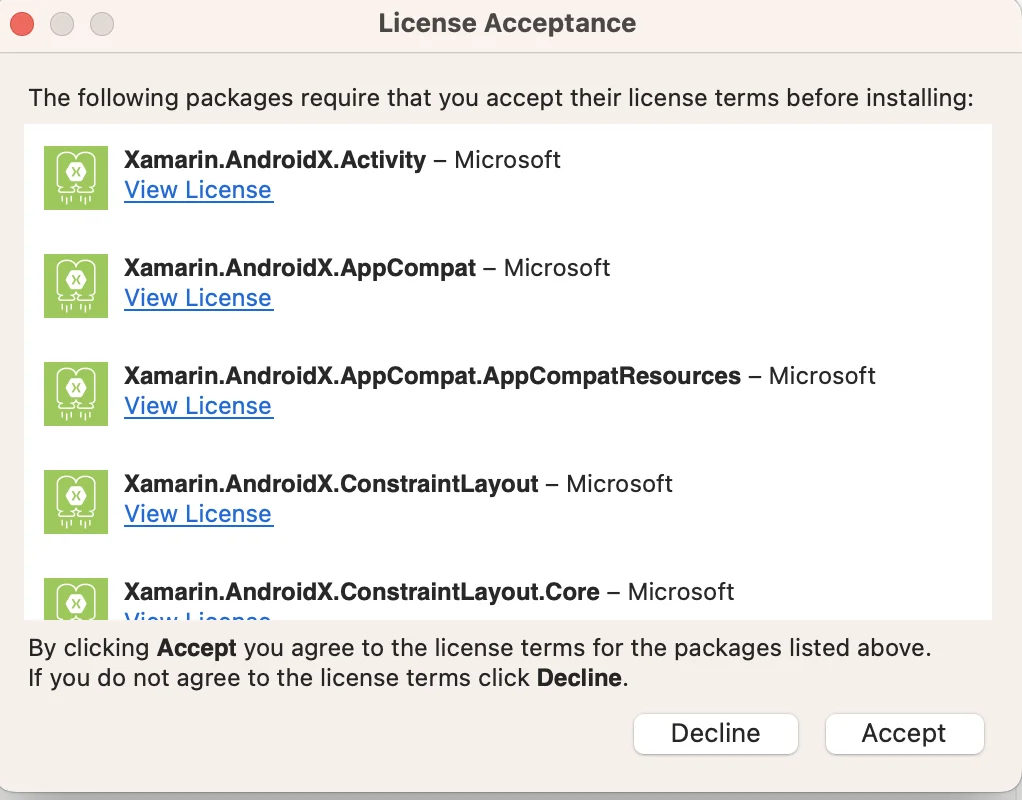
2. Accept licenses for transitive Android dependencies if required:
3. Configure your project in Firebase Console.
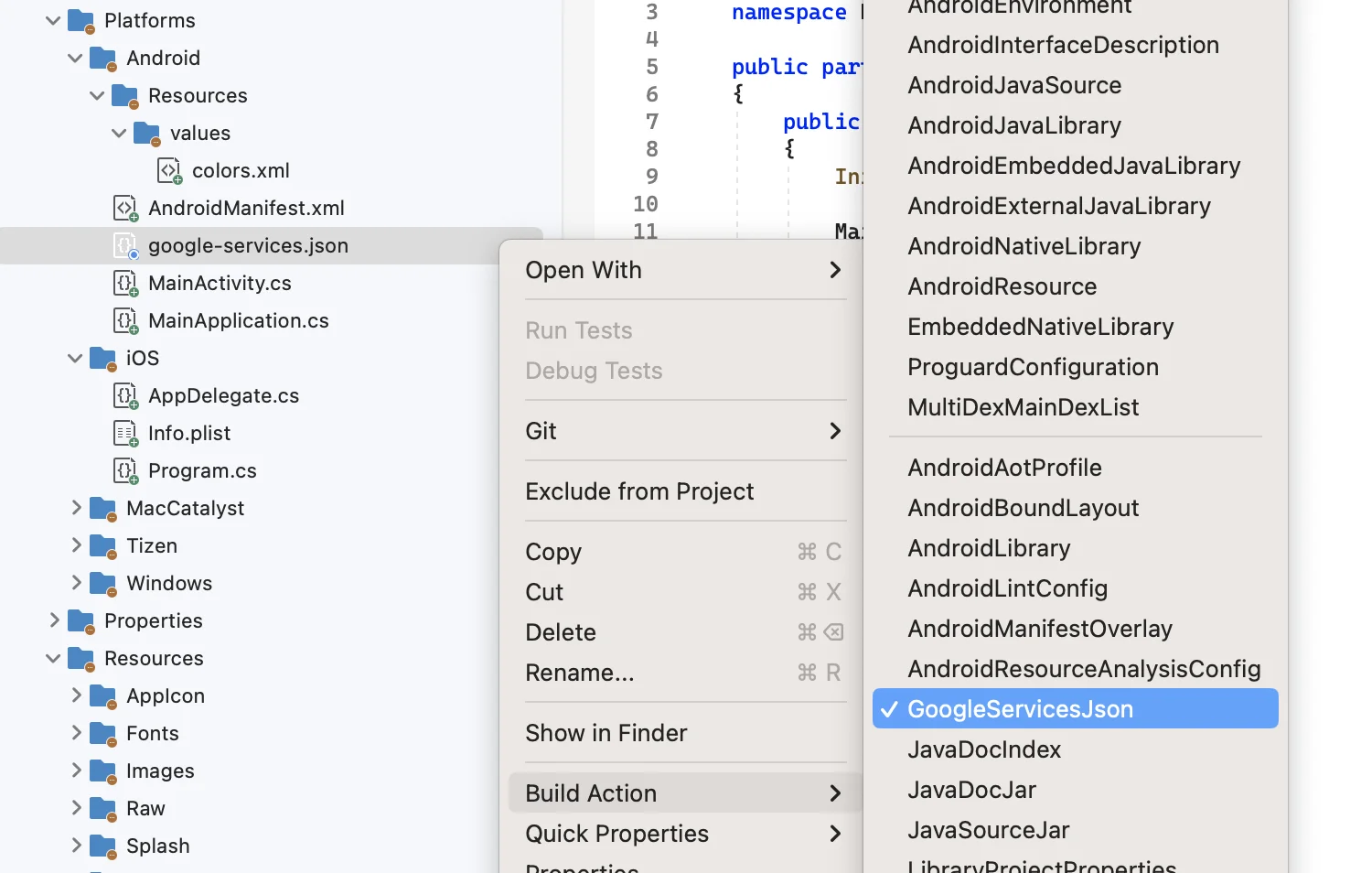
4. Add google-services.json to the root of your Android platform directory. Set GoogleServicesJson build action for this file:
5. Add the following line before declaring namespace in your MainApplication.cs (XXXXX-XXXXX here is your Pushwoosh Application Code):
[assembly: MetaData("com.pushwoosh.appid", Value = "XXXXX-XXXXX")]6. In your MainApplication.cs, override OnCreate() and call PushManager.Init(); before base.OnCreate();:
using Android.App;using Android.Runtime;using Pushwoosh.Android;...[Application]public class MainApplication : MauiApplication{    public MainApplication(IntPtr handle, JniHandleOwnership ownership)        : base(handle, ownership)    {    }
    public override void OnCreate()    {        PushManager.Init();        base.OnCreate();    }
    protected override MauiApp CreateMauiApp() => MauiProgram.CreateMauiApp();}
base.OnCreate() builds the MAUI app and constructs App, which already uses PushManager.Instance. Don’t call PushManager.Init() from MainActivity.OnCreate. The activity is created after App, so PushManager.Instance would still be null when App needs it.
7. In your AndroidManifest.xml, add the following:
<meta-data android:name="com.pushwoosh.apitoken" android:value="__YOUR_DEVICE_TYPE_API_TOKEN" />Important: Make sure the Device API token has access to the correct application in your Pushwoosh Control Panel. Learn more
8. In the iOS platform folder, create Platforms/iOS/Entitlements.plist with the aps-environment key:
<?xml version="1.0" encoding="UTF-8"?><!DOCTYPE plist PUBLIC "-//Apple//DTD PLIST 1.0//EN" "http://www.apple.com/DTDs/PropertyList-1.0.dtd"><plist version="1.0"><dict> <key>aps-environment</key> <string>development</string></dict></plist>Without this entitlement, iOS doesn’t issue an APNs device token, so Register() always fails. Use development for debug builds. A distribution build needs production and a provisioning profile with push notifications enabled.
9. In your project file (.csproj), point the iOS target to the entitlements file:
<PropertyGroup Condition="$([MSBuild]::GetTargetPlatformIdentifier('$(TargetFramework)')) == 'ios'"> <CodesignEntitlements>Platforms/iOS/Entitlements.plist</CodesignEntitlements></PropertyGroup>10. In the AppDelegate.cs of your iOS project, call PushManager.Init(); at the beginning of the FinishedLaunching method:
using Foundation;using UIKit;using Pushwoosh.iOS;...public override bool FinishedLaunching(UIApplication application, NSDictionary launchOptions){ PushManager.Init(); return base.FinishedLaunching(application, launchOptions);}11. Add these methods to the AppDelegate. The MauiUIApplicationDelegate class doesn’t export them by default, so add them manually:
[Export("application:didReceiveRemoteNotification:fetchCompletionHandler:")]    public void DidReceiveRemoteNotification(UIKit.UIApplication application, NSDictionary userInfo, Action<UIKit.UIBackgroundFetchResult> completionHandler)    {        PushManager.Instance.ReceivedRemoteNotification(userInfo);    }
[Export("application:didRegisterForRemoteNotificationsWithDeviceToken:")]    public void RegisteredForRemoteNotifications(UIKit.UIApplication application, NSData deviceToken)    {        PushManager.Instance.RegisteredForRemoteNotifications(deviceToken);    }
[Export("application:didFailToRegisterForRemoteNotificationsWithError:")]    public void FailedToRegisterForRemoteNotifications(UIKit.UIApplication application, NSError error)    {        PushManager.Instance.FailedToRegisterForRemoteNotifications(error);    }
12. In the Info.plist, change the Pushwoosh_APPID value to your Pushwoosh Application Code. You can find it in your Control Panel:

13. In the Info.plist, set the Pushwoosh_API_TOKEN key to your Pushwoosh Device API Token.
Important: Be sure to give the token access to the right app in your Pushwoosh Control Panel. Learn more
14. In the cross-platform part of App.xaml.cs, call Register() in the OnStart method. It asks the user for notification permission and registers the device for push notifications:
using PushwooshSDK.DotNet.Core;...public partial class App : Application{... protected override void OnStart() { base.OnStart(); PushManager.Instance.Register(); }}Upgrade from 2.0.x to 2.1.0
Anchor link toIf your app was set up with an earlier version of this guide, make these changes when you update to 2.1.0:
- On Android, move
PushManager.Init()fromMainActivity.OnCreatetoMainApplication.OnCreate, beforebase.OnCreate(), as in step 6. If you use Geozones, moveLocationManager.Init()there too, right afterPushManager.Init(). - Remove the
com.pushwoosh.senderidmetadata line and thefcm_sender_idstring from Resources/values/strings.xml. The SDK doesn’t read them. - On iOS, add the
aps-environmententitlement from steps 8 and 9 if your app doesn’t have it yet. - Raise
SupportedOSPlatformVersionfor the iOS target to 15.0, as shown in Requirements. The MAUI 8 project template sets 11.0. - If your app uses Geozones, update
Pushwoosh.DotNet.Geozonesto 2.1.0 together withPushwoosh.DotNet. With Geozones 2.0.x, the build stops witherror PW0002. PWInlineInAppViewon iOS is marked[Obsolete]and shows nothing, because the native iOS SDK 7.x has no inline in-app messages. Remove it from your layouts.
Note for Windows users: When building you may encounter an issue related to the length of the file path. This is due to the combined length of the directories used by Visual Studio and the file paths within the Pushwoosh SDK exceeding Windows >maximum path length limitation of 260 characters. To resolve this issue, enable the LongPathsEnabled setting in the Windows Registry.
Share your feedback with us
Anchor link toYour feedback helps us create a better experience, so we would love to hear from you if you have any issues during the SDK integration process. If you face any difficulties, please do not hesitate to share your thoughts with us via this form.