Reading and watching
Este contenido aún no está disponible en su idioma.
These recipes cover readers who already read and watch: news alerts about the topics they follow and a reminder about an episode they did not finish. Before you build them, read the best practices for every journey.
News alerts
Anchor link to- Use it when: your newsroom publishes a story that readers of a topic should hear about now.
- Starts when: an editor sends the alert.
- What it does: sends one push to the readers who follow the topic, or to all readers, and keeps a copy in the App Inbox for readers who miss the push.
- Content to prepare: a push preset with the headline, a deep link to the article, and, if you like, the article’s image.
- Needs: the Topic followers segment for an alert about one topic, which needs the
followed_topicstag. For the copy in the App Inbox, the Message Inbox in your app.
A news alert is a one-time push, not a journey, because it goes out once, at the moment the editor chooses:
-
Open the one-time push form. See One-time push.
-
Select the push preset with the headline, or click Create new and write it, for example: “Parliament passes the budget: what changes for you.”
-
Choose the message type: Marketing message or Transactional message.
The type decides whether the alert follows frequency capping, silent hours, and the control group. See Choose how news alerts follow the delivery rules.
-
Turn on Save message to Inbox, so readers who dismiss or miss the push, or who have not allowed notifications, find the story in the App Inbox. In Remove from Inbox, set 1 day.
-
Click Next to go to the Audience step.
-
Choose Send to segment and select the topic segment, for example Politics followers. For news that every reader needs, choose Send to all subscribers.
-
Click Next to go to the Sending time step.
-
In Sending options, set Time to Live to 1 hour or 3 hours. A reader whose phone is offline when you send then doesn’t get the alert hours later, when the news is old.

-
Choose Send immediately.
-
Click Next and, on the Review step, check the segment, Save to Inbox, and Time to live.
-
Click Send now.
A news alert has no conversion goal. To see how readers respond, open its statistics in the list of one-time messages.
To send the same alert in several languages, add the languages to the preset. See Personalize the content.
Continue watching
Anchor link to- Use it when: a reader starts an episode of a series and does not finish it.
- Starts when: a reader starts an episode (
Episode started). - What it does: waits 1 day for the reader to finish an episode. If none is finished, sends a push that names the series, or an in-app message to readers without push.
- Content to prepare: a push preset with a deep link to the episode screen and a placeholder for the series name, and an in-app template with a general reminder.
- Needs: the
Episode startedandEpisode completedevents, withseries_nameon the first one.
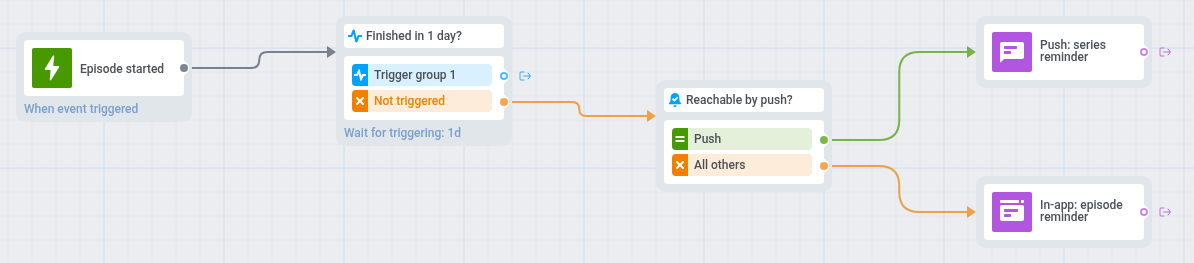
- On the journey canvas, add a Trigger-based entry on
Episode started. - Add a Wait for Trigger step on
Episode completedand set the waiting period to 1 day. Leave the Trigger group 1 branch empty, so readers who finished an episode leave the journey without a message. - On the Not triggered branch, add a Reachability check.
- For readers reachable by push, add a push that names the series, for example: “The Long Road: pick up where you left off.” To insert the name, turn on Personalise message with event attributes on the push step, and under Overwrite personalization map the preset placeholder to the
series_nameattribute ofEpisode started. - For the others, add an In-app element with a general reminder, for example “Your episode is waiting for you.”, and set In-app expiration to 1 day. The in-app element does not take event attributes, so it can’t name the series.
- On the canvas, click Settings and select Campaign Entry Limit.
- Choose Custom period and set Once in to a week, so a reader who starts episodes every day gets one reminder a week, not one a day.
- On the canvas, click Settings and select Conversion goals.
- In the goal, choose
Episode completedand select End journey after this event.
A reader who finishes any episode during the day counts as done, even if it is not the one that started the journey. The reminder names the series from the episode that started the journey. The same journey works for podcasts and for long articles: replace the events with your own start and finish events.