tvOS 모달 리치 미디어
Pushwoosh SDK 버전 6.11.0부터 tvOS 기기(Apple TV)로 모달 리치 미디어를 전송할 수 있습니다.
tvOS용 모달 리치 미디어는 Apple TV의 리모컨 탐색에 최적화된 대화형 HTML 기반 콘텐츠 디스플레이를 제공합니다. 리치 미디어는 다양한 위치, 애니메이션 및 포커스 탐색 지원으로 사용자 정의할 수 있습니다.
리치 미디어 페이지에 대한 자세한 내용은 가이드를 참조하세요.
PushwooshTVOS 모듈은 선택 사항이며 Swift Package Manager 또는 CocoaPods를 사용하여 tvOS 프로젝트에 통합할 수 있습니다.
Swift Package Manager
Anchor link totvOS 프로젝트에 Pushwoosh 패키지를 추가하세요:
- Xcode에서 File → **Add Package Dependencies…**를 선택합니다.
- 리포지토리 URL을 입력합니다:
https://github.com/Pushwoosh/Pushwoosh-XCFramework - 최신 버전을 선택합니다.
- tvOS 타겟에 다음 프레임워크를 추가합니다:
- PushwooshFramework
- PushwooshCore
- PushwooshBridge
- PushwooshLiveActivities
- PushwooshTVOS
CocoaPods
Anchor link toPodfile에 다음을 추가합니다:
target 'YourTvOSApp' do  platform :tvos, '13.0'
  pod 'PushwooshXCFramework'  pod 'PushwooshXCFramework/PushwooshTVOS'end
그런 다음 실행합니다:
pod install기본 통합
Anchor link to1. AppDelegate에서 Pushwoosh 구성하기
Anchor link to필요한 모듈을 가져오고 애플리케이션 코드로 Pushwoosh를 구성합니다:
import UIKitimport PushwooshTVOSimport PushwooshFramework
@mainclass AppDelegate: UIResponder, UIApplicationDelegate {
    func application(_ application: UIApplication, didFinishLaunchingWithOptions launchOptions: [UIApplication.LaunchOptionsKey: Any]?) -> Bool {
        // 앱 코드로 Pushwoosh 구성        Pushwoosh.TVoS.setAppCode("XXXXX-XXXXX")
        // 푸시 알림 등록        Pushwoosh.TVoS.registerForTvPushNotifications()
        return true    }}
2. 기기 토큰 등록 처리하기
Anchor link to기기 토큰 핸들러를 구현하여 Pushwoosh에 기기를 등록합니다:
func application(_ application: UIApplication, didRegisterForRemoteNotificationsWithDeviceToken deviceToken: Data) {    Pushwoosh.TVoS.registerForTvPushNotifications(withToken: deviceToken) { error in        if let error = error {            print("Failed to register: \(error)")        } else {            print("Successfully registered for push notifications")        }    }}
func application(_ application: UIApplication, didFailToRegisterForRemoteNotificationsWithError error: Error) {    Pushwoosh.TVoS.handleTvPushRegistrationFailure(error)}
3. 수신 푸시 알림 처리하기
Anchor link to리치 미디어 콘텐츠가 포함된 수신 푸시 알림을 처리합니다:
func application(_ application: UIApplication,                 didReceiveRemoteNotification userInfo: [AnyHashable: Any],                 fetchCompletionHandler completionHandler: @escaping (UIBackgroundFetchResult) -> Void) {
// 푸시 알림을 처리하고 리치 미디어가 있는 경우 표시 if Pushwoosh.TVoS.handleTVOSPush(userInfo: userInfo) { completionHandler(.newData) } else { completionHandler(.noData) }}리치 미디어 구성
Anchor link to위치 지정
Anchor link totvOS용 모달 리치 미디어는 화면의 다섯 가지 위치에 배치할 수 있습니다:
// 중앙 위치 (기본값)Pushwoosh.TVoS.configureRichMediaWith(position: .center, presentAnimation: .none, dismissAnimation: .none)
// 화면 왼쪽Pushwoosh.TVoS.configureRichMediaWith(position: .left, presentAnimation: .fromLeft, dismissAnimation: .toLeft)
// 화면 오른쪽Pushwoosh.TVoS.configureRichMediaWith(position: .right, presentAnimation: .fromRight, dismissAnimation: .toRight)
// 화면 상단Pushwoosh.TVoS.configureRichMediaWith(position: .top, presentAnimation: .fromTop, dismissAnimation: .toTop)
// 화면 하단Pushwoosh.TVoS.configureRichMediaWith(position: .bottom, presentAnimation: .fromBottom, dismissAnimation: .toBottom)
사용 가능한 위치 옵션:
enum PWTVOSRichMediaPosition { case center // 콘텐츠가 화면 중앙에 위치 (기본값) case left // 콘텐츠가 화면 왼쪽에 위치 case right // 콘텐츠가 화면 오른쪽에 위치 case top // 콘텐츠가 화면 상단에 위치 case bottom // 콘텐츠가 화면 하단에 위치}표시 애니메이션
Anchor link to리치 미디어 콘텐츠가 화면에 나타나는 방식을 제어합니다:
enum PWTVOSRichMediaPresentAnimation { case none // 애니메이션 없음, 콘텐츠가 즉시 나타남 (기본값) case fromTop // 콘텐츠가 화면 상단에서 슬라이드됨 case fromBottom // 콘텐츠가 화면 하단에서 슬라이드됨 case fromLeft // 콘텐츠가 화면 왼쪽에서 슬라이드됨 case fromRight // 콘텐츠가 화면 오른쪽에서 슬라이드됨}해제 애니메이션
Anchor link to리치 미디어 콘텐츠가 화면에서 사라지는 방식을 제어합니다:
enum PWTVOSRichMediaDismissAnimation { case none // 애니메이션 없음, 콘텐츠가 즉시 사라짐 (기본값) case toTop // 콘텐츠가 화면 상단으로 슬라이드됨 case toBottom // 콘텐츠가 화면 하단으로 슬라이드됨 case toLeft // 콘텐츠가 화면 왼쪽으로 슬라이드됨 case toRight // 콘텐츠가 화면 오른쪽으로 슬라이드됨}구성 예시
Anchor link to애니메이션과 함께 왼쪽에 리치 미디어가 나타나도록 구성합니다:
Pushwoosh.TVoS.configureRichMediaWith( position: .left, presentAnimation: .fromBottom, dismissAnimation: .toLeft)슬라이드 애니메이션과 함께 하단에 리치 미디어가 나타나도록 구성합니다:
Pushwoosh.TVoS.configureRichMediaWith( position: .bottom, presentAnimation: .fromBottom, dismissAnimation: .toBottom)애니메이션 없이 중앙에 리치 미디어가 나타나도록 구성합니다:
Pushwoosh.TVoS.configureRichMediaWith( position: .center, presentAnimation: .none, dismissAnimation: .none)닫기 버튼 구성
Anchor link to기본적으로 닫기 버튼은 리치 미디어 프레젠테이션 하단에 표시됩니다. 필요한 경우 이 버튼을 숨길 수 있습니다:
// 시스템 닫기 버튼 숨기기Pushwoosh.TVoS.configureCloseButton(false)Apple TV의 포커스 탐색
Anchor link totvOS SDK는 Apple TV 리모컨의 포커스 탐색을 자동으로 관리합니다. 리치 미디어 HTML 콘텐츠의 대화형 요소(버튼, 링크)는 Apple TV 리모컨을 사용하여 포커스를 맞출 수 있습니다.
포커스 동작
Anchor link to- 포커스 가능한 요소는 HTML 콘텐츠에서 자동으로 감지됩니다.
- 사용자는 Apple TV 리모컨의 방향 패드를 사용하여 요소 간에 탐색할 수 있습니다.
- 현재 포커스된 요소는 시각적으로 강조 표시됩니다.
- 사용자는 리모컨의 중앙 버튼을 눌러 포커스된 요소를 활성화할 수 있습니다.
- 시스템 닫기 버튼(보이는 경우)도 포커스 탐색의 일부입니다.
HTML 콘텐츠 모범 사례
Anchor link totvOS 리치 미디어용 HTML 콘텐츠를 만들 때:
- 표준 대화형 HTML 요소 사용:
<button>,<a>,<input /> - 명확한 포커스 표시를 위해 대화형 요소 사이에 충분한 간격을 두세요.
- Apple TV 시뮬레이터에서 콘텐츠를 테스트하여 포커스 탐색을 확인하세요.
- iOS에 비해 더 큰 터치 타겟 사용을 고려하세요 (최소 250pt 너비 권장).
전체 통합 예시
Anchor link to모든 기능을 보여주는 전체 예시는 다음과 같습니다:
import UIKitimport PushwooshTVOSimport PushwooshFramework
@mainclass AppDelegate: UIResponder, UIApplicationDelegate {
    func application(_ application: UIApplication,                     didFinishLaunchingWithOptions launchOptions: [UIApplication.LaunchOptionsKey: Any]?) -> Bool {
        // Pushwoosh 구성        Pushwoosh.TVoS.setAppCode("XXXXX-XXXXX")
        // 리치 미디어 모양 구성        Pushwoosh.TVoS.configureRichMediaWith(            position: .center,            presentAnimation: .fromBottom,            dismissAnimation: .toTop        )
        // 닫기 버튼 표시 (기본값)        Pushwoosh.TVoS.configureCloseButton(true)
        // 푸시 알림 등록        Pushwoosh.TVoS.registerForTvPushNotifications()
        return true    }
    func application(_ application: UIApplication,                     didRegisterForRemoteNotificationsWithDeviceToken deviceToken: Data) {        Pushwoosh.TVoS.registerForTvPushNotifications(withToken: deviceToken) { error in            if let error = error {                print("Failed to register: \(error)")            } else {                print("Successfully registered")            }        }    }
    func application(_ application: UIApplication,                     didFailToRegisterForRemoteNotificationsWithError error: Error) {        Pushwoosh.TVoS.handleTvPushRegistrationFailure(error)    }
    func application(_ application: UIApplication,                     didReceiveRemoteNotification userInfo: [AnyHashable: Any],                     fetchCompletionHandler completionHandler: @escaping (UIBackgroundFetchResult) -> Void) {
        if Pushwoosh.TVoS.handleTVOSPush(userInfo: userInfo) {            completionHandler(.newData)        } else {            completionHandler(.noData)        }    }}
문제 해결
Anchor link to포커스 탐색 문제
Anchor link to포커스 탐색이 제대로 작동하지 않는 경우:
- HTML 콘텐츠가 표준 대화형 요소(
<button>,<a>)를 사용하는지 확인하세요. - Apple TV 시뮬레이터에서 테스트하여 포커스 동작을 확인하세요.
- 대화형 요소의 크기와 간격이 충분한지 확인하세요.
- HTML/CSS가 포커스 상태를 방해하지 않는지 확인하세요.
실제 기기 예시
Anchor link to실제 Apple TV 기기에서 리치 미디어가 어떻게 보이는지는 다음과 같습니다:
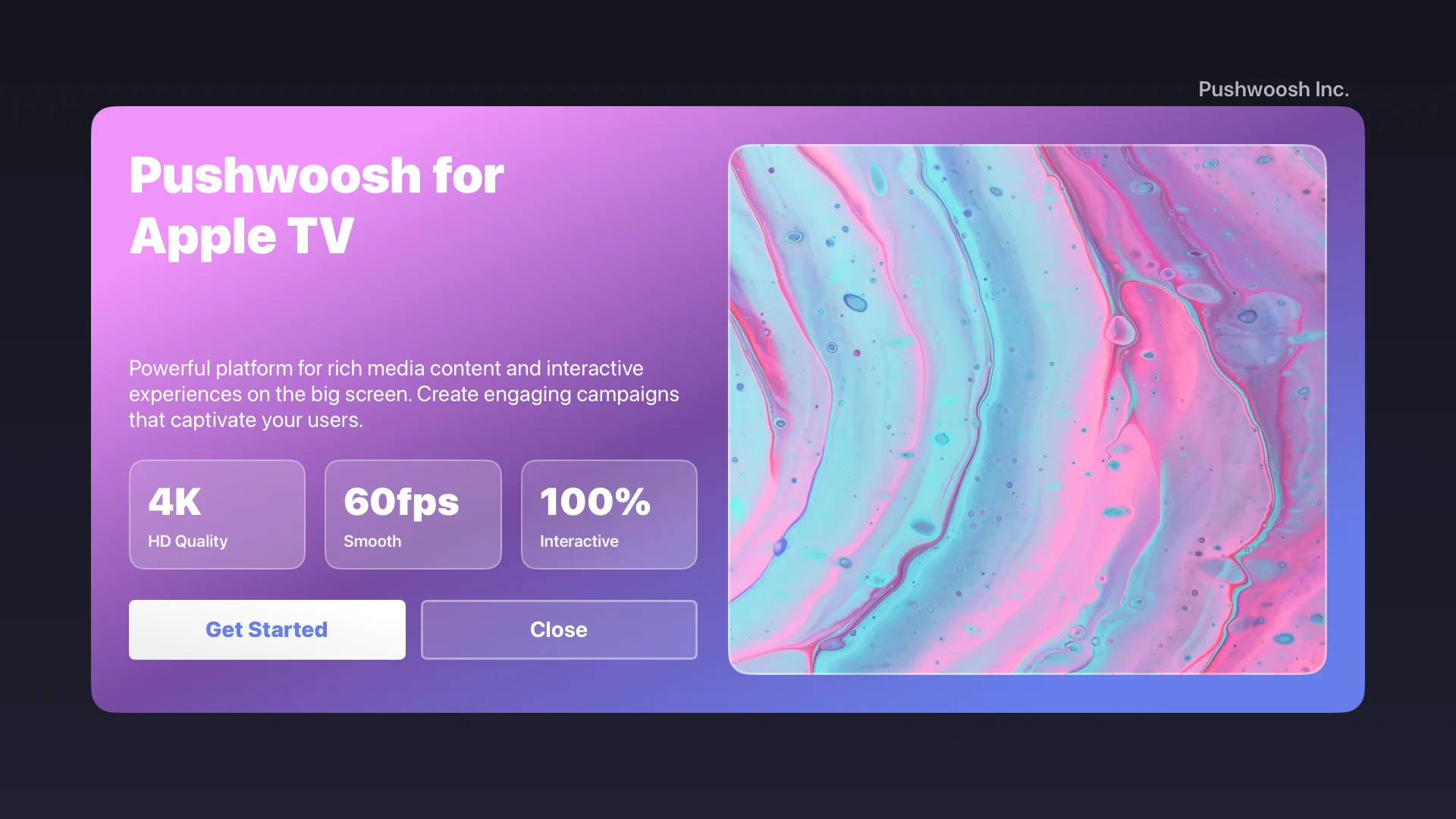
스크린샷은 Apple TV에 표시된 리치 미디어 콘텐츠를 보여주며 다음을 포함합니다:
- 그라데이션 배경이 있는 사용자 정의 HTML 레이아웃
- Apple TV 리모컨에 최적화된 대화형 버튼
- 모든 대화형 요소에 대한 포커스 탐색 지원