iOS 이미지 캐러셀 푸시 알림
UNNotificationContentExtension 프로토콜은 알림 콘텐츠 앱 확장의 진입점을 제공하며, 앱 알림을 위한 사용자 지정 인터페이스를 표시합니다.
1. 알림 콘텐츠 확장(Notification Content Extension) 추가
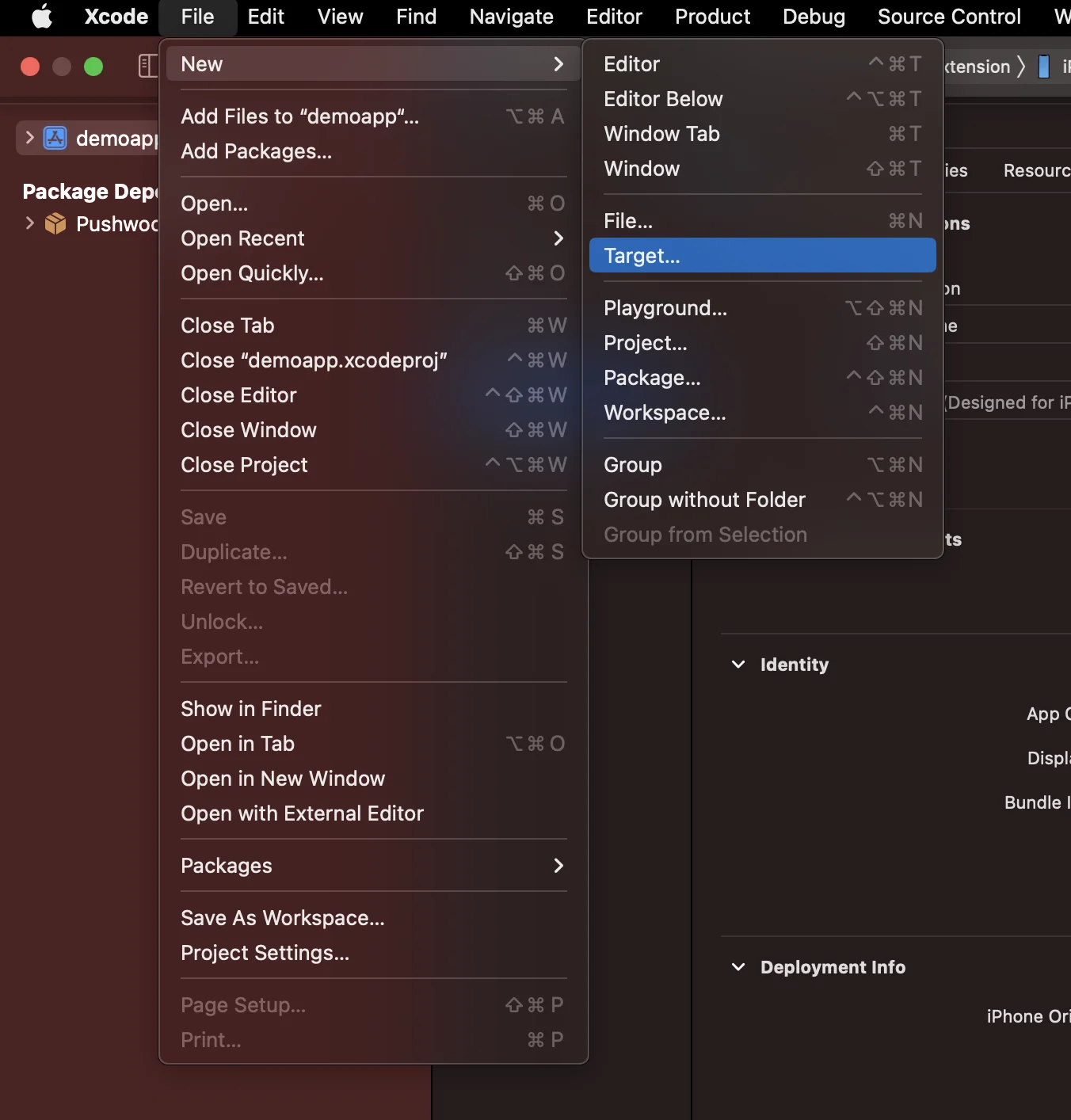
Anchor link toXcode에서 File > New > Target…을 선택합니다.
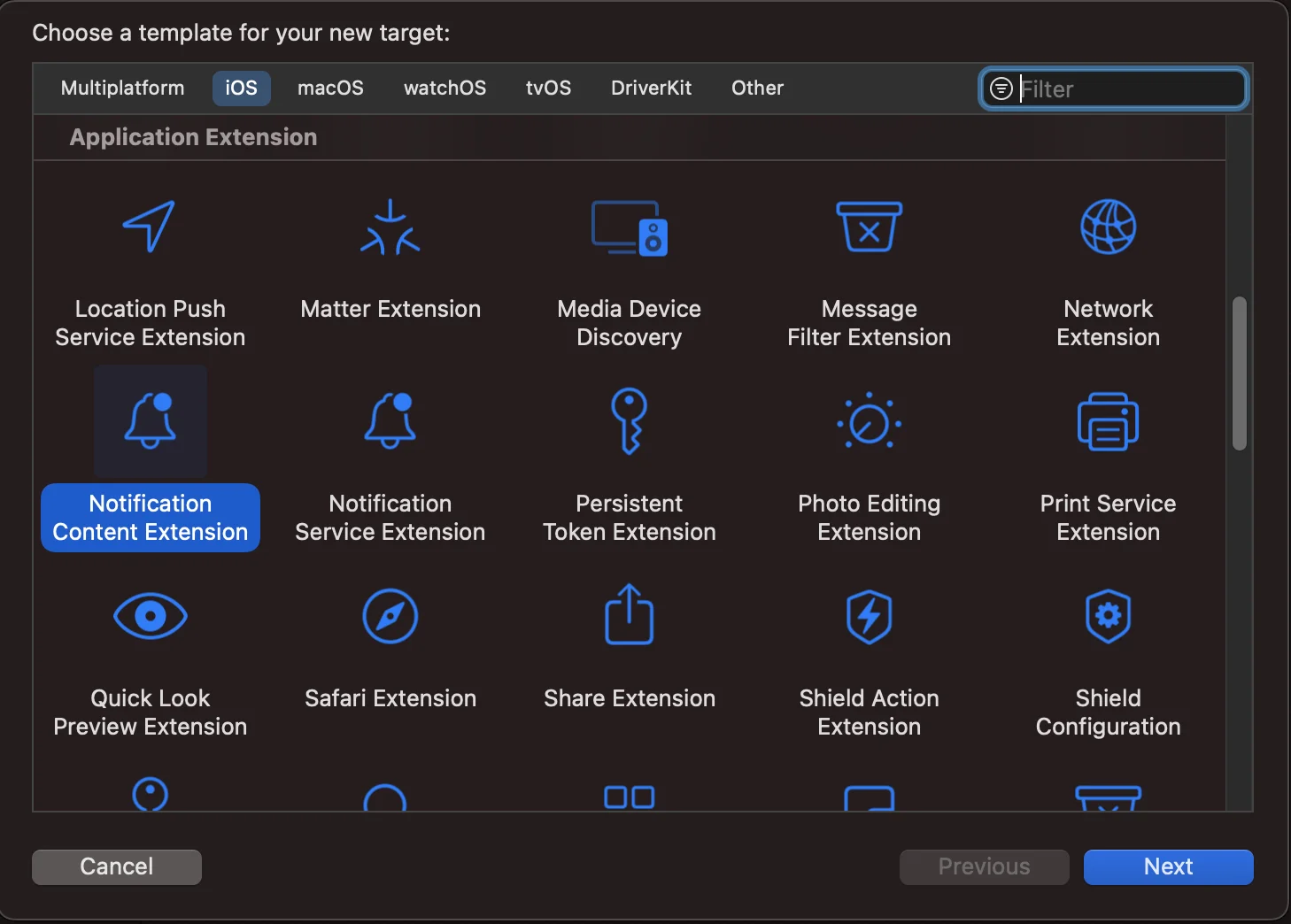
Notification Content Extension을 선택합니다.
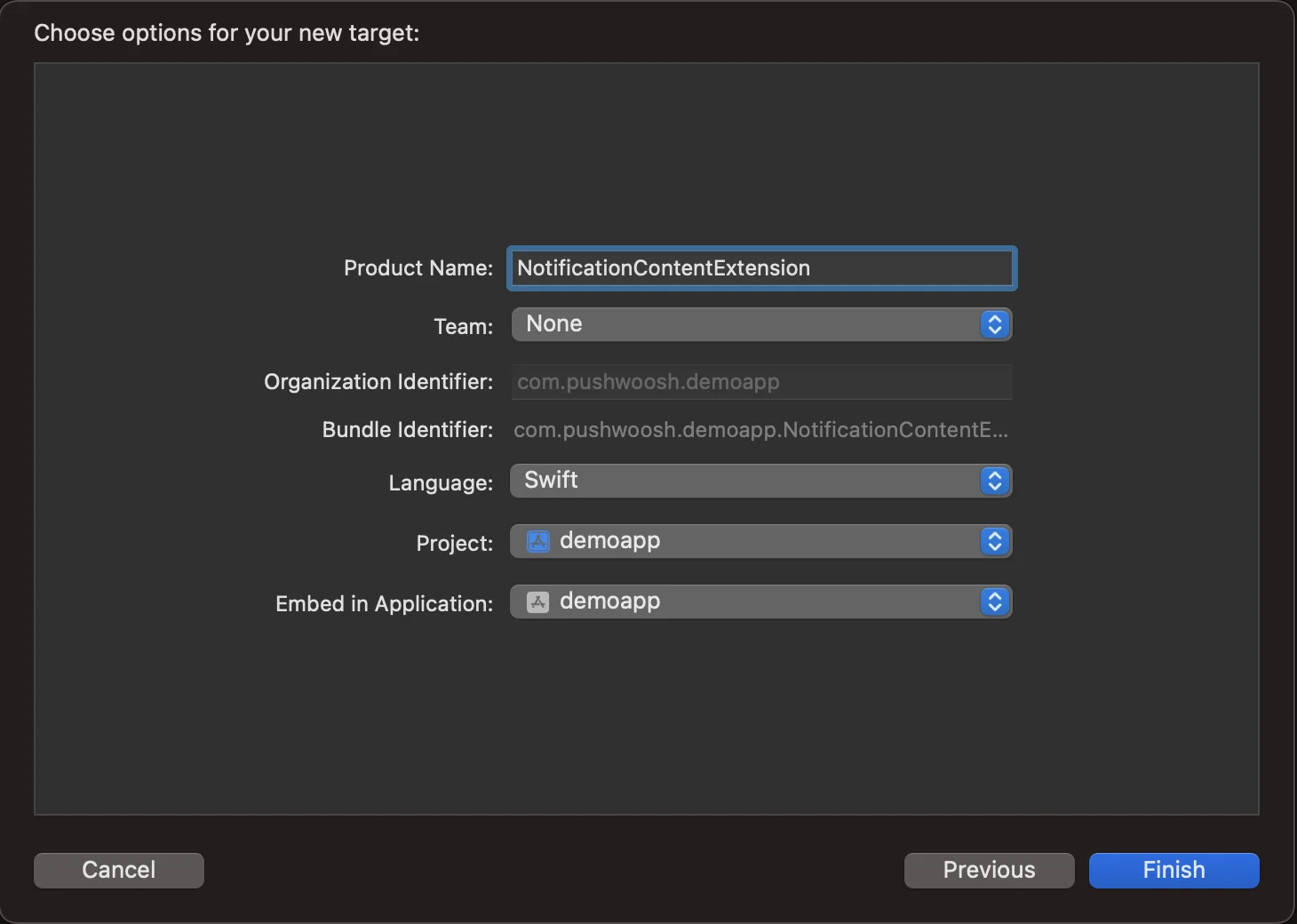
이름을 NotificationContentExtension으로 지정합니다.
2. 앱에 코드 추가
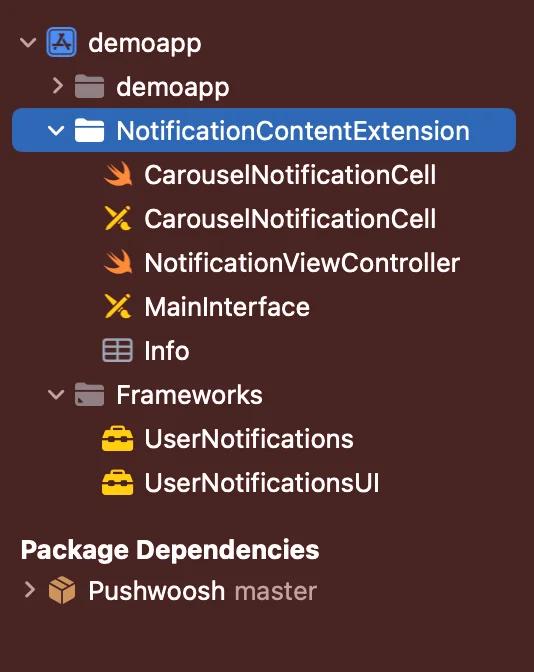
Anchor link toGithub에서 PWNotificationExtension 다운로드하고 Xcode 프로젝트의 **PWNotificationContentExtension**을 Github에서 받은 동일한 파일로 교체합니다.
3. 알림 카테고리
Anchor link toAppDelegate.swift 파일에 아래 코드를 추가합니다.
    func application(_ application: UIApplication, didFinishLaunchingWithOptions launchOptions: [UIApplication.LaunchOptionsKey: Any]?) -> Bool {
        if #available(iOS 10.0, *) {            let options: UNAuthorizationOptions = [.alert]            UNUserNotificationCenter.current().requestAuthorization(options: options) { (authorized, error) in                if authorized {                    let categoryIdentifier = "PWNotificationCarousel"                    let carouselNext = UNNotificationAction(identifier: "PWNotificationCarousel.next", title: "➡️ RIGHT", options: [])                    let carouselPrevious = UNNotificationAction(identifier: "PWNotificationCarousel.previous", title: "⬅️ LEFT", options: [])                    let carouselCategory = UNNotificationCategory(identifier: categoryIdentifier, actions: [carouselNext, carouselPrevious], intentIdentifiers: [], options: [])                    UNUserNotificationCenter.current().setNotificationCategories([carouselCategory])                }            }        }
        return true    }
4. 푸시 알림 보내기
Anchor link toiOS 카테고리:
APS json으로 푸시 알림을 보냅니다:
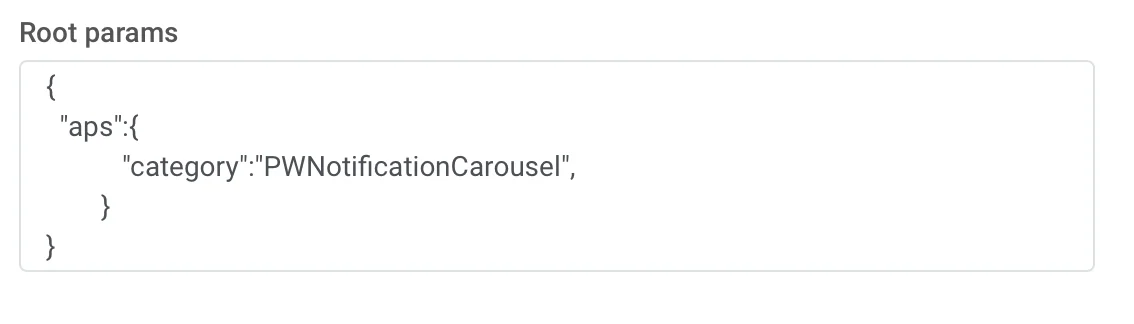
{ "aps":{ "category":"PWNotificationCarousel" }}사용자 지정 데이터(Custom Data)
이미지 URL을 쉼표(,)로 구분하여 나열해야 합니다.
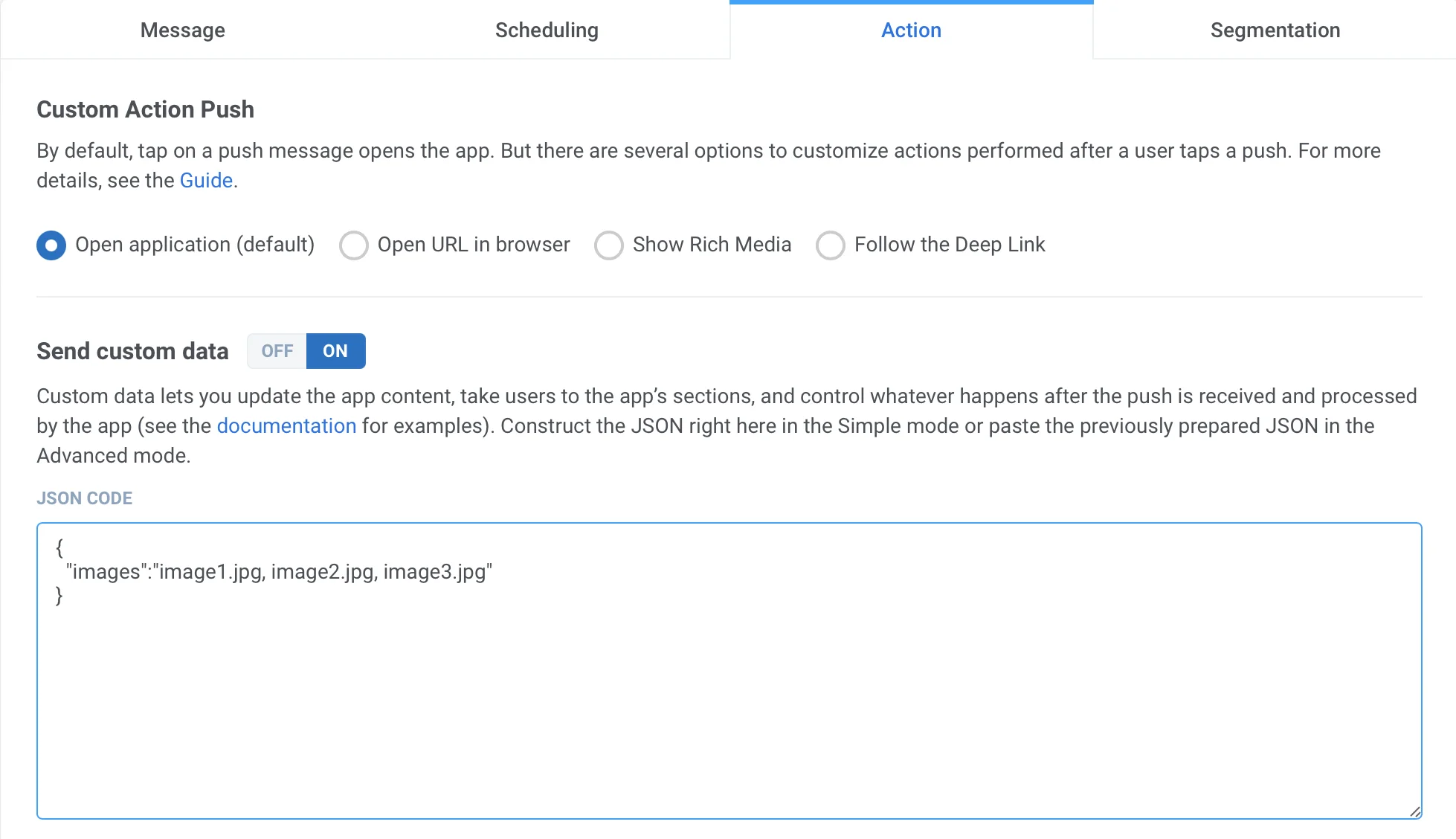
{ "images":"image1.jpg, image2.jpg, image3.jpg"}푸시를 받으면 iOS 버전에 따라 알림을 길게 누르거나 왼쪽으로 스와이프한 후 “보기”를 클릭하여 알림을 확장해야 합니다.