Subscriptions and win-back
Ce contenu n'est pas encore disponible dans votre langue.
These recipes cover readers who reached the paywall, subscribers who cancel, and readers who stopped reading. Before you build them, read the best practices for every journey.
In these recipes, the subscription event is Subscription started, which your server sends for subscriptions bought on your website. For subscriptions bought through the App Store or Google Play, use the store events, such as PW_SubscriptionStart. See Track subscriptions from the stores.
Paywall follow-up
Anchor link to- Use it when: a reader opens content for subscribers, sees the paywall, and does not subscribe.
- Starts when: a reader sees the paywall (
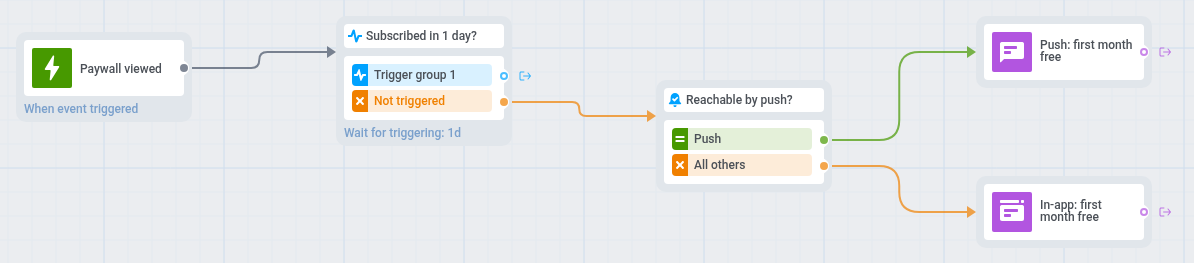
Paywall viewed). - What it does: waits 1 day for a subscription. If none arrives, sends a push with a subscription offer, or an in-app message to readers without push.
- Content to prepare: a push preset with the offer and a deep link to the subscription screen, and an in-app template with the same offer.
- Needs: the
Paywall viewedevent and the subscription event.
- On the journey canvas, add a Trigger-based entry on
Paywall viewed. - Add a Wait for Trigger step on
Subscription startedand set the waiting period to 1 day. Leave the Trigger group 1 branch empty, so readers who subscribed leave the journey without a message. - On the Not triggered branch, add a Reachability check.
- For readers reachable by push, add a push with the offer, for example: “Read without limits: your first month is on us.”
- For the others, add an In-app element with the same offer and set In-app expiration to 1 day.
- On the canvas, click Settings and select Campaign Entry Limit.
- Choose Custom period and set Once in to a month, so a reader who hits the paywall every day gets one offer a month.
- On the canvas, click Settings and select Conversion goals.
- In the goal, choose
Subscription startedand select End journey after this event.
A reader who subscribes on your website gets the offer anyway if your server doesn’t send Subscription started. Send it for every subscription, wherever the reader buys it.
Cancelled subscription
Anchor link to- Use it when: a subscriber turns off auto-renewal in the App Store or Google Play.
- Starts when: a subscriber cancels (
PW_SubscriptionCancel). - What it does: sends a push with a reason to stay. If the subscriber does not turn auto-renewal back on within 7 days, sends a second push with an offer.
- Content to prepare: a push preset with a reason to stay, such as the shows or sections coming next, and a push preset with the offer. Both open the subscription screen.
- Needs: subscription tracking for the App Store or Google Play, which sends the
PW_SubscriptionCancelandPW_SubscriptionResumeevents. See Track subscriptions from the stores.

- On the journey canvas, add a Trigger-based entry on
PW_SubscriptionCancel. - Add a push with a reason to stay, for example: “Your subscription is active until the end of the period. Season 2 of The Long Road starts next week.”
- Add a Wait for Trigger step on
PW_SubscriptionResumeand set the waiting period to 7 days. Leave the Trigger group 1 branch empty, so subscribers who turned auto-renewal back on leave the journey. - On the Not triggered branch, add a push with the offer, for example: “Stay with us: 3 months at half price.”
- On the canvas, click Settings and select Campaign Entry Limit.
- Choose Custom period and set Once in to 3 months, so a subscriber who cancels, turns auto-renewal back on, and cancels again does not get the whole sequence each time.
- On the canvas, click Settings and select Conversion goals.
- In the goal, choose
PW_SubscriptionResumeand select End journey after this event.
A subscriber who cancelled keeps access until the paid period ends, so the journey reaches them while they still use the app. Subscribers without push get no message. To reach them, add a Reachability check before each push and an In-app element with the same text on its All others branch.
To win back subscribers whose subscription has ended, copy the journey with PW_SubscriptionExpired as its entry and PW_SubscriptionResume or PW_SubscriptionStart as its goal.
The stores don’t know about subscriptions bought on your website. For these subscribers, copy the journey with Subscription canceled, which your server sends, as its entry, and Subscription started in the Wait for Trigger step and the goal.
Win-back for inactive readers
Anchor link to- Use it when: readers who read before stopped reading.
- Starts when: a reader enters the At-risk readers segment. Pushwoosh checks the segment on a schedule you set, for example weekly, and every reader in the segment enters at each check.
- What it does: sends a reminder of what the reader missed. If the reader does not read anything within 7 days, sends a second push with the best stories of the week.
- Content to prepare: two push presets with a deep link to the home screen, one with the reminder and one with the best stories, and an email with the reminder for readers who turned off notifications.
- Needs: the
Content readevent, and the reader’s email address registered in Pushwoosh under their User ID, for readers who turned off notifications. See Email.

-
On the journey canvas, add an Audience-based entry on the At-risk readers segment.
-
Set the entry schedule to Recurring entry and choose Periodically, for example weekly.
-
On the canvas, click Settings and select Campaign Entry Limit.
-
Choose Custom period and set Once in to 3 months, so a reader who ignores the reminder does not get it every week. A reader can stay in At-risk readers for up to 76 days, so this limit sends the win-back once per absence.
-
Add a Reachability check. For readers reachable by push, add a push with the reminder, for example: “What you missed this week: 5 stories picked for you.”
-
For the others, add an email with the same reminder.
The journey takes in only devices with a push token, so this branch reaches readers who turned off notifications and have an email address registered in Pushwoosh under the same User ID. Readers without one get no reminder.
-
After the reminder, add a Wait for Trigger step on
Content readand set the waiting period to 7 days. Leave its Trigger group 1 branch empty, so readers who came back leave the journey without more messages. -
On the Not triggered branch, add a push with the best stories of the week, for example: “The 5 stories everyone read this week.” Only readers who can get push receive it.
-
On the canvas, click Settings and select Conversion goals.
-
In the goal, choose
Content readand select End journey after this event.
To win back Lapsed readers, copy the journey, replace the entry segment, and give a stronger reason to return, such as a new series or a free month for subscribers. These readers have been away longer, so a plain reminder is less likely to work.