tvOS 模态富媒体
从 Pushwoosh SDK 6.11.0 版本开始,您可以向 tvOS 设备 (Apple TV) 发送模态富媒体 (Modal Rich Media)。
tvOS 的模态富媒体提供了一种基于 HTML 的交互式内容显示,并为 Apple TV 的遥控器导航进行了优化。可以为富媒体自定义不同的位置、动画和焦点导航支持。
有关富媒体页面的更多信息,请参阅我们的指南。
PushwooshTVOS 模块是可选的,可以使用 Swift Package Manager 或 CocoaPods 将其集成到您的 tvOS 项目中。
Swift Package Manager
Anchor link to将 Pushwoosh 包添加到您的 tvOS 项目中:
- 在 Xcode 中,选择 File → Add Package Dependencies…
- 输入仓库 URL:
https://github.com/Pushwoosh/Pushwoosh-XCFramework - 选择最新版本
- 将以下框架添加到您的 tvOS target 中:
- PushwooshFramework
- PushwooshCore
- PushwooshBridge
- PushwooshLiveActivities
- PushwooshTVOS
CocoaPods
Anchor link to添加到您的 Podfile 中:
target 'YourTvOSApp' do  platform :tvos, '13.0'
  pod 'PushwooshXCFramework'  pod 'PushwooshXCFramework/PushwooshTVOS'end
然后运行:
pod install基本集成
Anchor link to1. 在 AppDelegate 中配置 Pushwoosh
Anchor link to导入所需模块并使用您的应用程序代码配置 Pushwoosh:
import UIKitimport PushwooshTVOSimport PushwooshFramework
@mainclass AppDelegate: UIResponder, UIApplicationDelegate {
    func application(_ application: UIApplication, didFinishLaunchingWithOptions launchOptions: [UIApplication.LaunchOptionsKey: Any]?) -> Bool {
        // Configure Pushwoosh with your app code        Pushwoosh.TVoS.setAppCode("XXXXX-XXXXX")
        // Register for push notifications        Pushwoosh.TVoS.registerForTvPushNotifications()
        return true    }}
2. 处理设备令牌注册
Anchor link to实现设备令牌处理程序以向 Pushwoosh 注册设备:
func application(_ application: UIApplication, didRegisterForRemoteNotificationsWithDeviceToken deviceToken: Data) {    Pushwoosh.TVoS.registerForTvPushNotifications(withToken: deviceToken) { error in        if let error = error {            print("Failed to register: \(error)")        } else {            print("Successfully registered for push notifications")        }    }}
func application(_ application: UIApplication, didFailToRegisterForRemoteNotificationsWithError error: Error) {    Pushwoosh.TVoS.handleTvPushRegistrationFailure(error)}
3. 处理传入的推送通知
Anchor link to处理包含富媒体内容的传入推送通知:
func application(_ application: UIApplication,                 didReceiveRemoteNotification userInfo: [AnyHashable: Any],                 fetchCompletionHandler completionHandler: @escaping (UIBackgroundFetchResult) -> Void) {
// Handle push notification and display rich media if present if Pushwoosh.TVoS.handleTVOSPush(userInfo: userInfo) { completionHandler(.newData) } else { completionHandler(.noData) }}富媒体配置
Anchor link totvOS 的模态富媒体可以放置在屏幕上的五个位置:
// Center position (default)Pushwoosh.TVoS.configureRichMediaWith(position: .center, presentAnimation: .none, dismissAnimation: .none)
// Left side of the screenPushwoosh.TVoS.configureRichMediaWith(position: .left, presentAnimation: .fromLeft, dismissAnimation: .toLeft)
// Right side of the screenPushwoosh.TVoS.configureRichMediaWith(position: .right, presentAnimation: .fromRight, dismissAnimation: .toRight)
// Top of the screenPushwoosh.TVoS.configureRichMediaWith(position: .top, presentAnimation: .fromTop, dismissAnimation: .toTop)
// Bottom of the screenPushwoosh.TVoS.configureRichMediaWith(position: .bottom, presentAnimation: .fromBottom, dismissAnimation: .toBottom)
可用的位置选项:
enum PWTVOSRichMediaPosition { case center // Content positioned at the center of the screen (default) case left // Content positioned at the left side of the screen case right // Content positioned at the right side of the screen case top // Content positioned at the top of the screen case bottom // Content positioned at the bottom of the screen}显示动画
Anchor link to控制富媒体内容在屏幕上的显示方式:
enum PWTVOSRichMediaPresentAnimation { case none // No animation, content appears immediately (default) case fromTop // Content slides in from the top of the screen case fromBottom // Content slides in from the bottom of the screen case fromLeft // Content slides in from the left side of the screen case fromRight // Content slides in from the right side of the screen}消失动画
Anchor link to控制富媒体内容从屏幕上消失的方式:
enum PWTVOSRichMediaDismissAnimation { case none // No animation, content disappears immediately (default) case toTop // Content slides out to the top of the screen case toBottom // Content slides out to the bottom of the screen case toLeft // Content slides out to the left side of the screen case toRight // Content slides out to the right side of the screen}配置示例
Anchor link to配置富媒体从左侧出现并带有动画:
Pushwoosh.TVoS.configureRichMediaWith( position: .left, presentAnimation: .fromBottom, dismissAnimation: .toLeft)配置富媒体在底部出现并带有滑动动画:
Pushwoosh.TVoS.configureRichMediaWith( position: .bottom, presentAnimation: .fromBottom, dismissAnimation: .toBottom)配置富媒体在中心出现且无动画:
Pushwoosh.TVoS.configureRichMediaWith( position: .center, presentAnimation: .none, dismissAnimation: .none)关闭按钮配置
Anchor link to默认情况下,富媒体演示文稿的底部会显示一个关闭按钮。如果需要,您可以隐藏此按钮:
// Hide the system Close buttonPushwoosh.TVoS.configureCloseButton(false)Apple TV 的焦点导航
Anchor link totvOS SDK 会自动管理 Apple TV 遥控器的焦点导航。您的富媒体 HTML 内容中的交互式元素(按钮、链接)将可以使用 Apple TV 遥控器进行聚焦。
焦点行为
Anchor link to- 在 HTML 内容中会自动检测可聚焦的元素
- 用户可以使用 Apple TV 遥控器上的方向键在元素之间导航
- 当前聚焦的元素会获得视觉高亮
- 用户可以通过按遥控器上的中心按钮来激活聚焦的元素
- 系统关闭按钮(如果可见)也是焦点导航的一部分
HTML 内容的最佳实践
Anchor link to为 tvOS 富媒体创建 HTML 内容时:
- 使用标准的交互式 HTML 元素:
<button>、<a>、<input /> - 确保交互式元素之间有足够的间距,以便清晰地指示焦点
- 使用 Apple TV 模拟器测试您的内容以验证焦点导航
- 考虑使用比 iOS 更大的触摸目标(建议最小宽度为 250pt)
完整集成示例
Anchor link to这是一个展示所有功能的完整示例:
import UIKitimport PushwooshTVOSimport PushwooshFramework
@mainclass AppDelegate: UIResponder, UIApplicationDelegate {
    func application(_ application: UIApplication,                     didFinishLaunchingWithOptions launchOptions: [UIApplication.LaunchOptionsKey: Any]?) -> Bool {
        // Configure Pushwoosh        Pushwoosh.TVoS.setAppCode("XXXXX-XXXXX")
        // Configure rich media appearance        Pushwoosh.TVoS.configureRichMediaWith(            position: .center,            presentAnimation: .fromBottom,            dismissAnimation: .toTop        )
        // Show close button (default)        Pushwoosh.TVoS.configureCloseButton(true)
        // Register for push notifications        Pushwoosh.TVoS.registerForTvPushNotifications()
        return true    }
    func application(_ application: UIApplication,                     didRegisterForRemoteNotificationsWithDeviceToken deviceToken: Data) {        Pushwoosh.TVoS.registerForTvPushNotifications(withToken: deviceToken) { error in            if let error = error {                print("Failed to register: \(error)")            } else {                print("Successfully registered")            }        }    }
    func application(_ application: UIApplication,                     didFailToRegisterForRemoteNotificationsWithError error: Error) {        Pushwoosh.TVoS.handleTvPushRegistrationFailure(error)    }
    func application(_ application: UIApplication,                     didReceiveRemoteNotification userInfo: [AnyHashable: Any],                     fetchCompletionHandler completionHandler: @escaping (UIBackgroundFetchResult) -> Void) {
        if Pushwoosh.TVoS.handleTVOSPush(userInfo: userInfo) {            completionHandler(.newData)        } else {            completionHandler(.noData)        }    }}
故障排除
Anchor link to焦点导航问题
Anchor link to如果焦点导航无法正常工作:
- 验证您的 HTML 内容是否使用标准的交互式元素(
<button>、<a>) - 在 Apple TV 模拟器中测试以验证焦点行为
- 确保交互式元素具有足够的大小和间距
- 检查您的 HTML/CSS 是否干扰了焦点状态
真实设备示例
Anchor link to以下是富媒体在真实 Apple TV 设备上的外观:
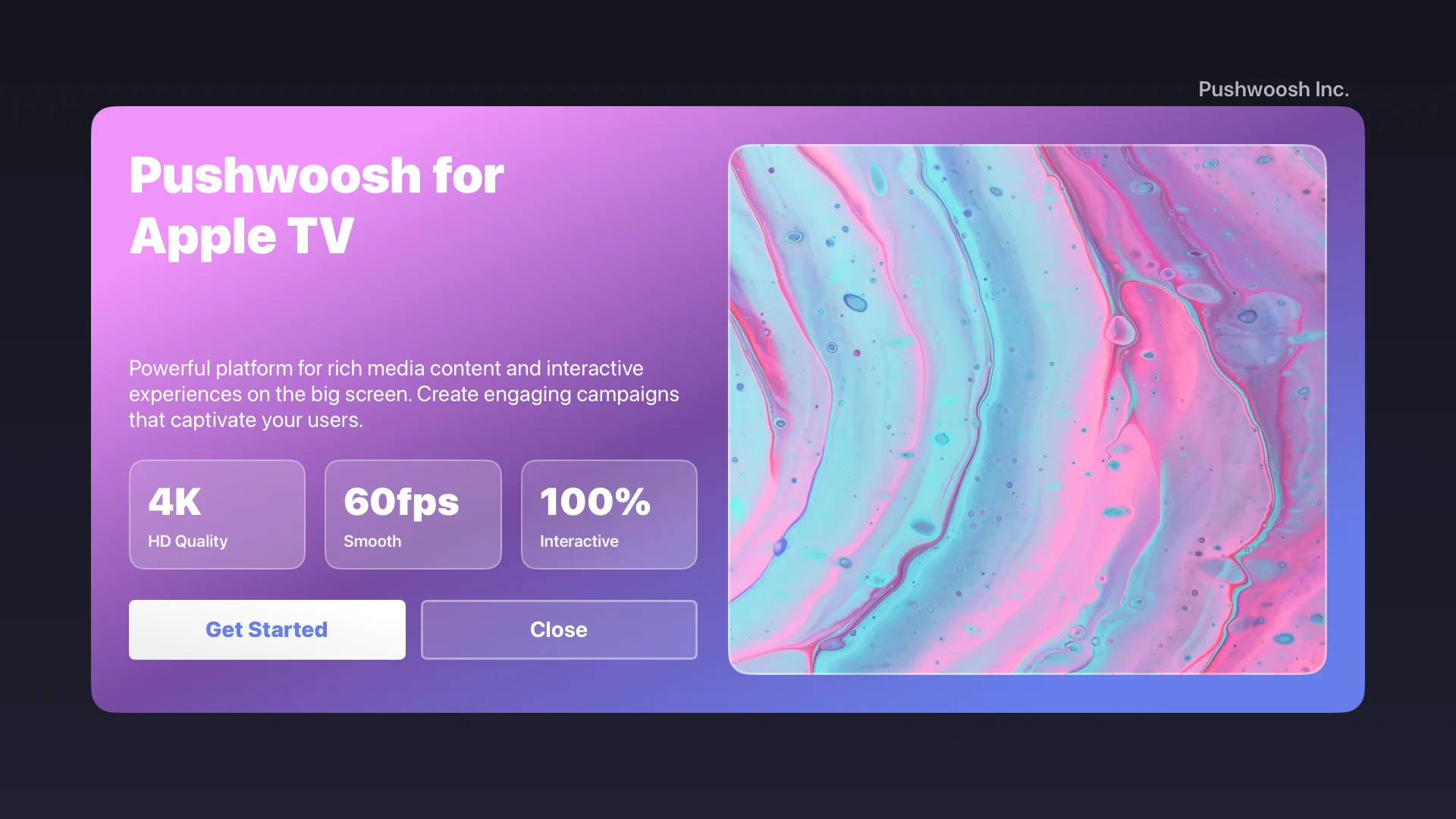
截图显示了在 Apple TV 上显示的富媒体内容,具有:
- 带有渐变背景的自定义 HTML 布局
- 为 Apple TV 遥控器优化的交互式按钮
- 所有交互式元素都支持焦点导航