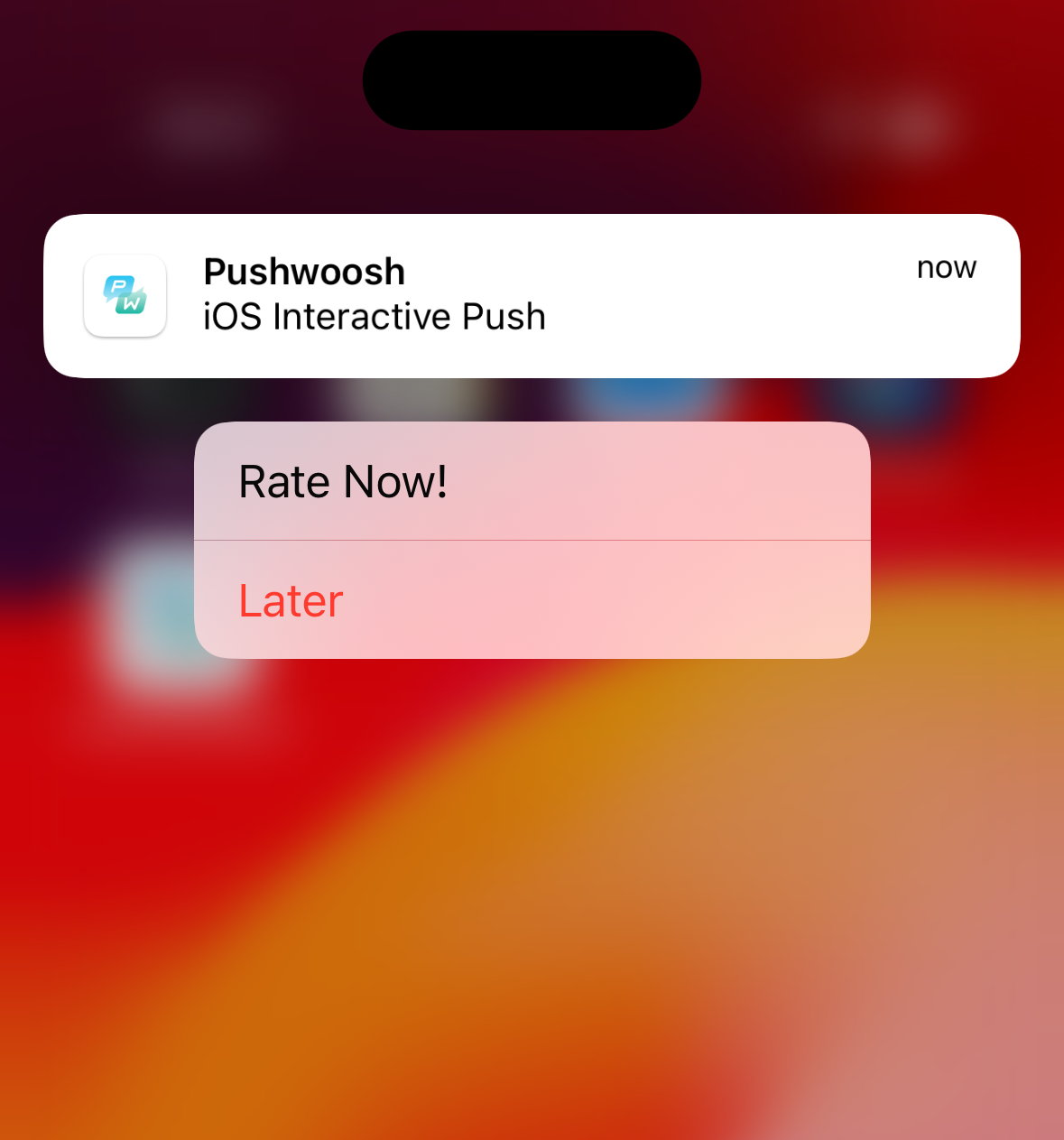
创建 iOS 交互式推送
iOS 8 引入了交互式通知,允许用户直接从通知横幅中执行操作。Pushwoosh 现在提供 iOS 类别 (iOS Categories),使您能够在 Pushwoosh 控制面板 (Control Panel) 中创建自定义按钮。了解更多
当您的应用程序调用 registerDevice 时,Pushwoosh API 会返回一个响应,其中包含可用类别及其 ID 的列表,以及每个按钮的详细信息,如下所示:
{ "status_code": 200, "status_message": "OK", "response": { "iosCategories": [ { "categoryId": 65, "buttons": [ { "id": 0, "label": "Rate", "type": "1", "startApplication": 1 }, { "id": 1, "label": "Later", "type": "0", "startApplication": 0 } ] } ] }}这些类别现在在设备上可用,因此当消息到达且您的应用程序未在前台运行时,它们可以正确显示。
要从 Pushwoosh Journey 发送带有类别的推送,只需在撰写消息时在 iOS 平台设置中选择它即可。如果您通过 Pushwoosh API 远程发送推送,在 createMessage 请求中,您应使用 ios_category 参数,并以相应的类别 ID 作为其值:
{ "categoryId": 65 // 可选。字符串值。来自 Pushwoosh 的 iOS8 类别 ID}当包含类别 ID 的推送消息到达时,Pushwoosh SDK 会显示带有该类别所含按钮集的通知。
Pushwoosh iOS SDK 中的按钮和操作
Anchor link to为了在打开应用时执行各种操作,您应该创建一个自定义的 UNUserNotificationCenterDelegate 实现并重写其 didReceiveNotificationResponse 方法:
自定义委托 (CustomDelegate)
Anchor link toclass CustomDelegate: NSObject, UNUserNotificationCenterDelegate { func userNotificationCenter(_ center: UNUserNotificationCenter, didReceive response: UNNotificationResponse, withCompletionHandler completionHandler: @escaping () -> Void) { let identifier = response.actionIdentifier let category = response.notification.request.content.categoryIdentifier
if category == "10212" { if identifier == "1" { // DO SOMETHING } else { // DO SOMETHING ELSE } }
completionHandler() }}其中 identifier 是按钮 ID,category 来自通知的有效负载。
然后,创建这个类的一个实例,并使用代理方法将其传递给 Pushwoosh SDK:
AppDelegate
Anchor link tofunc application(_ application: UIApplication, didFinishLaunchingWithOptions launchOptions: [UIApplication.LaunchOptionsKey: Any]?) -> Bool { Pushwoosh.sharedInstance().registerForPushNotifications()
let customDelegate = CustomDelegate() Pushwoosh.sharedInstance().notificationCenterDelegateProxy?.add(customDelegate)
return true}