使用 Swift Package Manager 设置 InboxUI
- 在 Xcode 中打开您的项目,导航至项目设置 -> Package Dependencies,然后按“+”按钮。
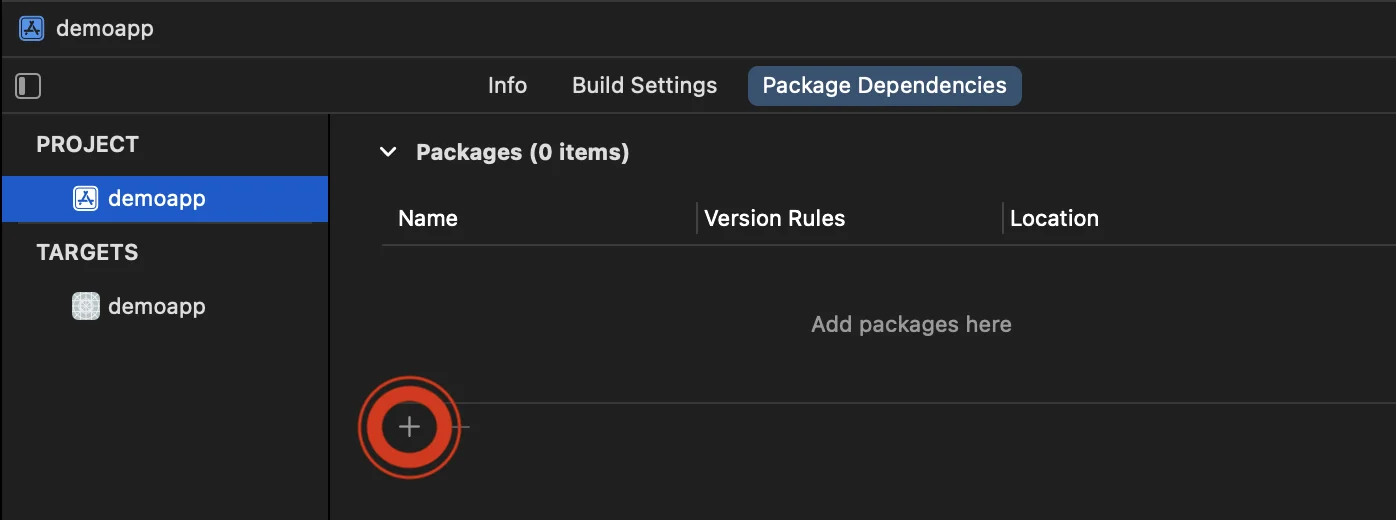
- 输入以下 Package URL:
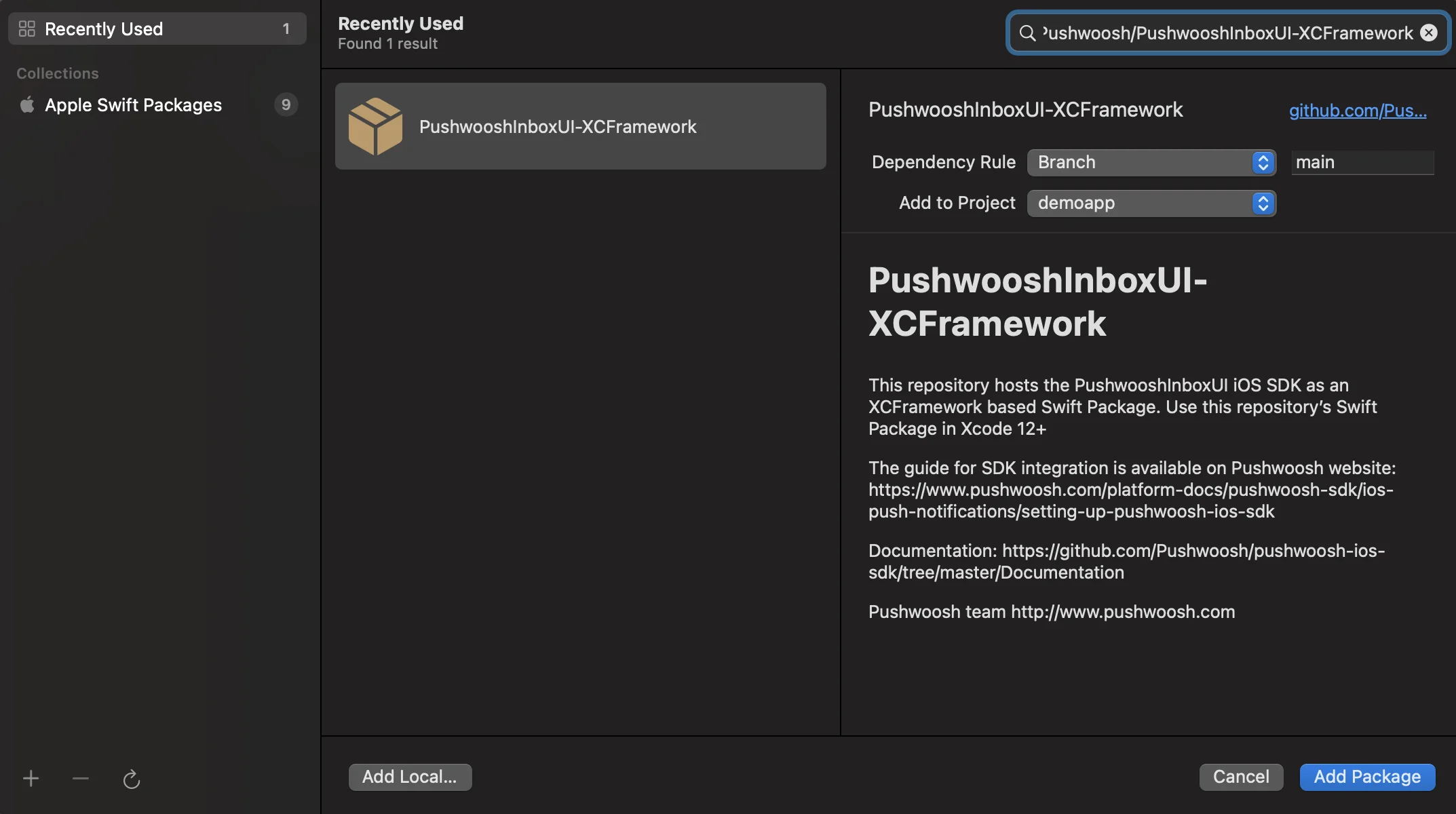
https://github.com/Pushwoosh/PushwooshInboxUI-XCFramework- 将 ‘Dependency Rule’ 设置为 Branch 和 main。然后,点击 ‘Add Package’ 按钮。
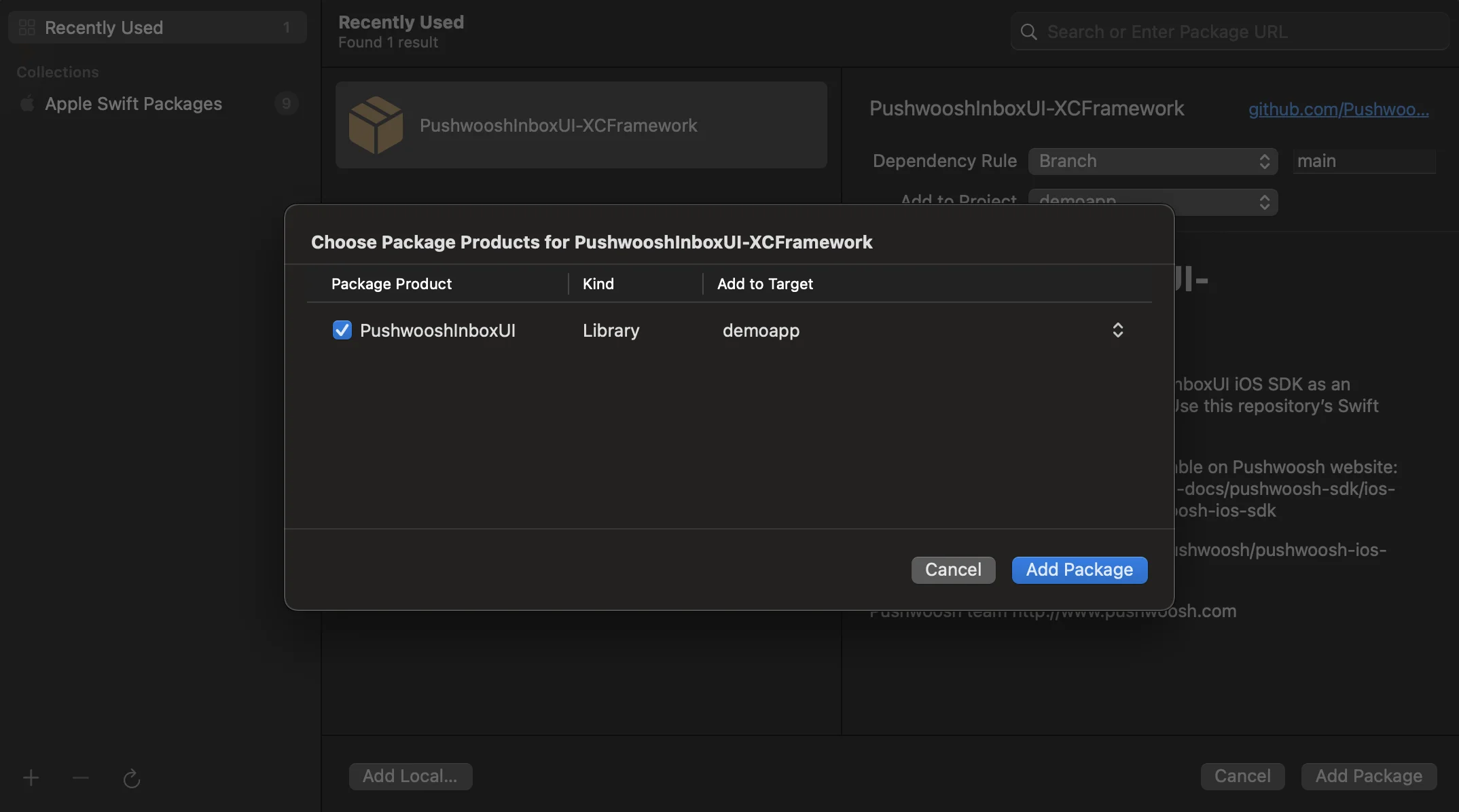
- 在下一个选择 Package 的屏幕上,选择 Pushwoosh Package 并将 Add Package 添加到您的主应用程序 Target。
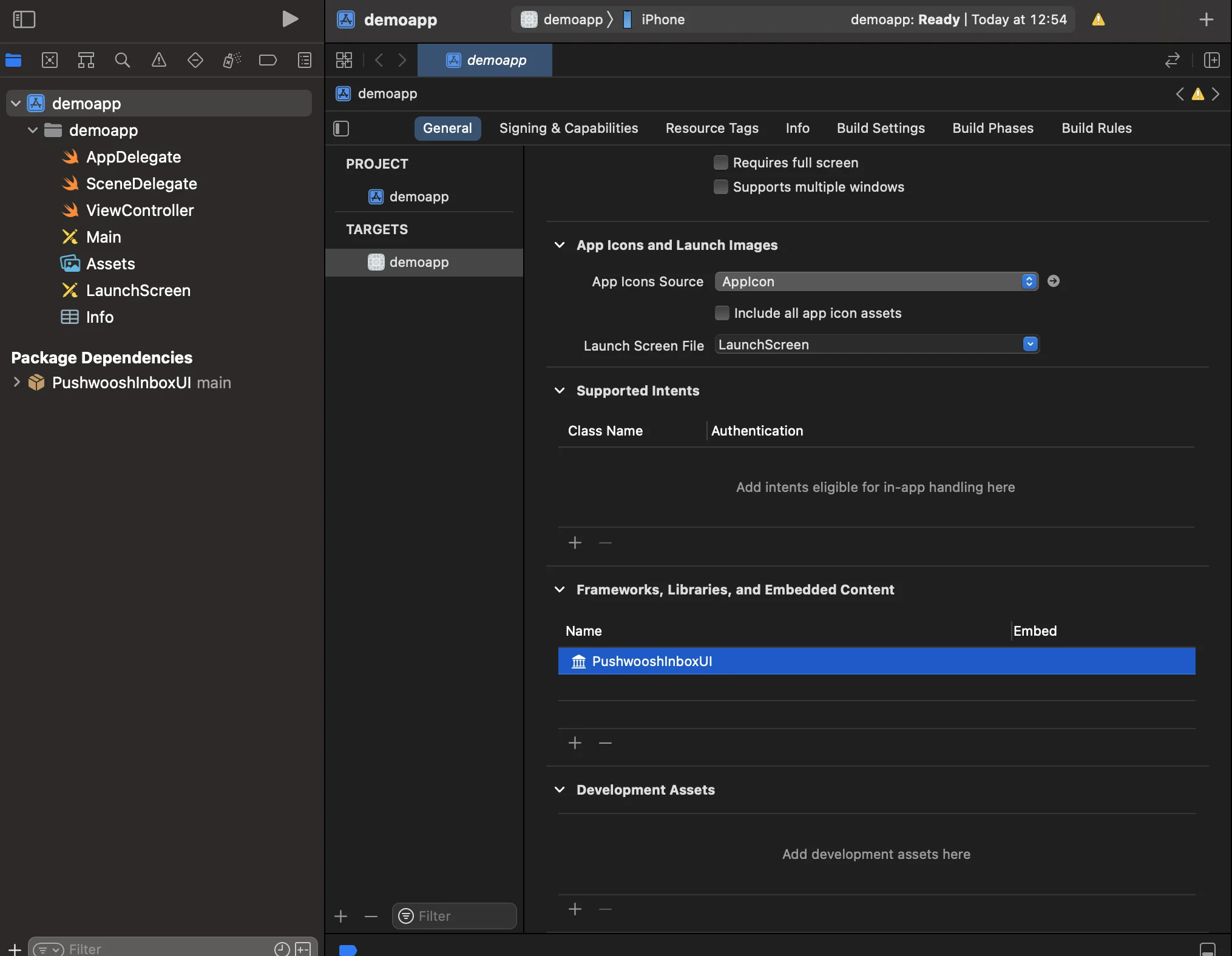
- 打开您的主应用程序 Target,在“Frameworks, Libraries, and Embedded Content”下,确保已添加 PushwooshInboxUI。
- 就是这样!您已成功将 Pushwoosh InboxUI SDK 集成到您的项目中。
添加 Pushwoosh InboxUI 代码
Anchor link to要在您的应用程序中显示 Inbox UI,请添加 Inbox 视图控制器:
self.navigationController?.pushViewController(PWIInboxUI.createInboxController(with: PWIInboxStyle.default()), animated: true)[self.navigationController pushViewController:[PWIInboxUI createInboxControllerWithStyle:[PWIInboxStyle defaultStyle]] animated:YES];要使 Inbox 与您的应用程序外观匹配,请更改 PWIInboxStyle 的参数。您可以自定义字体、背景颜色等参数。
// 创建一个新的 Inbox 样式let inboxStyle = PWIInboxStyle.customStyle(withDefaultImageIcon: UIImage.init(named: "custom_image"),textColor: UIColor.darkText,accentColor: UIColor.blue,font: UIFont.systemFont(ofSize: 17))
inboxStyle?.backgroundColor = UIColor.init(white: 1, alpha: 1)inboxStyle?.listErrorMessage = NSLocalizedString("Custom error message", comment: "Custom error message")inboxStyle?.listEmptyMessage = NSLocalizedString("Custom empty message", comment: "Custom empty message")
PWIInboxStyle.setupDefaultStyle(inboxStyle)
// 创建一个新的 Inbox 样式PWIInboxStyle *inboxStyle = [PWIInboxStyle customStyleWithDefaultImageIcon:[UIImage imageNamed:@"custom_image"]textColor:UIColor.darkTextColoraccentColor:UIColor.blueColorfont:[UIFont systemFontOfSize:17]];
inboxStyle.backgroundColor = [UIColor colorWithWhite:1 alpha:1];inboxStyle.listErrorMessage = NSLocalizedString(@"Custom error message", @"Custom error message");inboxStyle.listEmptyMessage = NSLocalizedString(@"Custom empty message", @"Custom empty message");
[PWIInboxStyle setupDefaultStyle:inboxStyle];要自定义 Inbox UI 样式,请参考:
有关更多详细信息,请参阅 Inbox 示例。