发送自定义数据
本指南将帮助您更好地理解如何通过推送通知 payload 将自定义数据传递给您的应用,以便您的应用能够对这些推送做出反应并相应地执行各种操作。
处理自定义数据的方式可能因您的业务目标而异。在本文中,我们将展示一些解析自定义数据和执行简单操作的基本示例:
- 更改应用的背景颜色;
- 在您的应用中打开一个自定义页面。
前提条件
Anchor link to本指南涵盖 iOS 原生开发。我们假设您已经按照 iOS 入门指南 配置了一个 iOS 示例应用程序,并且能够接收推送通知。
在 AppDelegate 的 didFinishLaunchingWithOptions 函数中,我们将使用 self.viewController 作为推送通知处理的委托:
func application(_ application: UIApplication, didFinishLaunchingWithOptions launchOptions: [UIApplication.LaunchOptionsKey: Any]?) -> Bool {   Pushwoosh.sharedInstance().delegate = self.viewController   Pushwoosh.sharedInstance().registerForPushNotifications()
   if let launchOptions = launchOptions {       Pushwoosh.sharedInstance().handlePushReceived(launchOptions)   }   return true}
我们的 ViewController 实现了 PWMessagingDelegate 协议:
extension ViewController: PWMessagingDelegate因此,它具有处理接收到的推送通知的 onMessageOpened 函数:
// User pressed on the push notificationfunc pushwoosh(_ pushwoosh: Pushwoosh, onMessageOpened message: PWMessage) {}打开另一个 ViewController 并更改背景颜色
Anchor link to现在我们从推送 payload 中获取 customData。例如,让我们更改视图的背景颜色和折扣百分比。我们假设自定义数据将包含 “r”、“g”、“b” 和 “d” 项,格式为 JSON 对象,如下所示:
guard let customDataJson = message.customData, let redString = customDataJson["r"] as? String, let greenString = customDataJson["g"] as? String, let blueString = customDataJson["b"] as? String, let discount = customDataJson["d"] as? String else { return}setViewBackgroundColor(red: redString, green: greenString, blue: blueString, discount: discount)我们将使用以下函数打开一个新的 ViewController 并设置背景颜色和折扣百分比:
func setViewBackgroundColor(red: String, green: String, blue: String, discount: String) {    let red = CGFloat((red as NSString).floatValue)    let green = CGFloat((green as NSString).floatValue)    let blue = CGFloat((blue as NSString).floatValue)
    let color = UIColor(red: red / 255.0, green: green / 255.0, blue: blue / 255.0, alpha: 1)
    if let topController = UIApplication.shared.topMostController() {        let storyboard = UIStoryboard(name: "Main", bundle: nil)        if let customViewController = storyboard.instantiateViewController(withIdentifier: "custom_page") as? CustomPageViewController {            customViewController.discount = discount            customViewController.bgColor = color            topController.present(customViewController, animated: true, completion: nil)        }    }}
让我们测试一下我们的示例。导航到 Pushwoosh Journey,并将一个 Push 元素 添加到画布上。接下来,点击 创建新内容。在打开的 Push 内容表单中,输入任意推送通知文本。
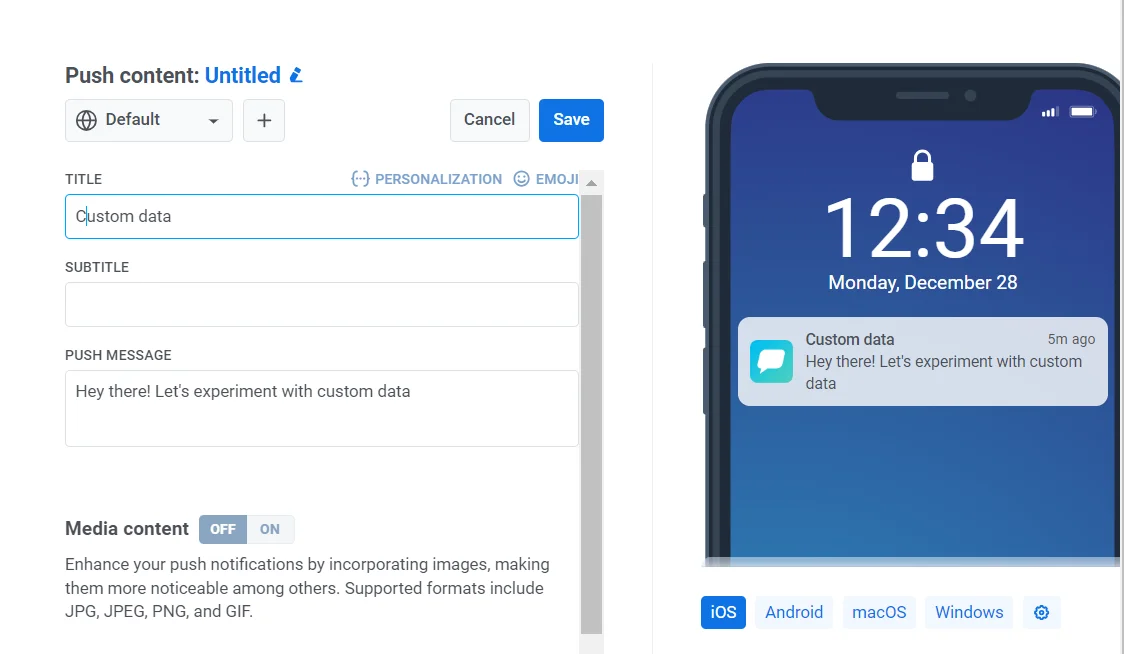
然后,打开 发送自定义数据 开关。将 JSON 插入到“自定义数据”字段中。
由于我们已决定自定义数据格式是一个包含 “r”、“g”、“b” 值的 JSON 对象,我们需要在 Control Panel 中使用 “custom data” 字段,并用 JSON 对象 {"r":"30", "g":"144", "b":"255", "d":"25"} 填充它:
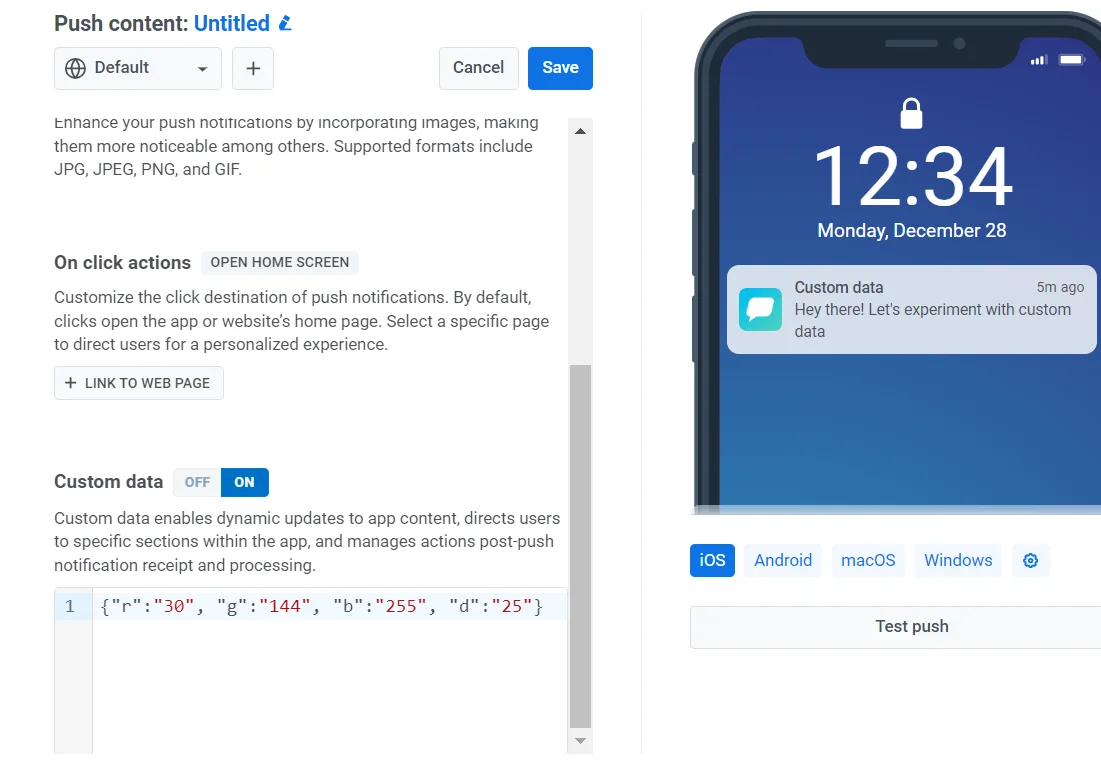
点击推送通知后,CustomPageViewController 会打开,背景颜色被设置,折扣也被应用:

CustomPageViewController 代码:
class CustomPageViewController: UIViewController {
    var bgColor: UIColor?    var discount: String?
    @IBOutlet weak var titleLabel: UILabel!
    override func viewDidLoad() {        super.viewDidLoad()
        self.view.backgroundColor = self.bgColor
        if self.discount != nil {            self.titleLabel?.text = "ONLY TODAY GET \(self.discount!)% DISCOUNT!"        }    }
    func showPromoPage(discount: String) {        let vc = CustomPageViewController()        vc.bgColor = self.view.backgroundColor        vc.discount = discount        vc.modalTransitionStyle = UIModalTransitionStyle.crossDissolve
        if self.presentedViewController != nil {            self.dismiss(animated: true, completion: {                self.present(vc, animated: true, completion: nil)            })        } else {            self.present(vc, animated: true, completion: nil)        }    }
    @IBAction func closeButtonAction(_ sender: Any) {        self.dismiss(animated: true)    }}
我们假设折扣值将作为推送通知 payload 的 JSON 中的 “d” 参数传来。由于推送通知 payload 的大小有限,您最好为参数使用简短的名称。
guard let customDataJson = message.customData, let redString = customDataJson["r"] as? String, let greenString = customDataJson["g"] as? String, let blueString = customDataJson["b"] as? String, let discount = customDataJson["d"] as? String else { return}您可以编写代码来初始化和打开不同的 View Controller,具体取决于您在推送通知 payload 中传递的参数。
打开 A/B 测试视图控制器
Anchor link to让我们考虑推送通知中自定义数据的另一个用例。例如,我们需要为一个用户分群打开一个视图控制器,为另一个不同的用户分群打开另一个视图控制器。简而言之,我们可以使用自定义数据在您的应用程序中进行 A/B 测试。
让我们创建两个视图控制器。一个控制器 (A) 将以一个折扣值打开,而第二个控制器 (B) 将以不同的折扣参数打开。
现在让我们编写代码,根据推送通知 payload 打开相应的视图控制器:
func pushwoosh(_ pushwoosh: Pushwoosh, onMessageOpened message: PWMessage) {    // MARK: - A/B Testing via Custom Data    guard let customDataJson = message.customData,          let viewController = customDataJson["vc"] as? String else {        return    }
    if viewController == "A" {        setControllerA()    } else if viewController == "B" {        setControllerB()    }}
func setControllerA() {    if let topController = UIApplication.shared.topMostController() {        let storyboard = UIStoryboard(name: "Main", bundle: nil)        if let customViewController = storyboard.instantiateViewController(withIdentifier: "a_vc") as? AViewController {            customViewController.discountA = "50"            topController.present(customViewController, animated: true, completion: nil)        }    }}
func setControllerB() {    if let topController = UIApplication.shared.topMostController() {        let storyboard = UIStoryboard(name: "Main", bundle: nil)        if let customViewController = storyboard.instantiateViewController(withIdentifier: "b_vc") as? BViewController {            customViewController.discountB = "100"            topController.present(customViewController, animated: true, completion: nil)        }    }}
将您的 JSON 添加到“自定义数据”字段中。
{  "vc": "A"}
// Choose your Custom Data (A or B)
{  "vc": "B"}
根据您在推送 payload 中发送的自定义数据,即 'vc': 'A' 或 'vc': 'B',一部分用户将打开一个控制器,而另一部分用户将打开另一个不同的控制器。
视图控制器 “A”
Anchor link to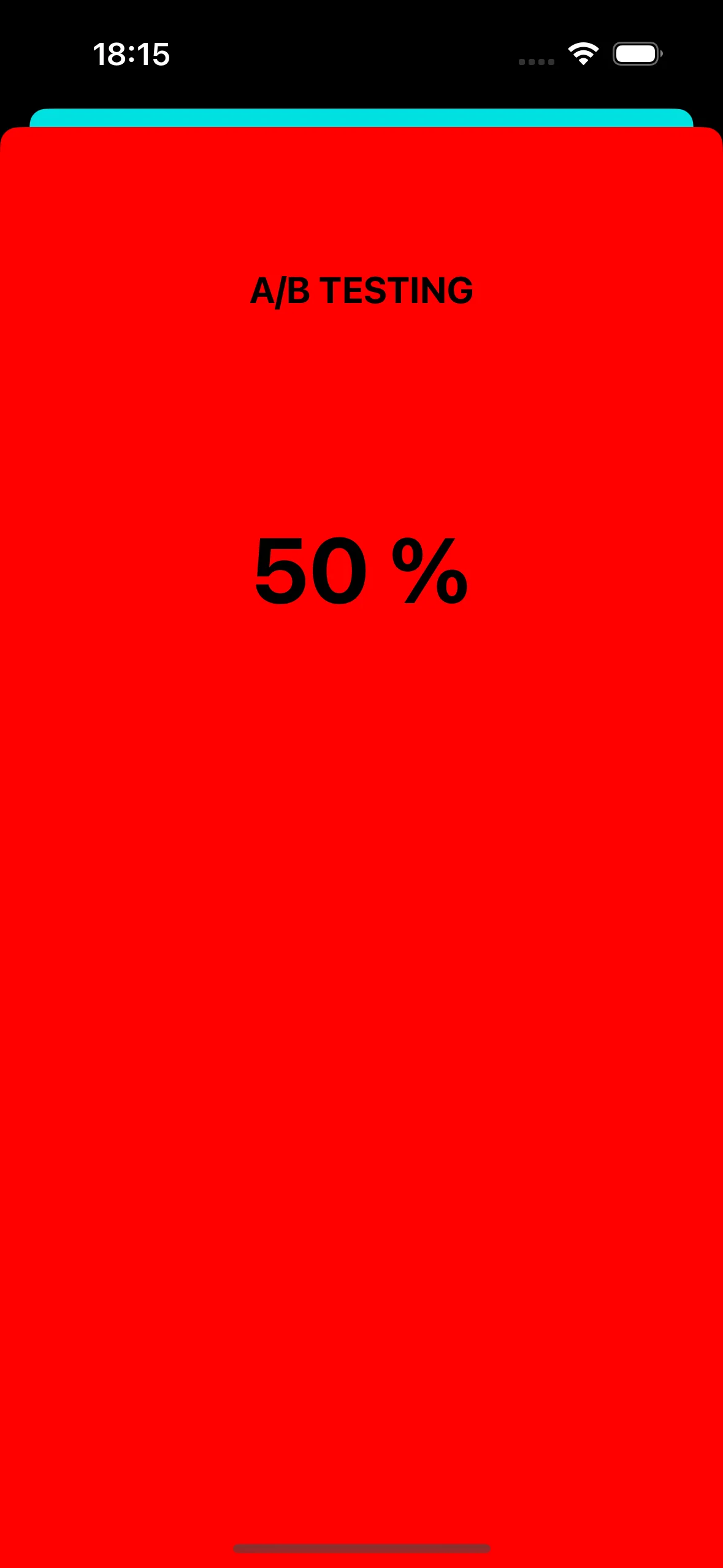
视图控制器 “B”
Anchor link to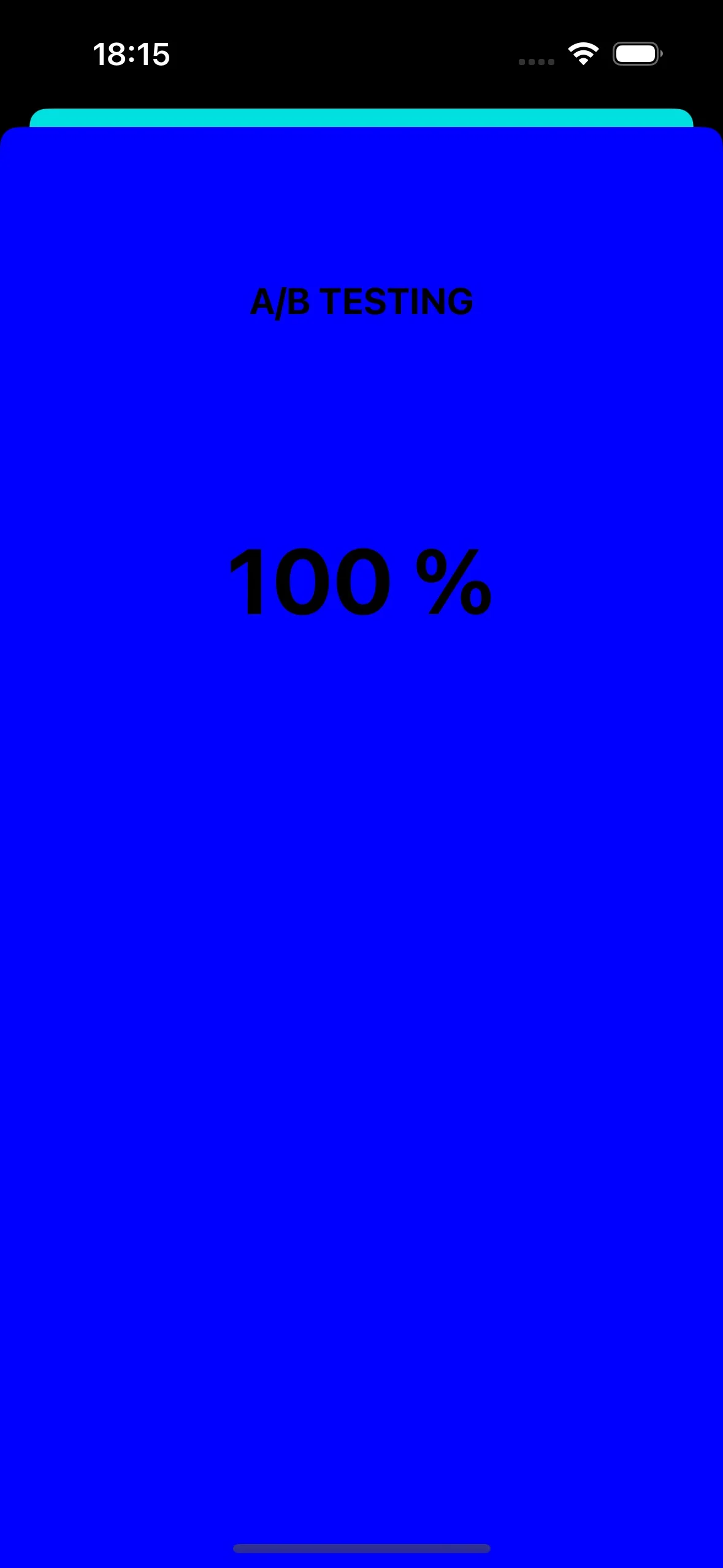
通过推送通知更改应用图标
Anchor link to另一个关于如何在 iOS 中使用推送通知的例子是更改应用图标。
首先,让我们向 assets 中添加三个不同的图标。一个将用作默认应用图标,另外两个将根据推送通知中的自定义数据进行更改。

要在您的 iOS 应用程序中启用备用应用图标,您需要在 Info.plist 文件中添加必要的配置。以下是具体步骤:
<key>CFBundleIcons</key><dict> <key>CFBundleAlternateIcons</key> <dict> <key>AppIcon-2</key> <dict> <key>CFBundleIconFiles</key> <array> <string>Icon-2</string> </array> <key>UIPrerenderedIcon</key> <true/> </dict> <key>AppIcon-3</key> <dict> <key>CFBundleIconFiles</key> <array> <string>Icon-3</string> </array> <key>UIPrerenderedIcon</key> <true/> </dict> </dict> <key>CFBundlePrimaryIcon</key> <dict> <key>CFBundleIconFiles</key> <array> <string>Icon-1</string> </array> <key>UIPrerenderedIcon</key> <true/> </dict></dict>在 pushwoosh(_ pushwoosh: Pushwoosh, onMessageOpened message: PWMessage) 回调中,您可以添加代码,根据推送通知中收到的自定义数据来更改应用图标。以下是实现方法:
func pushwoosh(_ pushwoosh: Pushwoosh, onMessageOpened message: PWMessage) {    // MARK: - Change the app icon dynamically    guard let customDataJson = message.customData,          let appIcon = customDataJson["i"] as? String else {              return          }
    UIApplication.shared.setAlternateIconName(appIcon) { error in        if let error = error {            print(error.localizedDescription)        } else {            print("Success!")        }    }}
添加 JSON 代码:
{ "i": "AppIcon-2"}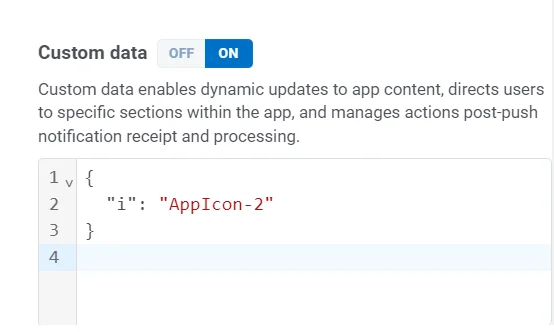
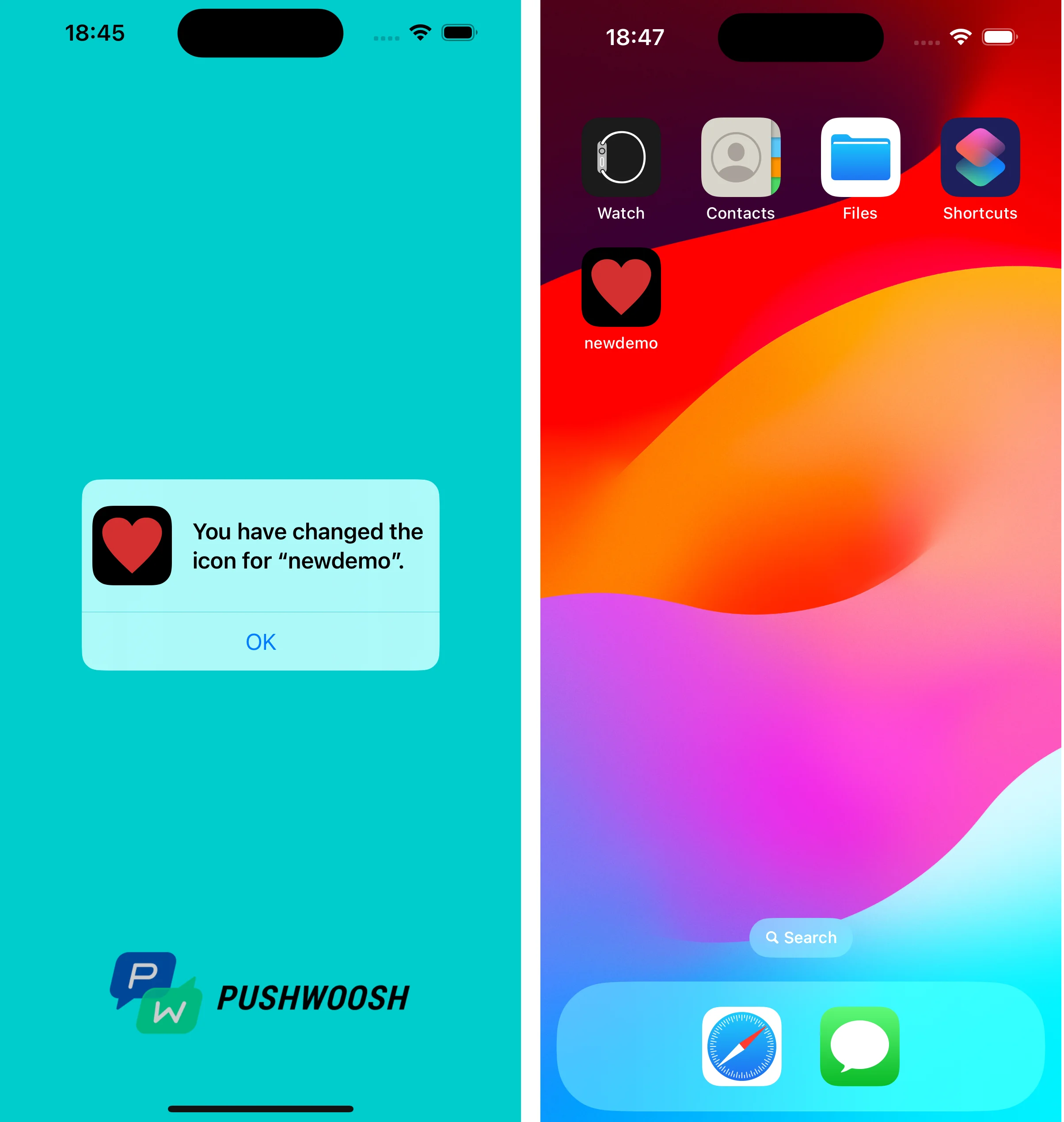
点击推送通知时,系统会提示您在设备上更改应用图标。
您可以在 GitHub 上找到使用自定义数据的项目。