iOS 基于令牌的配置
为了与 APNs 进行更快的通信,您可以使用基于令牌的身份验证来配置您的 iOS 项目。
从 Apple 获取加密密钥和 Key ID
Anchor link to-
登录您的 Apple Developer 帐户,并导航至左侧菜单中的 Keys 部分。按 + 创建一个新密钥。
-
在 Key Description 字段中,为密钥输入一个唯一的名称。然后,在 Key Services 部分启用 APNs。点击 Continue。
-
复制 Key ID(一个 10 个字符的字符串),并下载身份验证令牌签名密钥(一个扩展名为 .p8 的文本文件)。
在 Pushwoosh 中配置 iOS 平台
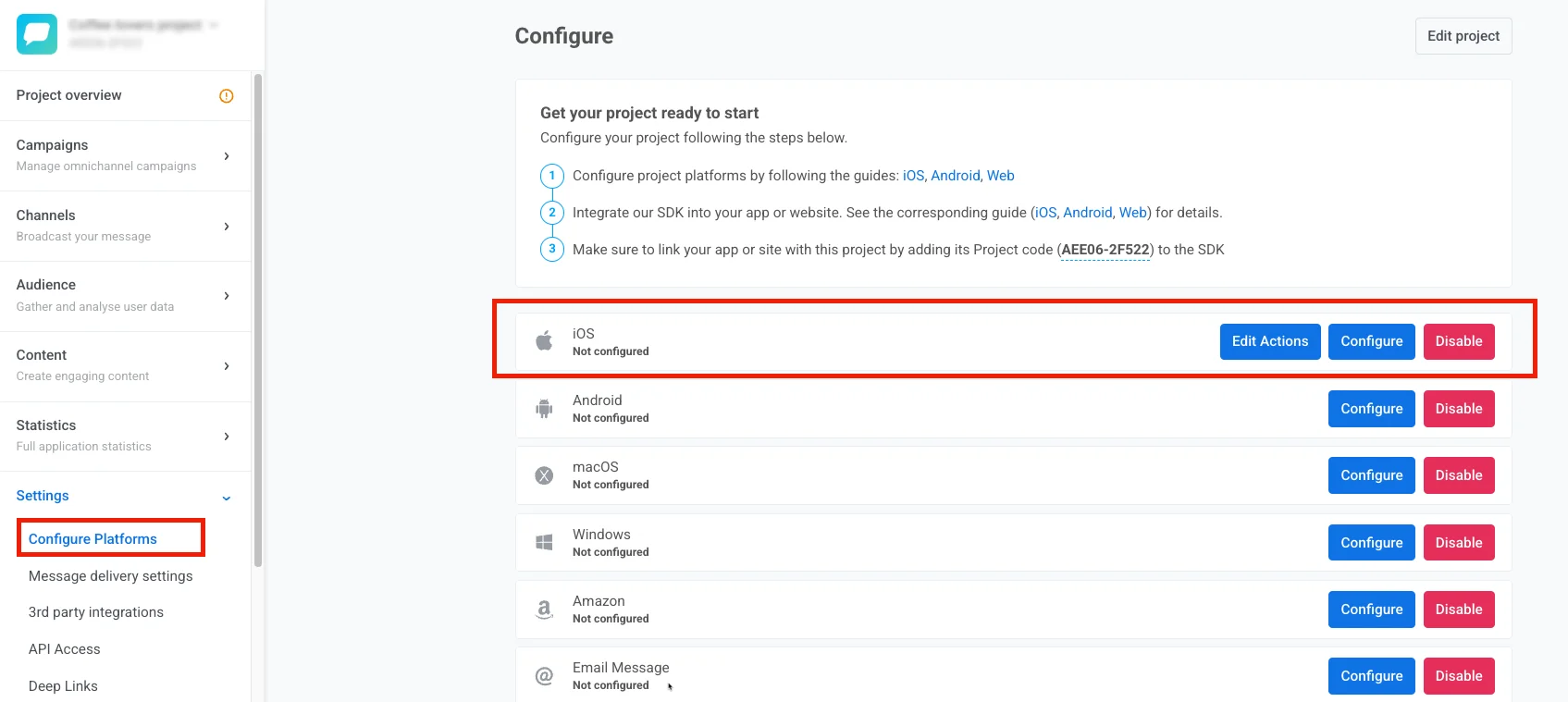
Anchor link to- 在您的 Pushwoosh 项目中,转到 Configure Platforms 部分,然后点击 iOS 平台旁边的 Configure。
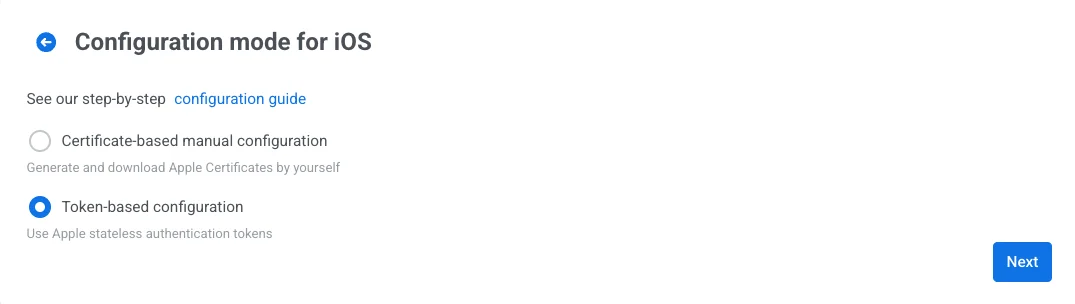
- 在打开的配置表单中,选择 Token-based manual configuration,然后点击 Next。
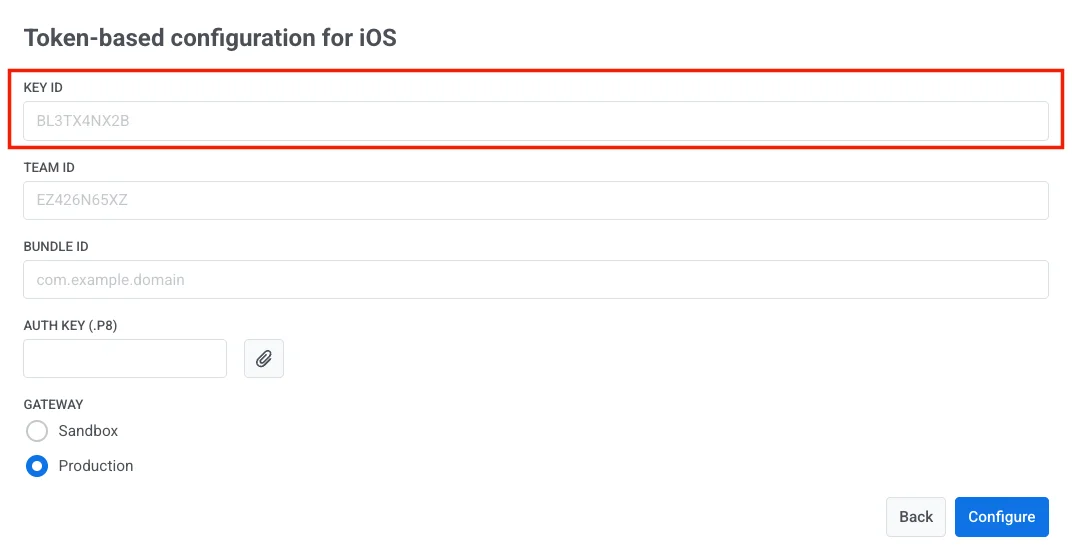
- 将 Key ID 粘贴到相应的字段中。
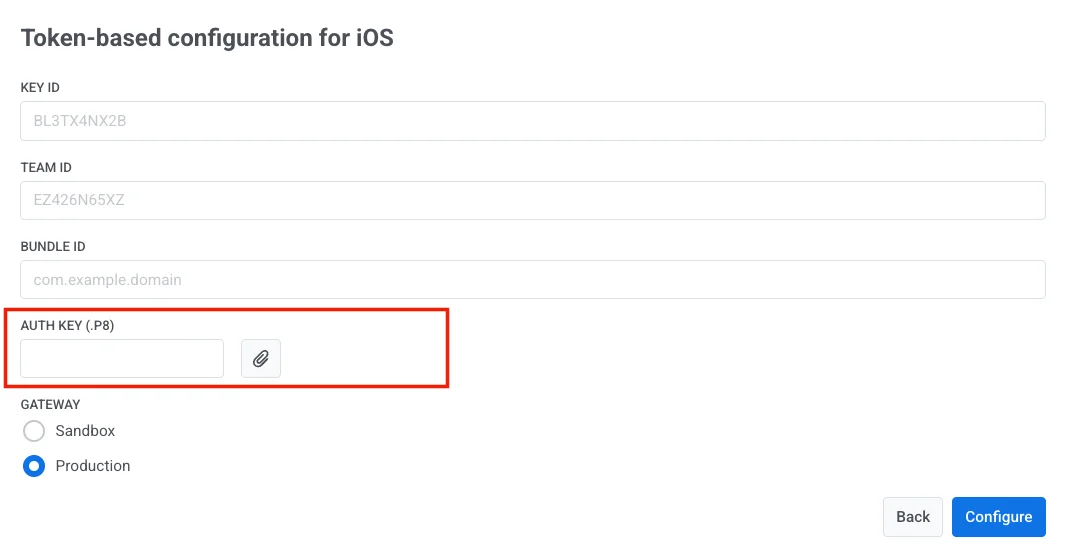
- 在 Auth Key 字段中,上传您从 Apple 下载的 .p8 签名密钥文件。
- 输入您的 Apple Developer Team ID 和 Bundle ID。
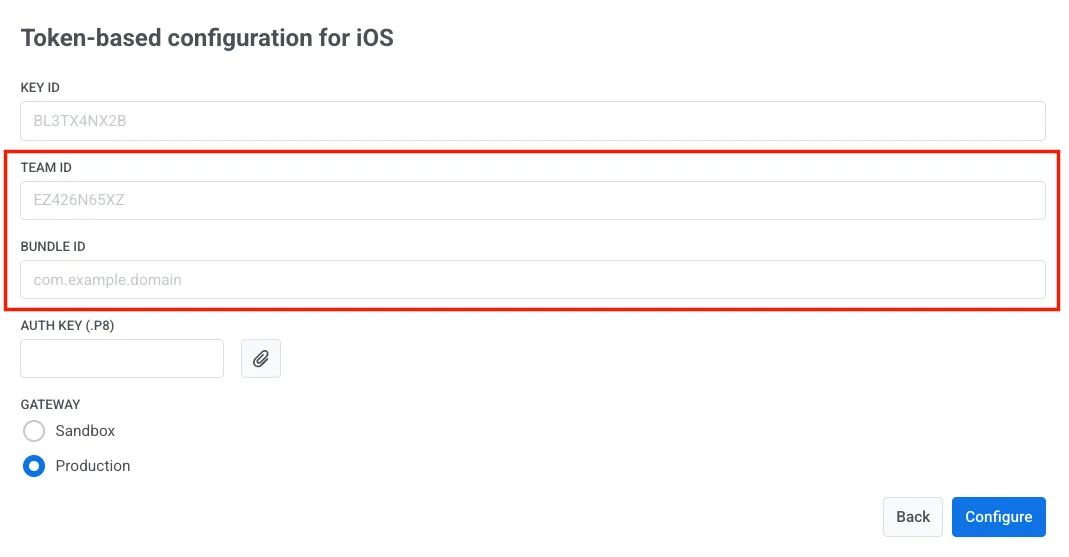
要获取您的 Team ID,请转到您的 Apple Developer 帐户并导航至 Membership 部分。
您可以在 Apple Developer 控制台的 Certificates, Identifiers & Profiles 部分找到 Bundle ID。
- 选择适当的网关:Sandbox 或 Production。
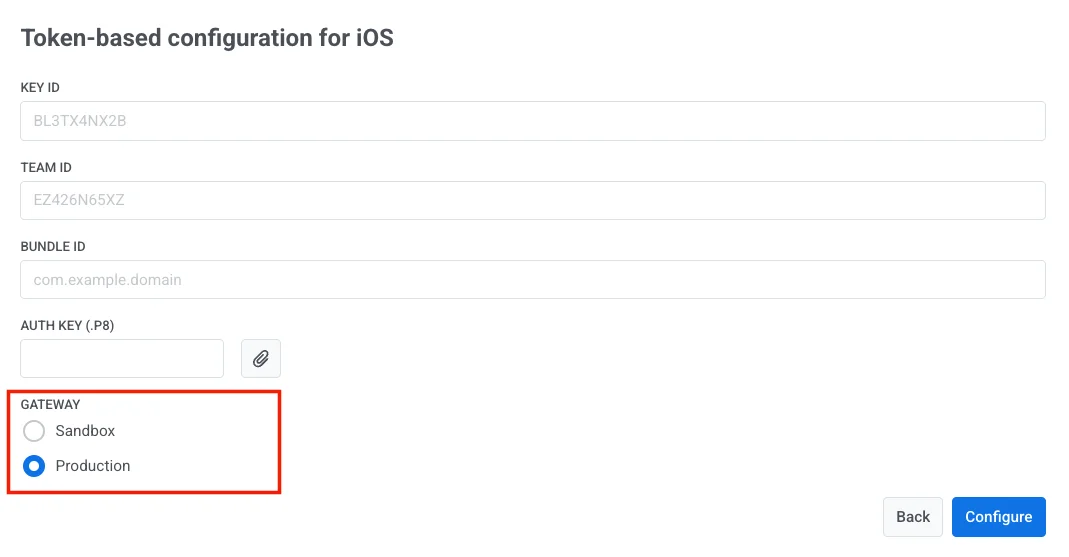
- 点击 Configure 完成设置。