إعداد InboxKit باستخدام CocoaPods
متوفر منذ iOS SDK 7.0.40.
يتم شحن InboxKit كـ subspec اختياري لـ pod PushwooshXCFramework الشامل. يجب أن تكون SDK الرئيسية مدمجة بالفعل؛ إذا كنت تبدأ من الصفر، اتبع دليل التكامل الأساسي أولاً.
إضافة pod الخاص بـ InboxKit
Anchor link to- افتح ملف
Podfileالخاص بك وأضف subspec الخاص بـ InboxKit إلى هدف تطبيقك:
target 'MyApp' do  use_frameworks!
pod 'PushwooshXCFramework' pod 'PushwooshXCFramework/PushwooshInboxKit'end- قم بتشغيل
pod installمن دليل مشروعك:
pod install- افتح ملف
.xcworkspaceالذي تم إنشاؤه. تم الآن ربط InboxKit جنبًا إلى جنب مع SDK الرئيسية.
عرض صندوق الوارد
Anchor link toأضف وحدة التحكم في صندوق الوارد إلى أي تدفق تنقل. التكوين الافتراضي كافٍ للحصول على صندوق وارد يعمل مع أنواع الخلايا القياسية الثلاثة:
import PushwooshInboxKit
let inboxVC = PushwooshInboxKitViewController()navigationController?.pushViewController(inboxVC, animated: true)
@import PushwooshInboxKit;
PushwooshInboxKitViewController *inboxVC = [PushwooshInboxKitViewController new];[self.navigationController pushViewController:inboxVC animated:YES];تخصيص صندوق الوارد
Anchor link toفي Swift، قم بتكوين وحدة التحكم من خلال نوع القيمة PushwooshInboxKitAttributes. في Objective-C، استخدم setters المتوافقة مع @objc على وحدة التحكم — PushwooshInboxKitAttributes هي struct في Swift ولا يتم تحويلها.
var attributes = PushwooshInboxKitAttributes()attributes.pullToRefreshEnabled = trueattributes.swipeToDeleteEnabled = trueattributes.pinningEnabled = trueattributes.style.unreadBadgeColor = .systemBlueattributes.style.titleFont = .systemFont(ofSize: 17, weight: .semibold)
let inboxVC = PushwooshInboxKitViewController(attributes: attributes)
PushwooshInboxKitViewController *inboxVC = [PushwooshInboxKitViewController new];[inboxVC setBackgroundColor:[UIColor systemBackgroundColor]];[inboxVC setEmptyMessage:@"You have no messages yet"];تعرض Style struct جميع الألوان والخطوط وأنصاف أقطار الزوايا ومنسق التاريخ الذي تستخدمه الخلايا الافتراضادية. كل قيمة هي لون دلالي من Apple بشكل افتراضي، لذا يتفاعل صندوق الوارد مع الوضع الداكن للنظام تلقائيًا.
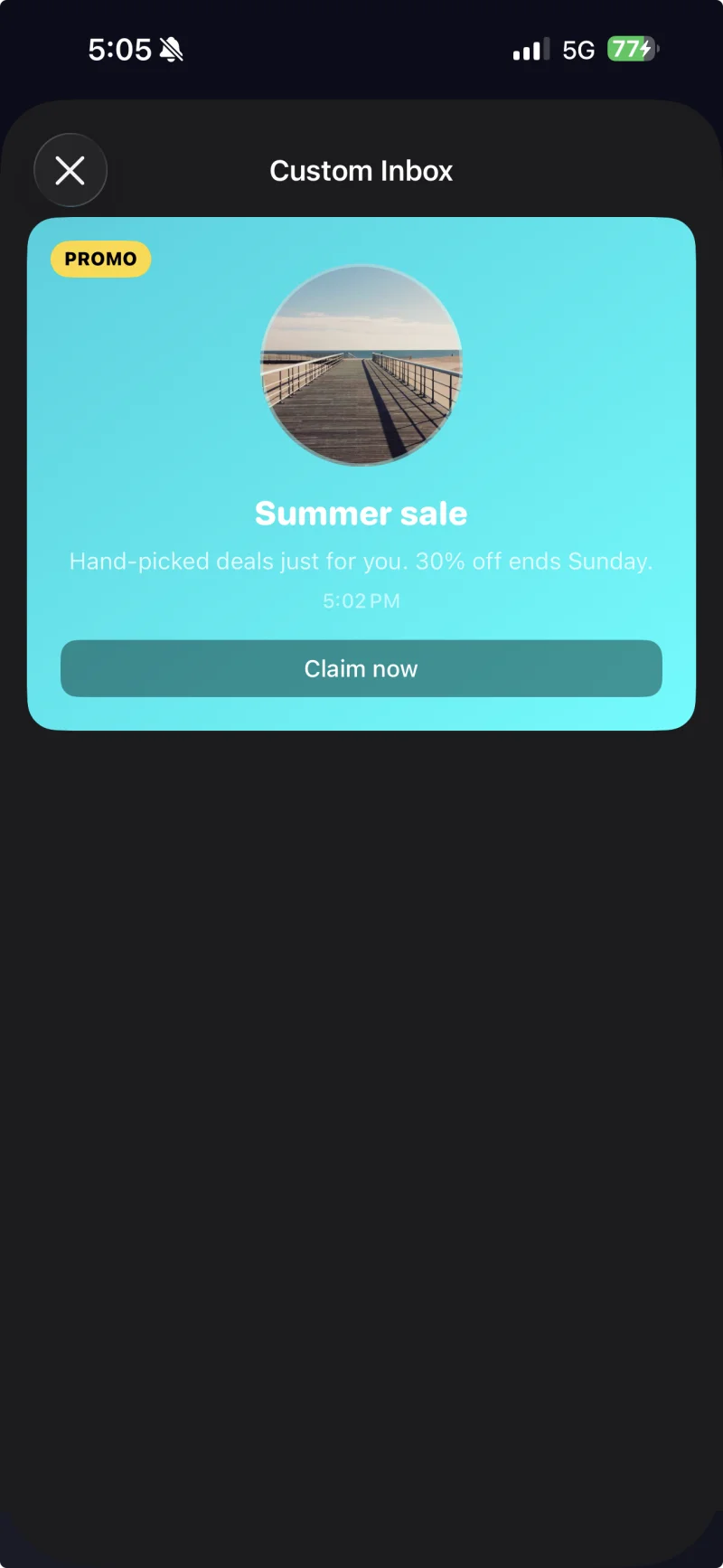
خلية مع تسمية توضيحية مع تطبيق سمة مخصصة من خلال PushwooshInboxKitAttributes.Style.
التعامل مع النقرات والتحديثات
Anchor link toامتثل لـ PushwooshInboxKitDelegate للتفاعل مع إجراءات المستخدم وأحداث التحديث. كل دالة لها تنفيذ افتراضي، لذا يمكنك فقط تجاوز ما تحتاجه:
final class InboxCoordinator: NSObject, PushwooshInboxKitDelegate {    func inboxKit(_ vc: PushwooshInboxKitViewController,                  didSelect message: PWInboxMessageProtocol) -> Bool {        // Return true to let the SDK open the message URL or richmedia.        // Return false if you handled the tap entirely (e.g. routed to a custom screen).        return true    }
    func inboxKit(_ vc: PushwooshInboxKitViewController,                  didRefreshWith messages: [PWInboxMessageProtocol],                  error: Error?) {        // Show your own empty / error state here if needed.    }}
inboxVC.delegate = inboxCoordinator
تشحن SDK العمليات المجمعة كدوال @objc على وحدة التحكم، لذا يمكنك ربطها مباشرة بـ UIBarButtonItem:
let markAll = UIBarButtonItem( image: UIImage(systemName: "checkmark.circle"), style: .plain, target: inboxVC, action: #selector(PushwooshInboxKitViewController.markAllAsRead))let clearRead = UIBarButtonItem( image: UIImage(systemName: "trash"), style: .plain, target: inboxVC, action: #selector(PushwooshInboxKitViewController.clearReadMessages))inboxVC.navigationItem.rightBarButtonItems = [clearRead, markAll]