iOS SDK बेसिक इंटीग्रेशन गाइड
इस सेक्शन में यह जानकारी दी गई है कि Pushwoosh SDK को अपने iOS एप्लिकेशन में कैसे इंटीग्रेट करें।
आवश्यक शर्तें
Anchor link toअपने ऐप में Pushwoosh iOS SDK को इंटीग्रेट करने के लिए, आपको निम्नलिखित चीज़ों की आवश्यकता होगी:
इंटीग्रेशन के स्टेप्स
Anchor link to1. इंस्टॉलेशन
Anchor link toआप Swift पैकेज मैनेजर या CocoaPods का उपयोग करके अपने एप्लिकेशन में Pushwoosh SDK को इंटीग्रेट कर सकते हैं।
Swift पैकेज मैनेजर
Anchor link toपैकेज डिपेंडेंसीज़ सेक्शन में, निम्नलिखित पैकेज जोड़ें:
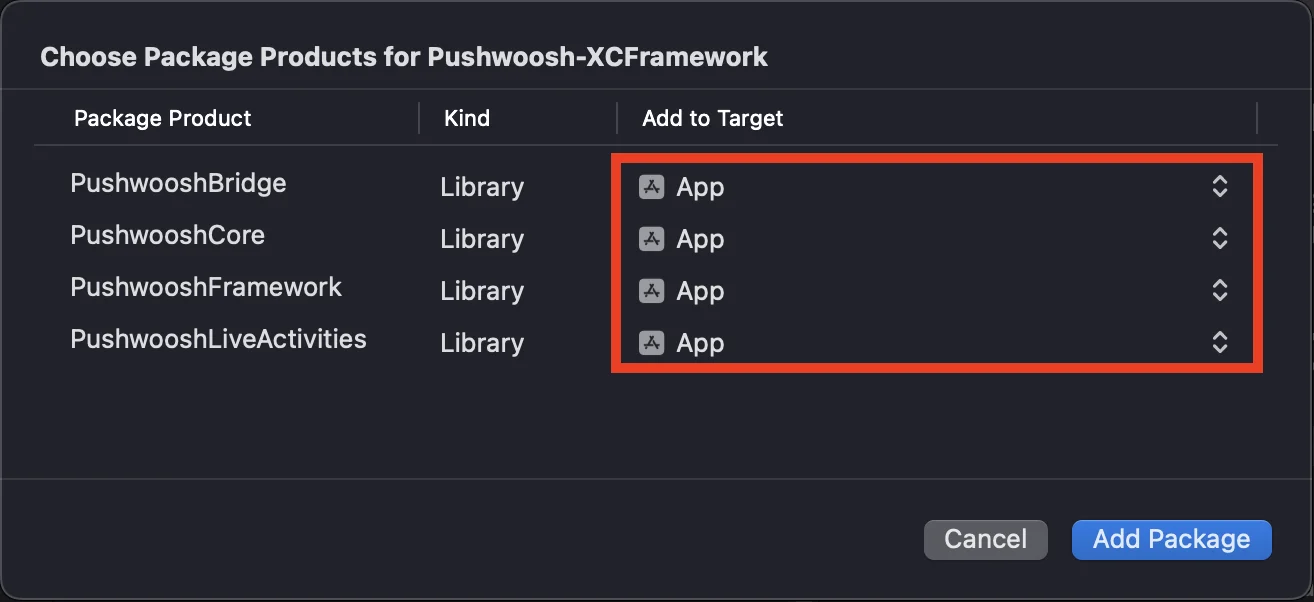
https://github.com/Pushwoosh/Pushwoosh-XCFrameworkPushwoosh iOS SDK का उपयोग करने के लिए, सुनिश्चित करें कि Swift पैकेज मैनेजर के माध्यम से इंटीग्रेट करते समय आप अपने ऐप टारगेट में निम्नलिखित चार फ्रेमवर्क जोड़ें:
PushwooshFrameworkPushwooshCorePushwooshBridgePushwooshLiveActivities
CocoaPods
Anchor link toअपनी Podfile खोलें और डिपेंडेंसी जोड़ें:
# Uncomment the next line to define a global platform for your project# platform :ios, '9.0'
target 'MyApp' do  # Comment the next line if you don't want to use dynamic frameworks  use_frameworks!
  pod 'PushwooshXCFramework'
end
फिर, टर्मिनल में, डिपेंडेंसीज़ इंस्टॉल करने के लिए निम्नलिखित कमांड चलाएँ:
pod install2. कैपेबिलिटीज़
Anchor link toअपने प्रोजेक्ट में पुश नोटिफिकेशन को सक्षम करने के लिए, आपको कुछ कैपेबिलिटीज़ जोड़ने की आवश्यकता है।
साइनिंग और कैपेबिलिटीज़ सेक्शन में, निम्नलिखित कैपेबिलिटीज़ जोड़ें:
Push NotificationsBackground Modes। इस कैपेबिलिटी को जोड़ने के बाद,Remote notificationsके लिए बॉक्स को चेक करें।
यदि आप टाइम सेंसिटिव नोटिफिकेशन (iOS 15+) का उपयोग करना चाहते हैं, तो Time Sensitive Notifications कैपेबिलिटी भी जोड़ें।
3. इनिशियलाइज़ेशन कोड
Anchor link toAppDelegate
Anchor link toअपने AppDelegate क्लास में निम्नलिखित कोड जोड़ें:
import SwiftUIimport PushwooshFramework
@mainstruct MyApp: App {    // Register AppDelegate as UIApplicationDelegate    @UIApplicationDelegateAdaptor(AppDelegate.self) var appDelegate
    var body: some Scene {        WindowGroup {            ContentView()        }    }}
class AppDelegate: NSObject, UIApplicationDelegate, PWMessagingDelegate {
    func application(_ application: UIApplication, didFinishLaunchingWithOptions launchOptions: [UIApplication.LaunchOptionsKey: Any]?) -> Bool {        // Initialization code        // Set custom delegate for push handling        Pushwoosh.sharedInstance().delegate = self
        // Register for push notifications        Pushwoosh.sharedInstance().registerForPushNotifications()
        return true    }
    // Handle token received from APNS    func application(_ application: UIApplication, didRegisterForRemoteNotificationsWithDeviceToken deviceToken: Data) {        Pushwoosh.sharedInstance().handlePushRegistration(deviceToken)    }
    // Handle token receiving error    func application(_ application: UIApplication, didFailToRegisterForRemoteNotificationsWithError error: Error) {        Pushwoosh.sharedInstance().handlePushRegistrationFailure(error)    }
    //for silent push notifications    func application(_ application: UIApplication, didReceiveRemoteNotification userInfo: [AnyHashable: Any], fetchCompletionHandler completionHandler: @escaping (UIBackgroundFetchResult) -> Void) {        Pushwoosh.sharedInstance().handlePushReceived(userInfo)        completionHandler(.noData)    }
    // Fired when a push is received    func pushwoosh(_ pushwoosh: Pushwoosh, onMessageReceived message: PWMessage) {        print("onMessageReceived: ", message.payload!.description)    }
    // Fired when a user taps the notification    func pushwoosh(_ pushwoosh: Pushwoosh, onMessageOpened message: PWMessage) {        print("onMessageOpened: ", message.payload!.description)    }}
struct ContentView: View {    var body: some View {        Text("Pushwoosh with SwiftUI")            .padding()    }}
import PushwooshFramework
@UIApplicationMainclass AppDelegate: UIResponder, UIApplicationDelegate, PWMessagingDelegate {
var window: UIWindow?
func application(_ application: UIApplication, didFinishLaunchingWithOptions launchOptions: [UIApplication.LaunchOptionsKey: Any]?) -> Bool { //initialization code //set custom delegate for push handling, in our case AppDelegate Pushwoosh.sharedInstance().delegate = self;
//register for push notifications Pushwoosh.sharedInstance().registerForPushNotifications()
return true }
//handle token received from APNS func application(_ application: UIApplication, didRegisterForRemoteNotificationsWithDeviceToken deviceToken: Data) { Pushwoosh.sharedInstance().handlePushRegistration(deviceToken) }
//handle token receiving error func application(_ application: UIApplication, didFailToRegisterForRemoteNotificationsWithError error: Error) { Pushwoosh.sharedInstance().handlePushRegistrationFailure(error); }
//for silent push notifications func application(_ application: UIApplication, didReceiveRemoteNotification userInfo: [AnyHashable : Any], fetchCompletionHandler completionHandler: @escaping (UIBackgroundFetchResult) -> Void) { Pushwoosh.sharedInstance().handlePushReceived(userInfo) completionHandler(.noData) }
//this event is fired when the push gets received func pushwoosh(_ pushwoosh: Pushwoosh, onMessageReceived message: PWMessage) { print("onMessageReceived: ", message.payload!.description) }
// Fired when a user taps the notification func pushwoosh(_ pushwoosh: Pushwoosh, onMessageOpened message: PWMessage) { print("onMessageOpened: ", message.payload!.description) }}#import <PushwooshFramework/PushwooshFramework.h>
@implementation AppDelegate
- (BOOL)application:(UIApplication *)application didFinishLaunchingWithOptions:(NSDictionary *)launchOptions { //-----------PUSHWOOSH PART-----------
// set custom delegate for push handling, in our case AppDelegate [Pushwoosh sharedInstance].delegate = self;
//register for push notifications! [[Pushwoosh sharedInstance] registerForPushNotifications];
return YES;}
//handle token received from APNS- (void)application:(UIApplication *)application didRegisterForRemoteNotificationsWithDeviceToken:(NSData *)deviceToken { [[Pushwoosh sharedInstance] handlePushRegistration:deviceToken];}
//handle token receiving error- (void)application:(UIApplication *)application didFailToRegisterForRemoteNotificationsWithError:(NSError *)error { [[Pushwoosh sharedInstance] handlePushRegistrationFailure:error];}
//for silent push notifications- (void)application:(UIApplication *)application didReceiveRemoteNotification:(NSDictionary *)userInfo fetchCompletionHandler:(void (^)(UIBackgroundFetchResult))completionHandler { [[Pushwoosh sharedInstance] handlePushReceived:userInfo]; completionHandler(UIBackgroundFetchResultNoData);}
//this event is fired when the push gets received- (void)pushwoosh:(Pushwoosh *)pushwoosh onMessageReceived:(PWMessage *)message { NSLog(@"onMessageReceived: %@", message.payload);}
//this event is fired when user taps the notification- (void)pushwoosh:(Pushwoosh *)pushwoosh onMessageOpened:(PWMessage *)message { NSLog(@"onMessageOpened: %@", message.payload);}
@endInfo.plist
Anchor link toअपने Info.plist में:
Pushwoosh_APPIDकी (key) को Pushwoosh एप्लिकेशन कोड पर सेट करें।Pushwoosh_API_TOKENकी (key) को Pushwoosh डिवाइस API टोकन पर सेट करें।
4. मैसेज डिलीवरी ट्रैकिंग
Anchor link toPushwoosh, नोटिफिकेशन सर्विस एक्सटेंशन के माध्यम से पुश नोटिफिकेशन के लिए डिलीवरी इवेंट्स की ट्रैकिंग का समर्थन करता है।
नोटिफिकेशन सर्विस एक्सटेंशन जोड़ें
Anchor link to- Xcode में, File > New > Target… चुनें।
- नोटिफिकेशन सर्विस एक्सटेंशन चुनें और Next दबाएँ।
- टारगेट का नाम दर्ज करें और Finish दबाएँ।
- जब एक्टिवेशन के लिए कहा जाए, तो Cancel दबाएँ।
नोटिफिकेशन सर्विस एक्सटेंशन के लिए डिपेंडेंसीज़ (केवल CocoaPods)
Anchor link toध्यान दें: यदि आप डिपेंडेंसीज़ को मैनेज करने के लिए Swift पैकेज मैनेजर का उपयोग कर रहे हैं, तो आप इस स्टेप को छोड़ सकते हैं, क्योंकि डिपेंडेंसीज़ स्वचालित रूप से जुड़ जाती हैं।
अपनी Podfile खोलें और टारगेट के लिए डिपेंडेंसी जोड़ें:
# Uncomment the next line to define a global platform for your project# platform :ios, '9.0'
target 'MyApp' do  # Comment the next line if you don't want to use dynamic frameworks  use_frameworks!
  pod 'PushwooshXCFramework'
end
target 'MyAppNotificationExtension' do  use_frameworks!
  pod 'PushwooshXCFramework'
end
डिपेंडेंसीज़ को अपडेट करने के लिए टर्मिनल में निम्नलिखित कमांड चलाएँ:
pod updateनोटिफिकेशन सर्विस एक्सटेंशन में Pushwoosh SDK जोड़ें
Anchor link toयह कोड आपको अपने नोटिफिकेशन एक्सटेंशन के भीतर नोटिफिकेशन को इंटरसेप्ट और प्रोसेस करने की अनुमति देता है।
import UserNotificationsimport PushwooshFramework
class NotificationService: UNNotificationServiceExtension {
    var contentHandler: ((UNNotificationContent) -> Void)?    var bestAttemptContent: UNMutableNotificationContent?
    override func didReceive(_ request: UNNotificationRequest, withContentHandler contentHandler: @escaping (UNNotificationContent) -> Void) {        // Pushwoosh **********        PWNotificationExtensionManager.shared().handle(request, contentHandler: contentHandler)        // ********************
        self.contentHandler = contentHandler        bestAttemptContent = (request.content.mutableCopy() as? UNMutableNotificationContent)
        if let bestAttemptContent = bestAttemptContent {            // Modify the notification content here...            contentHandler(bestAttemptContent)        }    }
    override func serviceExtensionTimeWillExpire() {        // Called just before the extension will be terminated by the system.        // Use this as an opportunity to deliver your "best attempt" at modified content, otherwise the original push payload will be used.        if let contentHandler = contentHandler, let bestAttemptContent =  bestAttemptContent {            contentHandler(bestAttemptContent)        }    }
}
#import "PWNotificationExtensionManager.h"
@interface NotificationService : UNNotificationServiceExtension
@end
@implementation NotificationService
- (void)didReceiveNotificationRequest:(UNNotificationRequest *)request withContentHandler:(void (^)(UNNotificationContent * _Nonnull))contentHandler { // Pushwoosh ********** [[PWNotificationExtensionManager sharedManager] handleNotificationRequest:request contentHandler:contentHandler]; //*********************}
@endInfo.plist
Anchor link toअपने नोटिफिकेशन सर्विस एक्सटेंशन के Info.plist में, जोड़ें:
Pushwoosh_APPID- आपका एप्लिकेशन कोड।
5. प्रोजेक्ट चलाएँ
Anchor link to- प्रोजेक्ट को बिल्ड करें और चलाएँ।
- Pushwoosh कंट्रोल पैनल पर जाएँ और एक पुश नोटिफिकेशन भेजें।
- आपको ऐप में नोटिफिकेशन दिखना चाहिए।
विस्तारित Pushwoosh iOS इंटीग्रेशन
Anchor link toइस स्तर पर, आपने पहले ही SDK को इंटीग्रेट कर लिया है और पुश नोटिफिकेशन भेज और प्राप्त कर सकते हैं। अब, आइए मुख्य कार्यक्षमता का पता लगाएँ।
पुश नोटिफिकेशन्स
Anchor link toPushwoosh SDK में, पुश नोटिफिकेशन को संभालने के लिए दो कॉलबैक डिज़ाइन किए गए हैं:
onMessageReceived: यह मेथड तब कॉल किया जाता है जब कोई पुश नोटिफिकेशन प्राप्त होता है।onMessageOpened: यह मेथड तब कॉल किया जाता है जब यूज़र नोटिफिकेशन के साथ इंटरैक्ट करता है (खोलता है)।
ये कॉलबैक डेवलपर्स को अपने एप्लिकेशन के भीतर पुश नोटिफिकेशन की प्राप्ति और यूज़र इंटरैक्शन को मैनेज करने में सक्षम बनाते हैं।
import PushwooshFramework
class AppDelegate: NSObject, UIApplicationDelegate, PWMessagingDelegate {
    func application(_ application: UIApplication, didFinishLaunchingWithOptions launchOptions: [UIApplication.LaunchOptionsKey : Any]? = nil) -> Bool {        Pushwoosh.sharedInstance().delegate = self;    }
    func pushwoosh(_ pushwoosh: Pushwoosh, onMessageOpened message: PWMessage) {        if let payload = message.payload {            print("onMessageOpened: \(payload)")        }    }
    func pushwoosh(_ pushwoosh: Pushwoosh, onMessageReceived message: PWMessage) {        if let payload = message.payload {            print("onMessageReceived: \(payload)")        }    }}
#import <PushwooshFramework/PushwooshFramework.h>
@interface AppDelegate () <PWMessagingDelegate>
@end
@implementation AppDelegate
- (BOOL)application:(UIApplication *)application didFinishLaunchingWithOptions:(NSDictionary *)launchOptions { [[Pushwoosh sharedInstance] setDelegate:self]; return YES;}
- (void)pushwoosh:(Pushwoosh *)pushwoosh onMessageOpened:(PWMessage *)message { if (message.payload) { NSLog(@"onMessageOpened: %@", message.payload); }}
- (void)pushwoosh:(Pushwoosh *)pushwoosh onMessageReceived:(PWMessage *)message { if (message.payload) { NSLog(@"onMessageReceived: %@", message.payload); }}@endयूज़र कॉन्फ़िगरेशन
Anchor link toव्यक्तिगत यूज़र के व्यवहार और वरीयताओं पर ध्यान केंद्रित करके, आप व्यक्तिगत सामग्री प्रदान कर सकते हैं, जिससे यूज़र की संतुष्टि और वफादारी में वृद्धि होती है।
import PushwooshFramework
class Registration {
    func afterUserLogin(user: User) {        let pushwoosh = Pushwoosh.sharedInstance()        // set user ID        if let userId = user.userId {            pushwoosh.setUserId(userId)        }
        // set user email        if let userEmail = user.email {            pushwoosh.setEmail(userEmail)        }
        // set user SMS number        if let userSmsNumber = user.SmsNumber {            pushwoosh.registerSmsNumber(userSmsNumber)        }
        // set user WhatsApp number        if let userWhatsAppNumber = user.WhatsAppNumber {            pushwoosh.registerSmsNumber(userWhatsAppNumber)        }
        // setting additional user information as tags for Pushwoosh        if let age = user.userDetails.age,            let name = user.userDetails.userName,            let lastLogin = user.userDetails.lastLoginDate {            pushwoosh.setTags([                "age": age,                "name": name,                "last_login": lastLogin            ])        }    }}
#import <PushwooshFramework/PushwooshFramework.h>
@implementation Registration
- (void)afterUserLogin:(User *)user { Pushwoosh *pushwoosh = [Pushwoosh sharedInstance];
// set user ID if (user.userId) { [pushwoosh setUserId:user.userId]; }
// set user email if (user.email) { [pushwoosh setEmail:user.email]; }
// setting additional user information as tags for Pushwoosh if (user.userDetails.age && user.userDetails.userName && user.userDetails.lastLoginDate) { NSDictionary *tags = @{ @"age": user.userDetails.age, @"name": user.userDetails.userName, @"last_login": user.userDetails.lastLoginDate }; [pushwoosh setTags:tags]; }}
@endटैग्स
Anchor link toटैग्स यूज़र्स या डिवाइस को असाइन किए गए की-वैल्यू पेयर होते हैं, जो वरीयताओं या व्यवहार जैसे एट्रिब्यूट्स के आधार पर सेगमेंटेशन की अनुमति देते हैं, जिससे लक्षित मैसेजिंग संभव होती है।
import PushwooshFramework
class UpdateUser {    func afterUserUpdateProfile(user: User) {        let pushwoosh = Pushwoosh.sharedInstance()
        // set list of favorite categories        pushwoosh.setTags(["favorite_categories" : user.getFavoriteCategories()])
        // set payment information        pushwoosh.setTags([            "is_subscribed": user.isSubscribed(),            "payment_status": user.getPaymentStatus(),            "billing_address": user.getBillingAddress()        ])    }}
#import <PushwooshFramework/PushwooshFramework.h>
@implementation UpdateUser
- (void)afterUserUpdateProfile:(User *)user { Pushwoosh *pushwoosh = [Pushwoosh sharedInstance];
// set list of favorite categories [pushwoosh setTags:@{@"favorite_categories" : user.getFavoriteCategories}];
// set payment information NSDictionary *tags = @{ @"is_subscribed": @(user.isSubscribed), @"payment_status": user.getPaymentStatus, @"billing_address": user.getBillingAddress }; [pushwoosh setTags:tags];}
@endइवेंट्स
Anchor link toइवेंट्स ऐप के भीतर विशिष्ट यूज़र एक्शन या घटनाएँ होती हैं जिन्हें व्यवहार का विश्लेषण करने और संबंधित मैसेज या एक्शन को ट्रिगर करने के लिए ट्रैक किया जा सकता है।
import PushwooshFramework
class Registration {
    func afterUserLogin(user: User) {        if let userName = user.getUserName(), let lastLogin = user.getLastLoginDate() {            PWInAppManager.shared().postEvent("login", withAttributes: [                "name": userName,                "last_login": lastLogin            ])        }    }
    func afterUserPurchase(user: User, product: Product) {        let pushwoosh = Pushwoosh.sharedInstance()
        // Track purchase event        PWInAppManager.shared().postEvent("purchase", withAttributes: [            "product_id": product.getId(),            "product_name": product.getName(),            "price": product.getPrice(),            "quantity": product.getQuantity()        ])
        // Set user tags        let lastPurchaseDate = Date().timeIntervalSince1970        let lifetimeSpend = getCurrentLifetimeSpend() + product.getPrice()
        pushwoosh.setTags([            "last_purchase_date": lastPurchaseDate,            "lifetime_spend": lifetimeSpend        ])    }}
#import <PushwooshFramework/PushwooshFramework.h>#import <PushwooshFramework/PWInAppManager.h>
@implementation Registration
- (void)afterUserLogin:(User *)user { NSString *userName = [user getUserName]; NSDate *lastLogin = [user getLastLoginDate];
if (userName && lastLogin) { [[PWInAppManager sharedManager] postEvent:@"login" withAttributes:@{ @"name": userName, @"last_login": lastLogin }]; }}
- (void)afterUserPurchase:(User *)user product:(Product *)product { Pushwoosh *pushwoosh = [Pushwoosh sharedInstance];
// Track purchase event [[PWInAppManager sharedManager] postEvent:@"purchase" withAttributes:@{ @"product_id": [product getId], @"product_name": [product getName], @"price": @([product getPrice]), @"quantity": @([product getQuantity]) }];
// Set user tags NSTimeInterval lastPurchaseDate = [[NSDate date] timeIntervalSince1970]; double lifetimeSpend = /* fetch current lifetime spend */ + [product getPrice];
NSDictionary *tags = @{ @"last_purchase_date": @(lastPurchaseDate), @"lifetime_spend": @(lifetimeSpend) };
[pushwoosh setTags:tags];}
@endरिच मीडिया
Anchor link toरिच मीडिया इंटरैक्टिव और मल्टीमीडिया सामग्री को संदर्भित करता है, जैसे कि इमेज, वीडियो, या HTML, जिसका उपयोग नोटिफिकेशन और इन-ऐप मैसेज में यूज़र एंगेजमेंट को बढ़ाने के लिए किया जाता है।
import PushwooshFramework
class ViewController: UIViewController, PWRichMediaPresentingDelegate {
    override func viewDidLoad() {        super.viewDidLoad()        let richMediaConfiguration = PWModalWindowConfiguration.shared()
        PWRichMediaManager.shared().delegate = self        richMediaConfiguration.configureModalWindow(with: .PWModalWindowPositionBottom,                                                                 present: .PWAnimationPresentFromBottom,                                                                 dismiss: .PWAnimationDismissDown)    }
    func richMediaManager(_ richMediaManager: PWRichMediaManager!, shouldPresent richMedia: PWRichMedia!) -> Bool {        print("Rich media will be presented with: \(richMedia.pushPayload!)")        return true    }
    func richMediaManager(_ richMediaManager: PWRichMediaManager!, didPresent richMedia: PWRichMedia!) {        print("Rich media has been presented with: \(richMedia.pushPayload!)")    }
    func richMediaManager(_ richMediaManager: PWRichMediaManager!, didClose richMedia: PWRichMedia!) {        print("Rich media has been closed with: \(richMedia.pushPayload!)")    }
    func richMediaManager(_ richMediaManager: PWRichMediaManager!, presentingDidFailFor richMedia: PWRichMedia!, withError error: (any Error)!) {        print("Failed to present rich media with: \(richMedia.pushPayload!). Error: \(error.localizedDescription)")    }}
#import "ViewController.h"#import <PushwooshFramework/PushwooshFramework.h>#import <PushwooshFramework/PWRichMediaManager.h>#import <PushwooshFramework/PWModalWindowConfiguration.h>
@interface ViewController () <PWRichMediaPresentingDelegate>
@end
@implementation ViewController
- (void)viewDidLoad { [super viewDidLoad];
[[PWRichMediaManager sharedManager] setDelegate:self]; [[PWModalWindowConfiguration shared] configureModalWindowWith:PWModalWindowPositionBottom presentAnimation:PWAnimationPresentFromBottom dismissAnimation:PWAnimationDismissDown];}
- (BOOL)richMediaManager:(PWRichMediaManager *)richMediaManager shouldPresentRichMedia:(PWRichMedia *)richMedia { NSLog(@"Rich media will be presented with: %@", richMedia.pushPayload); return YES;}
- (void)richMediaManager:(PWRichMediaManager *)richMediaManager didPresentRichMedia:(PWRichMedia *)richMedia { NSLog(@"Rich media has been presented with: %@", richMedia.pushPayload);}
- (void)richMediaManager:(PWRichMediaManager *)richMediaManager didCloseRichMedia:(PWRichMedia *)richMedia { NSLog(@"Rich media has been closed with:: %@", richMedia.pushPayload);}
- (void)richMediaManager:(PWRichMediaManager *)richMediaManager presentingDidFailForRichMedia:(PWRichMedia *)richMedia withError:(NSError *)error { NSLog(@"Failed to present rich media with: %@. Error: %@", richMedia.pushPayload, error.localizedDescription);}
@endसमस्या निवारण
Anchor link toमॉड्यूल ‘PushwooshFramework’ बनाने में विफल
Anchor link toअपने प्रोजेक्ट को बिल्ड करते समय, आपको इसके समान एक त्रुटि का सामना करना पड़ सकता है:
Failed to build module 'PushwooshFramework'; this SDK is not supported by the compiler(the SDK is built with 'Apple Swift version 5.10 (swiftlang-5.10.0.13 clang-1500.3.9.4)',while this compiler is 'Apple Swift version 6.1.2 effective-5.10 (swiftlang-6.1.2.1.2 clang-1700.0.13.5)')कारण: यह त्रुटि Swift कंपाइलर संस्करण की असंगति से संबंधित नहीं है। Pushwoosh iOS SDK संस्करण 6.8.0 से, SDK को कई घटकों में मॉड्यूलाइज़ किया गया है जो एक दूसरे के साथ इंटरैक्ट करते हैं। त्रुटि तब होती है जब आपके प्रोजेक्ट में सभी आवश्यक फ्रेमवर्क नहीं जोड़े जाते हैं।
समाधान: सुनिश्चित करें कि Swift पैकेज मैनेजर के माध्यम से इंटीग्रेट करते समय आपके ऐप टारगेट में सभी चार आवश्यक फ्रेमवर्क जोड़े गए हैं:
PushwooshFrameworkPushwooshCorePushwooshBridgePushwooshLiveActivities
इसे Xcode में सत्यापित करने के लिए:
- प्रोजेक्ट नेविगेटर में अपना प्रोजेक्ट चुनें
- अपना ऐप टारगेट चुनें
- General > Frameworks, Libraries, and Embedded Content पर जाएँ
- पुष्टि करें कि सभी चार फ्रेमवर्क सूचीबद्ध हैं
यदि आपको इंटीग्रेशन प्रक्रिया के दौरान कोई समस्या आती है, तो कृपया समर्थन और समुदाय सेक्शन देखें।