Rich Media แบบโมดอลสำหรับ tvOS
ตั้งแต่ Pushwoosh SDK เวอร์ชัน 6.11.0 เป็นต้นไป คุณสามารถส่ง Modal Rich Media ไปยังอุปกรณ์ tvOS (Apple TV) ได้
Modal Rich Media สำหรับ tvOS เป็นการแสดงเนื้อหาแบบโต้ตอบบนพื้นฐาน HTML ที่ปรับให้เหมาะสมกับการนำทางด้วยรีโมทคอนโทรลของ Apple TV Rich Media สามารถปรับแต่งได้ด้วยตำแหน่ง แอนิเมชัน และการรองรับการนำทางด้วยโฟกัสที่แตกต่างกัน
สำหรับข้อมูลเพิ่มเติมเกี่ยวกับหน้า Rich Media โปรดดูที่ คู่มือของเรา
การติดตั้ง
Anchor link toโมดูล PushwooshTVOS เป็นตัวเลือกเสริมและสามารถรวมเข้ากับโปรเจกต์ tvOS ของคุณได้โดยใช้ Swift Package Manager หรือ CocoaPods
Swift Package Manager
Anchor link toเพิ่มแพ็คเกจ Pushwoosh ไปยังโปรเจกต์ tvOS ของคุณ:
- ใน Xcode เลือก File → Add Package Dependencies…
- ป้อน URL ของ repository:
https://github.com/Pushwoosh/Pushwoosh-XCFramework - เลือกเวอร์ชันล่าสุด
- เพิ่มเฟรมเวิร์กต่อไปนี้ไปยัง target tvOS ของคุณ:
- PushwooshFramework
- PushwooshCore
- PushwooshBridge
- PushwooshLiveActivities
- PushwooshTVOS
CocoaPods
Anchor link toเพิ่มใน Podfile ของคุณ:
target 'YourTvOSApp' do  platform :tvos, '13.0'
  pod 'PushwooshXCFramework'  pod 'PushwooshXCFramework/PushwooshTVOS'end
จากนั้นรัน:
pod installการผสานรวมพื้นฐาน
Anchor link to1. กำหนดค่า Pushwoosh ใน AppDelegate ของคุณ
Anchor link toนำเข้าโมดูลที่จำเป็นและกำหนดค่า Pushwoosh ด้วยรหัสแอปพลิเคชันของคุณ:
import UIKitimport PushwooshTVOSimport PushwooshFramework
@mainclass AppDelegate: UIResponder, UIApplicationDelegate {
    func application(_ application: UIApplication, didFinishLaunchingWithOptions launchOptions: [UIApplication.LaunchOptionsKey: Any]?) -> Bool {
        // Configure Pushwoosh with your app code        Pushwoosh.TVoS.setAppCode("XXXXX-XXXXX")
        // Register for push notifications        Pushwoosh.TVoS.registerForTvPushNotifications()
        return true    }}
2. จัดการการลงทะเบียน device token
Anchor link toใช้งานตัวจัดการ device token เพื่อลงทะเบียนอุปกรณ์กับ Pushwoosh:
func application(_ application: UIApplication, didRegisterForRemoteNotificationsWithDeviceToken deviceToken: Data) {    Pushwoosh.TVoS.registerForTvPushNotifications(withToken: deviceToken) { error in        if let error = error {            print("Failed to register: \(error)")        } else {            print("Successfully registered for push notifications")        }    }}
func application(_ application: UIApplication, didFailToRegisterForRemoteNotificationsWithError error: Error) {    Pushwoosh.TVoS.handleTvPushRegistrationFailure(error)}
3. จัดการ push notification ที่เข้ามา
Anchor link toประมวลผล push notification ที่เข้ามาพร้อมกับเนื้อหา Rich Media:
func application(_ application: UIApplication,                 didReceiveRemoteNotification userInfo: [AnyHashable: Any],                 fetchCompletionHandler completionHandler: @escaping (UIBackgroundFetchResult) -> Void) {
// Handle push notification and display rich media if present if Pushwoosh.TVoS.handleTVOSPush(userInfo: userInfo) { completionHandler(.newData) } else { completionHandler(.noData) }}การกำหนดค่า Rich Media
Anchor link toการจัดตำแหน่ง
Anchor link toModal Rich Media สำหรับ tvOS สามารถจัดตำแหน่งได้ห้าตำแหน่งบนหน้าจอ:
// ตำแหน่งกลาง (ค่าเริ่มต้น)Pushwoosh.TVoS.configureRichMediaWith(position: .center, presentAnimation: .none, dismissAnimation: .none)
// ด้านซ้ายของหน้าจอPushwoosh.TVoS.configureRichMediaWith(position: .left, presentAnimation: .fromLeft, dismissAnimation: .toLeft)
// ด้านขวาของหน้าจอPushwoosh.TVoS.configureRichMediaWith(position: .right, presentAnimation: .fromRight, dismissAnimation: .toRight)
// ด้านบนของหน้าจอPushwoosh.TVoS.configureRichMediaWith(position: .top, presentAnimation: .fromTop, dismissAnimation: .toTop)
// ด้านล่างของหน้าจอPushwoosh.TVoS.configureRichMediaWith(position: .bottom, presentAnimation: .fromBottom, dismissAnimation: .toBottom)
ตัวเลือกตำแหน่งที่ใช้ได้:
enum PWTVOSRichMediaPosition { case center // เนื้อหาจัดตำแหน่งที่กลางหน้าจอ (ค่าเริ่มต้น) case left // เนื้อหาจัดตำแหน่งที่ด้านซ้ายของหน้าจอ case right // เนื้อหาจัดตำแหน่งที่ด้านขวาของหน้าจอ case top // เนื้อหาจัดตำแหน่งที่ด้านบนของหน้าจอ case bottom // เนื้อหาจัดตำแหน่งที่ด้านล่างของหน้าจอ}แอนิเมชันการปรากฏ
Anchor link toควบคุมวิธีการปรากฏของเนื้อหา Rich Media บนหน้าจอ:
enum PWTVOSRichMediaPresentAnimation { case none // ไม่มีแอนิเมชัน เนื้อหาจะปรากฏทันที (ค่าเริ่มต้น) case fromTop // เนื้อหาเลื่อนเข้ามาจากด้านบนของหน้าจอ case fromBottom // เนื้อหาเลื่อนเข้ามาจากด้านล่างของหน้าจอ case fromLeft // เนื้อหาเลื่อนเข้ามาจากด้านซ้ายของหน้าจอ case fromRight // เนื้อหาเลื่อนเข้ามาจากด้านขวาของหน้าจอ}แอนิเมชันการหายไป
Anchor link toควบคุมวิธีการหายไปของเนื้อหา Rich Media จากหน้าจอ:
enum PWTVOSRichMediaDismissAnimation { case none // ไม่มีแอนิเมชัน เนื้อหาจะหายไปทันที (ค่าเริ่มต้น) case toTop // เนื้อหาเลื่อนออกไปทางด้านบนของหน้าจอ case toBottom // เนื้อหาเลื่อนออกไปทางด้านล่างของหน้าจอ case toLeft // เนื้อหาเลื่อนออกไปทางด้านซ้ายของหน้าจอ case toRight // เนื้อหาเลื่อนออกไปทางด้านขวาของหน้าจอ}ตัวอย่างการกำหนดค่า
Anchor link toกำหนดค่า Rich Media ให้ปรากฏทางด้านซ้ายพร้อมแอนิเมชัน:
Pushwoosh.TVoS.configureRichMediaWith( position: .left, presentAnimation: .fromBottom, dismissAnimation: .toLeft)กำหนดค่า Rich Media ให้ปรากฏที่ด้านล่างพร้อมแอนิเมชันแบบเลื่อน:
Pushwoosh.TVoS.configureRichMediaWith( position: .bottom, presentAnimation: .fromBottom, dismissAnimation: .toBottom)กำหนดค่า Rich Media ให้ปรากฏตรงกลางโดยไม่มีแอนิเมชัน:
Pushwoosh.TVoS.configureRichMediaWith( position: .center, presentAnimation: .none, dismissAnimation: .none)การกำหนดค่าปุ่มปิด
Anchor link toโดยค่าเริ่มต้น ปุ่มปิด (Close) จะแสดงที่ด้านล่างของ Rich Media คุณสามารถซ่อนปุ่มนี้ได้หากต้องการ:
// ซ่อนปุ่มปิดของระบบPushwoosh.TVoS.configureCloseButton(false)การนำทางด้วยโฟกัสสำหรับ Apple TV
Anchor link totvOS SDK จะจัดการการนำทางด้วยโฟกัสสำหรับรีโมทคอนโทรลของ Apple TV โดยอัตโนมัติ องค์ประกอบแบบโต้ตอบ (ปุ่ม, ลิงก์) ในเนื้อหา HTML ของ Rich Media ของคุณจะสามารถโฟกัสได้โดยใช้รีโมทของ Apple TV
พฤติกรรมการโฟกัส
Anchor link to- องค์ประกอบที่สามารถโฟกัสได้จะถูกตรวจจับโดยอัตโนมัติในเนื้อหา HTML
- ผู้ใช้สามารถนำทางระหว่างองค์ประกอบต่างๆ โดยใช้แป้นทิศทางบนรีโมทของ Apple TV
- องค์ประกอบที่กำลังโฟกัสอยู่จะได้รับการไฮไลต์ด้วยภาพ
- ผู้ใช้สามารถเปิดใช้งานองค์ประกอบที่โฟกัสโดยการกดปุ่มกลางบนรีโมท
- ปุ่มปิดของระบบ (เมื่อมองเห็น) ก็เป็นส่วนหนึ่งของการนำทางด้วยโฟกัสเช่นกัน
แนวทางปฏิบัติที่ดีที่สุดสำหรับเนื้อหา HTML
Anchor link toเมื่อสร้างเนื้อหา HTML สำหรับ Rich Media ของ tvOS:
- ใช้องค์ประกอบ HTML แบบโต้ตอบมาตรฐาน:
<button>,<a>,<input /> - ตรวจสอบให้แน่ใจว่ามีระยะห่างที่เพียงพอระหว่างองค์ประกอบแบบโต้ตอบเพื่อให้การแสดงโฟกัสชัดเจน
- ทดสอบเนื้อหาของคุณด้วย Apple TV simulator เพื่อตรวจสอบการนำทางด้วยโฟกัส
- พิจารณาใช้เป้าหมายการสัมผัสที่ใหญ่กว่าเมื่อเทียบกับ iOS (แนะนำความกว้างขั้นต่ำ 250pt)
ตัวอย่างการผสานรวมที่สมบูรณ์
Anchor link toนี่คือตัวอย่างการผสานรวมที่สมบูรณ์ซึ่งแสดงคุณสมบัติทั้งหมด:
import UIKitimport PushwooshTVOSimport PushwooshFramework
@mainclass AppDelegate: UIResponder, UIApplicationDelegate {
    func application(_ application: UIApplication,                     didFinishLaunchingWithOptions launchOptions: [UIApplication.LaunchOptionsKey: Any]?) -> Bool {
        // Configure Pushwoosh        Pushwoosh.TVoS.setAppCode("XXXXX-XXXXX")
        // Configure rich media appearance        Pushwoosh.TVoS.configureRichMediaWith(            position: .center,            presentAnimation: .fromBottom,            dismissAnimation: .toTop        )
        // Show close button (default)        Pushwoosh.TVoS.configureCloseButton(true)
        // Register for push notifications        Pushwoosh.TVoS.registerForTvPushNotifications()
        return true    }
    func application(_ application: UIApplication,                     didRegisterForRemoteNotificationsWithDeviceToken deviceToken: Data) {        Pushwoosh.TVoS.registerForTvPushNotifications(withToken: deviceToken) { error in            if let error = error {                print("Failed to register: \(error)")            } else {                print("Successfully registered")            }        }    }
    func application(_ application: UIApplication,                     didFailToRegisterForRemoteNotificationsWithError error: Error) {        Pushwoosh.TVoS.handleTvPushRegistrationFailure(error)    }
    func application(_ application: UIApplication,                     didReceiveRemoteNotification userInfo: [AnyHashable: Any],                     fetchCompletionHandler completionHandler: @escaping (UIBackgroundFetchResult) -> Void) {
        if Pushwoosh.TVoS.handleTVOSPush(userInfo: userInfo) {            completionHandler(.newData)        } else {            completionHandler(.noData)        }    }}
การแก้ไขปัญหา
Anchor link toปัญหาการนำทางด้วยโฟกัส
Anchor link toหากการนำทางด้วยโฟกัสทำงานไม่ถูกต้อง:
- ตรวจสอบว่าเนื้อหา HTML ของคุณใช้องค์ประกอบแบบโต้ตอบมาตรฐาน (
<button>,<a>) - ทดสอบใน Apple TV simulator เพื่อตรวจสอบพฤติกรรมการโฟกัส
- ตรวจสอบให้แน่ใจว่าองค์ประกอบแบบโต้ตอบมีขนาดและระยะห่างที่เพียงพอ
- ตรวจสอบว่า HTML/CSS ของคุณไม่ได้รบกวนสถานะการโฟกัส
ตัวอย่างบนอุปกรณ์จริง
Anchor link toนี่คือลักษณะของ Rich Media บนอุปกรณ์ Apple TV จริง:
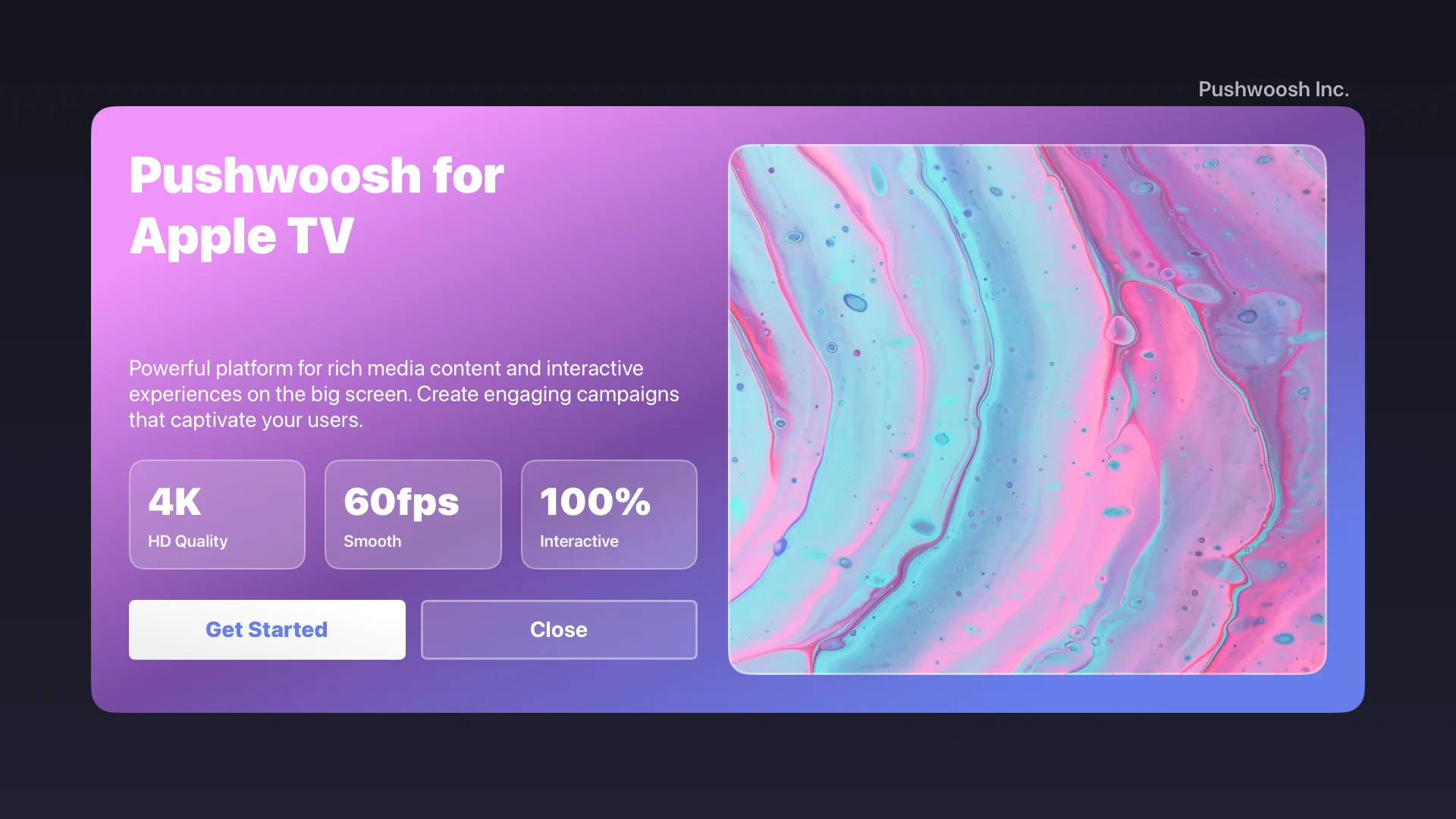
ภาพหน้าจอแสดงเนื้อหา Rich Media ที่แสดงบน Apple TV พร้อมด้วย:
- เลย์เอาต์ HTML ที่กำหนดเองพร้อมพื้นหลังแบบไล่ระดับสี
- ปุ่มโต้ตอบที่ปรับให้เหมาะกับรีโมทคอนโทรลของ Apple TV
- การรองรับการนำทางด้วยโฟกัสสำหรับองค์ประกอบแบบโต้ตอบทั้งหมด