Модальные Rich Media для tvOS
Начиная с версии Pushwoosh SDK 6.11.0, у вас есть возможность отправлять модальные Rich Media на устройства tvOS (Apple TV).
Модальные Rich Media для tvOS предоставляют интерактивное отображение контента на основе HTML, оптимизированное для навигации с помощью пульта Apple TV. Rich Media можно настраивать, изменяя их положение, анимацию и поддержку навигации фокусом.
Для получения дополнительной информации о страницах Rich Media, пожалуйста, обратитесь к нашему руководству.
Установка
Anchor link toМодуль PushwooshTVOS является необязательным и может быть интегрирован в ваш проект tvOS с помощью Swift Package Manager или CocoaPods.
Swift Package Manager
Anchor link toДобавьте пакет Pushwoosh в ваш проект tvOS:
- В Xcode выберите File → Add Package Dependencies…
- Введите URL репозитория:
https://github.com/Pushwoosh/Pushwoosh-XCFramework - Выберите последнюю версию
- Добавьте следующие фреймворки в вашу цель tvOS:
- PushwooshFramework
- PushwooshCore
- PushwooshBridge
- PushwooshLiveActivities
- PushwooshTVOS
CocoaPods
Anchor link toДобавьте в ваш Podfile:
target 'YourTvOSApp' do  platform :tvos, '13.0'
  pod 'PushwooshXCFramework'  pod 'PushwooshXCFramework/PushwooshTVOS'end
Затем выполните:
pod installБазовая интеграция
Anchor link to1. Настройте Pushwoosh в вашем AppDelegate
Anchor link toИмпортируйте необходимые модули и настройте Pushwoosh с вашим кодом приложения:
import UIKitimport PushwooshTVOSimport PushwooshFramework
@mainclass AppDelegate: UIResponder, UIApplicationDelegate {
    func application(_ application: UIApplication, didFinishLaunchingWithOptions launchOptions: [UIApplication.LaunchOptionsKey: Any]?) -> Bool {
        // Configure Pushwoosh with your app code        Pushwoosh.TVoS.setAppCode("XXXXX-XXXXX")
        // Register for push notifications        Pushwoosh.TVoS.registerForTvPushNotifications()
        return true    }}
2. Обработайте регистрацию токена устройства
Anchor link toРеализуйте обработчик токена устройства для регистрации устройства в Pushwoosh:
func application(_ application: UIApplication, didRegisterForRemoteNotificationsWithDeviceToken deviceToken: Data) {    Pushwoosh.TVoS.registerForTvPushNotifications(withToken: deviceToken) { error in        if let error = error {            print("Failed to register: \(error)")        } else {            print("Successfully registered for push notifications")        }    }}
func application(_ application: UIApplication, didFailToRegisterForRemoteNotificationsWithError error: Error) {    Pushwoosh.TVoS.handleTvPushRegistrationFailure(error)}
3. Обработайте входящие push-уведомления
Anchor link toОбработайте входящие push-уведомления с Rich Media контентом:
func application(_ application: UIApplication,                 didReceiveRemoteNotification userInfo: [AnyHashable: Any],                 fetchCompletionHandler completionHandler: @escaping (UIBackgroundFetchResult) -> Void) {
// Handle push notification and display rich media if present if Pushwoosh.TVoS.handleTVOSPush(userInfo: userInfo) { completionHandler(.newData) } else { completionHandler(.noData) }}Конфигурация Rich Media
Anchor link toПозиционирование
Anchor link toМодальные Rich Media для tvOS можно разместить в пяти местах на экране:
// Center position (default)Pushwoosh.TVoS.configureRichMediaWith(position: .center, presentAnimation: .none, dismissAnimation: .none)
// Left side of the screenPushwoosh.TVoS.configureRichMediaWith(position: .left, presentAnimation: .fromLeft, dismissAnimation: .toLeft)
// Right side of the screenPushwoosh.TVoS.configureRichMediaWith(position: .right, presentAnimation: .fromRight, dismissAnimation: .toRight)
// Top of the screenPushwoosh.TVoS.configureRichMediaWith(position: .top, presentAnimation: .fromTop, dismissAnimation: .toTop)
// Bottom of the screenPushwoosh.TVoS.configureRichMediaWith(position: .bottom, presentAnimation: .fromBottom, dismissAnimation: .toBottom)
Доступные варианты позиционирования:
enum PWTVOSRichMediaPosition { case center // Content positioned at the center of the screen (default) case left // Content positioned at the left side of the screen case right // Content positioned at the right side of the screen case top // Content positioned at the top of the screen case bottom // Content positioned at the bottom of the screen}Анимации появления
Anchor link toУправляйте тем, как Rich Media контент появляется на экране:
enum PWTVOSRichMediaPresentAnimation { case none // No animation, content appears immediately (default) case fromTop // Content slides in from the top of the screen case fromBottom // Content slides in from the bottom of the screen case fromLeft // Content slides in from the left side of the screen case fromRight // Content slides in from the right side of the screen}Анимации скрытия
Anchor link toУправляйте тем, как Rich Media контент исчезает с экрана:
enum PWTVOSRichMediaDismissAnimation { case none // No animation, content disappears immediately (default) case toTop // Content slides out to the top of the screen case toBottom // Content slides out to the bottom of the screen case toLeft // Content slides out to the left side of the screen case toRight // Content slides out to the right side of the screen}Примеры конфигурации
Anchor link toНастройте Rich Media так, чтобы они появлялись слева с анимацией:
Pushwoosh.TVoS.configureRichMediaWith( position: .left, presentAnimation: .fromBottom, dismissAnimation: .toLeft)Настройте Rich Media так, чтобы они появлялись внизу с анимацией скольжения:
Pushwoosh.TVoS.configureRichMediaWith( position: .bottom, presentAnimation: .fromBottom, dismissAnimation: .toBottom)Настройте Rich Media так, чтобы они появлялись по центру без анимации:
Pushwoosh.TVoS.configureRichMediaWith( position: .center, presentAnimation: .none, dismissAnimation: .none)Конфигурация кнопки закрытия
Anchor link toПо умолчанию кнопка «Закрыть» отображается внизу презентаций Rich Media. При необходимости эту кнопку можно скрыть:
// Hide the system Close buttonPushwoosh.TVoS.configureCloseButton(false)Навигация фокусом для Apple TV
Anchor link totvOS SDK автоматически управляет навигацией фокусом для пульта Apple TV. Интерактивные элементы (кнопки, ссылки) в вашем HTML-контенте Rich Media будут доступны для фокусировки с помощью пульта Apple TV.
Поведение фокуса
Anchor link to- Фокусируемые элементы автоматически обнаруживаются в HTML-контенте
- Пользователи могут перемещаться между элементами с помощью крестовины на пульте Apple TV
- Элемент, находящийся в фокусе, получает визуальное выделение
- Пользователи могут активировать сфокусированные элементы, нажав центральную кнопку на пульте
- Системная кнопка «Закрыть» (если она видна) также является частью навигации фокусом
Рекомендации по созданию HTML-контента
Anchor link toПри создании HTML-контента для Rich Media в tvOS:
- Используйте стандартные интерактивные HTML-элементы:
<button>,<a>,<input /> - Обеспечьте достаточное расстояние между интерактивными элементами для четкого обозначения фокуса
- Протестируйте свой контент в симуляторе Apple TV, чтобы проверить навигацию фокусом
- Рассмотрите возможность использования более крупных областей касания по сравнению с iOS (рекомендуемая минимальная ширина 250pt)
Полный пример интеграции
Anchor link toВот полный пример, демонстрирующий все функции:
import UIKitimport PushwooshTVOSimport PushwooshFramework
@mainclass AppDelegate: UIResponder, UIApplicationDelegate {
    func application(_ application: UIApplication,                     didFinishLaunchingWithOptions launchOptions: [UIApplication.LaunchOptionsKey: Any]?) -> Bool {
        // Configure Pushwoosh        Pushwoosh.TVoS.setAppCode("XXXXX-XXXXX")
        // Configure rich media appearance        Pushwoosh.TVoS.configureRichMediaWith(            position: .center,            presentAnimation: .fromBottom,            dismissAnimation: .toTop        )
        // Show close button (default)        Pushwoosh.TVoS.configureCloseButton(true)
        // Register for push notifications        Pushwoosh.TVoS.registerForTvPushNotifications()
        return true    }
    func application(_ application: UIApplication,                     didRegisterForRemoteNotificationsWithDeviceToken deviceToken: Data) {        Pushwoosh.TVoS.registerForTvPushNotifications(withToken: deviceToken) { error in            if let error = error {                print("Failed to register: \(error)")            } else {                print("Successfully registered")            }        }    }
    func application(_ application: UIApplication,                     didFailToRegisterForRemoteNotificationsWithError error: Error) {        Pushwoosh.TVoS.handleTvPushRegistrationFailure(error)    }
    func application(_ application: UIApplication,                     didReceiveRemoteNotification userInfo: [AnyHashable: Any],                     fetchCompletionHandler completionHandler: @escaping (UIBackgroundFetchResult) -> Void) {
        if Pushwoosh.TVoS.handleTVOSPush(userInfo: userInfo) {            completionHandler(.newData)        } else {            completionHandler(.noData)        }    }}
Устранение неполадок
Anchor link toПроблемы с навигацией фокусом
Anchor link toЕсли навигация фокусом не работает должным образом:
- Убедитесь, что ваш HTML-контент использует стандартные интерактивные элементы (
<button>,<a>) - Протестируйте в симуляторе Apple TV, чтобы проверить поведение фокуса
- Убедитесь, что интерактивные элементы имеют достаточный размер и расстояние между собой
- Проверьте, что ваш HTML/CSS не мешает состояниям фокуса
Пример на реальном устройстве
Anchor link toВот как Rich Media выглядит на реальном устройстве Apple TV:
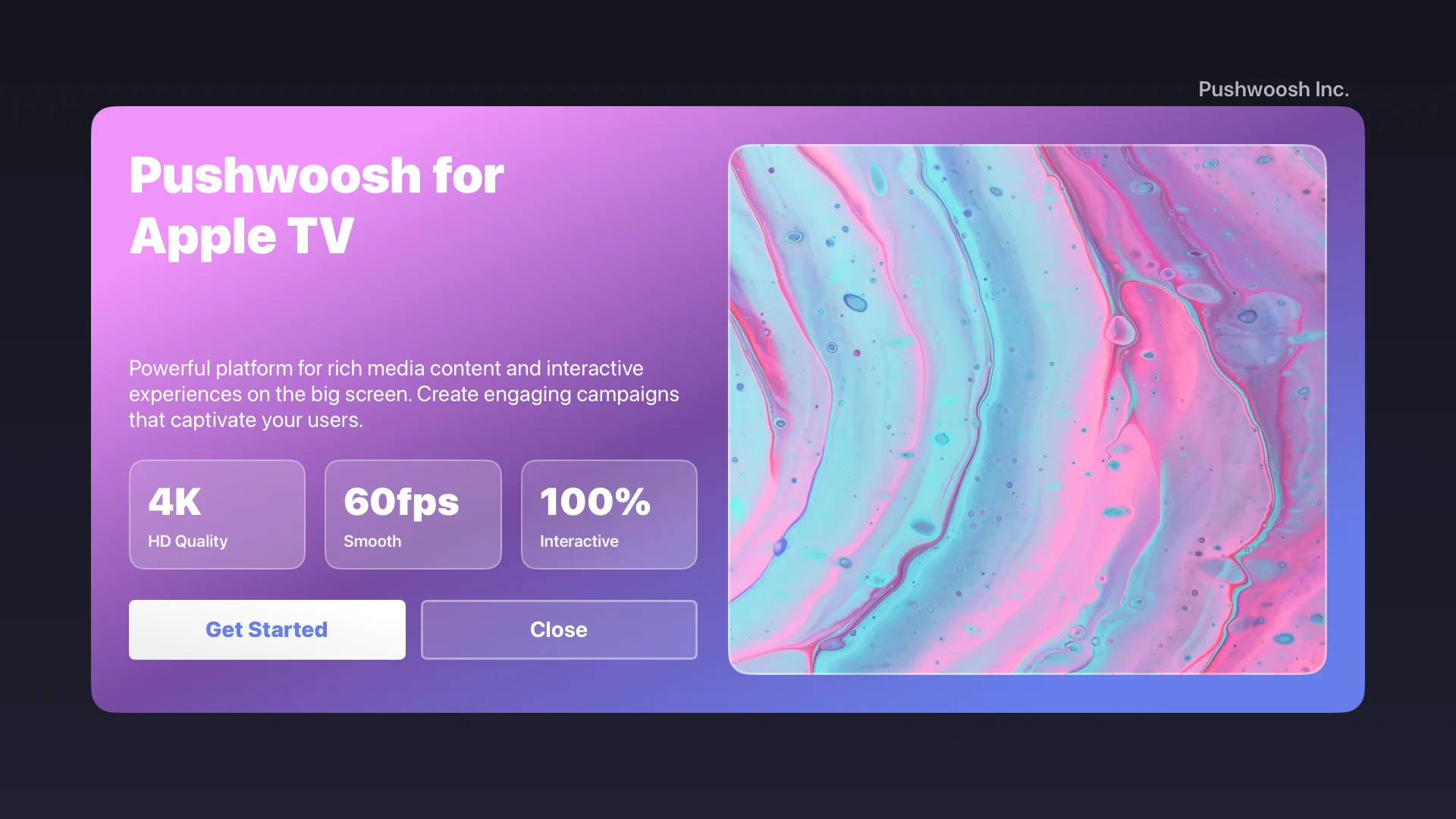
На скриншоте показан Rich Media контент, отображаемый на Apple TV с:
- Пользовательский HTML-макет с градиентными фонами
- Интерактивные кнопки, оптимизированные для пульта Apple TV
- Поддержка навигации фокусом для всех интерактивных элементов