HTTP वेबसाइटों के लिए Chrome और Firefox वेब पुश
कॉन्फ़िगरेशन
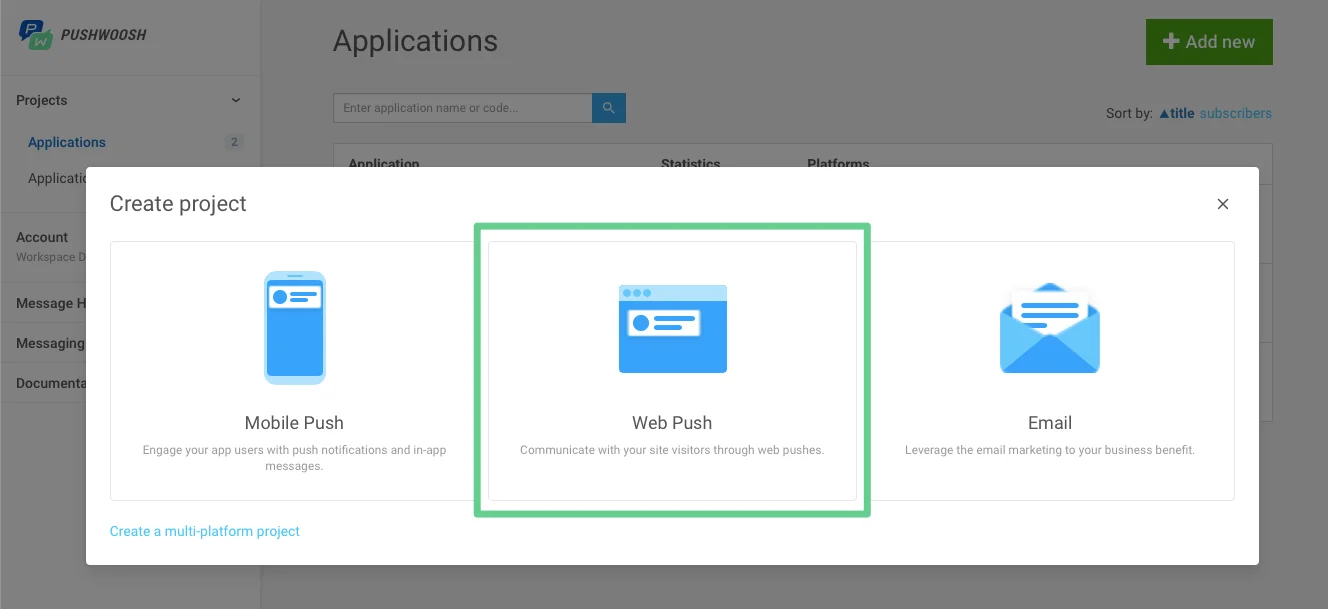
Anchor link to- प्रोजेक्ट बनाते समय वेब पुश विकल्प चुनें।
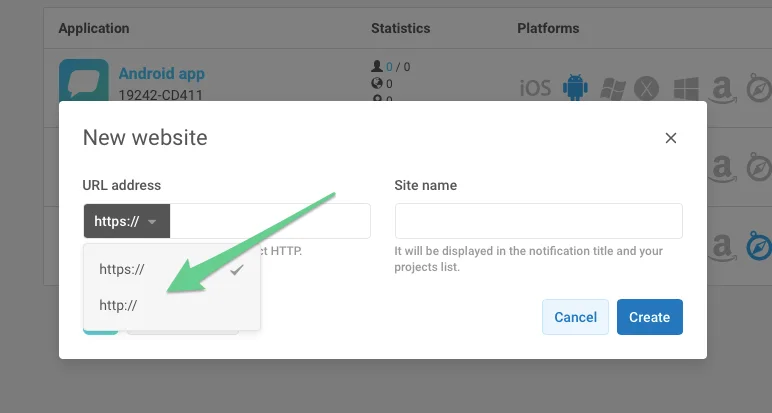
- http चुनें, अपनी साइट का URL और प्रोजेक्ट का नाम दर्ज करें।
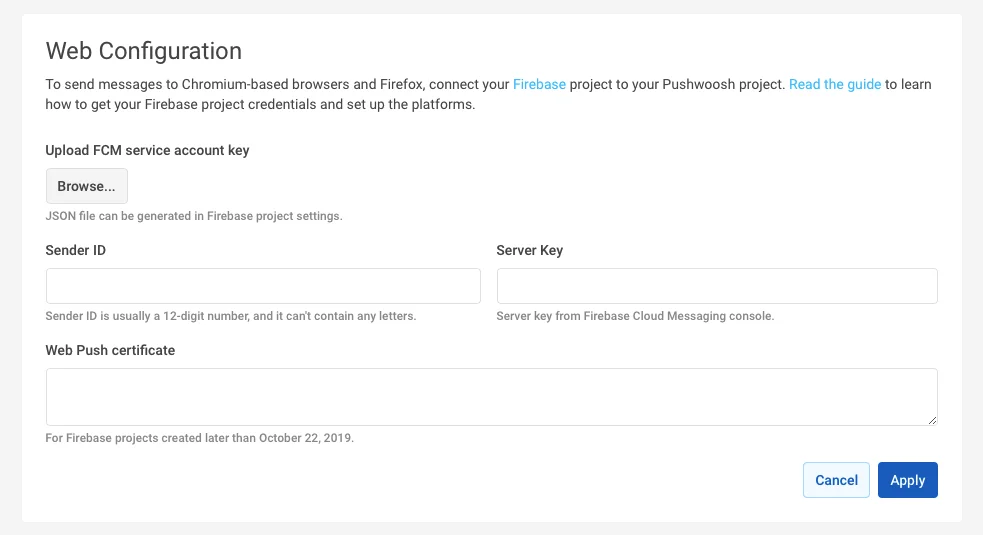
- अपने FCM प्रोजेक्ट क्रेडेंशियल्स के साथ Chrome और Firefox दोनों को कॉन्फ़िगर करें।
इंटीग्रेशन
Anchor link to1. अपनी वेबसाइट की रूट डायरेक्टरी में निम्नलिखित सामग्री के साथ pushwoosh-web-pushes-http-sdk.js फ़ाइल बनाएँ:
var pushwoosh = {  PUSHWOOSH_APPLICATION_CODE: 'XXXX-XXXX',  PUSHWOOSH_APPLICATION_CODE_GET_PARAMETER: 'pw_application_code',  init: function (applicationCode) {    this.PUSHWOOSH_APPLICATION_CODE = applicationCode;    window.addEventListener('message', this.pwReceiveMessage, false);  },  tryInitUsingGetParameter: function () {    var applicationCode = this.getQueryVariable(this.PUSHWOOSH_APPLICATION_CODE_GET_PARAMETER);    console.log(applicationCode);    if (applicationCode) {      this.init(applicationCode);    }  },  pwReceiveMessage: function (event) {    if (event.data == 'allowPushNotifications') {      localStorage.setItem('pwAllowPushNotifications', true);    }  },  isBrowserChrome: function () {    return navigator.userAgent.toLowerCase().indexOf('chrome') > -1;  },  isBrowserFirefox: function () {    return navigator.userAgent.toLowerCase().indexOf('firefox') > -1;  },  isBrowserSafari: function () {    return navigator.userAgent.toLowerCase().indexOf('safari') > -1 && !this.isBrowserChrome();  },  isBrowserSupported: function () {    return this.isBrowserChrome() || this.isBrowserFirefox();  },  subscribeAtStart: function () {    if (this.isBrowserSupported()) {      if (null === localStorage.getItem('pwAllowPushNotifications')) {        this.showSubscriptionWindow();      }    }  },  isSubscribedForPushNotifications: function () {    return true == localStorage.getItem('pwAllowPushNotifications');  },  showSubscriptionWindow: function () {    if (this.isBrowserSupported()) {      var windowWidth = screen.width / 2;      var windowHeight = screen.height / 2;
      var windowLeft = screen.width / 2 - windowWidth / 2;      var windowRight = screen.height / 2 - windowHeight / 2;
      var URL = 'https://' + this.PUSHWOOSH_APPLICATION_CODE + '.chrome.pushwoosh.com/';      var pwSubscribeWindow = window.open(URL, '_blank', 'width=' + windowWidth + ',height=' + windowHeight + ',resizable=yes,scrollbars=yes,status=yes,left=' + windowLeft + ',top=' + windowRight);    }  },  getQueryVariable: function (variable) {    // document.currentScript won't work if this code is called from function in event lister    if (document.currentScript) {      var urlParts = document.currentScript.src.split('?');      if (typeof urlParts[1] !== 'undefined') {        var vars = urlParts[1].split('&');        for (var i = 0; i < vars.length; i++) {          var pair = vars[i].split('=');          if (pair[0] == variable) {            return pair[1];          }        }      }    }    else {      console.error('Cannot get current script address');    }    return null;  }};pushwoosh.tryInitUsingGetParameter();
2. पिछली फ़ाइल को अपनी वेबसाइट में शामिल करें और XXXXX-XXXXX के बजाय एप्लिकेशन कोड का उपयोग करके इसे इनिशियलाइज़ करें।
<!--[if !IE]><!--> <script src="/pushwoosh-web-pushes-http-sdk.js?pw_application_code=XXXXX-XXXXX"></script><!--<![endif]-->3. पुश सब्सक्रिप्शन बटन बनाने के लिए, निम्नलिखित का उपयोग करें:
<button onclick="pushwoosh.showSubscriptionWindow()">Subscribe to push notifications</button>4. वैकल्पिक रूप से, यदि आप चाहते हैं कि नोटिफिकेशन सब्सक्रिप्शन स्वचालित रूप से पॉप अप हों (उपरोक्त #4 के विपरीत), तो निम्नलिखित का उपयोग करें:
<script>pushwoosh.subscribeAtStart();</script>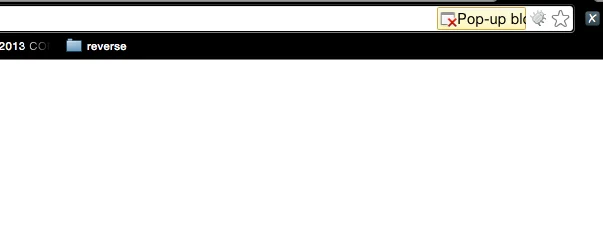
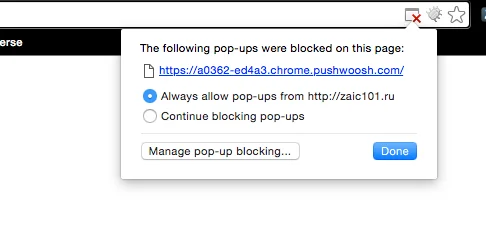
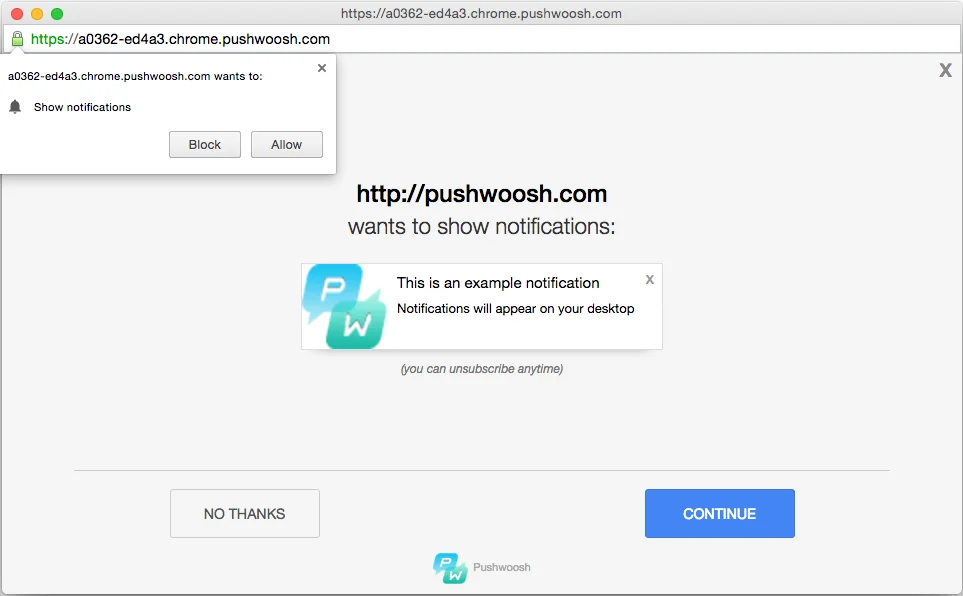
परिणामस्वरूप, उपयोगकर्ता को वेबसाइट से पुश नोटिफिकेशन के लिए सब्सक्राइब करने के लिए प्रेरित किया जाएगा: