iOS ऐप क्लिप्स
ऐप क्लिप्स उपयोगकर्ताओं को आपका पूरा ऐप डाउनलोड किए बिना किसी कार्य को जल्दी से पूरा करने देते हैं। Pushwoosh के साथ, आप ऐप क्लिप उपयोगकर्ताओं को पुश नोटिफिकेशन भेज सकते हैं — iOS ऐप क्लिप खोलने पर स्वचालित रूप से 8 घंटे की नोटिफिकेशन एक्सेस प्रदान करता है।
आपको क्या चाहिए
Anchor link to- Pushwoosh iOS SDK 7.0.33+
- Xcode 15+
- आपके ऐप क्लिप के लिए एक अलग Pushwoosh एप्लीकेशन (अलग बंडल आईडी = अलग ऐप)
- परीक्षण के लिए एक वास्तविक डिवाइस (पुश टोकन सिम्युलेटर पर काम नहीं करते हैं)
1. एक Pushwoosh एप्लीकेशन बनाएं
Anchor link toआपके ऐप क्लिप का एक अलग बंडल आईडी (जैसे com.yourapp.Clip) होता है, इसलिए इसे अपनी APNs कुंजी के साथ एक अलग Pushwoosh ऐप की आवश्यकता होती है।
- Pushwoosh कंट्रोल पैनल पर जाएं
- ऐप क्लिप बंडल आईडी के साथ एक नई एप्लीकेशन बनाएं
- अपनी APNs प्रमाणीकरण कुंजी अपलोड करें
- एप्लीकेशन कोड और API टोकन कॉपी करें
2. एक ऐप क्लिप टारगेट बनाएं
Anchor link to- Xcode में: File → New → Target → App Clip
- ऐप क्लिप टारगेट में Push Notifications क्षमता जोड़ें
क्षमताओं को जोड़ने के विस्तृत स्क्रीनशॉट के लिए, बेसिक इंटीग्रेशन गाइड देखें।
3. Pushwoosh फ्रेमवर्क जोड़ें
Anchor link toऐप क्लिप टारगेट के Build Phases → Link Binary With Libraries में, जोड़ें:
PushwooshFramework.frameworkPushwooshCore.frameworkPushwooshBridge.framework
4. Info.plist कॉन्फ़िगर करें
Anchor link to<!-- Pushwoosh --><key>Pushwoosh_APPID</key><string>XXXXX-XXXXX</string><key>Pushwoosh_API_TOKEN</key><string>YOUR_API_TOKEN</string>
<!-- अल्पकालिक पुश (8-घंटे का ऑटो-ग्रांट, कोई डायलॉग नहीं) --><key>NSAppClip</key><dict> <key>NSAppClipRequestEphemeralUserNotification</key> <true/> <key>NSAppClipRequestLocationConfirmation</key> <false/></dict>
<key>UIBackgroundModes</key><array> <string>remote-notification</string></array>5. SDK को इनिशियलाइज़ करें
Anchor link toimport SwiftUIimport PushwooshFramework
class AppClipDelegate: NSObject, UIApplicationDelegate, PWMessagingDelegate {
func application(_ application: UIApplication, didFinishLaunchingWithOptions launchOptions: [UIApplication.LaunchOptionsKey: Any]? = nil) -> Bool { Pushwoosh.configure.delegate = self Pushwoosh.configure.registerForPushNotifications() return true }
func application(_ application: UIApplication, didRegisterForRemoteNotificationsWithDeviceToken deviceToken: Data) { Pushwoosh.configure.handlePushRegistration(deviceToken) }
func application(_ application: UIApplication, didFailToRegisterForRemoteNotificationsWithError error: Error) { Pushwoosh.configure.handlePushRegistrationFailure(error as NSError) }
func application(_ application: UIApplication, didReceiveRemoteNotification userInfo: [AnyHashable: Any], fetchCompletionHandler completionHandler: @escaping (UIBackgroundFetchResult) -> Void) { Pushwoosh.configure.handlePushReceived(userInfo) completionHandler(.noData) }
func pushwoosh(_ pushwoosh: Pushwoosh, onMessageOpened message: PWMessage) { print("Push opened: \(message.payload ?? [:])") }}
@mainstruct YourAppClip: App { @UIApplicationDelegateAdaptor(AppClipDelegate.self) var appDelegate
var body: some Scene { WindowGroup { ContentView() } }}import UIKitimport PushwooshFramework
@mainclass AppDelegate: UIResponder, UIApplicationDelegate, PWMessagingDelegate {
func application(_ application: UIApplication, didFinishLaunchingWithOptions launchOptions: [UIApplication.LaunchOptionsKey: Any]?) -> Bool { Pushwoosh.configure.delegate = self Pushwoosh.configure.registerForPushNotifications() return true }
func application(_ application: UIApplication, didRegisterForRemoteNotificationsWithDeviceToken deviceToken: Data) { Pushwoosh.configure.handlePushRegistration(deviceToken) }
func application(_ application: UIApplication, didFailToRegisterForRemoteNotificationsWithError error: Error) { Pushwoosh.configure.handlePushRegistrationFailure(error as NSError) }
func application(_ application: UIApplication, didReceiveRemoteNotification userInfo: [AnyHashable: Any], fetchCompletionHandler completionHandler: @escaping (UIBackgroundFetchResult) -> Void) { Pushwoosh.configure.handlePushReceived(userInfo) completionHandler(.noData) }
func pushwoosh(_ pushwoosh: Pushwoosh, onMessageOpened message: PWMessage) { print("Push opened: \(message.payload ?? [:])") }}अल्पकालिक अनुमतियों के साथ, iOS स्वचालित रूप से 8 घंटे के लिए पुश एक्सेस प्रदान करता है। यदि आप अनुमति डायलॉग दिखाए बिना अल्पकालिक मोड का उपयोग करना चाहते हैं, तो Pushwoosh.configure.registerForPushNotifications() के बजाय सीधे UIApplication.shared.registerForRemoteNotifications() को कॉल करें।
स्थायी पुश अनुमति का अनुरोध करने के लिए (मानक डायलॉग), ऊपर दिखाए अनुसार Pushwoosh.configure.registerForPushNotifications() का उपयोग करें।
अल्पकालिक पुश अनुमतियाँ
Anchor link toजब कोई उपयोगकर्ता आपका ऐप क्लिप खोलता है, तो iOS बिना पूछे 8 घंटे के लिए पुश नोटिफिकेशन एक्सेस प्रदान करता है। 8 घंटे के बाद, अनुमति समाप्त हो जाती है। उपयोगकर्ता को और 8 घंटे पाने के लिए ऐप क्लिप को फिर से खोलना होगा।
8 घंटे के लिए अनुमति डायलॉग दिखाए बिना पुश टोकन प्राप्त करने के लिए:
UIApplication.shared.registerForRemoteNotifications()स्थायी पुश टोकन प्राप्त करने के लिए (मानक अनुमति डायलॉग दिखाता है):
Pushwoosh.configure.registerForPushNotifications()सीमाएं
Anchor link to| सीमा | विवरण |
|---|---|
| कोई रिच नोटिफिकेशन नहीं | ऐप क्लिप्स में नोटिफिकेशन सर्विस एक्सटेंशन शामिल नहीं हो सकता — कोई चित्र नहीं, कोई कम्युनिकेशन नोटिफिकेशन नहीं |
| आकार सीमा | 15 MB (iOS 16) / 50 MB (iOS 17+) |
| 8-घंटे की पुश विंडो | अल्पकालिक अनुमति 8 घंटे के बाद समाप्त हो जाती है |
| कोई बैकग्राउंड प्रोसेसिंग नहीं | साइलेंट पुश की कार्यक्षमता सीमित है |
| डिवाइस आईडी | identifierForVendor शून्य लौटाता है — SDK इसे स्वचालित रूप से संभालता है (7.0.33+) |
यह कैसा दिखता है
Anchor link to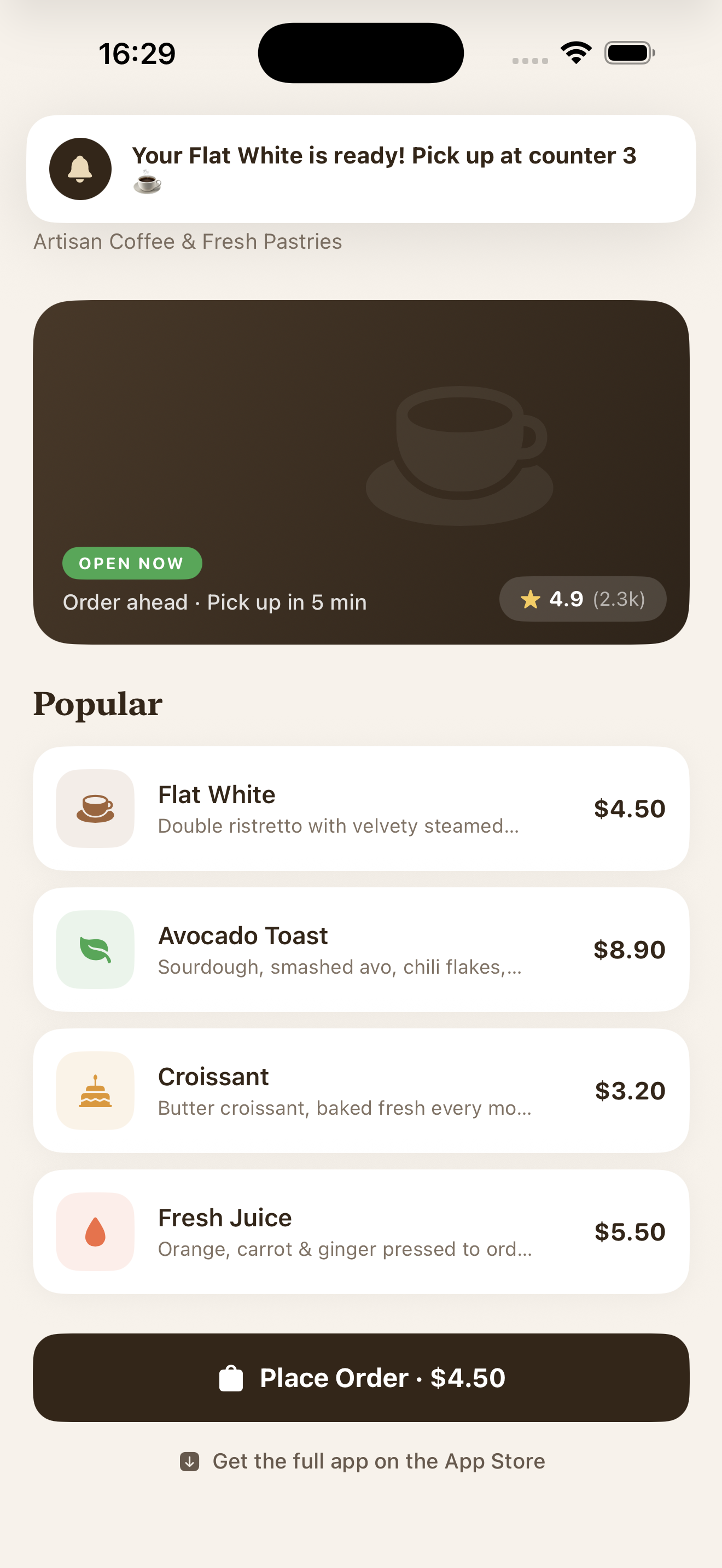
अल्पकालिक अनुमतियों के साथ एक ऐप क्लिप में प्राप्त पुश नोटिफिकेशन