Understanding device identifiers in Pushwoosh
There are two ways to identify a particular device registered with Pushwoosh – a hardware ID (HWID) and a push token.
HWID
Anchor link toHWID (or Hardware ID) is a key identifier assigned to the device by Pushwoosh SDK.
Android HWID
Anchor link toFor Android devices, HWID is a random set of letters and digits generated by the first app with the Pushwoosh SDK installed on the device. It’s later shared with other apps that contain Pushwoosh SDK so that all such apps will have the same HWID as a result.
However, if a user deletes all the apps with Pushwoosh SDK and then re-installs some, a new HWID will be generated once again.
Android HWID example: 5dcaed99-e1e0-44dc-bde2-b96188b99e9e
iOS HWID
Anchor link toFor iOS devices, IDFV (Identifier for Vendor) is being used as a HWID of the device. It won’t change as long as there is at least one app from the same vendor installed on the device.
iOS HWID example (upper case only!): CBAF8ED1-17FB-49A3-73BD-DC79B63AEF93
Push token
Anchor link toPush token (device token) is a unique key for the app-device combination issued by the Apple or Google push notification gateways. It allows gateways and push notification providers to route messages and ensure the notification is delivered to the unique app-device combination for which it is intended.
iOS push token
Anchor link toiOS device push tokens are strings with 64 hexadecimal symbols. iOS push token example: 03df25c845d460bcdad7802d2vf6fc1dfde97283bf75cc993eb6dca835ea2e2f
Android push token
Anchor link toAndroid device push tokens can differ in length (usually below 255 characters) and typically start with APA91b…; however, it might also have a colon-separated prefix. Android push token example: APA91bFoi3lMMre9G3XzR1LrF4ZT82_15MsMdEICogXSLB8-MrdkRuRQFwNI5u8Dh0cI90ABD3BOKnxkEla8cGdisbDHl5cVIkZah5QUhSAxzx4Roa7b4xy9tvx9iNSYw-eXBYYd8k1XKf8Q_Qq1X9-x-U-Y79vdPq
Collecting logs, HWID, and push token from a device
Anchor link toFirst, if you have access to your app’s source code, make sure that Pushwoosh_LOG_LEVEL in your app is set to VERBOSE. To do this, check the Pushwoosh_LOG_LEVEL string key in your Info.plist file. If not, skip to the next step. Here are the possible values for this key:
NONE- No logs from SDKERROR- Only display errors in the consoleWARNING- Also, display warningsINFO- Add informational messagesDEBUG- Add debug infoVERBOSE- All logs from SDK
The VERBOSE key value allows the Pushwoosh SDK to display important information regarding registration actions.
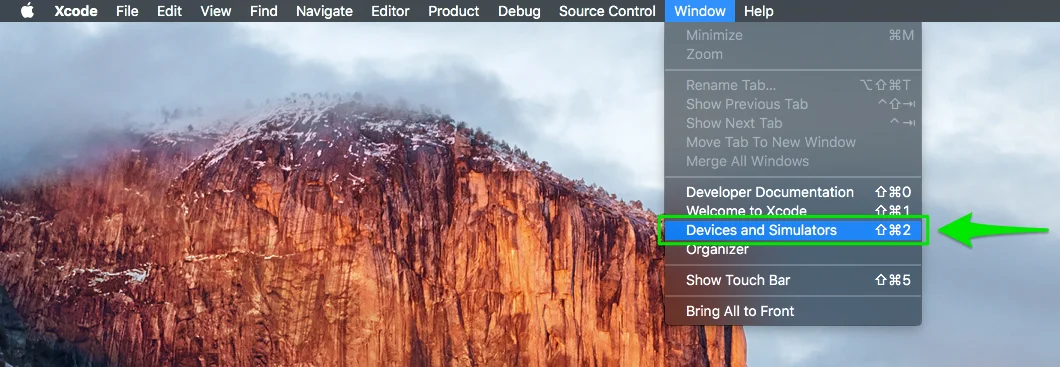
- Further, connect the device to your Mac and launch Xcode. Go to Window->Device and Simulators.
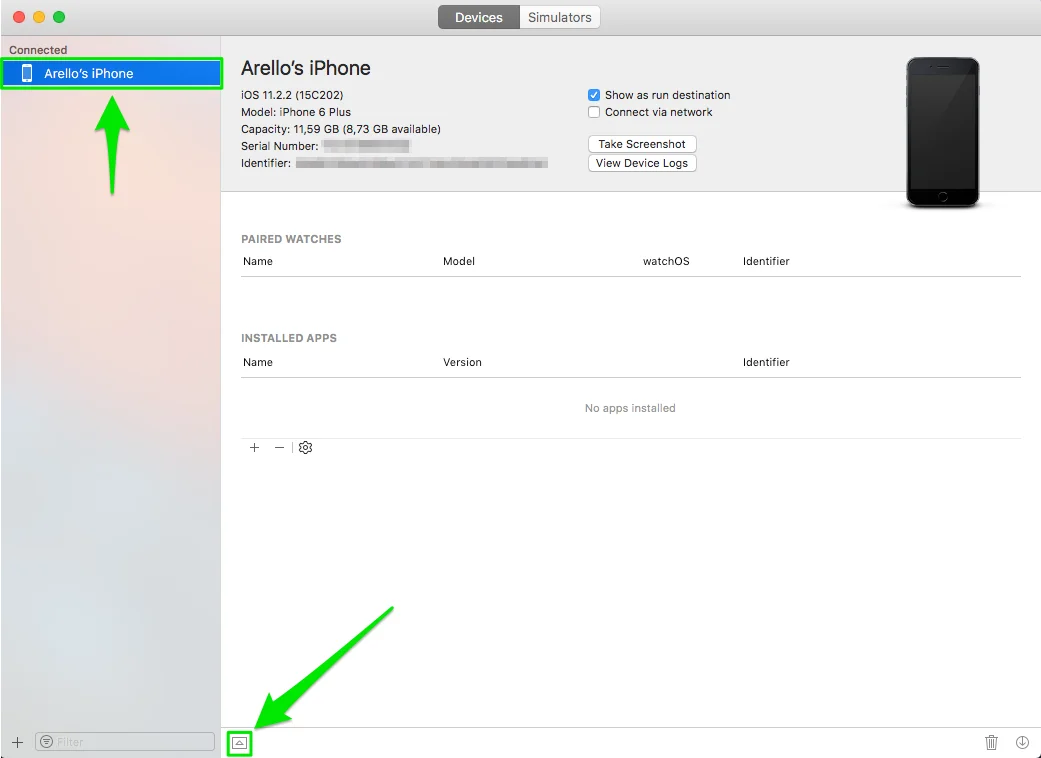
- In the window opened, select your connected device and click the up-triangle at the bottom left to see the device console:
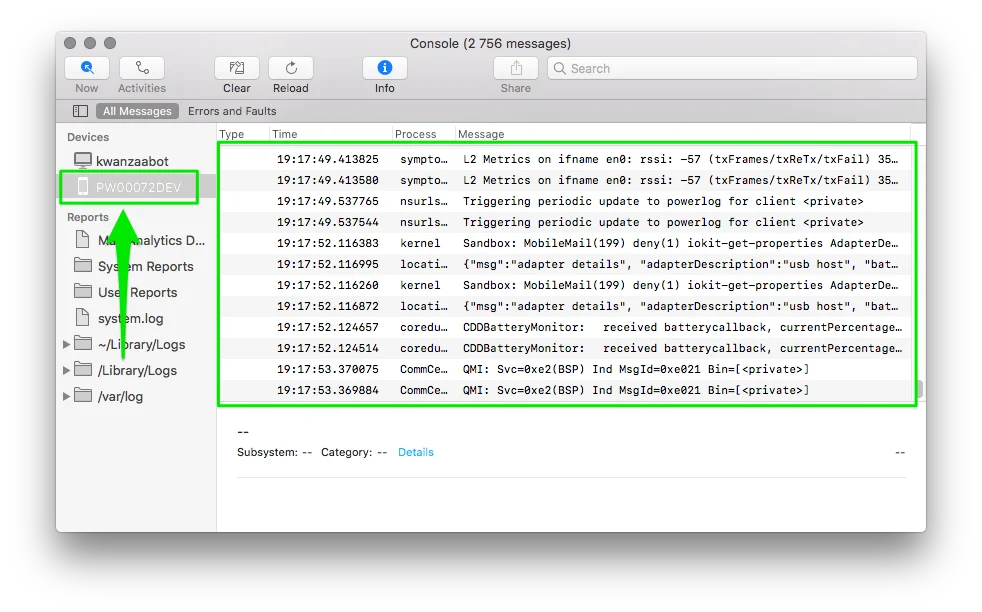
Starting from Xcode 9.3 version, the process of obtaining the device console log is slightly changed. All you need to do is to go to your Launchpad and start the “Console” application. Select your device in the left sidebar. That’s it!
-
Next, start your app on the device and wait for the dialog window. Allow push notifications for your app.
-
After these steps, select the entire device log from the console window and copy it to any text editor.
/registerDevice Pushwoosh API request is what you are looking for:
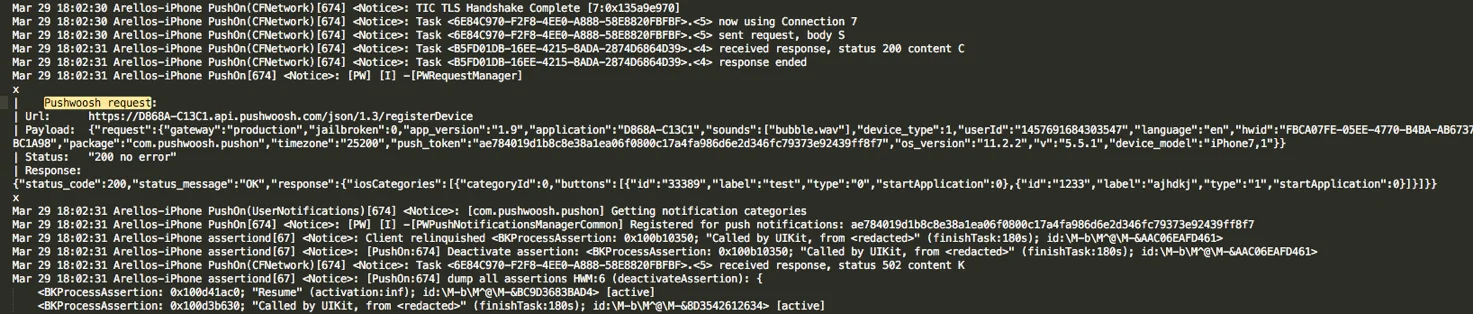
If the device is registered correctly, this request must contain the following parameters, including “hwid” and “push token” values:
x| Pushwoosh request:| Url: https://D868A-C13C1.api.pushwoosh.com/json/1.3/registerDevice| Payload: {"request":{"gateway":"production","jailbroken":0,"app_version":"1.9","application":"D868A-C13C1","sounds":["bubble.wav"],"device_type":1,"userId":"1457691684303547","language":"en","hwid":"FBCA07FE-05EE-4770-B4BA-AB6737BC1A98","package":"com.pushwoosh.pushon","timezone":"25200","push_token":"ae784019d1b8c8e38a1ea06f0800c17a4fa986d6e2d346fc79373e92439ff8f7","os_version":"11.2.2","v":"5.5.1","device_model":"iPhone7,1"}}| Status: "200 no error"| Response: {"status_code":200,"status_message":"OK","response":{"iosCategories":[{"categoryId":0,"buttons":[{"id":"33389","label":"test","type":"0","startApplication":0},{"id":"1233","label":"ajhdkj","type":"1","startApplication":0}]}]}}xThe notice with a push token of your device should present as well:
<Notice>: [PW] [I] -[PWPushNotificationsManagerCommon] Registered for push notifications: ae784019d1b8c8e38a1ea06f0800c17a4fa986d6e2d346fc79373e92439ff8f7Android
Anchor link to-
If you have access to the app’s source code, make sure that the Pushwoosh log level is set to
NOISE. To do so, addcom.pushwoosh.log_levelmeta data with the valueNOISEto theAndroidManifest.xml. -
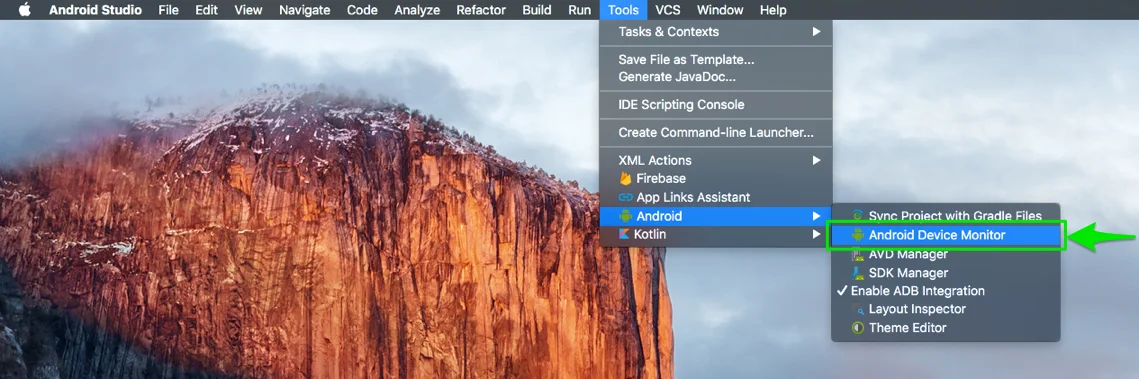
Next, run Android Studio on your Mac/PC and go to Tools -> Android -> Android Device Monitor.
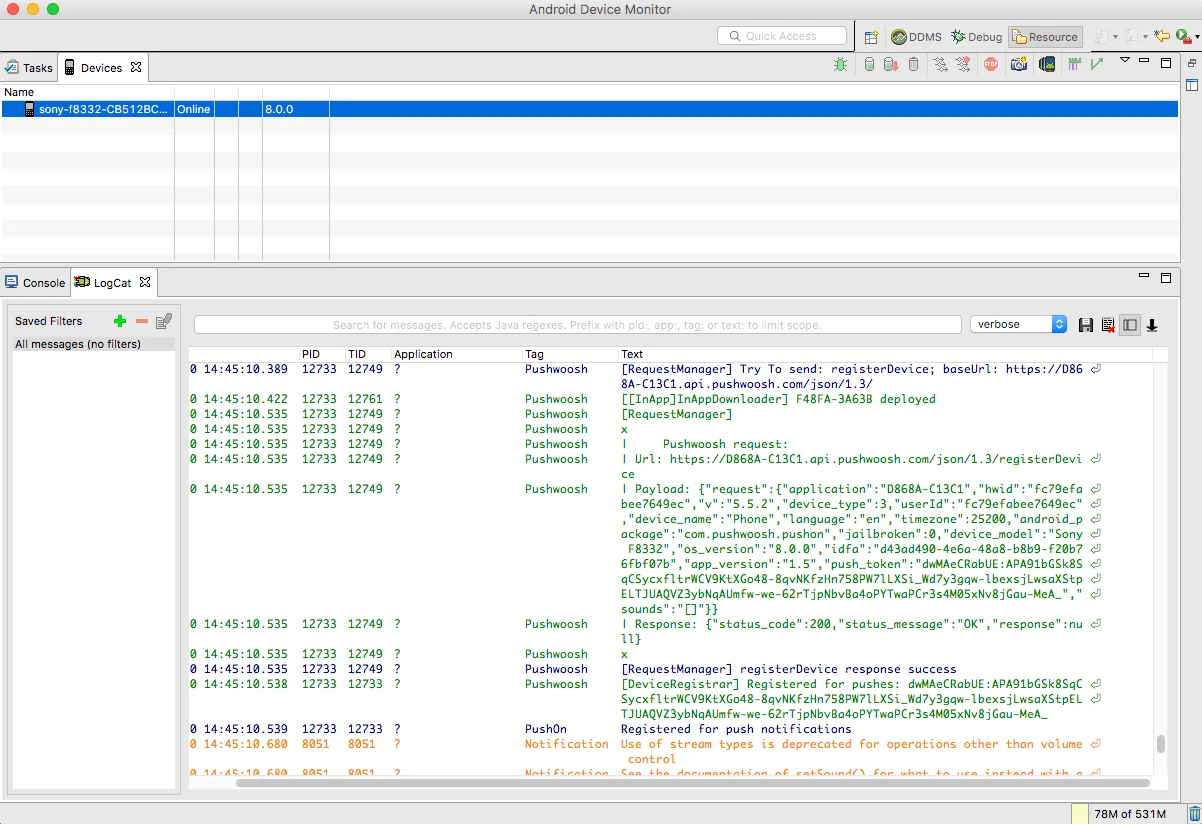
- Connect your device to the Mac/PC and launch the app. Wait about 30 seconds, select the entire device log from the console window and copy it to any text editor.
Please note that in the latest versions of Android Studio, you can also use the Logcat tool to obtain the device console log. Run Android Studio and go to View -> Tool Windows -> Logcat:
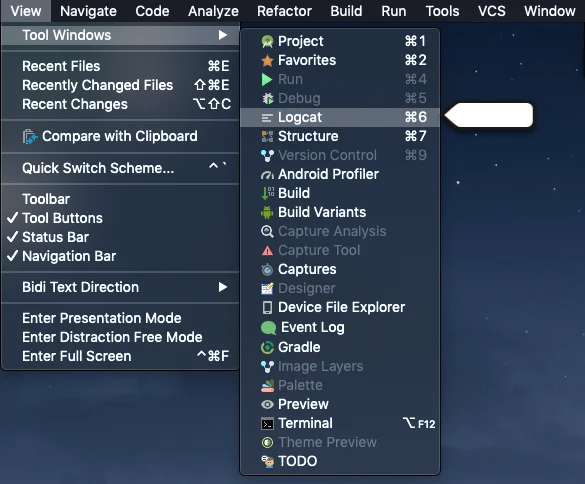
After that, you can locate the device log in the Logcat window:
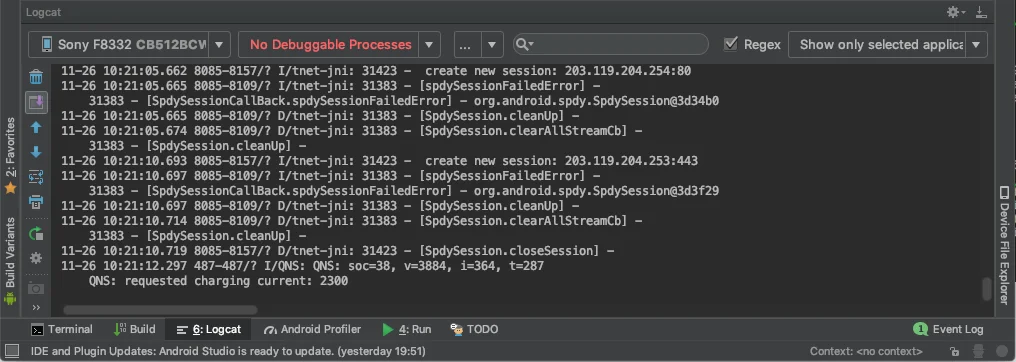
Here’s the example below, how the Pushwoosh /registerDevice API request looks like within the device console log:
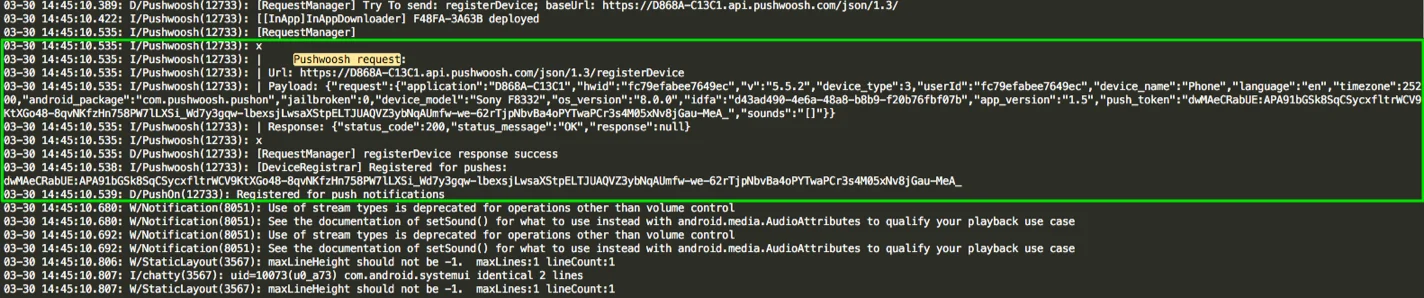
Find the “hwid” and “push token” params value in the request:
[RequestManager]x| Pushwoosh request:| Url: https://D868A-C13C1.api.pushwoosh.com/json/1.3/registerDevice| Payload: {"request":{"application":"D868A-C13C1","hwid":"fc79efabee7649ec","v":"5.5.2","device_type":3,"userId":"fc79efabee7649ec","device_name":"Phone","language":"en","timezone":25200,"android_package":"com.pushwoosh.pushon","jailbroken":0,"device_model":"Sony F8332","os_version":"8.0.0","idfa":"d43ad490-4e6a-48a8-b8b9-f20b76fbf07b","app_version":"1.5","push_token":"dwMAeCRabUE:APA91bGSk8SqCSycxfltrWCV9KtXGo48-8qvNKfzHn758PW7lLXSi_Wd7y3gqw-lbexsjLwsaXStpELTJUAQVZ3ybNqAUmfw-we-62rTjpNbvBa4oPYTwaPCr3s4M05xNv8jGau-MeA_","sounds":"[]"}}| Response: {"status_code":200,"status_message":"OK","response":null}x[RequestManager] registerDevice response successPush token is included in the device registration notice:
I/Pushwoosh(12733): [DeviceRegistrar] Registered for pushes: dwMAeCRabUE:APA91bGSk8SqCSycxfltrWCV9KtXGo48-8qvNKfzHn758PW7lLXSi_Wd7y3gqw-lbexsjLwsaXStpELTJUAQVZ3ybNqAUmfw-we-62rTjpNbvBa4oPYTwaPCr3s4M05xNv8jGau-MeA_03-30 14:45:10.539: D/PushOn(12733): Registered for push notificationsChrome (desktop)
Anchor link to-
Go to your website.
-
Right-click anywhere on the page and press “Inspect”.
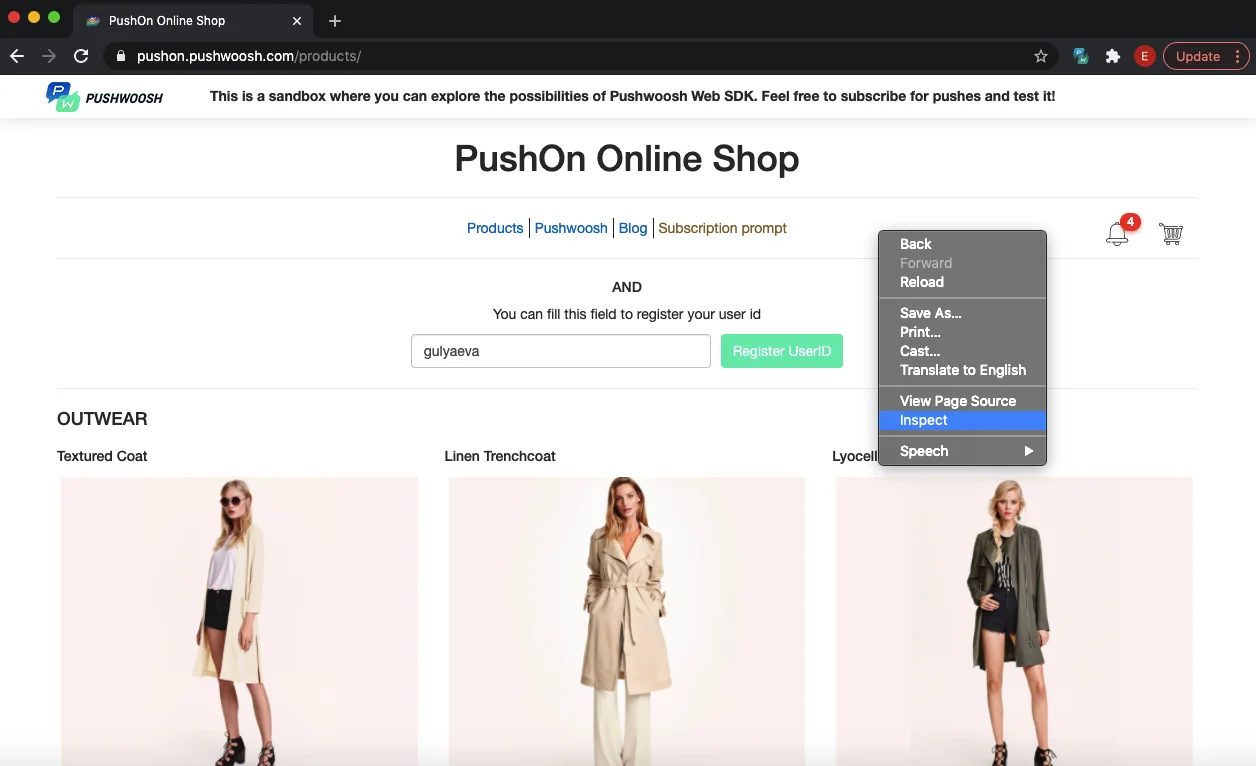
-
In the window opened, go to the “Application” tab.
-
Then, on the left sidebar, choose IndexedDB -> Pushwoosh_SDK_Store -> keyValue. Here, find the HWID and push token params.
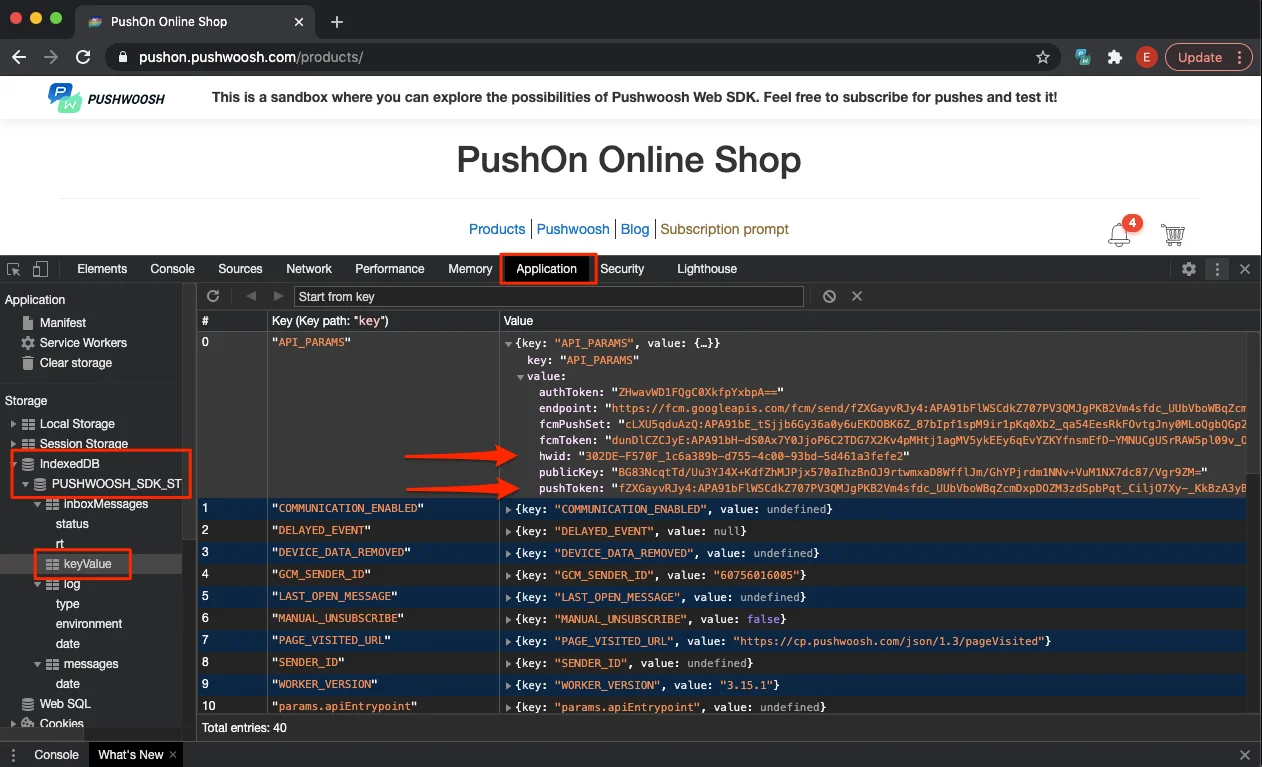
Chrome (mobile)
Anchor link to-
Connect your mobile device to the computer.
-
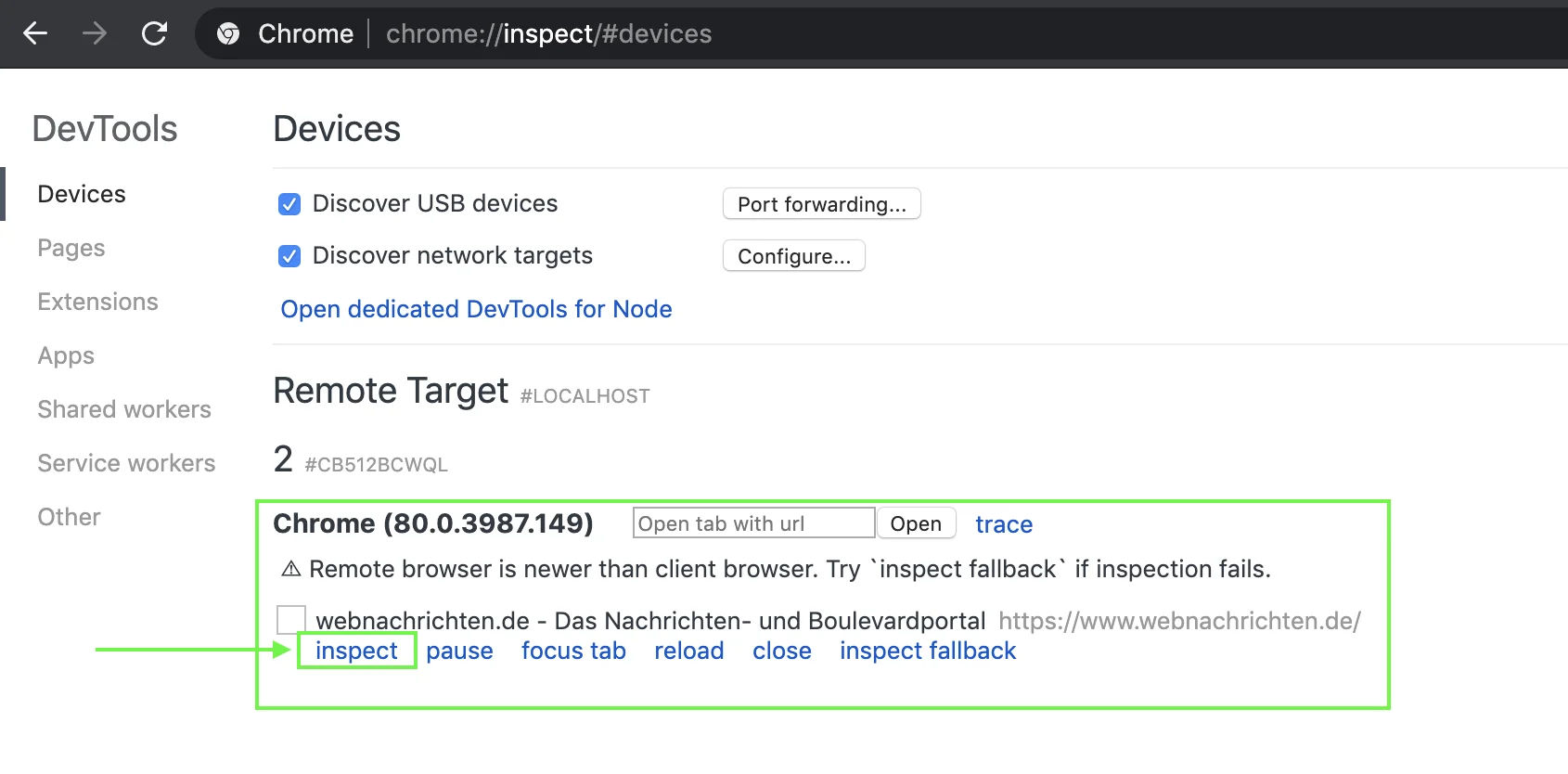
Go to chrome://inspect/#devices on your desktop Chrome.
-
Open your website on your mobile Chrome.
-
Once the website is opened on your mobile Chrome, you will see the corresponding page within the desktop Chrome page. Please take a look at the screenshot below:
-
Press the “Inspect” button highlighted in the screenshot above.
-
The following window will appear on your desktop Chrome. There, within the “Application” tab, open IndexedDB -> PUSHWOOSH_SDK_STORE. After this, click keyValue and open the API_PARAMS section:
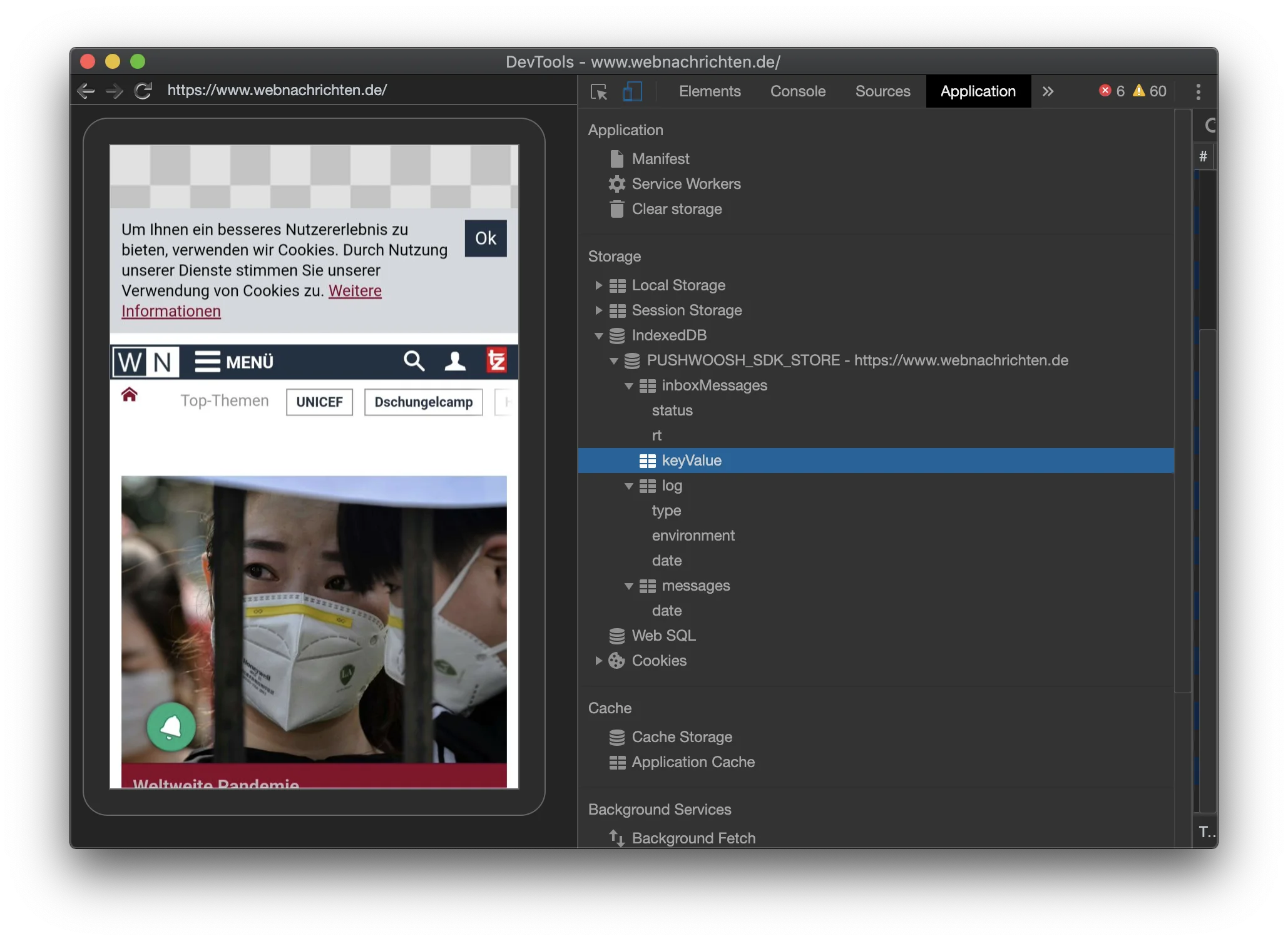
In the API_PARAMS section, you will find the “hwid” and “push token” parameters with their values.
Safari
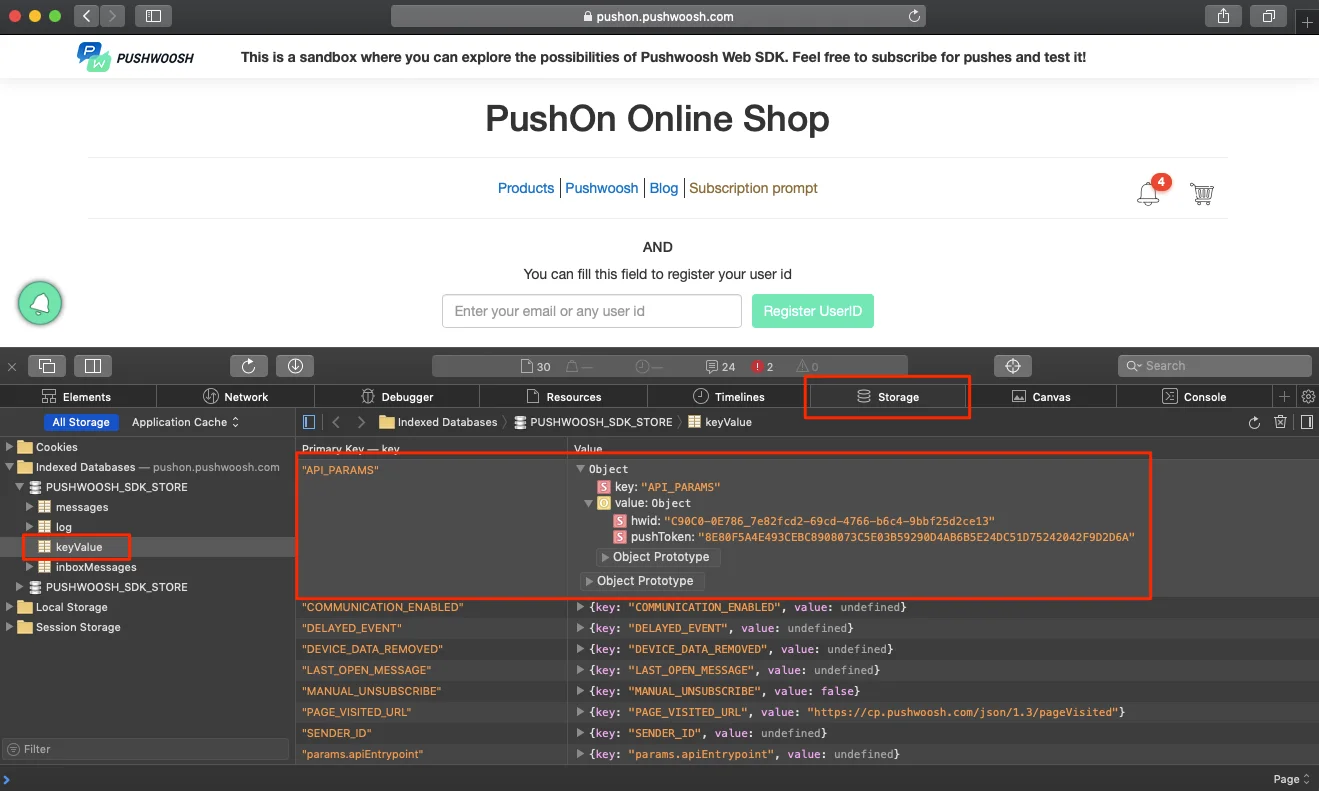
Anchor link to- Go to your website.
- Right-click anywhere on the page and select Inspect Element.
- Go to the Storage tab -> Indexed Databases -> PUSHWOOSH_SDK_STORE -> keyValue.
- Expand the API_PARAMS and find the “hwid” and “push token” values here.