Настройка Amazon Device Messaging
Чтобы отправлять push-уведомления на устройства Amazon, настройте платформу Amazon в Pushwoosh, используя ваши учетные данные ADM OAuth.
Получение Client ID и Client Secret от Amazon
Anchor link to- Войдите в консоль разработчика Amazon и откройте My Apps.
- Выберите ваше приложение (или создайте новое) и перейдите в App Services.
- В разделе Device Messaging выберите ваш профиль безопасности или создайте новый.
- Нажмите View Security Profile, затем откройте вкладку Web Settings.
- Скопируйте Client ID и нажмите Show Secret, чтобы отобразить Client Secret.
Подробнее о профилях безопасности и ключах API для вашего приложения см. в разделе Получение учетных данных (Amazon Device Messaging).
Настройка Amazon в вашем проекте Pushwoosh
Anchor link to- В вашем проекте Pushwoosh перейдите в Configure Platforms и нажмите Connect рядом с Amazon.
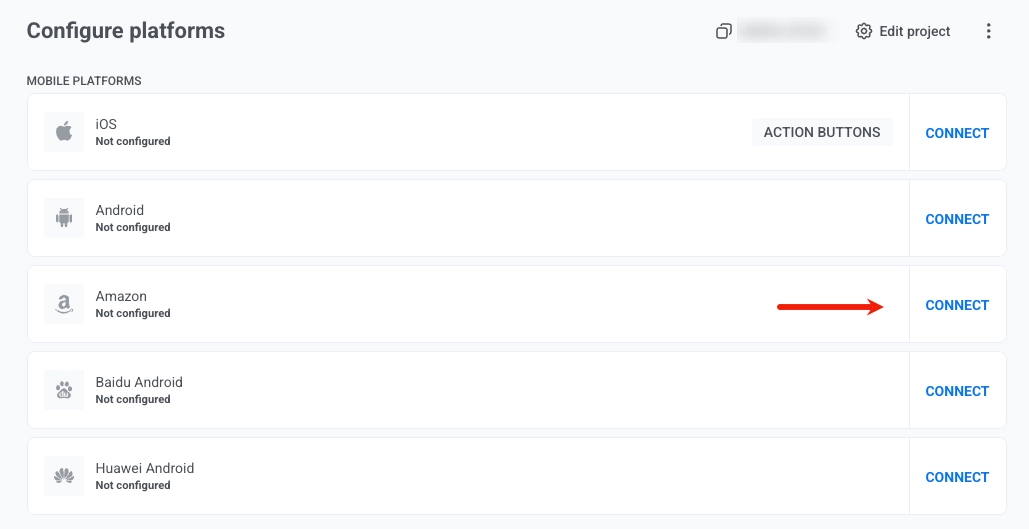
- В форме Amazon Device Messaging введите ваши учетные данные:
- CLIENT ID: вставьте Client ID из консоли разработчика Amazon.
- CLIENT SECRET: вставьте Client Secret из консоли разработчика Amazon.
- FRAMEWORK: выберите None, Native, Unity, Adobe AIR или React Native в зависимости от того, как вы интегрируете SDK.
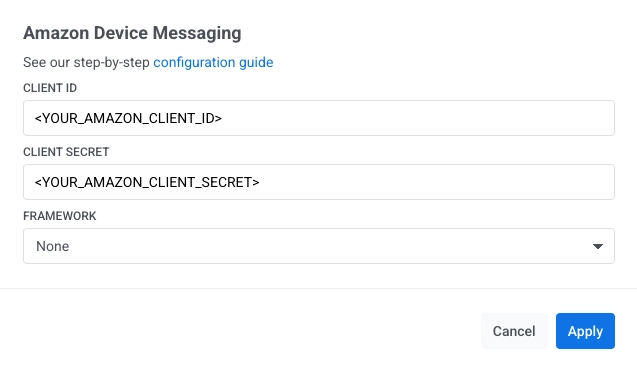
- Нажмите Apply.
Чтобы интегрировать Pushwoosh SDK в ваше приложение Amazon: