AMP वेब पुश
AMP लगभग तुरंत लोड होने वाले उपयोगकर्ता-प्रथम वेब पेज विकसित करने के लिए एक ओपन-सोर्स Google फ्रेमवर्क है।
AMP वेब पुश कंपोनेंट को अपने AMP वेब पेजों में एकीकृत करके, आप अपने ग्राहकों तक तब पहुंच सकते हैं जब वे अपने मोबाइल ब्राउज़र पर वेब सर्फ कर रहे हों।
अपनी वेबसाइट में AMP को एकीकृत करें
Anchor link toनिम्नलिखित फाइलों को अपनी वेबसाइट की रूट डायरेक्टरी में जोड़ें:
permission-dialog.html फ़ाइल में दो अनुकूलन योग्य ब्लॉक हैं:
<div class="subscribe" permission="default"> <p class="message"> {Subscribe to push notifications} </p></div><div class="blocked" permission="denied"> <p class="message"> {Unblock push notifications in your browser settings} </p></div>जहाँ:
{Subscribe to push notifications}— उपयोगकर्ताओं से पुश नोटिफिकेशन की अनुमति मांगने वाला एक CTA संदेश;{Unblock push notifications in your browser settings}— उपयोगकर्ताओं को उनके ब्राउज़र सेटिंग्स में पुश नोटिफिकेशन को अनब्लॉक करने के लिए प्रेरित करने वाला एक CTA संदेश (यदि पुश नोटिफिकेशन किसी उपयोगकर्ता द्वारा स्पष्ट रूप से ब्लॉक किए गए हैं)।
अनुमति संवाद की उपस्थिति को अनुकूलित करने के लिए, <head> टैग में निम्नलिखित कोड जोड़ें:
 <style amp-custom>    .subscribe {        /* your css here */    }
    .blocked {        /* your css here */    }</style>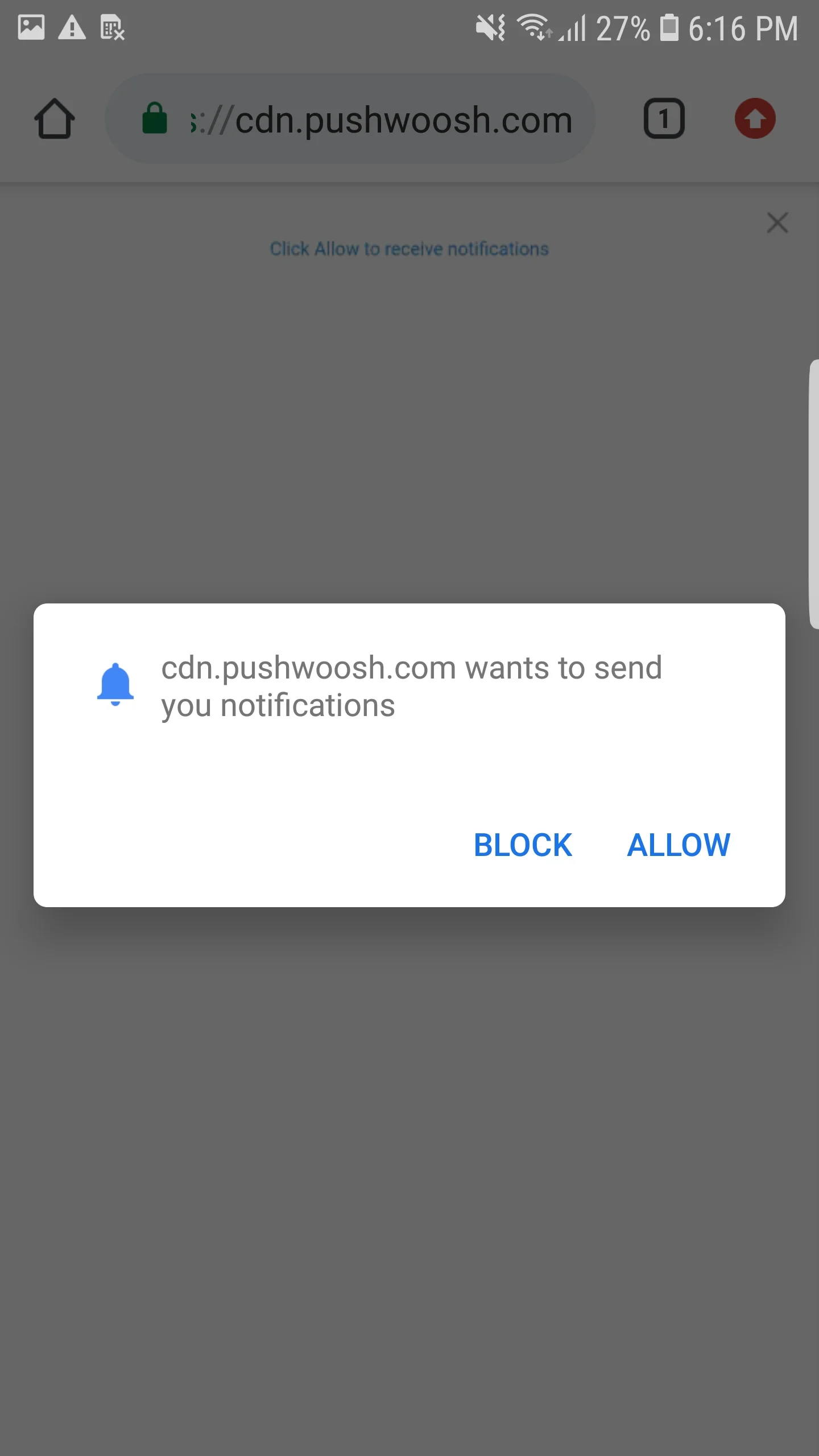
AMP वेब पुश को एकीकृत करें
Anchor link toAMP पेजों पर वेब पुश नोटिफिकेशन लागू करने के लिए, प्रत्येक AMP पेज में amp-web-push कंपोनेंट जोड़ें।
ऐसा करने के लिए, इन दो चरणों का पालन करें:
1. निम्नलिखित स्क्रिप्ट को <head> टैग में जोड़ें:
<head> ... <script async custom-element="amp-web-push" src="https://cdn.ampproject.org/v0/amp-web-push-0.1.js"></script> ...</head>2. निम्नलिखित कोड को <body> टैग में जोड़ें:
<body> <amp-web-push id="amp-web-push" layout="nodisplay" helper-iframe-url="https://{domain}/helper-iframe.html" permission-dialog-url="https://{domain}/permission-dialog.html"service-worker-url="https://{domain}/service-worker.js?applicationCode={applicationCode}&senderId={senderId}&applicationServerKey={applicationServerKey}" ></amp-web-push> ... <!-- Start Subscribe to notifications button --> <amp-web-push-widget visibility="unsubscribed" layout="fixed" width="250" height="80"> <button class="subscribe" on="tap:amp-web-push.subscribe"> {Text on Subscribe button} </button> </amp-web-push-widget> <!-- End the Subscribe to notifications button --> <!-- Start Unsubscribe from notifications button --> <amp-web-push-widget visibility="subscribed" layout="fixed" width="250" height="80"> <button class="unsubscribe" on="tap:amp-web-push.unsubscribe"> {Text on Unsubscribe button} </button> </amp-web-push-widget> <!-- End Unsubscribe from notifications button --> <!-- Start Fallback if a user blocks notifications --> <amp-web-push-widget visibility="blocked" layout="fixed" width="250" height="80"> <div class="fallback"> {Fallback if a user blocks notifications} </div> </amp-web-push-widget> <!-- End Fallback if a user blocks notifications -->...</body>जहाँ:
{domain}— आपकी वेबसाइट का URL,{applicationCode}— आपका Pushwoosh ऐप कोड,{senderId}— आपके Firebase कंसोल से प्रेषक आईडी,{applicationServerKey}— आपके Firebase कंसोल से सर्वर कुंजी,{Text on Subscribe button}— पुश नोटिफिकेशन सक्षम करने वाले बटन पर एक टेक्स्ट,{Text on Unsubscribe button}— पुश नोटिफिकेशन अक्षम करने वाले बटन पर एक टेक्स्ट,{Fallback if a user blocks notifications}— एक फ़ॉलबैक ब्लॉक जो तब प्रदर्शित होता है जब कोई उपयोगकर्ता पुश नोटिफिकेशन को ब्लॉक करता है।
बटनों की शैली को अनुकूलित करने के लिए, निम्नलिखित कोड को <head> टैग में जोड़ें:
<style amp-custom> amp-web-push-widget button.subscribe { /* your css here */ } amp-web-push-widget button.unsubscribe { /* your css here */ } amp-web-push-widget .fallback { /* your css here */ }</style>यह जांचने के लिए कि आपने सब कुछ सही किया है, कृपया https://search.google.com/test/amp का उपयोग करें।