MAUI Dotnet Geozones इंटीग्रेशन
Pushwoosh के साथ अपने MAUI .NET एप्लिकेशन में Geozones कार्यक्षमता को इंटीग्रेट करना सीधा है। शुरू करने के लिए इन चरणों का पालन करें:
- अपने सॉल्यूशन में Pushwoosh.DotNet.Geozones NuGet पैकेज जोड़ें
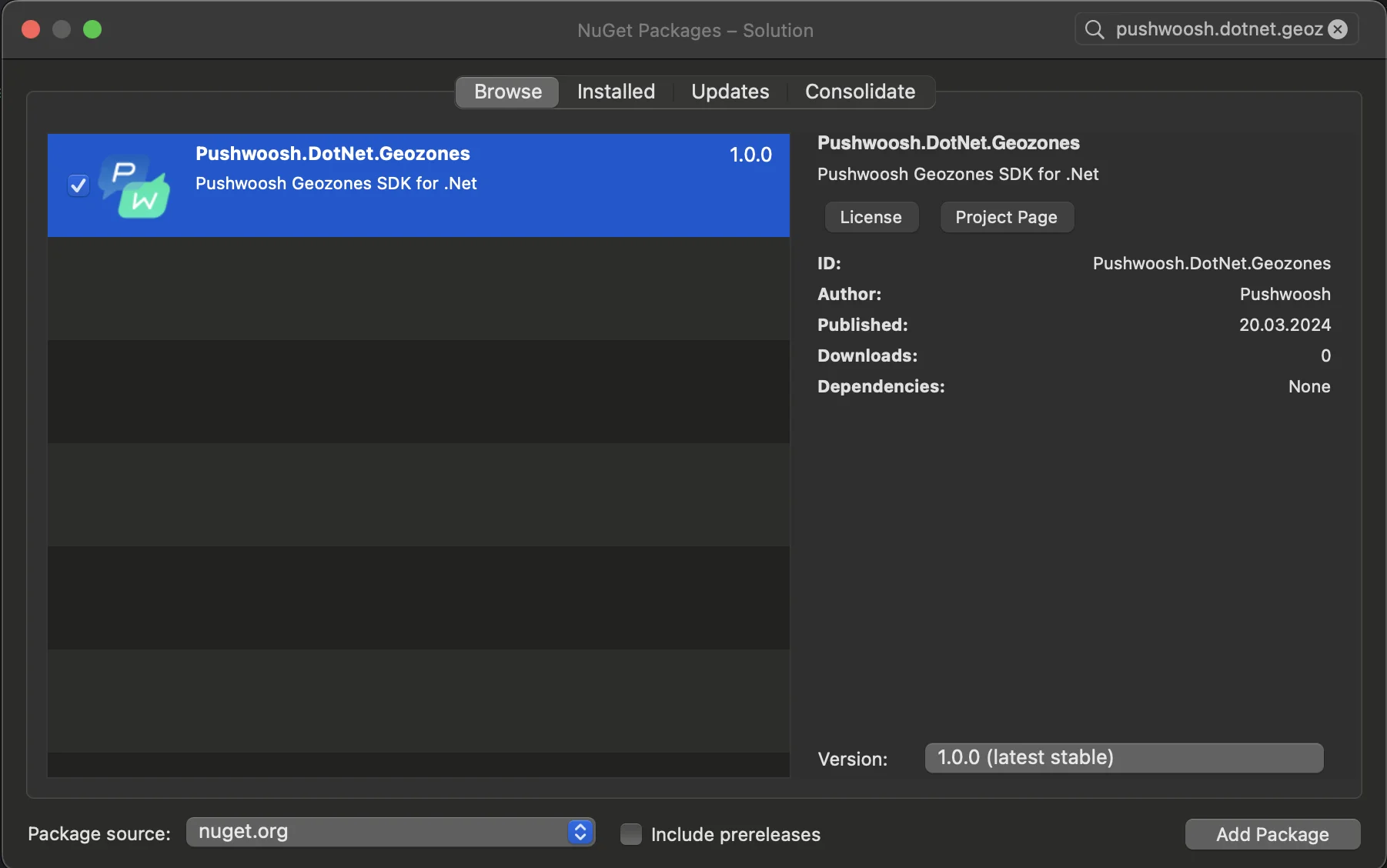
- Android इंटीग्रेशन
अपने Android प्रोजेक्ट में, MainActivity.cs फ़ाइल का पता लगाएँ और OnCreate() मेथड में LocationManager.Init() को कॉल करें:
using PushwooshSDK.DotNet.Geozones.Android;
...
[Activity(Theme = "@style/Maui.SplashTheme", MainLauncher = true, ConfigurationChanges = ConfigChanges.ScreenSize | ConfigChanges.Orientation | ConfigChanges.UiMode | ConfigChanges.ScreenLayout | ConfigChanges.SmallestScreenSize | ConfigChanges.Density)]public class MainActivity : MauiAppCompatActivity{ protected override void OnCreate(Bundle savedInstanceState) { base.OnCreate(savedInstanceState); PushManager.Init(); LocationManager.Init(); }}- iOS इंटीग्रेशन
अपने iOS प्रोजेक्ट के लिए, AppDelegate.cs फ़ाइल खोलें और FinishedLaunching() मेथड में LocationManager.Init() को कॉल करें:
using Pushwoosh.iOS;using PushwooshSDK.DotNet.Geozones.iOS;using UIKit;
...
[Register("AppDelegate")]public class AppDelegate : MauiUIApplicationDelegate{    public override bool FinishedLaunching(UIApplication application, NSDictionary launchOptions)    {        PushManager.Init();        LocationManager.Init();        return base.FinishedLaunching(application, launchOptions);    }
protected override MauiApp CreateMauiApp() => MauiProgram.CreateMauiApp();}- अपने ऐप की आवश्यकताओं के आधार पर लोकेशन अनुमतियाँ जोड़ें।
Privacy - Location When In Use Usage Description अनुमति हमेशा जोड़ी जानी चाहिए।

5. फिर StartLocationTracking() मेथड को कॉल करके लोकेशन ट्रैकिंग शुरू करें।
using PushwooshSDK.DotNet.Geozones;

...
LocationManager.Instance.StartLocationTracking();