रिच मीडिया के अपीयरेंस को कस्टमाइज़ करना
अवलोकन
Anchor link toरिच मीडिया पेजों के अपीयरेंस को कस्टमाइज़ करें ताकि वे आपके ऐप की स्टाइल में पूरी तरह से फिट हों। अपने इन-ऐप संदेशों के बैकग्राउंड का रंग बदलें, कुछ एनीमेशन जोड़ें, या लोडिंग व्यू को ऐप लेआउट के अनुसार एडजस्ट करें। ऐप के एक नेटिव कंपोनेंट की तरह दिखने वाले इन-ऐप्स के साथ उपयोगकर्ता अनुभव में सुधार करें।
कार्यान्वयन
Anchor link toसबसे पहले, RichMediaStyle क्लास का एक इंस्टेंस प्राप्त करें:
PWRichMediaStyle *style = [PWRichMediaManager sharedManager].richMediaStyle;Android
Anchor link toRichMediaStyle style = RichMediaManager.getRichMediaStyle();बैकग्राउंड का रंग
Anchor link toरिच मीडिया पेजों के बैकग्राउंड का रंग बदलकर इन-ऐप संदेशों को अपने ऐप का एक अभिन्न अंग जैसा दिखाएं जो ऐप के उपयोगकर्ताओं को प्रदर्शित होते हैं।
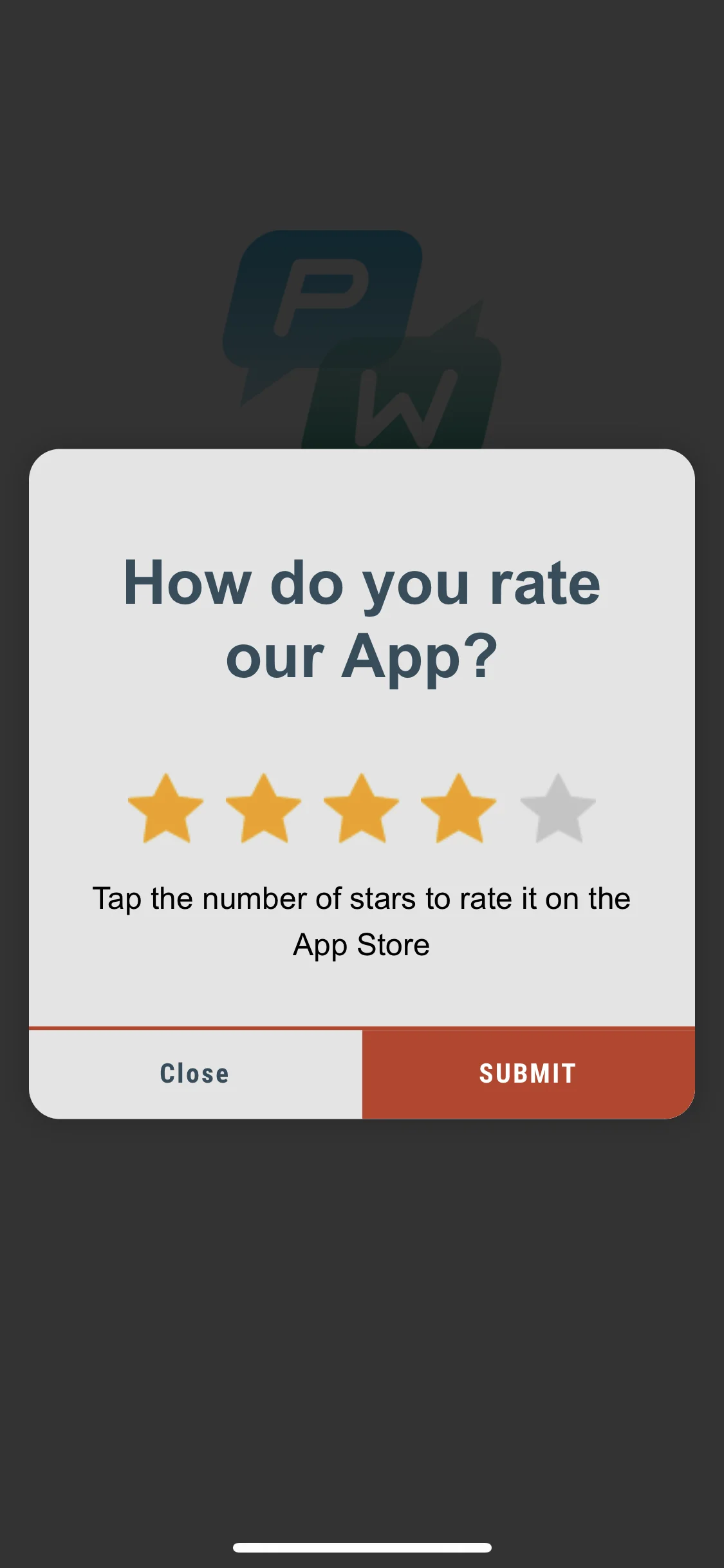
style.backgroundColor = [[UIColor blackColor] colorWithAlphaComponent:0.2f];Android
Anchor link tostyle.setBackgroundColor(ContextCompat.getColor(getApplication(), R.color.black));बस हो गया!
एनीमेशन
Anchor link toरिच मीडिया अपीयरेंस को एनिमेट करके अपने इन-ऐप संदेशों के प्रभाव को बढ़ाएं।
एनीमेशन डेलीगेट को डिफ़ॉल्ट क्लास में से किसी एक पर सेट करें:
PWRichMediaStyleSlideLeftAnimation,PWRichMediaStyleSlideRightAnimation,PWRichMediaStyleSlideTopAnimation,PWRichMediaStyleSlideBottomAnimation,PWRichMediaStyleCrossFadeAnimation.
style.animationDelegate = [PWRichMediaStyleCrossFadeAnimation new];Android
Anchor link toएनीमेशन डेलीगेट को डिफ़ॉल्ट क्लास में से किसी एक पर सेट करें:
RichMediaAnimationSlideTop,RichMediaAnimationSlideBottom,RichMediaAnimationSlideRight,RichMediaAnimationSlideLeft,RichMediaAnimationCrossFade.
richMediaStyle.setRichMediaAnimationType(new RichMediaAnimationSlideTop());कस्टम एनीमेशन सेट करने के लिए, iOS के लिए PWRichMediaStyleAnimationDelegate विधि या Android के लिए RichMediaAnimation को निम्नानुसार लागू करें:
- एनीमेशन डेलीगेट सेट करें:
style.animationDelegate = self;PWRichMediaStyleAnimationDelegateविधियों को लागू करें (कम्प्लीशन ब्लॉक को कॉल करना न भूलें):
- (void)runPresentingAnimationWithContentView:(UIView *)contentView parentView:(UIView *)parentView completion:(dispatch_block_t)completion {    contentView.transform = CGAffineTransformMakeTranslation(0, parentView.bounds.size.height);
    [UIView animateWithDuration:0.6                          delay:0         usingSpringWithDamping:0.4          initialSpringVelocity:0                        options:0                     animations:^{                         contentView.transform = CGAffineTransformIdentity;                     } completion:^(BOOL finished) {                         completion();                     }];}
- (void)runDismissingAnimationWithContentView:(UIView *)contentView parentView:(UIView *)parentView completion:(dispatch_block_t)completion {    [UIView animateWithDuration:0.3                     animations:^{                         contentView.alpha = 0.0f;                         contentView.transform = CGAffineTransformMakeScale(2, 2);                     } completion:^(BOOL finished) {                         completion();                     }];}
Android
Anchor link toRichMediaAnimation इंटरफ़ेस लागू करें और इसे कस्टम रिच मीडिया क्लोज और ओपन एनीमेशन के लिए सेट करें:
richMediaStyle.setRichMediaAnimation(new RichMediaAnimation() {    //Allows to set rules and behavior for custom Rich Media open animation    @Override    public void openAnimation(View contentView, View parentView) {        AnimationSet fadeInAnimation = new AnimationSet(true);        fadeInAnimation.addAnimation(new TranslateAnimation(0.15f * parentView.getWidth(), 0, parentView.getHeight() / 2.5f, 0));        fadeInAnimation.addAnimation(new AlphaAnimation(0, 1));        fadeInAnimation.addAnimation(new ScaleAnimation(0.7f, 1.0f, 0.7f, 1.0f));        fadeInAnimation.setDuration(2000);        fadeInAnimation.setInterpolator(new DecelerateInterpolator(1f));
        contentView.startAnimation(fadeInAnimation);    }
    //Allows to set rules and behavior for custom Rich Media close animation    @Override    public void closeAnimation(View contentView, View parentView, Animation.AnimationListener endAnimationListener) {        // !IMPORTANT!        // endAnimationListener has to be added to your custom animation to let Pushwoosh SDK handle animation end event        AlphaAnimation alphaAnimation = new AlphaAnimation(1, 0);        alphaAnimation.setDuration(2000);        alphaAnimation.setAnimationListener(endAnimationListener);        alphaAnimation.setFillEnabled(true);        alphaAnimation.setFillAfter(true);
        contentView.animate().translationY(parentView.getHeight() / 5).setDuration(250).start();
        parentView.startAnimation(alphaAnimation);    }});
कस्टम लोडिंग व्यू
Anchor link toअपने इन-ऐप संदेशों के कस्टमाइज्ड लोडिंग व्यू के साथ पहले सेकंड से ही उपयोगकर्ता का ध्यान आकर्षित करें।
loadingViewBlockका इस प्रकार उपयोग करें:
style.loadingViewBlock = ^PWLoadingView *{ return [[[NSBundle mainBundle] loadNibNamed:@"LoadingView" owner:self options:nil] lastObject];};- यहाँ “LoadingView” को PWLoadingView (PWRichMediaStyle.h में परिभाषित) से इनहेरिट करना होगा:
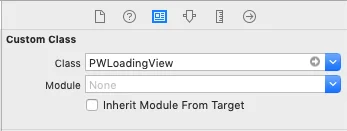
- आउटलेट सेट करें:
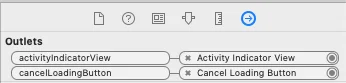
Android
Anchor link toRichMediaStyle.LoadingViewCreatorInterface एक ऐसी विधि लागू करता है जो रिच मीडिया के लिए लोडिंग स्क्रीन के रूप में उपयोग किए जाने वाले व्यू को लौटाता है:
richMediaStyle.setLoadingViewCreator(() -> { View screenView = createYourScreenView(); return screenView;});क्लोज बटन को सक्षम करने में देरी
Anchor link toरिच मीडिया लोड होने तक क्लोज बटन को अक्षम करके सुनिश्चित करें कि इन-ऐप संदेश उपयोगकर्ताओं को दिखाया गया है।
style.closeButtonPresentingDelay = 3;Android
Anchor link to// मिलीसेकंड में एक मान सेट करेंrichMediaStyle.setTimeOutBackButtonEnable(3000);