How to send a rich message with a fallback channel
WhatsApp doesn’t deliver every message. For example, until Meta approves the template of a rich message, it reaches only users who wrote to you in the last 24 hours. This guide builds a journey that sends a rich message on WhatsApp and sends the same message as RCS or SMS to users whose WhatsApp message the provider rejected.
The example is a delivery feedback request with three quick reply buttons: Great, It was OK, and Not good.
Before you start
Anchor link to- Rich messages are turned on for your account. If you don’t see the RCS, WhatsApp, and Messenger tabs in Content > Messenger presets, contact your Pushwoosh account manager.
- WhatsApp is connected to the project.
- Twilio is connected with a Messaging Service, so the project can send RCS. See RCS messages through Twilio.
Create the rich message
Anchor link to- Go to Content > Messenger presets and open the WhatsApp tab.
- Click Create rich message and name the message, for example
Delivery feedback. - In Type, select Quick reply.
- Enter the Body and add a button for each answer. See Quick reply.
- Select RCS in the Channels strip and enter SMS text in the SMS fallback block, for example
Your order has been delivered. How did it go? Reply GREAT, OK, or BAD.Phones without RCS get this text. See Set the SMS fallback. - Check that the RCS and WhatsApp badges aren’t red, then save the message.
Pushwoosh creates a copy of the message for each channel set up in the project: a WhatsApp copy and an SMS preset that carries the RCS copy. To reach users outside the 24-hour window on WhatsApp, get the WhatsApp template approved.
Send the message on WhatsApp
Anchor link to- Go to Campaigns > Customer Journey Builder, click Create campaign, and build the journey up to the step where the message goes out. For entry options, see Campaign types.
- Drag the WhatsApp element from the left panel onto the canvas and connect the previous step to it.
- Double-click the element. Open the Content dropdown and select
Delivery feedback. In the list, a rich message has a Rich message badge.
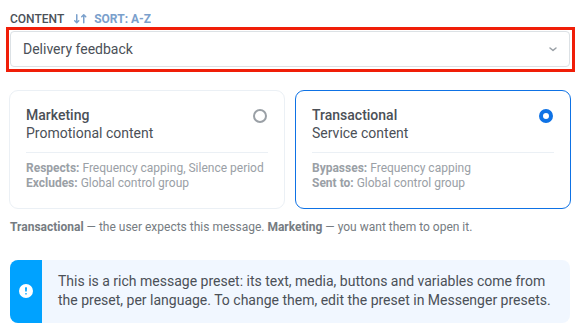
- Turn on Branch when the provider rejects the message.

- Click Apply.
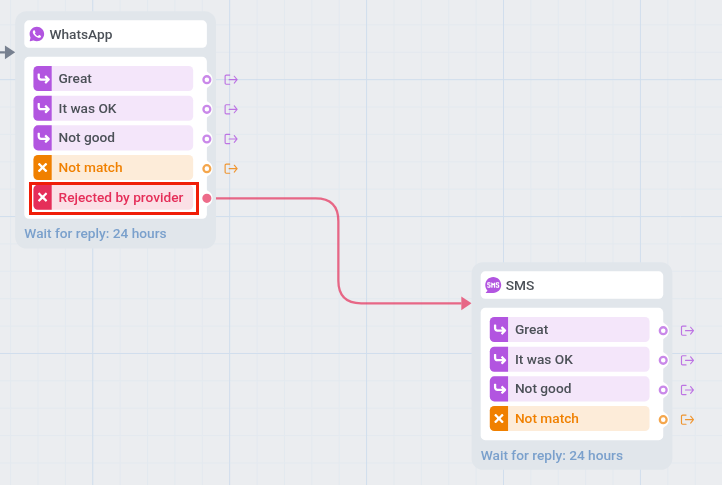
On the canvas, the element gets a branch for each button, Not match for users who don’t tap a button within 24 hours, and Rejected by provider. A user goes to Rejected by provider when WhatsApp refuses the message at sending or when a later delivery report from Meta marks it as failed or undelivered. With quick reply buttons, a rejected user goes there at once, and the others wait for a tap.
Send the fallback as RCS or SMS
Anchor link to- Drag the SMS element onto the canvas.
- Connect the Rejected by provider branch of the WhatsApp element to the SMS element.
- Double-click the SMS element. In Preset, select
Delivery feedback, the SMS preset that Pushwoosh created from the rich message.
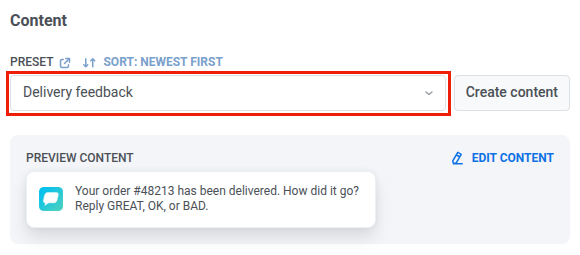
- Click Save.
Phones with RCS get the message with its buttons. Other phones get the SMS text. The SMS element gets the same button branches: a user who doesn’t tap a button within 24 hours, or whose phone has no RCS, goes to Not match.
Finish the journey
Anchor link to- Connect the button branches of both elements to the next steps, for example Not good to a message from your support team.
- Connect Not match to the next step or to Exit.
- Click Launch campaign.