Before the order
These recipes cover the shoppers who have not ordered yet: new accounts, shoppers who look at products, and shoppers who fill the cart and leave. Before you build them, read the best practices for every journey.
Welcome and first order
Anchor link to- Use it when: a shopper creates an account and you want the first order.
- Starts when: a shopper signs up (
Signed up). - What it does: sends a welcome push, then reminds the shopper of the welcome offer after 2 days if no order was placed.
- Content to prepare: a push preset with the welcome message and a push preset with the reminder.
- Needs: the
Signed upandOrder placedevents.

- On the journey canvas, add a Trigger-based entry on
Signed up. - Add a push that welcomes the shopper and mentions the offer, for example: “Welcome! Your first order ships free.”
- Add a Wait for Trigger step on
Order placedand set the waiting period to 2 days. Leave the Trigger group 1 branch empty, so shoppers who ordered leave the journey without more messages. - On the Not triggered branch, add a push with a reminder, for example: “Your free shipping is still waiting.”
- On the canvas, click Settings and select Conversion goals.
- In the goal, choose
Order placedand select End journey after this event.
Reminder about viewed products
Anchor link to- Use it when: shoppers look at products several times and add nothing to the cart.
- Starts when: a shopper enters the Browsers without a cart segment. Pushwoosh checks the segment on a schedule you set, for example daily, and every shopper in the segment enters at each check.
- What it does: sends one push that reminds the shopper of what they looked at, with no discount.
- Content to prepare: a push preset. To add similar products from your feed, create it as a product recommendations preset with the Recently viewed strategy. It picks products that other shoppers viewed or bought together with the ones this shopper viewed, and leaves out the products the shopper already saw.
- Needs: the
Product viewedevent. For Recently viewed, the event must carryproduct_idwith the same ID as in your Product catalog. The strategy picks products for each shopper, so the editor can’t preview them.
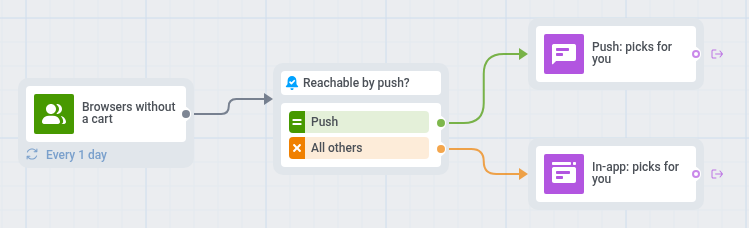
- On the journey canvas, add an Audience-based entry on the Browsers without a cart segment.
- Set the entry schedule to Recurring entry and choose Periodically, for example daily.
- On the canvas, click Settings and select Campaign Entry Limit.
- Choose Custom period and set Once in to a week, so a shopper who stays in the segment gets one reminder a week, not one a day.
- Add a Reachability check. For shoppers reachable by push, add a push, for example: “Still thinking it over? Here are a few picks for you.”
- For the others, add an In-app element with the same reminder and set In-app expiration to 1 day.
- On the canvas, click Settings and select Conversion goals.
- In the goal, choose
Order placedand select End journey after this event.
Cart abandonment
Anchor link to- Use it when: a shopper adds a product to the cart and leaves without ordering.
- Starts when: a shopper adds a product to the cart (
Product added to cart). - What it does: waits 1 hour for an order. If none arrives, sends a push with the product name. If the shopper still has not ordered after 1 day, sends a push with an offer.
- Content to prepare: two push presets with a deep link to the cart, one reminder without a discount and one with the offer, and an in-app template with a reminder for shoppers without push. Add a Dynamic content placeholder for the product name to the reminder preset.
- Needs: the
Product added to cartandOrder placedevents, withproduct_nameon the first one.

- On the journey canvas, add a Trigger-based entry on
Product added to cart. - Add a Wait for Trigger step on
Order placedand set the waiting period to 1 hour. Leave the Trigger group 1 branch empty. - On the Not triggered branch, add a Reachability check.
- For shoppers reachable by push, add a push with the reminder preset, which names the product, for example: “Your Linen shirt is still in the cart.” To insert the name, turn on Personalise message with event attributes on the push step, and under Overwrite personalization map the preset placeholder to the
product_nameattribute ofProduct added to cart. - For the others, add an In-app element with a general reminder, for example “Your cart is waiting for you.”, and set In-app expiration to 1 day. The in-app element does not take event attributes, so it can’t name the product.
- After the push and the in-app, add a second Wait for Trigger step on
Order placedwith a waiting period of 1 day. Leave its Trigger group 1 branch empty. - On its Not triggered branch, add a push with the offer, for example: “Complete your order today and get free shipping.” Only shoppers who can get push receive the offer. To reach the others, add a Reachability check before the offer and an In-app element with the same offer on its All others branch.
- On the canvas, click Settings and select Conversion goals.
- In the goal, choose
Order placedand select End journey after this event.
A shopper who adds five products in a row starts the journey once, because a shopper who is in the journey does not enter it again. The reminder names the product from the first cart event.
Wishlist back in stock
Anchor link to- Use it when: a shopper saved a product that was out of stock and you want to bring them back when it returns.
- Starts when: your server sends
Product back in stockfor a shopper who saved the product. - What it does: sends one push that names the product and opens the wishlist.
- Content to prepare: a push preset with a deep link to the wishlist and a Dynamic content placeholder for the product name, and an in-app template for shoppers without push.
- Needs: the
Product back in stockevent. Your store keeps the wishlists, so your server sends this event for each shopper whose wishlist holds the product.
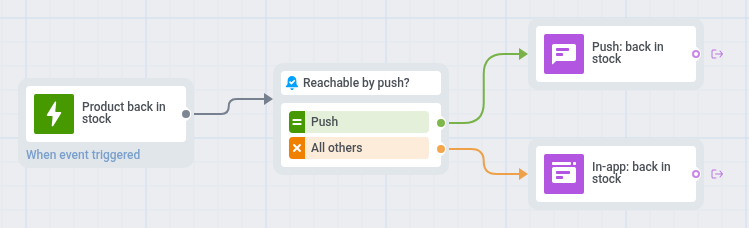
- On the journey canvas, add a Trigger-based entry on
Product back in stock. - Add a Reachability check. For shoppers reachable by push, add a push with this preset, for example: “Linen shirt is back in stock.” To insert the name, turn on Personalise message with event attributes on the push step, and under Overwrite personalization map the preset placeholder to the
product_nameattribute ofProduct back in stock. - For the others, add an In-app element with a general text, for example “A product from your wishlist is back in stock.”, and set In-app expiration to 1 day.
- On the canvas, click Settings and select Conversion goals.
- In the goal, choose
Order placedand select End journey after this event.
Use the same journey for price drops. Ask your developers to send a Product price dropped event with product_id, product_name, and price, and copy the journey with this event as its entry.