دليل التكامل الأساسي لـ iOS SDK
يحتوي هذا القسم على معلومات حول كيفية دمج Pushwoosh SDK في تطبيق iOS الخاص بك.
المتطلبات الأساسية
Anchor link toلدمج Pushwoosh iOS SDK في تطبيقك، ستحتاج إلى ما يلي:
خطوات التكامل
Anchor link to1. التثبيت
Anchor link toيمكنك دمج Pushwoosh SDK في تطبيقك باستخدام إما Swift Package Manager أو CocoaPods.
Swift Package Manager
Anchor link toفي قسم Package Dependencies، أضف الحزمة التالية:
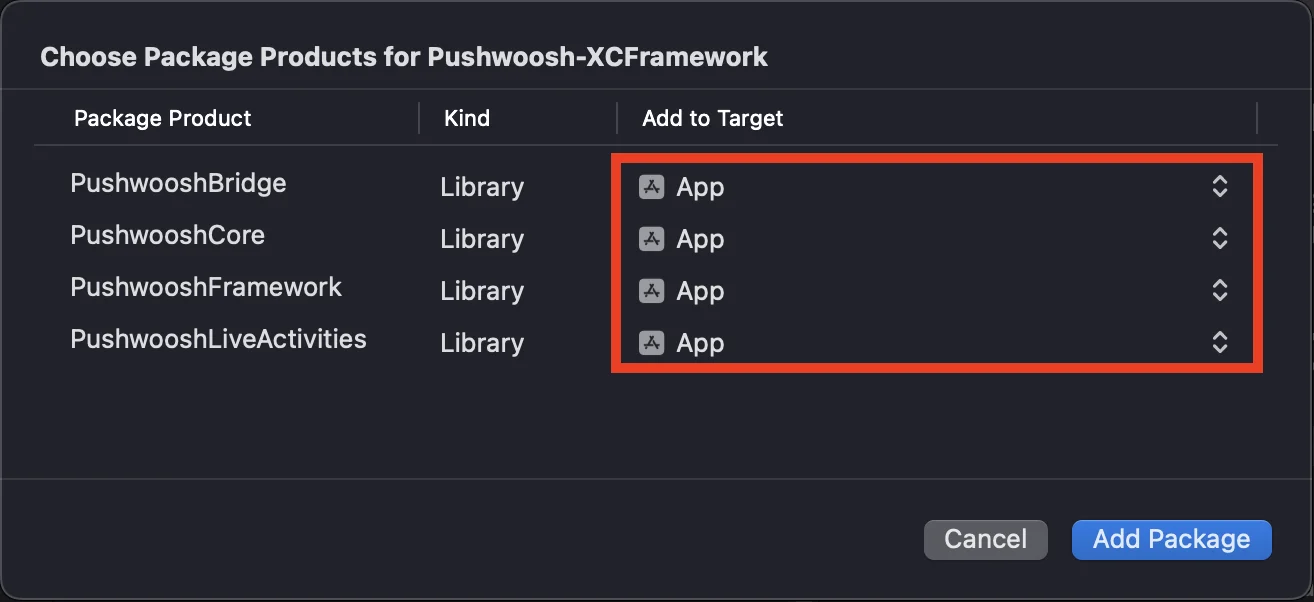
https://github.com/Pushwoosh/Pushwoosh-XCFrameworkلاستخدام Pushwoosh iOS SDK، تأكد من إضافة الأطر الأربعة التالية إلى هدف تطبيقك عند التكامل عبر Swift Package Manager:
PushwooshFrameworkPushwooshCorePushwooshBridgePushwooshLiveActivities
CocoaPods
Anchor link toافتح ملف Podfile الخاص بك وأضف التبعية:
# Uncomment the next line to define a global platform for your project# platform :ios, '9.0'
target 'MyApp' do  # Comment the next line if you don't want to use dynamic frameworks  use_frameworks!
  pod 'PushwooshXCFramework'
end
ثم، في الطرفية، قم بتشغيل الأمر التالي لتثبيت التبعيات:
pod install2. القدرات (Capabilities)
Anchor link toلتمكين الإشعارات الفورية في مشروعك، تحتاج إلى إضافة قدرات معينة.
في قسم Signing & Capabilities، أضف القدرات التالية:
Push NotificationsBackground Modes. بعد إضافة هذه القدرة، حدد مربعRemote notifications.
إذا كنت تنوي استخدام الإشعارات الحساسة للوقت (Time Sensitive Notifications) (iOS 15+)، أضف أيضًا قدرة Time Sensitive Notifications.
3. كود التهيئة
Anchor link toAppDelegate
Anchor link toأضف الكود التالي إلى فئة AppDelegate الخاصة بك:
import SwiftUIimport PushwooshFramework
@mainstruct MyApp: App {    // تسجيل AppDelegate كـ UIApplicationDelegate    @UIApplicationDelegateAdaptor(AppDelegate.self) var appDelegate
    var body: some Scene {        WindowGroup {            ContentView()        }    }}
class AppDelegate: NSObject, UIApplicationDelegate, PWMessagingDelegate {
    func application(_ application: UIApplication, didFinishLaunchingWithOptions launchOptions: [UIApplication.LaunchOptionsKey: Any]?) -> Bool {        // كود التهيئة        // تعيين مندوب مخصص للتعامل مع الإشعارات        Pushwoosh.sharedInstance().delegate = self
        // التسجيل في الإشعارات الفورية        Pushwoosh.sharedInstance().registerForPushNotifications()
        return true    }
    // التعامل مع الرمز المستلم من APNS    func application(_ application: UIApplication, didRegisterForRemoteNotificationsWithDeviceToken deviceToken: Data) {        Pushwoosh.sharedInstance().handlePushRegistration(deviceToken)    }
    // التعامل مع خطأ استلام الرمز    func application(_ application: UIApplication, didFailToRegisterForRemoteNotificationsWithError error: Error) {        Pushwoosh.sharedInstance().handlePushRegistrationFailure(error)    }
    // للإشعارات الفورية الصامتة    func application(_ application: UIApplication, didReceiveRemoteNotification userInfo: [AnyHashable: Any], fetchCompletionHandler completionHandler: @escaping (UIBackgroundFetchResult) -> Void) {        Pushwoosh.sharedInstance().handlePushReceived(userInfo)        completionHandler(.noData)    }
    // يتم إطلاقه عند استلام إشعار    func pushwoosh(_ pushwoosh: Pushwoosh, onMessageReceived message: PWMessage) {        print("onMessageReceived: ", message.payload!.description)    }
    // يتم إطلاقه عندما ينقر المستخدم على الإشعار    func pushwoosh(_ pushwoosh: Pushwoosh, onMessageOpened message: PWMessage) {        print("onMessageOpened: ", message.payload!.description)    }}
struct ContentView: View {    var body: some View {        Text("Pushwoosh with SwiftUI")            .padding()    }}
import PushwooshFramework
@UIApplicationMainclass AppDelegate: UIResponder, UIApplicationDelegate, PWMessagingDelegate {
var window: UIWindow?
func application(_ application: UIApplication, didFinishLaunchingWithOptions launchOptions: [UIApplication.LaunchOptionsKey: Any]?) -> Bool { // كود التهيئة // تعيين مندوب مخصص للتعامل مع الإشعارات، في حالتنا AppDelegate Pushwoosh.sharedInstance().delegate = self;
// التسجيل في الإشعارات الفورية Pushwoosh.sharedInstance().registerForPushNotifications()
return true }
// التعامل مع الرمز المستلم من APNS func application(_ application: UIApplication, didRegisterForRemoteNotificationsWithDeviceToken deviceToken: Data) { Pushwoosh.sharedInstance().handlePushRegistration(deviceToken) }
// التعامل مع خطأ استلام الرمز func application(_ application: UIApplication, didFailToRegisterForRemoteNotificationsWithError error: Error) { Pushwoosh.sharedInstance().handlePushRegistrationFailure(error); }
// للإشعارات الفورية الصامتة func application(_ application: UIApplication, didReceiveRemoteNotification userInfo: [AnyHashable : Any], fetchCompletionHandler completionHandler: @escaping (UIBackgroundFetchResult) -> Void) { Pushwoosh.sharedInstance().handlePushReceived(userInfo) completionHandler(.noData) }
// يتم إطلاق هذا الحدث عند استلام الإشعار func pushwoosh(_ pushwoosh: Pushwoosh, onMessageReceived message: PWMessage) { print("onMessageReceived: ", message.payload!.description) }
// يتم إطلاقه عندما ينقر المستخدم على الإشعار func pushwoosh(_ pushwoosh: Pushwoosh, onMessageOpened message: PWMessage) { print("onMessageOpened: ", message.payload!.description) }}#import <PushwooshFramework/PushwooshFramework.h>
@implementation AppDelegate
- (BOOL)application:(UIApplication *)application didFinishLaunchingWithOptions:(NSDictionary *)launchOptions { //-----------جزء PUSHWOOSH-----------
// تعيين مندوب مخصص للتعامل مع الإشعارات، في حالتنا AppDelegate [Pushwoosh sharedInstance].delegate = self;
// التسجيل في الإشعارات الفورية! [[Pushwoosh sharedInstance] registerForPushNotifications];
return YES;}
// التعامل مع الرمز المستلم من APNS- (void)application:(UIApplication *)application didRegisterForRemoteNotificationsWithDeviceToken:(NSData *)deviceToken { [[Pushwoosh sharedInstance] handlePushRegistration:deviceToken];}
// التعامل مع خطأ استلام الرمز- (void)application:(UIApplication *)application didFailToRegisterForRemoteNotificationsWithError:(NSError *)error { [[Pushwoosh sharedInstance] handlePushRegistrationFailure:error];}
// للإشعارات الفورية الصامتة- (void)application:(UIApplication *)application didReceiveRemoteNotification:(NSDictionary *)userInfo fetchCompletionHandler:(void (^)(UIBackgroundFetchResult))completionHandler { [[Pushwoosh sharedInstance] handlePushReceived:userInfo]; completionHandler(UIBackgroundFetchResultNoData);}
// يتم إطلاق هذا الحدث عند استلام الإشعار- (void)pushwoosh:(Pushwoosh *)pushwoosh onMessageReceived:(PWMessage *)message { NSLog(@"onMessageReceived: %@", message.payload);}
// يتم إطلاق هذا الحدث عندما ينقر المستخدم على الإشعار- (void)pushwoosh:(Pushwoosh *)pushwoosh onMessageOpened:(PWMessage *)message { NSLog(@"onMessageOpened: %@", message.payload);}
@endInfo.plist
Anchor link toفي ملف Info.plist الخاص بك:
- قم بتعيين مفتاح
Pushwoosh_APPIDإلى رمز تطبيق Pushwoosh. - قم بتعيين مفتاح
Pushwoosh_API_TOKENإلى رمز واجهة برمجة تطبيقات جهاز Pushwoosh
4. تتبع تسليم الرسائل
Anchor link toيدعم Pushwoosh تتبع أحداث التسليم للإشعارات الفورية عبر Notification Service Extension.
إضافة Notification Service Extension
Anchor link to- في Xcode، حدد File > New > Target…
- اختر Notification Service Extension واضغط Next.
- أدخل اسم الهدف واضغط Finish.
- عند المطالبة بالتفعيل، اضغط Cancel.
التبعيات لـ Notification Service Extension (CocoaPods فقط)
Anchor link toملاحظة: إذا كنت تستخدم Swift Package Manager لإدارة التبعيات، يمكنك تخطي هذه الخطوة، حيث تتم إضافة التبعيات تلقائيًا.
افتح ملف Podfile الخاص بك وأضف التبعية للهدف:
# Uncomment the next line to define a global platform for your project# platform :ios, '9.0'
target 'MyApp' do  # Comment the next line if you don't want to use dynamic frameworks  use_frameworks!
  pod 'PushwooshXCFramework'
end
target 'MyAppNotificationExtension' do  use_frameworks!
  pod 'PushwooshXCFramework'
end
قم بتشغيل الأمر التالي في الطرفية لتحديث التبعيات:
pod updateإضافة Pushwoosh SDK إلى Notification Service Extension
Anchor link toيسمح لك هذا الكود باعتراض ومعالجة الإشعارات داخل ملحق الإشعارات الخاص بك.
import UserNotificationsimport PushwooshFramework
class NotificationService: UNNotificationServiceExtension {
    var contentHandler: ((UNNotificationContent) -> Void)?    var bestAttemptContent: UNMutableNotificationContent?
    override func didReceive(_ request: UNNotificationRequest, withContentHandler contentHandler: @escaping (UNNotificationContent) -> Void) {        // Pushwoosh **********        PWNotificationExtensionManager.shared().handle(request, contentHandler: contentHandler)        // ********************
        self.contentHandler = contentHandler        bestAttemptContent = (request.content.mutableCopy() as? UNMutableNotificationContent)
        if let bestAttemptContent = bestAttemptContent {            // قم بتعديل محتوى الإشعار هنا...            contentHandler(bestAttemptContent)        }    }
    override func serviceExtensionTimeWillExpire() {        // يتم استدعاؤه قبل إنهاء الملحق من قبل النظام مباشرة.        // استخدم هذا كفرصة لتقديم "أفضل محاولة" للمحتوى المعدل، وإلا فسيتم استخدام حمولة الإشعار الأصلية.        if let contentHandler = contentHandler, let bestAttemptContent =  bestAttemptContent {            contentHandler(bestAttemptContent)        }    }
}
#import "PWNotificationExtensionManager.h"
@interface NotificationService : UNNotificationServiceExtension
@end
@implementation NotificationService
- (void)didReceiveNotificationRequest:(UNNotificationRequest *)request withContentHandler:(void (^)(UNNotificationContent * _Nonnull))contentHandler { // Pushwoosh ********** [[PWNotificationExtensionManager sharedManager] handleNotificationRequest:request contentHandler:contentHandler]; //*********************}
@endInfo.plist
Anchor link toفي ملف Info.plist الخاص بـ Notification Service Extension، أضف:
Pushwoosh_APPID- رمز التطبيق الخاص بك.
5. تشغيل المشروع
Anchor link to- قم ببناء وتشغيل المشروع.
- اذهب إلى لوحة تحكم Pushwoosh وأرسل إشعارًا فوريًا.
- يجب أن ترى الإشعار في التطبيق.
تكامل Pushwoosh iOS الممتد
Anchor link toفي هذه المرحلة، لقد قمت بالفعل بدمج SDK ويمكنك إرسال واستقبال الإشعارات الفورية. الآن، دعنا نستكشف الوظائف الأساسية.
الإشعارات الفورية
Anchor link toفي Pushwoosh SDK، هناك نوعان من الاستدعاءات (callbacks) مصممة للتعامل مع الإشعارات الفورية:
onMessageReceived: يتم استدعاء هذه الطريقة عند استلام إشعار فوري.onMessageOpened: يتم استدعاء هذه الطريقة عندما يتفاعل المستخدم مع الإشعار (يفتحه).
تمكن هذه الاستدعاءات المطورين من إدارة استقبال الإشعارات الفورية وتفاعل المستخدم معها داخل تطبيقاتهم.
import PushwooshFramework
class AppDelegate: NSObject, UIApplicationDelegate, PWMessagingDelegate {
    func application(_ application: UIApplication, didFinishLaunchingWithOptions launchOptions: [UIApplication.LaunchOptionsKey : Any]? = nil) -> Bool {        Pushwoosh.sharedInstance().delegate = self;    }
    func pushwoosh(_ pushwoosh: Pushwoosh, onMessageOpened message: PWMessage) {        if let payload = message.payload {            print("onMessageOpened: \(payload)")        }    }
    func pushwoosh(_ pushwoosh: Pushwoosh, onMessageReceived message: PWMessage) {        if let payload = message.payload {            print("onMessageReceived: \(payload)")        }    }}
#import <PushwooshFramework/PushwooshFramework.h>
@interface AppDelegate () <PWMessagingDelegate>
@end
@implementation AppDelegate
- (BOOL)application:(UIApplication *)application didFinishLaunchingWithOptions:(NSDictionary *)launchOptions { [[Pushwoosh sharedInstance] setDelegate:self]; return YES;}
- (void)pushwoosh:(Pushwoosh *)pushwoosh onMessageOpened:(PWMessage *)message { if (message.payload) { NSLog(@"onMessageOpened: %@", message.payload); }}
- (void)pushwoosh:(Pushwoosh *)pushwoosh onMessageReceived:(PWMessage *)message { if (message.payload) { NSLog(@"onMessageReceived: %@", message.payload); }}@endتكوين المستخدم
Anchor link toمن خلال التركيز على سلوك وتفضيلات المستخدم الفردية، يمكنك تقديم محتوى مخصص، مما يؤدي إلى زيادة رضا المستخدم وولائه.
import PushwooshFramework
class Registration {
    func afterUserLogin(user: User) {        let pushwoosh = Pushwoosh.sharedInstance()        // تعيين معرف المستخدم        if let userId = user.userId {            pushwoosh.setUserId(userId)        }
        // تعيين بريد المستخدم الإلكتروني        if let userEmail = user.email {            pushwoosh.setEmail(userEmail)        }
        // تعيين رقم SMS للمستخدم        if let userSmsNumber = user.SmsNumber {            pushwoosh.registerSmsNumber(userSmsNumber)        }
        // تعيين رقم WhatsApp للمستخدم        if let userWhatsAppNumber = user.WhatsAppNumber {            pushwoosh.registerSmsNumber(userWhatsAppNumber)        }
        // تعيين معلومات إضافية للمستخدم كعلامات لـ Pushwoosh        if let age = user.userDetails.age,            let name = user.userDetails.userName,            let lastLogin = user.userDetails.lastLoginDate {            pushwoosh.setTags([                "age": age,                "name": name,                "last_login": lastLogin            ])        }    }}
#import <PushwooshFramework/PushwooshFramework.h>
@implementation Registration
- (void)afterUserLogin:(User *)user { Pushwoosh *pushwoosh = [Pushwoosh sharedInstance];
// تعيين معرف المستخدم if (user.userId) { [pushwoosh setUserId:user.userId]; }
// تعيين بريد المستخدم الإلكتروني if (user.email) { [pushwoosh setEmail:user.email]; }
// تعيين معلومات إضافية للمستخدم كعلامات لـ Pushwoosh if (user.userDetails.age && user.userDetails.userName && user.userDetails.lastLoginDate) { NSDictionary *tags = @{ @"age": user.userDetails.age, @"name": user.userDetails.userName, @"last_login": user.userDetails.lastLoginDate }; [pushwoosh setTags:tags]; }}
@endالعلامات (Tags)
Anchor link toالعلامات هي أزواج من المفاتيح والقيم يتم تعيينها للمستخدمين أو الأجهزة، مما يسمح بالتقسيم بناءً على سمات مثل التفضيلات أو السلوك، مما يتيح إرسال رسائل مستهدفة.
import PushwooshFramework
class UpdateUser {    func afterUserUpdateProfile(user: User) {        let pushwoosh = Pushwoosh.sharedInstance()
        // تعيين قائمة الفئات المفضلة        pushwoosh.setTags(["favorite_categories" : user.getFavoriteCategories()])
        // تعيين معلومات الدفع        pushwoosh.setTags([            "is_subscribed": user.isSubscribed(),            "payment_status": user.getPaymentStatus(),            "billing_address": user.getBillingAddress()        ])    }}
#import <PushwooshFramework/PushwooshFramework.h>
@implementation UpdateUser
- (void)afterUserUpdateProfile:(User *)user { Pushwoosh *pushwoosh = [Pushwoosh sharedInstance];
// تعيين قائمة الفئات المفضلة [pushwoosh setTags:@{@"favorite_categories" : user.getFavoriteCategories}];
// تعيين معلومات الدفع NSDictionary *tags = @{ @"is_subscribed": @(user.isSubscribed), @"payment_status": user.getPaymentStatus, @"billing_address": user.getBillingAddress }; [pushwoosh setTags:tags];}
@endالأحداث (Events)
Anchor link toالأحداث هي إجراءات أو وقائع محددة للمستخدم داخل التطبيق يمكن تتبعها لتحليل السلوك وتشغيل الرسائل أو الإجراءات المقابلة.
import PushwooshFramework
class Registration {
    func afterUserLogin(user: User) {        if let userName = user.getUserName(), let lastLogin = user.getLastLoginDate() {            PWInAppManager.shared().postEvent("login", withAttributes: [                "name": userName,                "last_login": lastLogin            ])        }    }
    func afterUserPurchase(user: User, product: Product) {        let pushwoosh = Pushwoosh.sharedInstance()
        // تتبع حدث الشراء        PWInAppManager.shared().postEvent("purchase", withAttributes: [            "product_id": product.getId(),            "product_name": product.getName(),            "price": product.getPrice(),            "quantity": product.getQuantity()        ])
        // تعيين علامات المستخدم        let lastPurchaseDate = Date().timeIntervalSince1970        let lifetimeSpend = getCurrentLifetimeSpend() + product.getPrice()
        pushwoosh.setTags([            "last_purchase_date": lastPurchaseDate,            "lifetime_spend": lifetimeSpend        ])    }}
#import <PushwooshFramework/PushwooshFramework.h>#import <PushwooshFramework/PWInAppManager.h>
@implementation Registration
- (void)afterUserLogin:(User *)user { NSString *userName = [user getUserName]; NSDate *lastLogin = [user getLastLoginDate];
if (userName && lastLogin) { [[PWInAppManager sharedManager] postEvent:@"login" withAttributes:@{ @"name": userName, @"last_login": lastLogin }]; }}
- (void)afterUserPurchase:(User *)user product:(Product *)product { Pushwoosh *pushwoosh = [Pushwoosh sharedInstance];
// تتبع حدث الشراء [[PWInAppManager sharedManager] postEvent:@"purchase" withAttributes:@{ @"product_id": [product getId], @"product_name": [product getName], @"price": @([product getPrice]), @"quantity": @([product getQuantity]) }];
// تعيين علامات المستخدم NSTimeInterval lastPurchaseDate = [[NSDate date] timeIntervalSince1970]; double lifetimeSpend = /* جلب الإنفاق مدى الحياة الحالي */ + [product getPrice];
NSDictionary *tags = @{ @"last_purchase_date": @(lastPurchaseDate), @"lifetime_spend": @(lifetimeSpend) };
[pushwoosh setTags:tags];}
@endالوسائط الغنية (Rich Media)
Anchor link toتشير الوسائط الغنية إلى المحتوى التفاعلي والوسائط المتعددة، مثل الصور أو مقاطع الفيديو أو HTML، المستخدمة في الإشعارات والرسائل داخل التطبيق لتعزيز تفاعل المستخدم.
import PushwooshFramework
class ViewController: UIViewController, PWRichMediaPresentingDelegate {
    override func viewDidLoad() {        super.viewDidLoad()        let richMediaConfiguration = PWModalWindowConfiguration.shared()
        PWRichMediaManager.shared().delegate = self        richMediaConfiguration.configureModalWindow(with: .PWModalWindowPositionBottom,                                                                 present: .PWAnimationPresentFromBottom,                                                                 dismiss: .PWAnimationDismissDown)    }
    func richMediaManager(_ richMediaManager: PWRichMediaManager!, shouldPresent richMedia: PWRichMedia!) -> Bool {        print("Rich media will be presented with: \(richMedia.pushPayload!)")        return true    }
    func richMediaManager(_ richMediaManager: PWRichMediaManager!, didPresent richMedia: PWRichMedia!) {        print("Rich media has been presented with: \(richMedia.pushPayload!)")    }
    func richMediaManager(_ richMediaManager: PWRichMediaManager!, didClose richMedia: PWRichMedia!) {        print("Rich media has been closed with: \(richMedia.pushPayload!)")    }
    func richMediaManager(_ richMediaManager: PWRichMediaManager!, presentingDidFailFor richMedia: PWRichMedia!, withError error: (any Error)!) {        print("Failed to present rich media with: \(richMedia.pushPayload!). Error: \(error.localizedDescription)")    }}
#import "ViewController.h"#import <PushwooshFramework/PushwooshFramework.h>#import <PushwooshFramework/PWRichMediaManager.h>#import <PushwooshFramework/PWModalWindowConfiguration.h>
@interface ViewController () <PWRichMediaPresentingDelegate>
@end
@implementation ViewController
- (void)viewDidLoad { [super viewDidLoad];
[[PWRichMediaManager sharedManager] setDelegate:self]; [[PWModalWindowConfiguration shared] configureModalWindowWith:PWModalWindowPositionBottom presentAnimation:PWAnimationPresentFromBottom dismissAnimation:PWAnimationDismissDown];}
- (BOOL)richMediaManager:(PWRichMediaManager *)richMediaManager shouldPresentRichMedia:(PWRichMedia *)richMedia { NSLog(@"Rich media will be presented with: %@", richMedia.pushPayload); return YES;}
- (void)richMediaManager:(PWRichMediaManager *)richMediaManager didPresentRichMedia:(PWRichMedia *)richMedia { NSLog(@"Rich media has been presented with: %@", richMedia.pushPayload);}
- (void)richMediaManager:(PWRichMediaManager *)richMediaManager didCloseRichMedia:(PWRichMedia *)richMedia { NSLog(@"Rich media has been closed with:: %@", richMedia.pushPayload);}
- (void)richMediaManager:(PWRichMediaManager *)richMediaManager presentingDidFailForRichMedia:(PWRichMedia *)richMedia withError:(NSError *)error { NSLog(@"Failed to present rich media with: %@. Error: %@", richMedia.pushPayload, error.localizedDescription);}
@endاستكشاف الأخطاء وإصلاحها
Anchor link toفشل في بناء الوحدة ‘PushwooshFramework’
Anchor link toعند بناء مشروعك، قد تواجه خطأً مشابهًا لـ:
Failed to build module 'PushwooshFramework'; this SDK is not supported by the compiler(the SDK is built with 'Apple Swift version 5.10 (swiftlang-5.10.0.13 clang-1500.3.9.4)',while this compiler is 'Apple Swift version 6.1.2 effective-5.10 (swiftlang-6.1.2.1.2 clang-1700.0.13.5)')السبب: هذا الخطأ لا يتعلق بعدم توافق إصدار مترجم Swift. بدءًا من Pushwoosh iOS SDK الإصدار 6.8.0، تم تقسيم SDK إلى عدة مكونات تتفاعل مع بعضها البعض. يحدث الخطأ عندما لا يتم إضافة جميع الأطر المطلوبة إلى مشروعك.
الحل: تأكد من إضافة جميع الأطر الأربعة المطلوبة إلى هدف تطبيقك عند التكامل عبر Swift Package Manager:
PushwooshFrameworkPushwooshCorePushwooshBridgePushwooshLiveActivities
للتحقق من ذلك في Xcode:
- حدد مشروعك في Project Navigator
- حدد هدف تطبيقك
- اذهب إلى General > Frameworks, Libraries, and Embedded Content
- تأكد من إدراج جميع الأطر الأربعة
إذا واجهت أي مشاكل أثناء عملية التكامل، يرجى الرجوع إلى قسم الدعم والمجتمع.