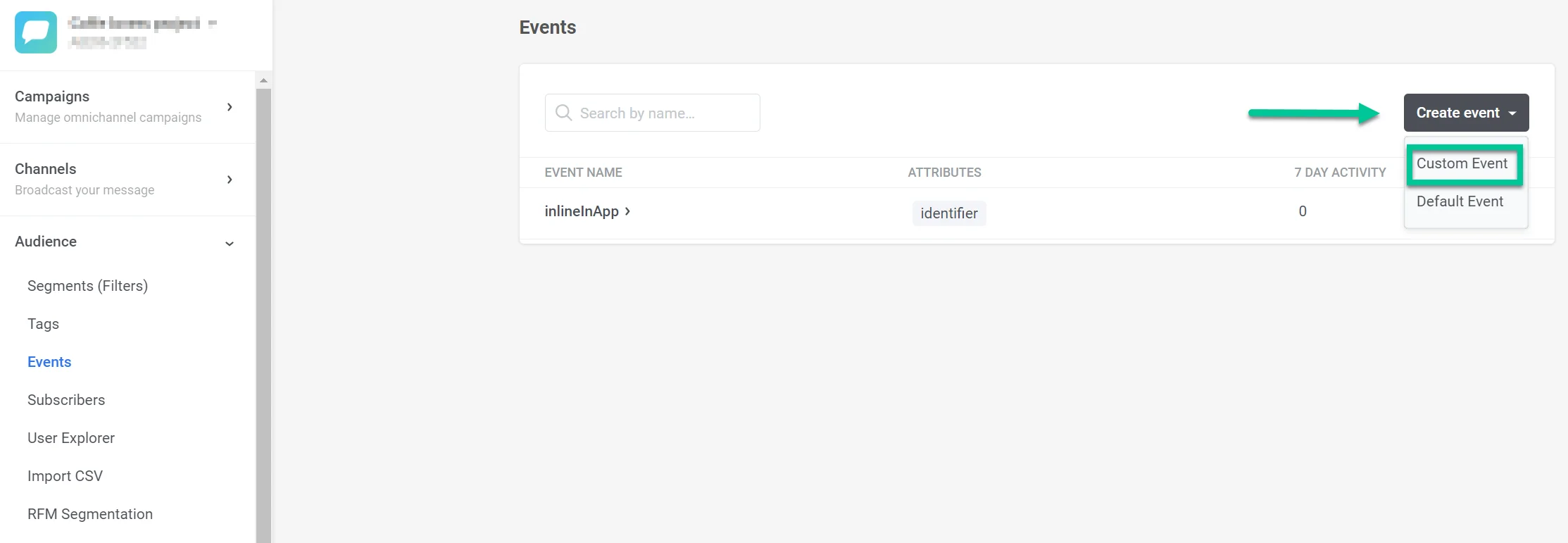
 2. In the window that opens, enter the name of your event in the **Event Name** field. For example, use level\_completed to track when a user completes a game level. Provide a brief description of the event in the **Description** field. This helps quickly identify the event's purpose.
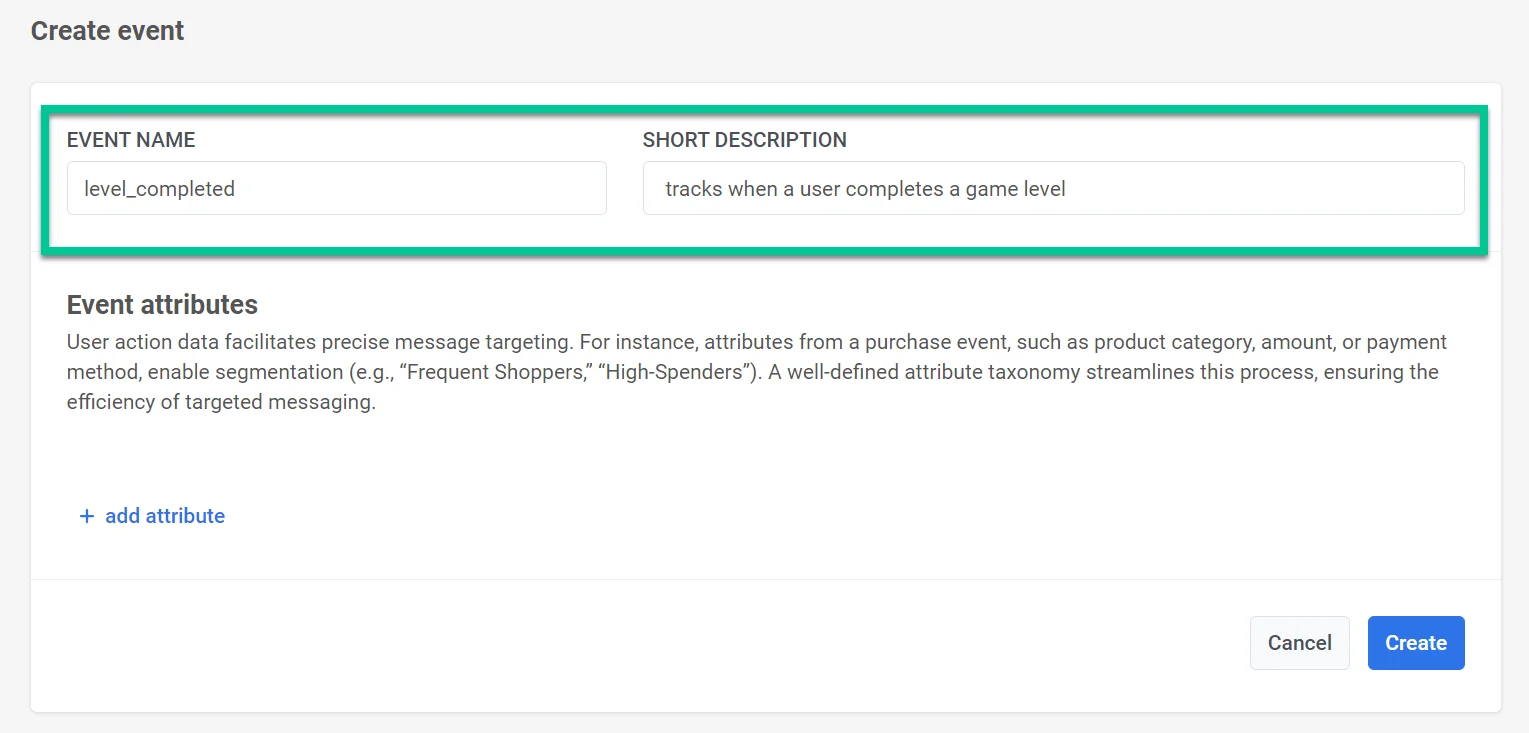 3. Define the specific attributes relevant to your event and select the attribute type. Event attributes are specific pieces of information that describe the details of an event. They capture various aspects of a user's interaction within your app. This provides valuable data for precise message targeting and segmentation. You can add up to 50 attributes to an event.
Available attribute types:
* **integer**
* **string**
* **boolean**
* **list**
* **decimal (price)**
* **date**
For details on attribute types, see [Understanding events](/product/audience-data-and-segmentation/events/#2-set-attributes).
3. Define the specific attributes relevant to your event and select the attribute type. Event attributes are specific pieces of information that describe the details of an event. They capture various aspects of a user's interaction within your app. This provides valuable data for precise message targeting and segmentation. You can add up to 50 attributes to an event.
Available attribute types:
* **integer**
* **string**
* **boolean**
* **list**
* **decimal (price)**
* **date**
For details on attribute types, see [Understanding events](/product/audience-data-and-segmentation/events/#2-set-attributes).
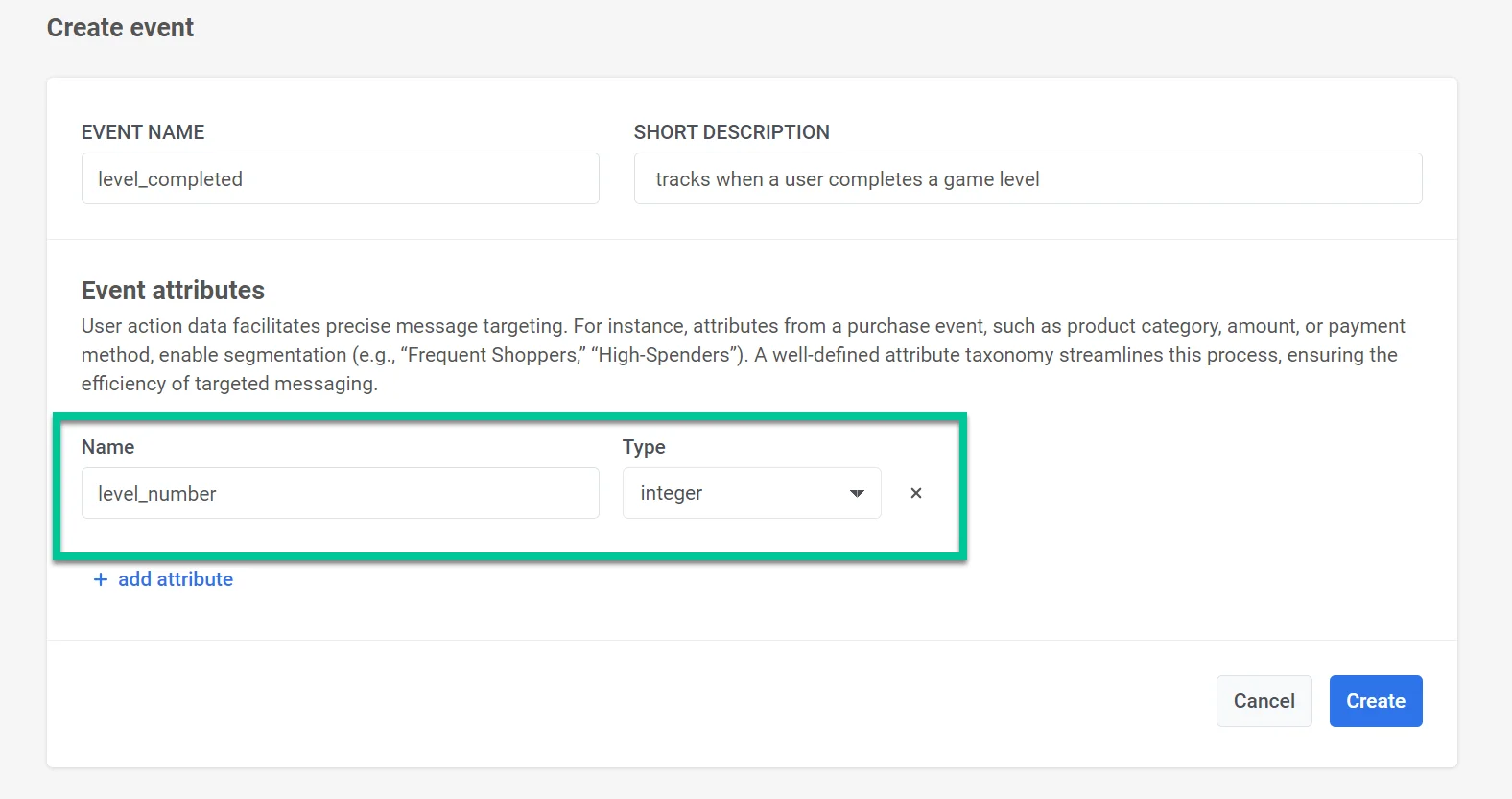 For each event that occurs, there will be corresponding attribute values. For example, attributes for the **level\_completed** event could include **level\_number, completion\_time, score,** or **points\_earned**. When the event is recorded in Pushwoosh, it will include these attribute values along with a timestamp. This data can later be used to build segments, target messages, and collect statistics.
After filling in the necessary details and adding attributes, click **Create** to finalize the event setup. If you decide not to proceed with creating the event, click **Cancel** to discard the changes.
## Managing custom events
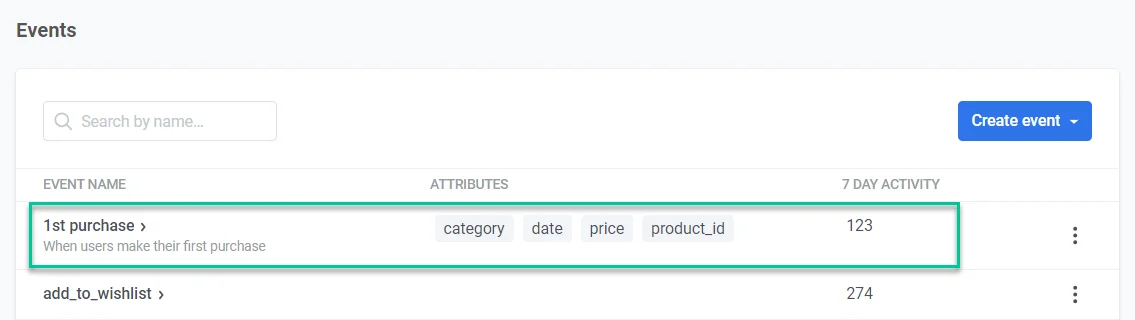
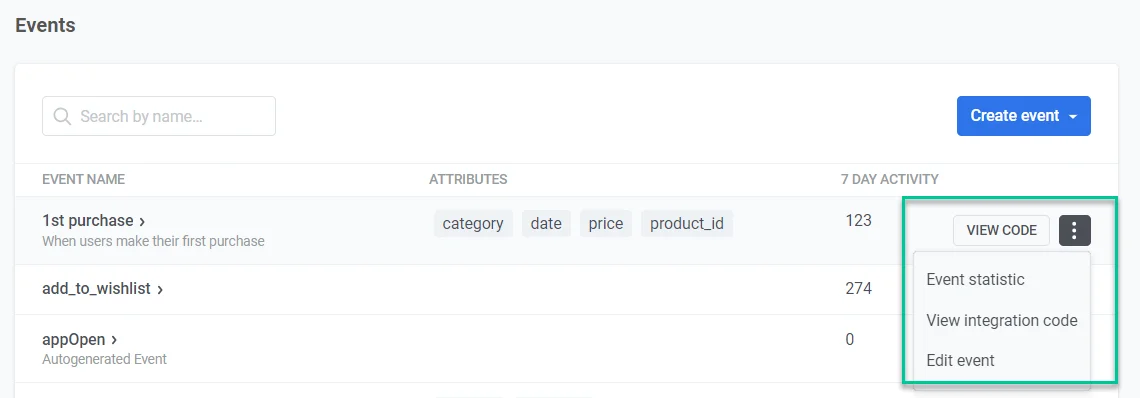
The events list provides an overview of all custom events you've created for your application. Each event helps you track specific user interactions or behaviors.
**Event Details**
* **Event Name** that identifies the event (e.g., "button\_clicked", "video\_watched")
* **Attributes** or key pieces of information associated with the event, providing additional context (e.g., "button\_id", "video\_category")
* **7-Day Activity** - the number of times the event occurred in the past seven days, offering a quick view of recent engagement
For each event that occurs, there will be corresponding attribute values. For example, attributes for the **level\_completed** event could include **level\_number, completion\_time, score,** or **points\_earned**. When the event is recorded in Pushwoosh, it will include these attribute values along with a timestamp. This data can later be used to build segments, target messages, and collect statistics.
After filling in the necessary details and adding attributes, click **Create** to finalize the event setup. If you decide not to proceed with creating the event, click **Cancel** to discard the changes.
## Managing custom events
The events list provides an overview of all custom events you've created for your application. Each event helps you track specific user interactions or behaviors.
**Event Details**
* **Event Name** that identifies the event (e.g., "button\_clicked", "video\_watched")
* **Attributes** or key pieces of information associated with the event, providing additional context (e.g., "button\_id", "video\_category")
* **7-Day Activity** - the number of times the event occurred in the past seven days, offering a quick view of recent engagement
 Each event has a menu for further management:
* Click **View Code** to access the code snippet required to integrate this event into your app's codebase.
* Click **Event Statistics** to dive deeper into detailed statistics for the chosen event, providing insights into user behavior.
* Click **Edit Event** to modify an event's settings, including its name and associated attributes, to ensure accurate data collection.
Each event has a menu for further management:
* Click **View Code** to access the code snippet required to integrate this event into your app's codebase.
* Click **Event Statistics** to dive deeper into detailed statistics for the chosen event, providing insights into user behavior.
* Click **Edit Event** to modify an event's settings, including its name and associated attributes, to ensure accurate data collection.
 ## Using custom events in Pushwoosh
Once you’ve set up your events, you can use them to:
1. [Create a customer journey](/product/customer-journey/create-a-customer-journey-for-your-project) that will launch at your custom event, using the [**Trigger-based entry**](/product/customer-journey/journey-elements#trigger-based-entry) element.
2. [Build segments by events](/product/audience-data-and-segmentation/segmentation/create-segments/by-events/), including filtering by event attribute values and operators.
3. Segment users by criteria such as how many times they performed a custom event or when the event last occurred. Use these segments to set up [Audience-based entries](/product/customer-journey/journey-elements/#audience-based-entry) to customer journeys or use the [Segment Split option](/product/customer-journey/journey-elements#segment-split) within the journey.
4. Set a [time delay in your customer journey](/product/customer-journey/journey-elements#delay-based-on-user-or-event-data) based on the custom event users trigger within their journey.
5. Use the custom event in the [Wait for Trigger step](/product/customer-journey/journey-elements#wait-for-trigger) to set different communication scenarios based on whether a user triggers this particular event or several events within a specified time.
## Custom events use cases
| App Type | Custom Event | Description | Use Case |
| ----------------------------- | ----------------- | ------------------------------------------------------------------- | -------------------------------------------------------------------------------------------------------------------------------------------------------------------------------------------------------------------------------------------------------------------------------------- |
| Fitness and Health apps | workout\_complete | A user completes a workout session. | Send motivational messages or rewards to keep users engaged and encourage regular workouts. |
| E-commerce apps | cart\_abandoned | A user adds items to their cart but does not complete the purchase. |
## Using custom events in Pushwoosh
Once you’ve set up your events, you can use them to:
1. [Create a customer journey](/product/customer-journey/create-a-customer-journey-for-your-project) that will launch at your custom event, using the [**Trigger-based entry**](/product/customer-journey/journey-elements#trigger-based-entry) element.
2. [Build segments by events](/product/audience-data-and-segmentation/segmentation/create-segments/by-events/), including filtering by event attribute values and operators.
3. Segment users by criteria such as how many times they performed a custom event or when the event last occurred. Use these segments to set up [Audience-based entries](/product/customer-journey/journey-elements/#audience-based-entry) to customer journeys or use the [Segment Split option](/product/customer-journey/journey-elements#segment-split) within the journey.
4. Set a [time delay in your customer journey](/product/customer-journey/journey-elements#delay-based-on-user-or-event-data) based on the custom event users trigger within their journey.
5. Use the custom event in the [Wait for Trigger step](/product/customer-journey/journey-elements#wait-for-trigger) to set different communication scenarios based on whether a user triggers this particular event or several events within a specified time.
## Custom events use cases
| App Type | Custom Event | Description | Use Case |
| ----------------------------- | ----------------- | ------------------------------------------------------------------- | -------------------------------------------------------------------------------------------------------------------------------------------------------------------------------------------------------------------------------------------------------------------------------------- |
| Fitness and Health apps | workout\_complete | A user completes a workout session. | Send motivational messages or rewards to keep users engaged and encourage regular workouts. |
| E-commerce apps | cart\_abandoned | A user adds items to their cart but does not complete the purchase. | Send a reminder email or push notification with a special offer or discount on the items left in the cart.
Explore recommended events for e-commerce apps
| | Education and e-Learning apps | complete\_course | A user completes a course. | Send congratulatory messages and recommend advanced courses or related topics. | | Media and entertainment apps | watch\_video | A user watches a video. |Send notifications about similar content or new releases. Recommend other videos.
Explore recommended events for media apps
| | Travel and hospitality apps | book\_flight | A user books a flight. | Send travel reminders, packing tips, and recommendations for activities at their destination. | | Subscription apps | start\_trial | A user starts a free trial. |Send onboarding messages with tips, offer assistance, and highlight key features.
Explore recommended events for subscription apps
| | Mobility or carsharing apps | ride\_completed | A user completes a carsharing ride. | Send a follow-up in-app message, request feedback, or offer a discount on the next ride. | | Gaming apps | level\_completed | A user completes a game level. |Send congratulatory messages and offer tips or rewards for completing the next level.
Explore recommended events for gaming apps
| ## Tracking custom events #### Events statistics You can track each event you’ve created. For this: 1. Navigate to **Audience > Events**. 2. In the **Events** list, find the event you want to track and click on the three dots next to it. Select **Event Statistics**. 3. Set the date range for which you want to analyze the event data. 4. Refine the event data analysis by adding specific conditions or filters based on attributes like user segments, device types, or other custom criteria. 5. View a graph that visualizes the frequency of the selected event being triggered over the specified date range. 6. You can also export the event data to a CSV file for further analysis or reporting.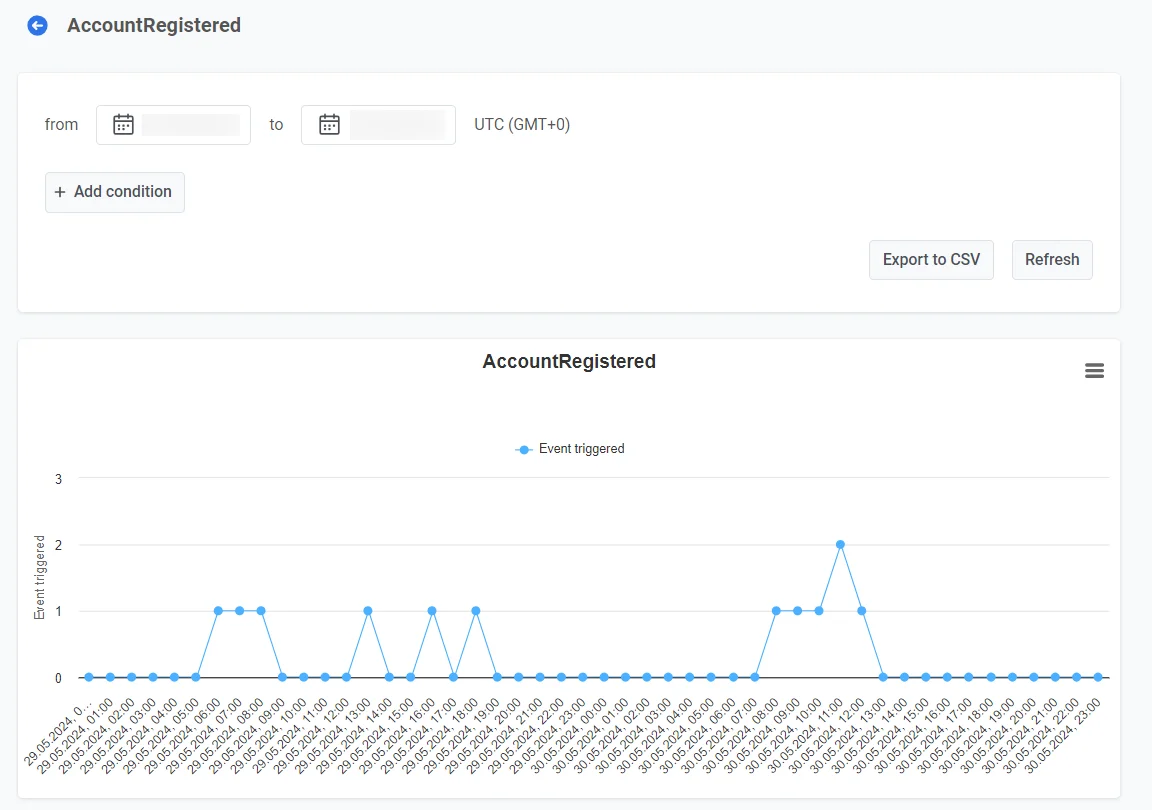 To update the event data displayed on the dashboard, click the **Refresh** button.
#### Dashboards
Pushwoosh also allows you to track custom events using the Events dashboard, which contains statistics related to the events used in your campaigns, or by building your own custom dashboard. [Learn more ](/product/statistics-and-analytics/dashboards/)
#### Retention tab
Use the **Retention** tab to track retention related to specific events relevant to your business. [Learn more ](/product/statistics-and-analytics/user-retention-statistics)
To update the event data displayed on the dashboard, click the **Refresh** button.
#### Dashboards
Pushwoosh also allows you to track custom events using the Events dashboard, which contains statistics related to the events used in your campaigns, or by building your own custom dashboard. [Learn more ](/product/statistics-and-analytics/dashboards/)
#### Retention tab
Use the **Retention** tab to track retention related to specific events relevant to your business. [Learn more ](/product/statistics-and-analytics/user-retention-statistics)