# 如何发送 WhatsApp 消息

在发送 WhatsApp 消息之前，请确保您已[配置 WhatsApp](/zh/product/first-steps/start-with-your-project/configure-platforms/whatsapp-configuration/) 并[上传联系人](/zh/product/messaging-channels/whatsapp-messages/register-phone-numbers-for-whatsapp/)。

Pushwoosh 提供两种发送 WhatsApp 消息的方式：

#### 一次性 WhatsApp 消息

向某个细分、电话号码列表或所有订阅者发送单条 WhatsApp 消息。可安排立即发送或在特定日期和时间发送。

<LinkCard title="发送一次性 WhatsApp 消息" href="/product/messaging-channels/whatsapp-messages/send-whatsapp-messages/send-one-time-whatsapp/" />

#### Customer Journey 中的 WhatsApp 元素

将 WhatsApp 步骤添加到旅程中，并将其与推送、电子邮件、应用内消息或短信相结合。通过受众或事件触发发送。

<LinkCard title="通过 Customer Journey 发送 WhatsApp 消息" href="/product/messaging-channels/whatsapp-messages/send-whatsapp-messages/send-whatsapp-via-customer-journey/" />

<Aside type="tip">
对于单个营销活动，请使用**一次性 WhatsApp 消息**；对于自动化的多渠道流程，请使用 **Customer Journey**。
</Aside>

#### 专业旅程用例

<CardGrid>
  <LinkCard title="发送目录消息" href="/product/messaging-channels/whatsapp-messages/send-whatsapp-messages/send-catalogs-via-whatsapp/" />
  <LinkCard title="发送促销代码" href="/product/messaging-channels/whatsapp-messages/send-whatsapp-messages/send-promo-codes-via-whatsapp/" />
</CardGrid>

## 发送自由格式消息并查看您的 WhatsApp 对话

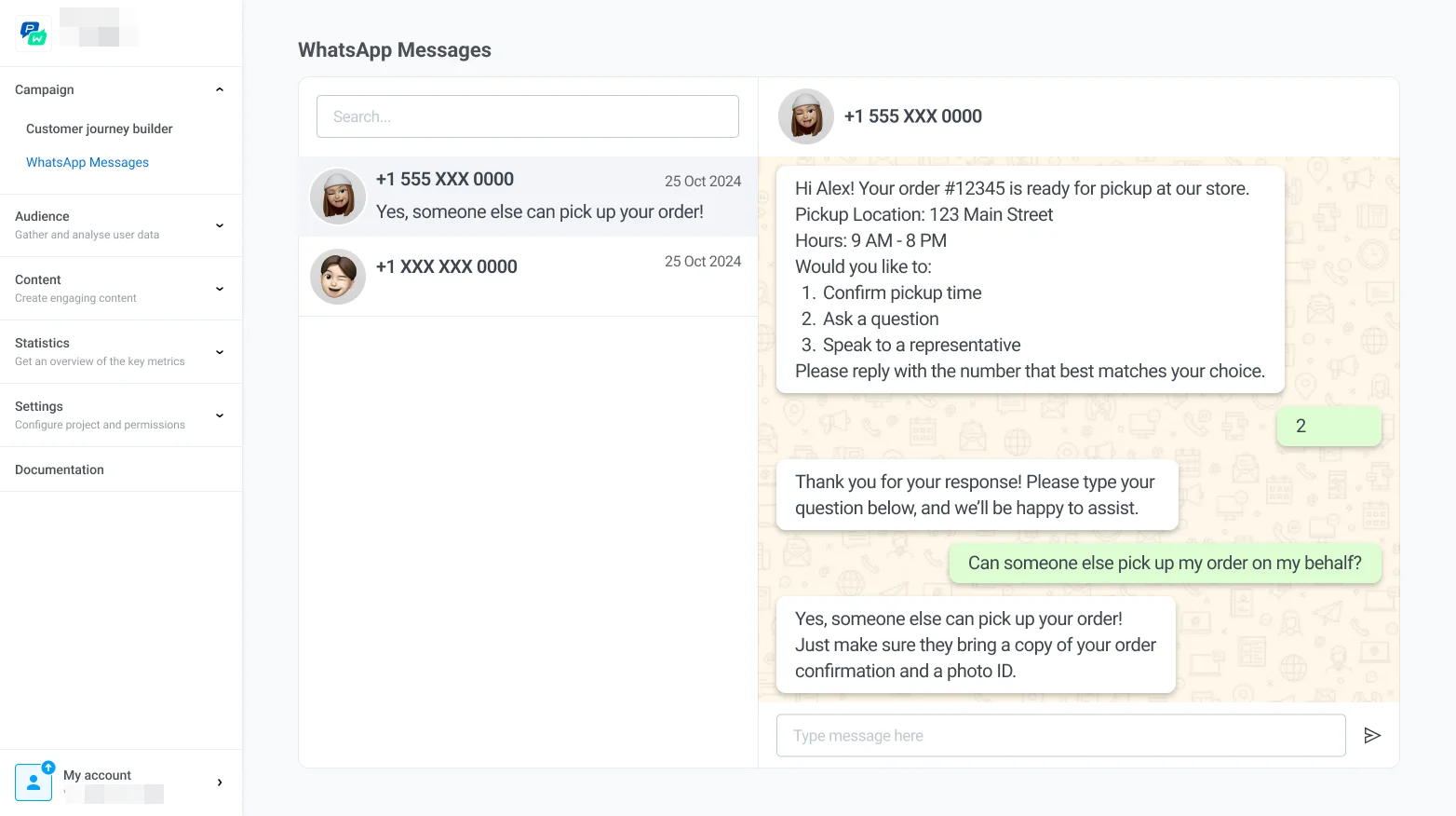
要发送自由格式消息并查看您的 WhatsApp 对话，请在 Pushwoosh 中导航至 **WhatsApp Messages** 部分。
![](/whatsapp-messages-send-whatsapp-messages-10.webp)

在这里，您可以：

*   **查看所有与客户的当前和历史对话**，以回顾消息历史和互动详情。
*   通过输入消息并点击**发送**，**直接向客户发送消息**。